

Using the impact ai feature in your newsletter allows you to automatically create and send personalized email content to your partners. Leverage AI to generate engaging content about program updates, upcoming changes, special promotions, and more. This helps you save time while delivering consistent, high-quality communication at scale.
Below is a list of benefits you could experience when making use of impact ai to generate your newsletter:
Using impact ai in your newsletter helps you create high-quality content faster by automatically generating subject lines and newsletter copy.
It will save you time by reducing the manual effort required to write, edit, and format emails.
impact ai suggests optimized subject lines and content to help improve open and click-through rates.
impact ai will help you maintain a consistent brand voice across all communications by adapting to your tone and style.
Using impact ai helps streamlines workflows so teams can focus on strategy instead of production.
It enables you to scale personalized campaigns without needing additional resources.
The impact ai tool is built directly into the newsletter feature, making it easy to use within your existing workflow.
All ai-generated content is produced within a secure environment that protects data privacy and integrity.
From the left navigation bar, select
![[Engage] v2](https://paligoapp-cdn-eu1.s3.eu-west-1.amazonaws.com/impact/attachments/f01cdffa431a4d75ff09c130b66974d4-aa671735ec2b65af79961eaf59ab60af.svg) [Engage] → Partners → Automation.
[Engage] → Partners → Automation.Select Newsletters, then select Create Newsletter in the upper-right corner.
After you've created your segment, select Add Email to start creating your newsletter content.
Once you're ready to build your content, select Generate with ai.
In the Help me write section, enter a short paragraph about the subject of your newsletter.
A maximum of 300 characters is allowed.
Optionally,
![[Toggle on]](https://paligoapp-cdn-eu1.s3.eu-west-1.amazonaws.com/impact/attachments/f01cdffa431a4d75ff09c130b66974d4-84d1224fd3bb6ba94b899febe2021eaa.svg) [Toggle on] Advanced Options.
[Toggle on] Advanced Options.Under Additional examples, include short illustrations that demonstrate the tone, style, or format that you want. These examples help the ai understand what the end product should look like.
A maximum of 500 characters is allowed.
Under Additional context, include background details such as audience, goals, tone, or key information. This helps impact ai generate content that’s accurate, relevant, and aligned with your needs.
A maximum of 500 characters is allowed.
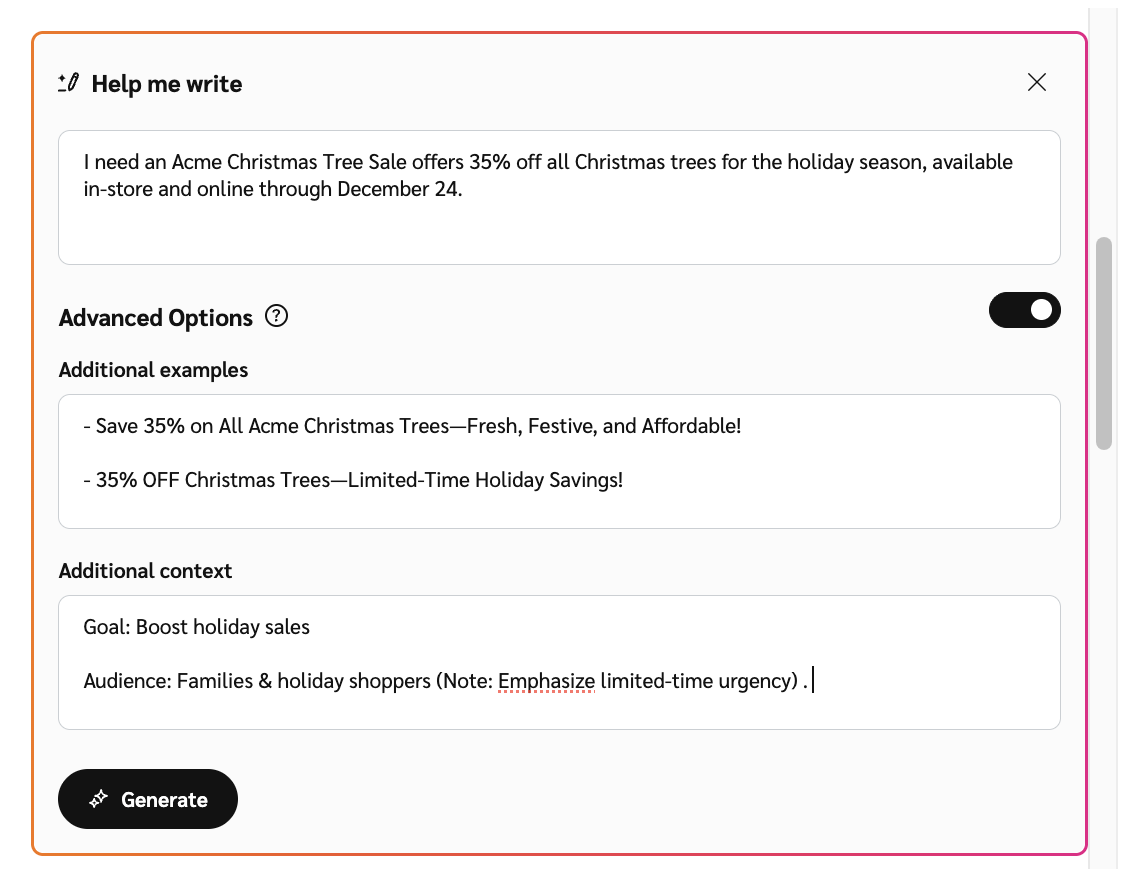
Select Generate, to create the subject line and content based on your inputs.
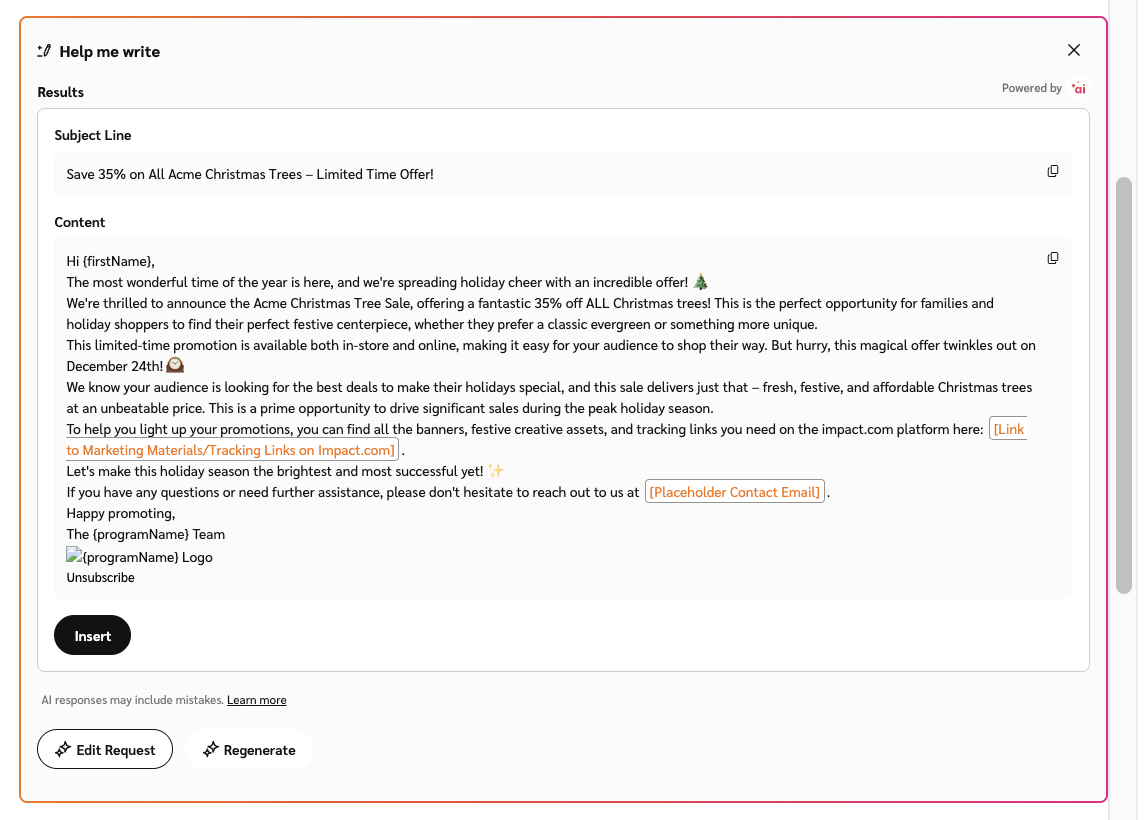
Select Insert, to add the generated text to the Content section.
Optionally, select
![[Sparkles]](https://paligoapp-cdn-eu1.s3.eu-west-1.amazonaws.com/impact/attachments/f01cdffa431a4d75ff09c130b66974d4-c7695b8ef9f6a16c97c64c73459402c9.png) Edit Request to make changes to the information you entered, or Regenerate to get a fresh version of the content based on your existing inputs.
Edit Request to make changes to the information you entered, or Regenerate to get a fresh version of the content based on your existing inputs.Alternatively, select
![[Copy]](https://paligoapp-cdn-eu1.s3.eu-west-1.amazonaws.com/impact/attachments/f01cdffa431a4d75ff09c130b66974d4-0c3aad9a1c5e65e6f8909fe1de5fabac.png) [Copy] in the top-right corner to copy the content with its HTML formatting preserved, to be used elsewhere.
[Copy] in the top-right corner to copy the content with its HTML formatting preserved, to be used elsewhere.
Once the generated text is populated in the Content section, you can make adjustments and use the WYSIWYG editor as needed.
Select Preview for a preliminary display of the newsletter.
Select
![[Desktop]](https://paligoapp-cdn-eu1.s3.eu-west-1.amazonaws.com/impact/attachments/f01cdffa431a4d75ff09c130b66974d4-6840a1036f15605bb98845c6cde83246.svg) [Desktop] or
[Desktop] or ![[Phone]](https://paligoapp-cdn-eu1.s3.eu-west-1.amazonaws.com/impact/attachments/f01cdffa431a4d75ff09c130b66974d4-3546a2fdc592c54d379a03fbbb692276.svg) [Mobile] preview to see what the newsletter will look like on the different devices.
[Mobile] preview to see what the newsletter will look like on the different devices.
Provide clear and concise prompts that explain what your newsletter should cover.
Include links in your guidance; they will be automatically incorporated into the ai-generated output.
Include examples in the Additional examples section to guide the ai's tone and style.
Use the Additional context section to give the ai relevant background information, such as audience, goals, or tone.
Review and edit the ai generated content to ensure it aligns with your brand voice and factual accuracy.
Preview your newsletter on both desktop and mobile to confirm formatting and readability before sending.
Don't rely solely on the ai's first output; regenerate or edit the content if it doesn’t match your intent.
Don't exceed the 500-character limit in the Additional examples or Additional context sections.
Don't include sensitive or confidential data in your prompts or examples.
Don't skip the preview step, since formatting might appear differently across email providers.
Don't use unsupported special tokens or unusual characters, as they can break formatting or cause generation errors.
Token
Description
{adcode_<adid>}Populates with the full ad listing of the specified
<adid>value (e.g.,{adcode_1122330}).Ad code limitationsThe number of ad codes you can use per newsletter is limited by the number of audience members that are part of your newsletter.
Number of Adcodes
Limit
Maximum of 1
up to 60 000 partners
Maximum of 5
up to 30 000 partners
Maximum of 10
up to 20 000 partners
Maximum of 20
up to 5 000 partners
{mpid}Populates with the ID value of the partner’s account (e.g., 98765).
{mpname}Company name.
{firstName}Populates with the first name of the partner (e.g., John).
{lastName}Populates with the last name of the partner (e.g., Doe).
{currentDay}Populates with the current date (e.g., January 19, 2038).
{currentTime}Populates with the full date in ISO format (e.g., 19-Jan-2038 03:14:08 UTC).
{currentMonthYear}Populates with the current month and year (e.g., January, 2038).
{unsubscribeUrl}URL to unsubscribe from the newsletter.
{programName}The program name.
{programLogoSrc}The source URL of the program logo.