> For the complete documentation index, see [llms.txt](https://help.impact.com/llms.txt). Markdown versions of documentation pages are available by appending `.md` to page URLs; this page is available as [Markdown](https://help.impact.com/partner/what-would-you-like-to-learn-about/platform-features/tracking/tracking-links/create-and-manage-links/create-tracking-links.md).
# Create Tracking Links
Take the PXA course
When you partner with a brand, you'll gain access to a range of assets you can promote. These assets have tracking links that allow impact.com to track any conversions (e.g., sales) you drive, which may lead to payouts from the brand.
You can place a tracking link on your promotional sites or social media posts, or attach it to an image or text you've created. When a user follows the link, they'll be directed to the brand's landing page, and credit for driving the click will be attributed to your impact.com account.
## Create a tracking link for a specific brand program
Use 1 of these methods to get a tracking link that can drive traffic to a specific page for a brand program.
{% tabs %}
{% tab title="Dashboard widget" %}
{% hint style="danger" %}
**Important:** The tracking link generator is only available if you've joined at least 1 program. Some brands disable the link generator or don't allow deep linking for their program.
{% endhint %}
1. On your partner [dashboard](https://app.impact.com/secure/mediapartner/home/pview.ihtml), navigate to the *Create a link* widget.
2. In the search box, paste a *landing page URL*, or enter a *brand* or *campaign* name. A slideout opens with your generated link:
* **Landing page** — Creates a deep link directly to that page.
* **Brand** — Creates a link to the brand program's default landing page.
* If you've activated the free [Trackonomics Essentials add-on](https://impact.com/trackonomics-essentials/), you can search for a brand, and see every network you've connected that has a link for that brand.
* **Campaign** — If you're joined to a brand's campaign, the slideout shows 2 tabs:
* *Create Link* for a general program link
* *Active Campaigns* for a campaign-specific link. The slideout opens on the *Active Campaigns* tab. Select a campaign task from the drop-down menu to generate a link for that task.
{% hint style="info" %}
**You don't have to search for a brand first.** Find the exact page you want to promote, copy its URL, and paste it straight into the search bar. The slideout will match it to the right program, fill in the details, and provide you with a tracking link that's ready to copy. This tracking link is a short link by default and may need a minute to start working.
{% endhint %}
3. Optionally, customize your link from the slideout:
* **Choose the program** — If the brand has more than 1 program to which you're joined, select the program you're interested in from the drop-down menu.
* **Add a landing page** — Add a landing page URL to send users to a specific page instead of the default landing page.
* **Add a media property** — Media properties that can be added to a tracking link include websites, social media apps, or mobile apps that were enabled and added to your [Marketplace Profile](/partner/what-would-you-like-to-learn-about/platform-features/working-with-brands/applying-to-brands/profile-management/update-and-manage-your-public-profile.md#additional-information).
* **Add reporting parameters** — Select **Advanced**  **\[Drop-down menu]** to add *Sub IDs* or *Shared IDs*. Learn more about [adding reporting information to your tracking links](/partner/what-would-you-like-to-learn-about/platform-features/tracking/tracking-links/create-and-manage-links/add-reporting-information-to-your-tracking-links.md).
* **Create a vanity link** — Select  **\[Edit]** to edit the URL slug. Learn more about [creating vanity links](/partner/what-would-you-like-to-learn-about/platform-features/tracking/tracking-links/create-and-manage-links/create-manage-vanity-link.md).
4. Select **Copy Link**.
* Optionally, select **Share Feedback**, and let us know what you liked and what we can improve about the *Create a Link* experience.
{% endtab %}
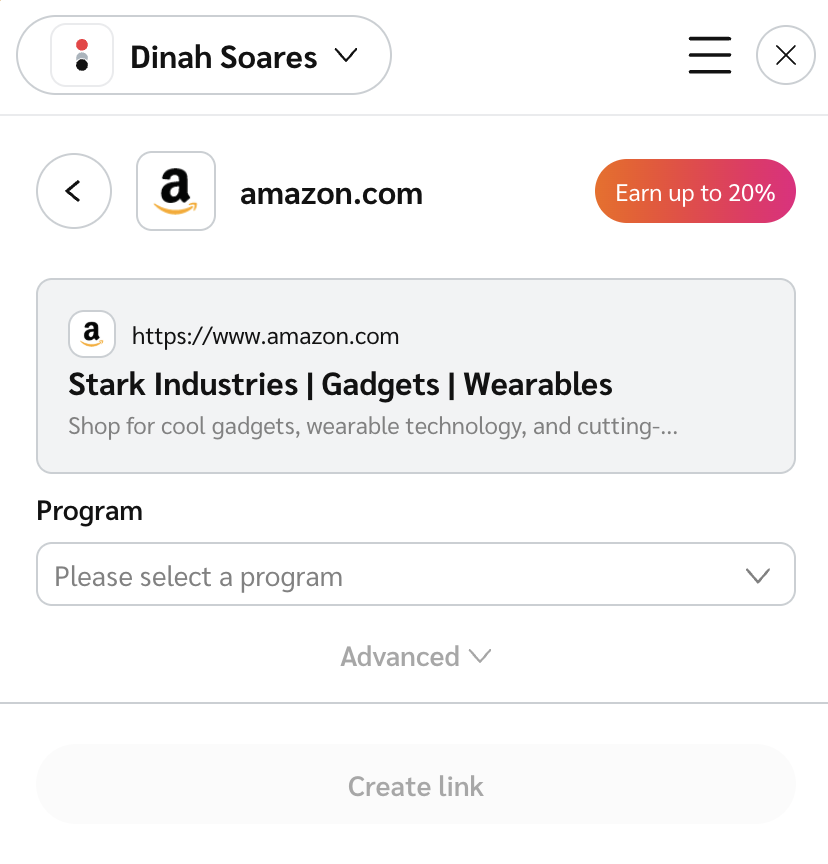
{% tab title="Chrome extension" %}
1. [Download and set up](/partner/what-would-you-like-to-learn-about/platform-features/tracking/tracking-links/create-and-manage-links/chrome-extension/impactcom-for-chrome-extension-overview.md#download-and-set-up-the-extension-0-1) impact.com's Chrome extension.
2. Open the website or sales page of a brand with which you're partnered.
* A notification may appear prompting you to open the extension — alternatively, select the extension's icon in the upper-right corner of your browser.
3. From the **Program**  **\[Drop-down menu]**, select one of the brand's programs.
* If you have multiple program options here, you can select  **\[Star] → Set as Default** to auto-select a specific program when visiting the brand's page in future.
4. Optionally, refer to [Create Tracking Links via the Chrome Extension](/partner/what-would-you-like-to-learn-about/platform-features/tracking/tracking-links/create-and-manage-links/chrome-extension/create-tracking-links-via-the-chrome-extension.md) to learn how to add additional reporting parameters.
5. Select **Create Link** and  **\[Copy]** the generated link to share it with your audience.
{% endtab %}
{% tab title="My Brands screen" %}
1. From the top navigation bar, select **Manage → My Brands →** [**My Brands**](https://app.impact.com/secure/mediapartner/marketplace/new-campaign-marketplace-flow.ihtml).
2. Hover over the brand program for which you want a tracking link and select **Copy Link**.
3. Alternatively, select the brand program for which you want a tracking link and in the slide-out, select **Copy Link** below the program description.
{% endtab %}
{% tab title="Active Contracts screen" %}
1. From the top navigation bar, select  **\[Search]**.
2. In the search bar, enter `My Brands`.
3. Select the second [My Brands](https://app.impact.com/secure/mediapartner/campaigns/mp-manage-active-ios-flow.ihtml) screen listed.
* This will display all your active contracts.
4. Find the brand program for which you want a tracking link and in the *Tracking Link* column, select the **link** to copy it.
{% endtab %}
{% endtabs %}
## Get a tracking link for a specific ad
Use this method to retrieve a tracking link for an asset that a brand has already uploaded.
1. From the top navigation bar, select **Manage** **→** [**Brand Creatives**](https://app.impact.com/secure/mediapartner/ads/searchAdsDirectoryMP.ihtml#adType=all).
2. Select the asset for which you want to retrieve a tracking link.
* Alternatively, select  **\[Tracking link]** to immediately copy the tracking link to your clipboard.
3. In the asset slideout, from the tabs in the right-hand pane, select **Get** **Tracking Link → Copy Tracking Link**.
4. Optionally, enter a *Landing Page* (website URL) to which you want to direct users and select **Save**.
* You won't be able to enter a landing page if a brand has disallowed deep links for their program.
5. Optionally, select  **\[Toggle on] Tracking Parameters** to append any desired *Sub IDs*, a *Shared ID*, or a *Property* to the link. Refer to the [Add Reporting Information to Your Tracking Links](/partner/what-would-you-like-to-learn-about/platform-features/tracking/tracking-links/create-and-manage-links/add-reporting-information-to-your-tracking-links.md) help article.
## Get a tracking link for a specific product
Use this method if you want to retrieve a tracking link for a specific product.
1. From the top navigation bar, select **Discover** **→** [**Products**](https://app.impact.com/secure/mediapartner/marketplace/fr/pds-ui.ihtml).
2. Select the product category in which you're interested.
3. In the left filter menu, under *Program Relationship*, select  **\[Unchecked box]** **My Brands**.
4. Locate a product you want to promote and select the **product image**.
* A slideout will appear providing details about the product.
5. From the product slideout, select **Copy Tracking Link**.
* Alternatively, from the tabs in the right-hand pane, select **Link → Copy Tracking Link**.
## Additional resources
* [Create & Manage Vanity Links](/partner/what-would-you-like-to-learn-about/platform-features/tracking/tracking-links/create-and-manage-links/create-manage-vanity-link.md) — Customize your tracking link URL to create a memorable, branded link.
* [Add Reporting Information to your Tracking Links](/partner/what-would-you-like-to-learn-about/platform-features/tracking/tracking-links/create-and-manage-links/add-reporting-information-to-your-tracking-links.md) — Add parameters to track traffic and conversions from specific promotions.
* [Sub ID & Shared ID Parameters Explained for Partners](/partner/what-would-you-like-to-learn-about/platform-features/tracking/tracking-links/link-parameters/sub-id-and-shared-id-parameters-explained-for-partners.md) — Learn how these parameters identify and organize your tracking link performance data.
---
# Agent Instructions
This documentation is published with GitBook. GitBook is the documentation platform designed so that both humans and AI agents can read, navigate, and reason over technical content effectively. Learn more at gitbook.com.
## Querying This Documentation
If you need additional information that is not directly available in this page, you can query the documentation by asking a question.
Perform an HTTP GET request on the following URL with the `ask` and `goal` query parameters:
```
GET https://help.impact.com/partner/what-would-you-like-to-learn-about/platform-features/tracking/tracking-links/create-and-manage-links/create-tracking-links.md?ask=&goal=
```
`ask` is the immediate question: it should be specific, self-contained, and written in natural language.
`goal` is what the user is ultimately trying to achieve, the reason they need the answer. Sharing it helps GitBook give you a better, more relevant answer. A goal is most helpful when it describes the outcome the user wants rather than restating the question. For example, with `ask=how do I create an API token`, a goal like `automate deployments from our CI pipeline` lets GitBook tailor the answer to that use case.
The response will contain a direct answer to the question and relevant excerpts and sources from the documentation.
Use this mechanism when the answer is not explicitly present in the current page, you need clarification or additional context, or you want to retrieve related documentation sections.