Partner Account User Roles & Permissions
Every user in your impact.com account has a role, and each one can have a different set of permissions. Users can be invited and assigned a predefined role, or you can create a custom role for them.
Note: Only Account Administrators or Custom role users with the Manage Account Info permission can manage Account User settings.
View Account User settings
From the top navigation bar, select
[User profile] → Settings.
On the left, under General, select Account Users.
From here, you can either invite new users with the Invite button in the top-right corner of your screen or select
[Menu] to the far right of Active or Invited users to Edit Access Rights.

Edit access rights
Navigate to the far right in the row of the user you want to edit, then select
[More] → Edit Access Rights.
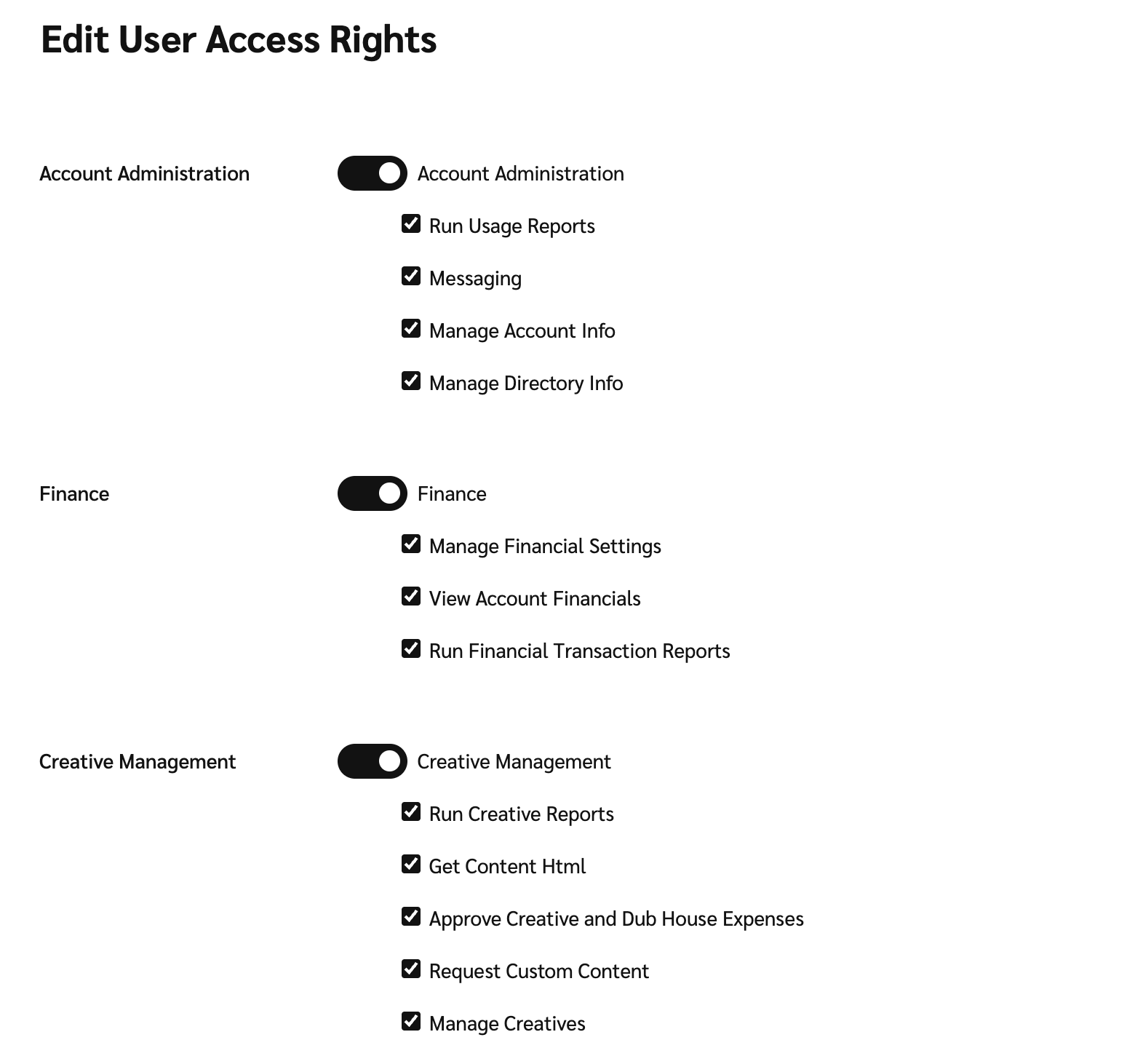
Select
[Toggle on] next to the role you want to give to or revoke from that user.
Use the User roles section below for more information on each role group.
If you want to customize the role you gave a user, select the
[Checked box] next to the individual permissions this user should have.
See the User roles section below to learn more about each permission.
Select Submit to save your changes.

User roles
Account administration
Account Admins can update in-account settings, like the Account Users settings as well as run usage reports on the account.
Permission
Description
Run Usage Reports
Run Administrator reports.
Manage Directory Info
Create and manage directory information. A legacy permission.
Manage account Info
Create and manage account information.
Advertiser management
This role allows user to control to which programs the account will apply and to engage in negotiations with prospective brands. These users can also run action and performance reports.
Permission
Description
Apply to Campaigns
Pick out and apply to programs (formerly campaigns) in the Brands Marketplace. No users can apply to programs before your account is approved.
Run Action and Performance Reports
Run action listing and account performance reports, like the Performance by Month report.
Send Marketing Message to Advertiser
Communicate with brands via the My Brands screen.
Negotiate Agreements
Negotiate with brands on contract details. This includes managing proposed contracts, countering proposals, and accepting or declining proposals.
Request Cap Extensions and Agreement Extensions
Request that brands extend action caps and contract limits.
View Advertiser Info
See a brand's logistical information, like contact information, on the My Brands screen.
Creative management
Users with this role gain access to the asset creatives and any relevant creative permissions, like retrieving asset codes. These users can also request custom asset creatives from brands.
Permission
Description
Request Custom Content
Request custom-made assets from brands. You can only request custom from brand that allow partners to do so.
Manage Creatives
Create and manage your own creatives.
Approve Creative and Dub House Expenses
Approve Dub House and creative expenses for TV and Radio spots. A legacy permission.
Run Creative Reports
Run reports relating to asset creative and dub house expenses. A legacy permission.
Get Content Html
Retrieve IFrame, HTML, and tracking link codes for assets (as the brands make them available).
Custom
Whenever a user has at least one User Role, but not all of the permissions with the roles they have, Custom will appear in their Access Rights column on the Account Users screen.
Finance
Users with the Finance role can run financial reports as well as view account financial data.
Permission
Description
Run Financial Transaction Reports
Run financial reports, like the Earnings History Report.
Manage Financial Settings
Update financial settings, like the account's Bank Account Settings. If this is turned off, the user won't have access to the Payments to Brands screen.
View Account Financials
Gain access to finance screens found in the Balance drop-down menu.
If [Toggled off] the user:
• Won't see the finance widget on the dashboard
• Won't have access to the Balance, Pending, or Earnings screens
• Sees "Transactions" instead of the balance amount in the top right
• Sees "Transactions" menu that only provides access to Action Inquiries and Pending Actions screens if applicable
Technical
The Technical role gives users access to the integration settings for the partner account, like the STAT Tag. Users with this role can also run technical reports.
Permission
Description
Item List Integrations
View and manage product catalogs.
Run Technical Reports
Run technical and integration reports.
Web Services Integration
Manage API and FTP integrations and settings as well as gain access to API credentials.
Action Tracker and Branded Url Integrations
Manage event type (formerly action tracker) and unique URL integrations and settings on a per-brand basis.
Event Callback Integration
Configure event notification postback events.
Last updated
Was this helpful?