# Create & Manage Connections for Partners

The Connections system enables batch data file transfers that connect impact.com with brands, partners, and other organizations. Each connection (an individual connector) has certain attributes, such as the data type (clicks, conversions, product catalogs, etc.), direction (inbound or outbound), method (SFTP, FTP, Email), and more. The Connector Wizard allows you to set up connections to other platforms so that impact.com can automatically batch process the data to deliver enriched data to or from your systems.

{% hint style="warning" %}
**Warning:** You need to allow list either the `import.impact.com` host name or the 35.237.100.93 IP address to upload data to impact.com.
{% endhint %}

#### Create a connection

1. From the top navigation bar, select ![](https://347878556-files.gitbook.io/~/files/v0/b/gitbook-x-prod.appspot.com/o/spaces%2Fb2rE79d9UhOKZQLgzSqx%2Fuploads%2Fgit-blob-1183576591b45997efe4dc81a25024640591d02a%2F245137dc972a7a7f6165b59538fcdbac8fd5bd8fee4ba9f20c1a2982c5b58b57.svg?alt=media) **\[User profile] → Settings**. &#x20;
2. Under *Technical*, select **Connections**.
3. Select **Create Connection** to access the Connector wizard.
4. Continue to configure a data upload or a data download connection.

{% tabs %}
{% tab title="Upload connection" %}
A *data upload* connection allows you to provide impact.com with data regarding audiences, identities, or card-linked transactions.

{% stepper %}
{% step %}

#### Step 1: Direction

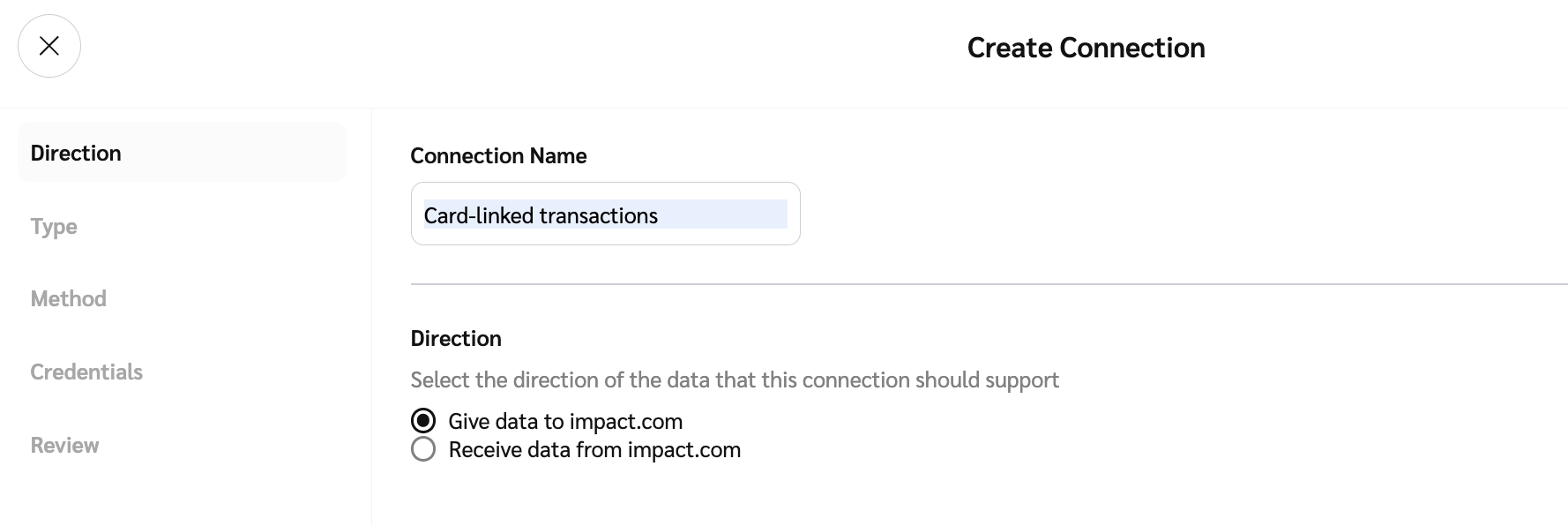
1. Enter the connection name and select the *Direction* of the data: **Give data to impact.com**.
2. Select **Next** to continue.

<div data-with-frame="true"><figure><img src="https://347878556-files.gitbook.io/~/files/v0/b/gitbook-x-prod.appspot.com/o/spaces%2Fb2rE79d9UhOKZQLgzSqx%2Fuploads%2Fgit-blob-8808f339029209ab152b949ddd5fc18a31f8e31f%2F0b374e0308dba54fdcfd771110efb56ed2f439a7f4e8eb61d2ef2af878e85468.png?alt=media" alt=""><figcaption></figcaption></figure></div>
{% endstep %}

{% step %}

#### Step 2: Type

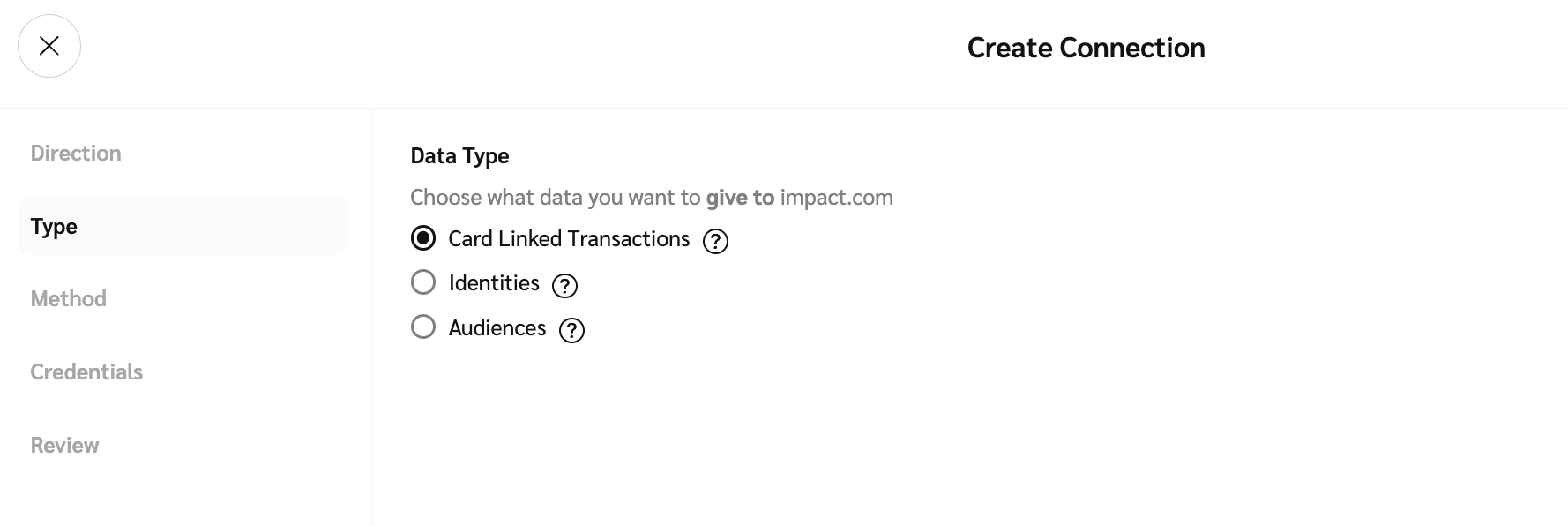
1. Select the type of data that the connection will support.
2. Select **Next** to continue.

<div data-with-frame="true"><figure><img src="https://347878556-files.gitbook.io/~/files/v0/b/gitbook-x-prod.appspot.com/o/spaces%2Fb2rE79d9UhOKZQLgzSqx%2Fuploads%2Fgit-blob-7ea1ebf00c92bb6e423bda46c392f33107ab514c%2Fea703e17ac3c1ade00d3e84af82caa10e367f490dfb4d371011f8fc4f6bcb46b.png?alt=media" alt=""><figcaption></figcaption></figure></div>
{% endstep %}

{% step %}

#### Step 3: Method

1. Select the *Method* to use to give data to impact.com: **Email**, **SFTP**, or **FTP**.

   The *Email* method requires that you add a wildcard pattern that matches filenames of attachments within the email, e.g., `audiences_*.csv`.

   * **`*`** represents any sequence of characters.
   * **`?`** represents any single character.

   <div data-gb-custom-block data-tag="hint" data-style="warning" class="hint hint-warning"><p><strong>Warning:</strong> All attachments in an email should match the wildcard pattern, or the email will be ignored. Attached files prefixed with <em>receipt_</em> or <em>result_</em> will be ignored, because they are reserved for receipt or result files.</p></div>
2. Select the *Methodology* to use, either **Push to impact.com** or **Pull from third party**.
   * The *Pull from third party* methodology requires that you enter a **Folder** with the absolute directory path that contains the file, e.g., `/home/ShandaLear/Audiences`.
3. ![](https://347878556-files.gitbook.io/~/files/v0/b/gitbook-x-prod.appspot.com/o/spaces%2Fb2rE79d9UhOKZQLgzSqx%2Fuploads%2Fgit-blob-d0b6669ae76a7bef06a8d6940d7ad5c16bb8d018%2F7cb018d4face8d7cceb880eb5086c812e764fbcfe6f2a0377f88bc7576973070.svg?alt=media) **\[Toggle on]** Toggle on **Encryption** to enable encryption for the connection. Encryption is only available for inbound connections (uploads to impact.com), not outbound (downloads from impact.com).
   * Select **Generate new key** to generate a new 2048-bit RSA [public/private key pair](https://en.wikipedia.org/wiki/Public-key_cryptography) . The key pair is valid for two years and is used for PGP encryption and decryption of your data files. You will receive the public key only, which must be used to encrypt your data files before uploading them to this connection.
   * (Optional) Select **Copy to clipboard** to store the new key on your clipboard.
4. Select **Next** to continue.

<div data-with-frame="true"><figure><img src="https://347878556-files.gitbook.io/~/files/v0/b/gitbook-x-prod.appspot.com/o/spaces%2Fb2rE79d9UhOKZQLgzSqx%2Fuploads%2Fgit-blob-2e73adbc1485a3f03071ad5a6ac16403c5af73d6%2F0841c644fb2774339b9adc6eae2eb8c330197b419e4feec76b1ef5e977034521.png?alt=media" alt=""><figcaption></figcaption></figure></div>
{% endstep %}

{% step %}

#### Step 4: Credentials

1. Select **existing credentials** from the drop-down list, **Edit Existing Credentials** or **Create New Credentials**.
2. If you're creating new credentials, enter a name for the credentials that describes its use case. E.g., *Download Reports from impact.com*, then select either **Public Key** or **Password**. If you choose **Password**, the values will be populated for you.

   <div data-with-frame="true"><figure><img src="https://347878556-files.gitbook.io/~/files/v0/b/gitbook-x-prod.appspot.com/o/spaces%2Fb2rE79d9UhOKZQLgzSqx%2Fuploads%2Fgit-blob-6026afea714d1fbdcbbe8274b0ef5917ce9956a2%2Fcb27b4ac5fd3d24d63ea90c497d56e5ef12dc12e8a50175df4f47dcfbee0cd9a.png?alt=media" alt=""><figcaption></figcaption></figure></div>
3. You will see a popup displaying your provisioned credentials. Select **Copy** to proceed. The credentials will be copied to your clipboard.
4. Select **Next** to continue.
   {% endstep %}

{% step %}

#### Step 5: Review

1. Finally, review the configuration and then select **Create** to create the connection.
2. Congratulations! You can now use the new connection to upload data to impact.com.
   {% endstep %}
   {% endstepper %}
   {% endtab %}

{% tab title="Download connection" %}
A *data download* connection allows you to receive audience or report data from impact.com.

{% stepper %}
{% step %}

#### Step 1: Direction

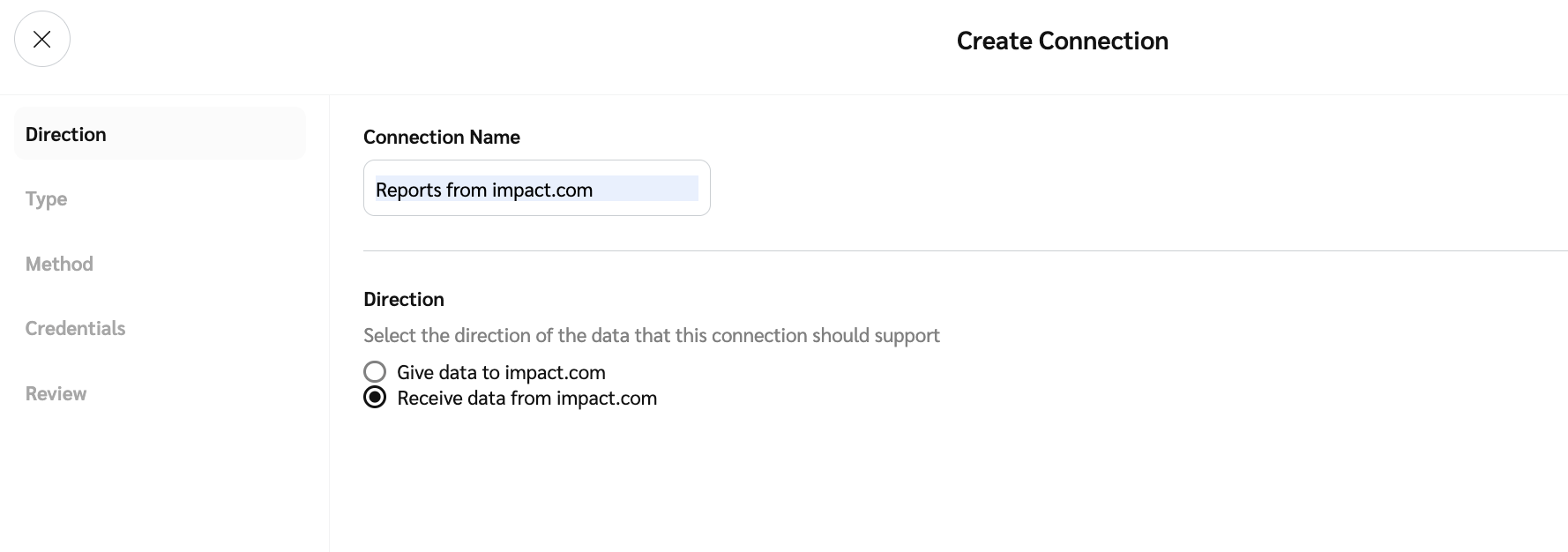
1. Enter the connection name and select the *Direction* of the data: **Receive data from impact.com**.
2. Select **Next** to continue.

<div data-with-frame="true"><figure><img src="https://347878556-files.gitbook.io/~/files/v0/b/gitbook-x-prod.appspot.com/o/spaces%2Fb2rE79d9UhOKZQLgzSqx%2Fuploads%2Fgit-blob-75cbcdd41dc599888478193108413615860c0d6d%2F85562be09784909b5619d98480376a61e717cdc53bfd5471995c99186ac493ad.png?alt=media" alt=""><figcaption></figcaption></figure></div>
{% endstep %}

{% step %}

#### Step 2: Type

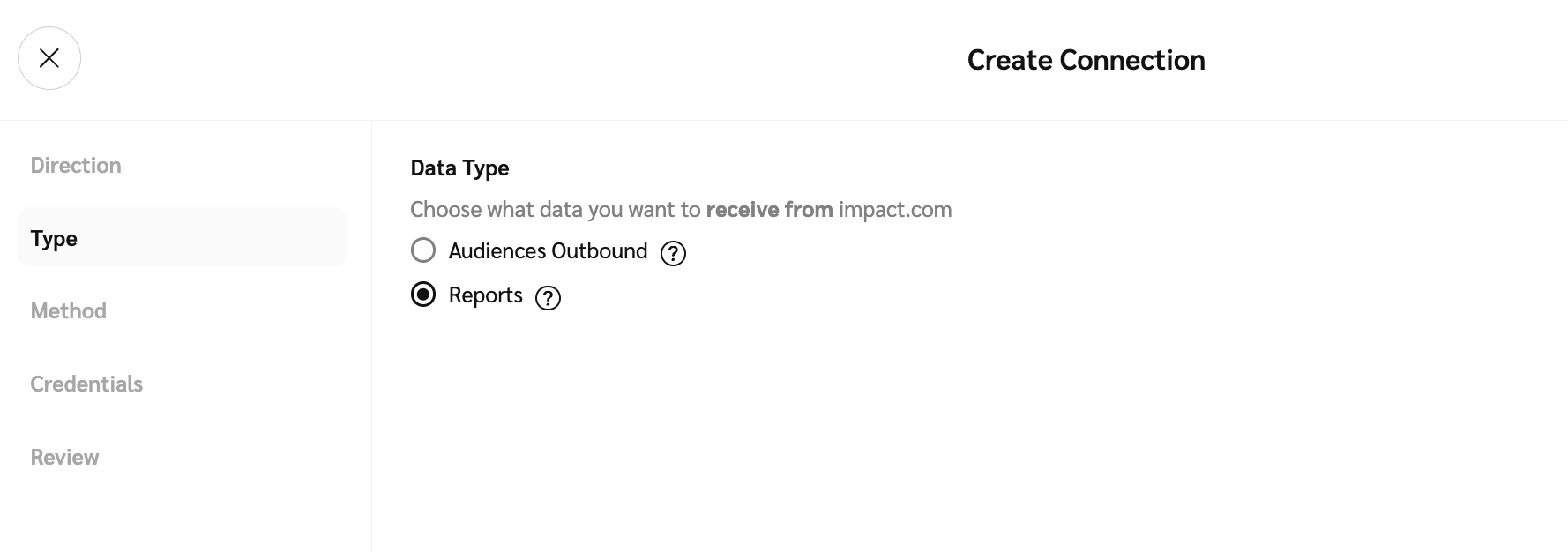
1. Select the type of data that the connection will support, e.g., **Reports**.
2. Select **Next** to continue.

<div data-with-frame="true"><figure><img src="https://347878556-files.gitbook.io/~/files/v0/b/gitbook-x-prod.appspot.com/o/spaces%2Fb2rE79d9UhOKZQLgzSqx%2Fuploads%2Fgit-blob-a75c2e6db522c10e1291e540ab0f2cccb6c4801e%2F9ea789c3174c86f27c44f962a9ec98e8b6f9759fc4a2014e8b72c1e28015f1f0.png?alt=media" alt=""><figcaption></figcaption></figure></div>
{% endstep %}

{% step %}

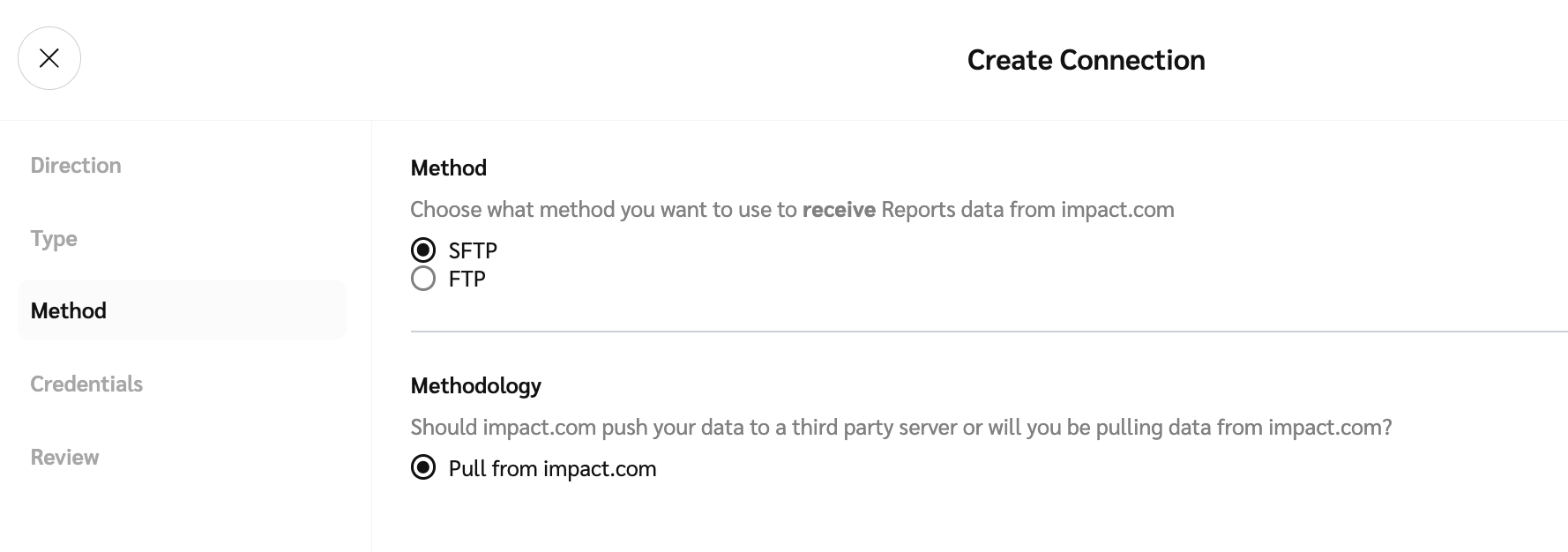
#### Step 3: Method

1. The *Method* will be selected for you: **SFTP**. You can change this if needed.
2. The *Methodology* will be selected for you: **Pull from impact.com**.
3. Select **Next** to continue.

<div data-with-frame="true"><figure><img src="https://347878556-files.gitbook.io/~/files/v0/b/gitbook-x-prod.appspot.com/o/spaces%2Fb2rE79d9UhOKZQLgzSqx%2Fuploads%2Fgit-blob-e53817fca361847103841d3f5833773975432441%2F809a49a1f810aa9a8d39e8c69a382b23cef6a870787e458b74bda32319baa99a.png?alt=media" alt=""><figcaption></figcaption></figure></div>
{% endstep %}

{% step %}

#### Step 4: Credentials

1. Select **existing credentials** from the drop-down list, **Edit Existing Credentials** or **Create New Credentials**.
2. If you're creating new credentials, enter a name for the credentials that describes its use case. E.g., *Download Reports from impact.com*, then select either **Public Key** or **Password**. If you choose **Password**, the values will be populated for you.

   <div data-with-frame="true"><figure><img src="https://347878556-files.gitbook.io/~/files/v0/b/gitbook-x-prod.appspot.com/o/spaces%2Fb2rE79d9UhOKZQLgzSqx%2Fuploads%2Fgit-blob-1d6ad150eb094fdbffc437822af60e5158de25d7%2Fccc2b8198e9c9653654681da004aa359e734038cfcd3764d544e1676318252b3.png?alt=media" alt=""><figcaption></figcaption></figure></div>
3. You will see a popup displaying your provisioned credentials. Select **Copy** to proceed. The credentials will be copied to your clipboard.
4. Select **Next** to continue.
   {% endstep %}

{% step %}

#### Step 5: Review

1. Finally, review the configuration and then select **Create** to create the connection.
2. Congratulations! You can now use the new connection to upload data to impact.com.
   {% endstep %}
   {% endstepper %}
   {% endtab %}
   {% endtabs %}