> For the complete documentation index, see [llms.txt](https://help.impact.com/llms.txt). Markdown versions of documentation pages are available by appending `.md` to page URLs; this page is available as [Markdown](https://help.impact.com/partner/what-would-you-like-to-learn-about/account-management/account-settings/manage-2fa-for-partner-accounts.md).
# Manage 2FA for Partner Accounts
Take the PXA course
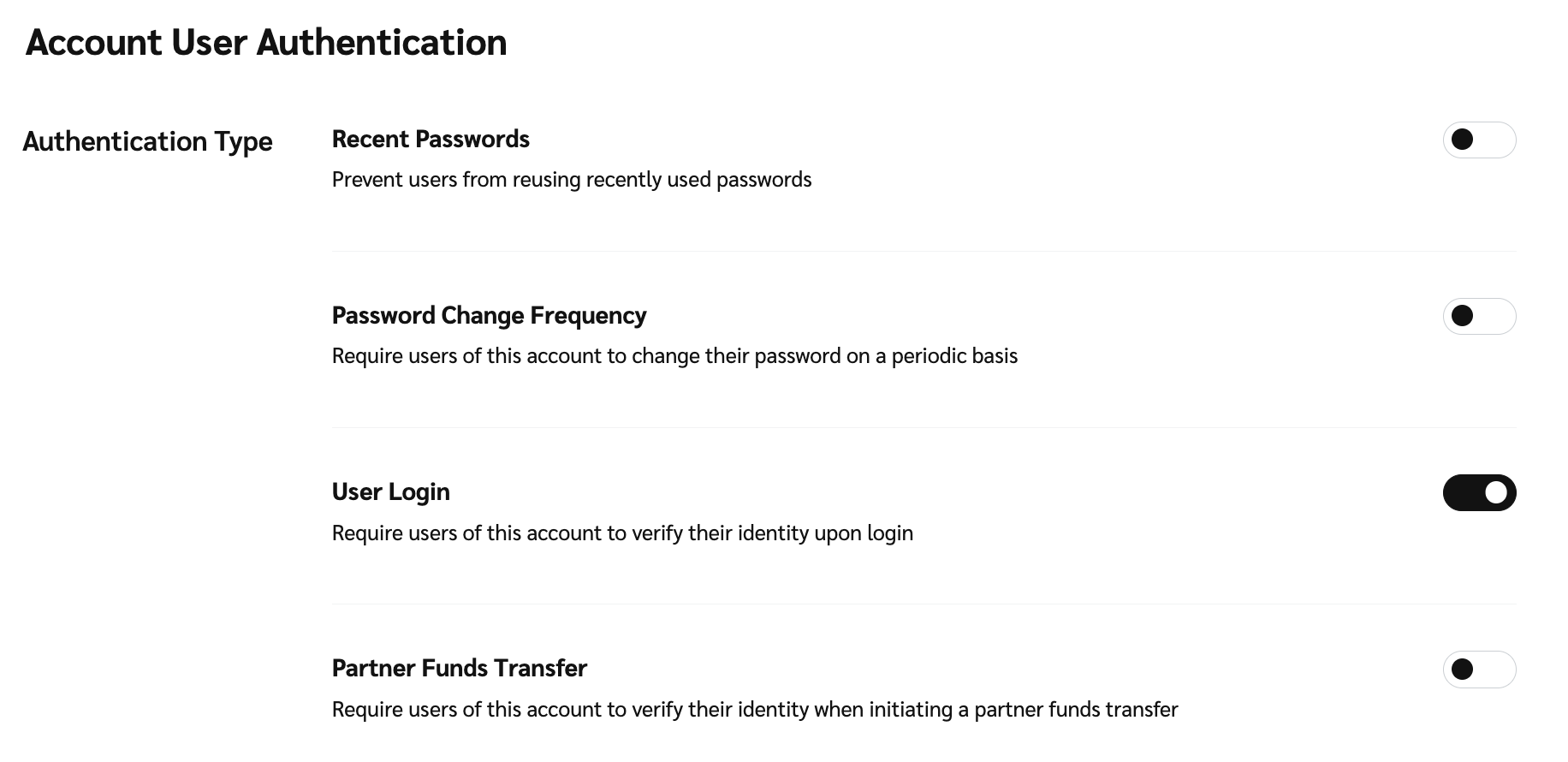
You can set up Two-Factor Authentication (2FA) so that any account user signing in to your partner impact.com account from an unsaved device will be required to log in via 2FA.
When you're invited to join an account and your sign-up method involves logging in with a username and password, you'll be automatically signed up for 2FA. Your default authentication method will be set to email. However, it is recommended that you use an [authenticator app](/other/reference-documentation/enable-user-level-two-factor-authentication.md).
{% hint style="success" %}
**Note**: When an account user has successfully been authenticated, their device is automatically saved as a trusted device— meaning they won’t need to use 2FA on subsequent sign-ins. Account users will only be asked to use 2FA again if their device has changed or if unusual activity was detected.
{% endhint %}
## Turn on 2FA sign-in
1. From the top navigation bar, select  **\[User profile] → Settings**.
2. Under *General*, select [**Account User Authentication**](https://app.impact.com/secure/mediapartner/accountSettings/account-security-settings-flow.ihtml?).
3. On the *Account User Authentication* screen, select  **\[Toggle on] Require users of this account to verify their identity upon login**.
4. Select **Save**.
## Turn on 2FA for PFTs
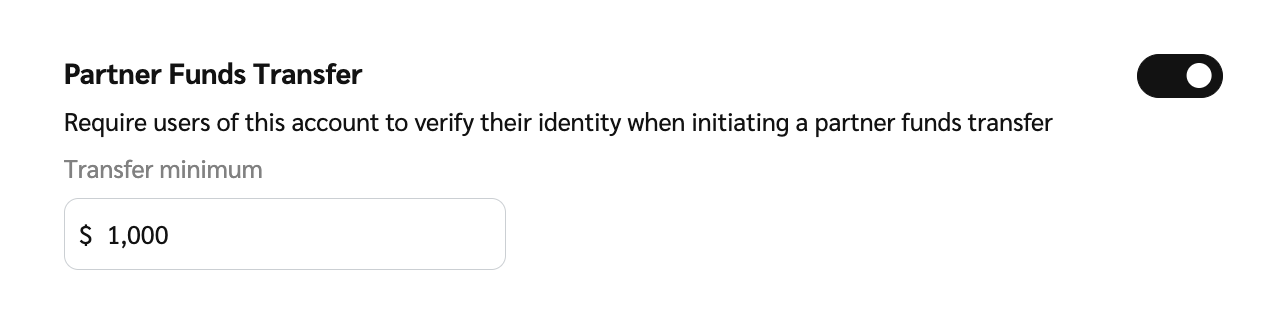
This will enable a mandatory 2FA check for account users attempting a partner funds transfer above the transfer minimum amount — once authenticated, the PFT will go through.
1. From the top navigation bar, select  **\[User profile] → Settings**.
2. Under *General*, select [**Account User Authentication**](https://app.impact.com/secure/mediapartner/accountSettings/account-security-settings-flow.ihtml?).
3. On the *Account User Authentication screen*, select  **\[Toggle] Require users of this account to verify their identity when initiating a partner funds transfer**.
4. Under *Transfer minimum*, input a value as the minimum amount to require 2FA.
5. Select **Save**.
## Manage saved 2FA devices
1. From the top navigation bar, select  **\[User profile] → Edit Profile**.
2. Under *Security* → *Devices and Activity*, view a list of saved devices for the account.
3. Select **Remove device** if you no longer access impact.com on that device.
Have questions about 2FA? Check our article on [Two-Factor Authentication FAQs](/other/reference-documentation/two-factor-authentication-faqs.md).
---
# Agent Instructions
This documentation is published with GitBook. GitBook is the documentation platform designed so that both humans and AI agents can read, navigate, and reason over technical content effectively. Learn more at gitbook.com.
## Querying This Documentation
If you need additional information that is not directly available in this page, you can query the documentation by asking a question.
Perform an HTTP GET request on the following URL with the `ask` and `goal` query parameters:
```
GET https://help.impact.com/partner/what-would-you-like-to-learn-about/account-management/account-settings/manage-2fa-for-partner-accounts.md?ask=&goal=
```
`ask` is the immediate question: it should be specific, self-contained, and written in natural language.
`goal` is what the user is ultimately trying to achieve, the reason they need the answer. Sharing it helps GitBook give you a better, more relevant answer. A goal is most helpful when it describes the outcome the user wants rather than restating the question. For example, with `ask=how do I create an API token`, a goal like `automate deployments from our CI pipeline` lets GitBook tailor the answer to that use case.
The response will contain a direct answer to the question and relevant excerpts and sources from the documentation.
Use this mechanism when the answer is not explicitly present in the current page, you need clarification or additional context, or you want to retrieve related documentation sections.