

If you've enabled deep linking for your program, each asset you upload can be configured to deep link a visitor to a specific landing page URL. For example, if you've created an asset for a specific product, you can specify that asset to send a visitor directly to that product's specific URL.
You must provide permitted domains for deep linking to work. Submitting these allows traffic to land at a deep-linked page on your website. Learn more about permitted domains and how to set them.
From the left navigation bar, select
![[Engage] v2](https://paligoapp-cdn-eu1.s3.eu-west-1.amazonaws.com/impact/attachments/f01cdffa431a4d75ff09c130b66974d4-aa671735ec2b65af79961eaf59ab60af.svg) [Engage] → Content → Ads.
[Engage] → Content → Ads.In the top-right corner, select Create Ad
![[Drop-down menu]](https://paligoapp-cdn-eu1.s3.eu-west-1.amazonaws.com/impact/attachments/f01cdffa431a4d75ff09c130b66974d4-d6b35853a9aa1f1fe6bd66da29bd09fa.svg) [Drop-down menu], then choose the asset type you want to create.
[Drop-down menu], then choose the asset type you want to create.Under Landing Page, select either Default or Custom from the
[Drop-down menu], then enter the desired landing page URL for asset redirection.In the URL field, enter the exact URL (without
https://) to where you want the ad to send visitors.
Select Save.
This will update multiple assets to deep link to the same page on your site.
From the left navigation bar, select
[Engage] → Content → Ads.Hover your cursor over the asset you want to edit and select the
![[Unchecked box]](https://paligoapp-cdn-eu1.s3.eu-west-1.amazonaws.com/impact/attachments/f01cdffa431a4d75ff09c130b66974d4-ff8b288b06d10266c33d33f5c103fb83.svg) [Unchecked box].
[Unchecked box].Select the More Actions
[Drop-down menu] → Change landing page.Use the
[Drop-down menu] to select Custom.In the URL field, enter the exact URL (without
http://) you want the asset to send visitors to.Optionally,
![[Toggle on]](https://paligoapp-cdn-eu1.s3.eu-west-1.amazonaws.com/impact/attachments/f01cdffa431a4d75ff09c130b66974d4-84d1224fd3bb6ba94b899febe2021eaa.svg) [Toggle on] to Reroute mobile traffic from this ad if Impact didn't detect that your app is already installed.
[Toggle on] to Reroute mobile traffic from this ad if Impact didn't detect that your app is already installed.
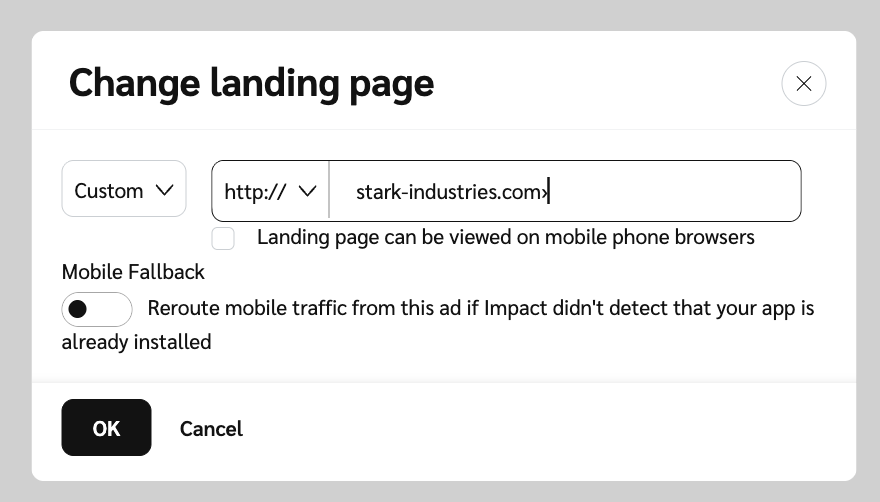
Select OK.