> For the complete documentation index, see [llms.txt](https://help.impact.com/llms.txt). Markdown versions of documentation pages are available by appending `.md` to page URLs; this page is available as [Markdown](https://help.impact.com/brand/what-would-you-like-to-learn-about/platform-features/tracking/tracking-explained/tracking-links-explained-for-brands.md).
# Tracking Links Explained for Brands
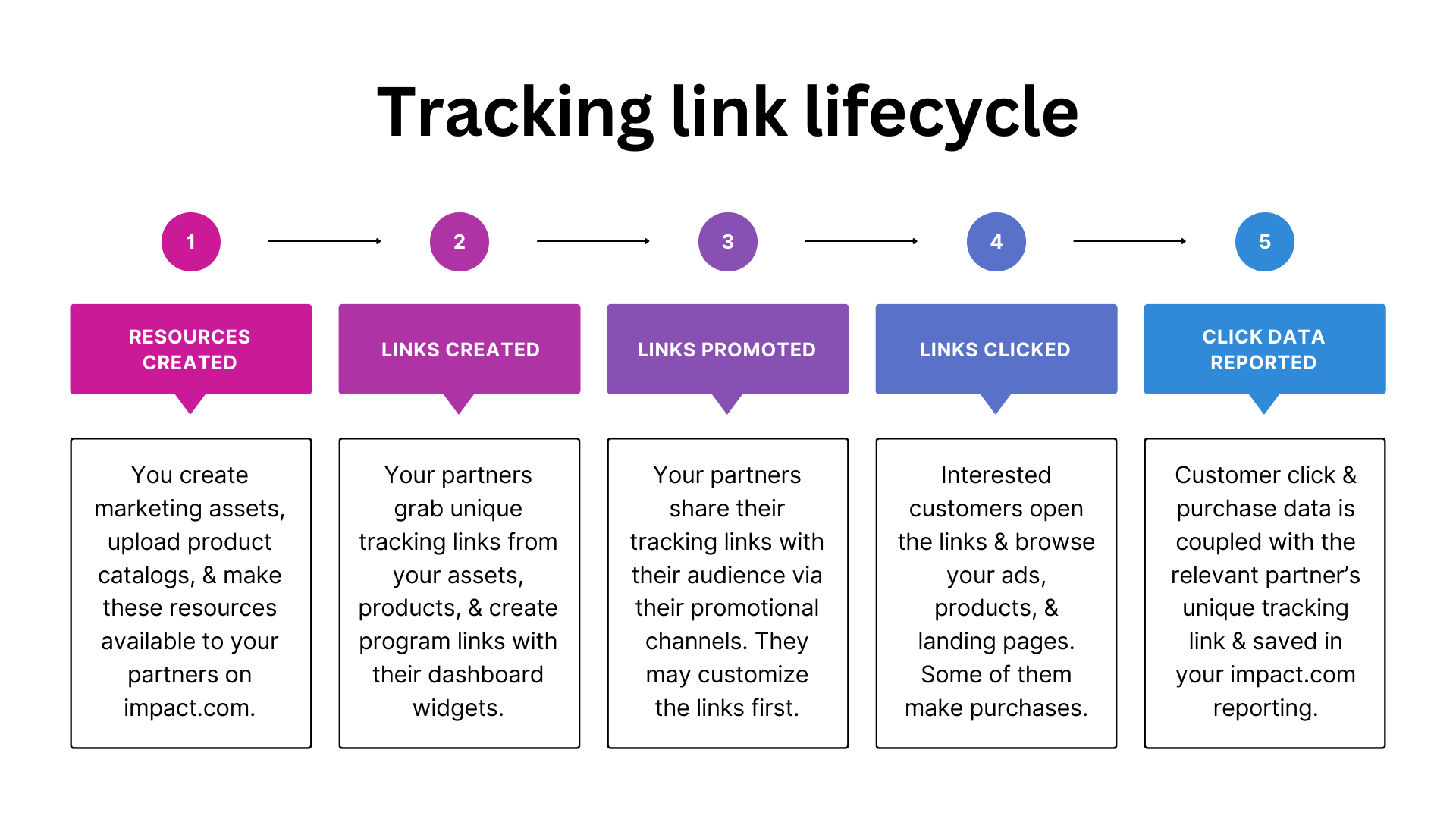
impact.com lets your partners create unique links from the promotional assets or products you provide. When they promote your assets or products to their audience, any link clicks or product purchases from customers can be tracked and attributed to the relevant partner. This ensures fair payouts for partner-driven conversions (i.e., sales, app installs, or desired customer actions), and helps you optimize your payout strategy for maximum results.
#### Step 1: You provide promotional resources
After you set up your impact.com program, you’ll do the following to get productive:
{% tabs %}
{% tab title="Create assets" %}
As a brand, you may have marketing assets like image ads, emails, or videos. You can [upload these assets](/brand/what-would-you-like-to-learn-about/platform-features/ads/create-ads/introduction-to-asset-types.md) to impact.com and make them available to partners so that they can promote it to their audience. A partner may also [request](/brand/what-would-you-like-to-learn-about/platform-features/ads/manage-ads/process-partner-requests.md) a specific asset if they see promotional potential for it on their social channels.
{% endtab %}
{% tab title="Upload product catalogs" %}
You can [add self-updating data files](/brand/what-would-you-like-to-learn-about/platform-features/product-catalogs/add-product-catalogs-as-a-brand.md) to impact.com that provide detailed information about the products you sell. Many brands create product catalogs through an e-commerce solution, e.g. [Shopify](https://integrations.impact.com/integration-guides/for-brands/plugin-integrations/e-commerce/integrate-with-shopify) or [Magento](https://integrations.impact.com/integration-guides/for-brands/plugin-integrations/e-commerce/integrate-with-adobe-commerce-magento), before sharing with impact.com.
{% endtab %}
{% tab title="Create campaigns" %}
If you’re running a creator program, you’ll [create campaigns](/brand/what-would-you-like-to-learn-about/creator-program/creator-campaigns-for-brands/configure-a-creator-campaign.md) and hire creators who can develop advertising material for you. Each campaign will contain tasks and deliverables that your joined creators agree to complete.
{% endtab %}
{% endtabs %}
#### Step 2: Partner grabs tracking links
A partner can get tracking links from your resources in various ways:
{% tabs %}
{% tab title="Assets screen" %}
When promoting your marketing assets, the partner will visit their [Assets screen](/partner/what-would-you-like-to-learn-about/platform-features/marketing-content/brand-assets/manage-assets-as-a-partner.md), filter for your brand program, and copy their unique tracking link associated with that asset.
{% endtab %}
{% tab title="Product Marketplace" %}
When promoting your products, the partner will visit the [Product Marketplace](/partner/what-would-you-like-to-learn-about/platform-features/marketing-content/product-promotions/promote-a-product-from-the-product-marketplace.md), browse the category of products they’re interested in, and copy their unique tracking link associated with that product.
{% endtab %}
{% tab title="Dashboard widget" %}
Partners can also promote your overall brand program by generating a unique tracking link that leads to a landing page on your site. This is done through the [Create a link widget](/partner/what-would-you-like-to-learn-about/platform-features/tracking/tracking-links/create-and-manage-links/create-tracking-links.md) on the partner dashboard.
In addition, creators can use the widget to generate tracking links [for specific campaign tasks](/partner/what-would-you-like-to-learn-about/campaigns/creator-campaigns/campaign-management/generate-tracking-links-for-campaign-tasks-as-a-creator.md). This allows impact.com to track clicks and conversions associated with the creator campaign and the task.
{% endtab %}
{% tab title="My Brands screen" %}
Partners can also visit your profile on the [My Brands](https://app.impact.com/secure/mediapartner/marketplace/new-campaign-marketplace-flow.ihtml) screen to grab a unique tracking link to promote your overall brand program or access your range of assets.
{% endtab %}
{% tab title="Active Contracts screen" %}
Partners can also grab a generic tracking link for your overall program on the [Active Contracts](https://app.impact.com/secure/mediapartner/campaigns/mp-manage-active-ios-flow.ihtml) screen.
{% endtab %}
{% endtabs %}
{% hint style="info" %}
**Note:** Partners will sometimes customize tracking links to make extra data about a conversion visible in reporting. To learn more about link customizations and whether you can view / control what parameters the partner adds, see [Tracking Link Parameters Explained](/brand/what-would-you-like-to-learn-about/platform-features/tracking/tracking-explained/tracking-link-parameters-explained.md).
{% endhint %}
#### Step 3: Partner shares links with their audience
Next, the partner shares the tracking link via their promotional channels. These channels include their social media platforms, blogs, websites, newsletters, and even offline methods of reaching their audience. The partner will generally have their promotional channels connected to impact.com as [media properties](/partner/what-would-you-like-to-learn-about/account-management/account-settings/connect-media-properties/connect-and-manage-media-properties.md).
Once the tracking link has been shared, it exposes your brand to the partner's audience, builds trust in your products, and encourages customers to visit your sites. The tracking link includes IDs for the specific asset involved (if applicable), your program ID, and the partner’s account ID.
#### Step 4: Customer opens link
When a customer opens a link shared by your partner, they are directed to a page on your site. You can determine the link’s default destination — see [Step 2](#step-2-partner-grabs-tracking-links) — or [allow partners to deep link](/brand/what-would-you-like-to-learn-about/account-administration/program-settings/tracking-settings/set-up-permitted-domains-for-deep-linking.md) to any page on your site. The customer may then complete a purchase, app install, or whichever type of conversion your program aims to promote. impact.com records any click traffic and conversion data from the tracking link and attributes credit to the partner who shared it.
#### Step 5: You view reporting data
Once the data associated with a conversion is saved to impact.com, you can access it in reporting. You can use reporting insights to identify which partners and marketing channels generate the most value for your program, and make strategic decisions to maximize your revenue.
**Access your reports**
1. From the left navigation bar, select  **\[Engage] → Reports → More Reports**.
2. In the search bar, enter the name of the report you want to see.
* To pin a report to your left navigation bar for quick access, hover over the report row and select **Pin**.
**Related reports**
* [Performance by Partner Report](/brand/what-would-you-like-to-learn-about/platform-features/multi-program-reports/performance-reports-for-brands/performance-by-partner-report.md) — See general click data grouped by partner, in addition to other metrics like actions, revenue, and action cost.
* [Top Paths Report](/brand/what-would-you-like-to-learn-about/platform-features/cross-channel-performance-insights/optimize-reports/top-paths-report.md) — See your most popular customer conversion paths, or the most common series of touchpoints with which customers interact before making a purchase.
* [Payable Click Data Report](/brand/what-would-you-like-to-learn-about/platform-features/multi-program-reports/listing-reports/payable-click-data-report.md) — See details about the customer clicks deemed payable, such as the partner who drove the click, the associated ad, and the click cost. This report is useful if you use a [CPC event type](/brand/what-would-you-like-to-learn-about/platform-features/event-types/event-types-explained.md) to pay out partners for clicks.
* [Clicks from Expired Ads Report](/brand/what-would-you-like-to-learn-about/platform-features/multi-program-reports/operations-reports/clicks-from-expired-ads-report.md) — See which expired assets are still generating clicks so that you can notify the relevant partners to update their assets / posts accordingly.
* [Risk by Partner Report](/brand/what-would-you-like-to-learn-about/platform-features/protect-and-monitor-your-performance-program/event-risk/risk-by-partner-report.md) — Identify partners that are associated with high-risk or potentially fraudulent clicks.
{% hint style="info" %}
**Note:** When customers click on tracking links that your partners generated with the dashboard widget, the click data shows up in your reports as clicks associated with the *Online Tracking Link* asset type.
{% endhint %}
---
# Agent Instructions
This documentation is published with GitBook. GitBook is the documentation platform designed so that both humans and AI agents can read, navigate, and reason over technical content effectively. Learn more at gitbook.com.
## Querying This Documentation
If you need additional information that is not directly available in this page, you can query the documentation by asking a question.
Perform an HTTP GET request on the following URL with the `ask` and `goal` query parameters:
```
GET https://help.impact.com/brand/what-would-you-like-to-learn-about/platform-features/tracking/tracking-explained/tracking-links-explained-for-brands.md?ask=&goal=
```
`ask` is the immediate question: it should be specific, self-contained, and written in natural language.
`goal` is what the user is ultimately trying to achieve, the reason they need the answer. Sharing it helps GitBook give you a better, more relevant answer. A goal is most helpful when it describes the outcome the user wants rather than restating the question. For example, with `ask=how do I create an API token`, a goal like `automate deployments from our CI pipeline` lets GitBook tailor the answer to that use case.
The response will contain a direct answer to the question and relevant excerpts and sources from the documentation.
Use this mechanism when the answer is not explicitly present in the current page, you need clarification or additional context, or you want to retrieve related documentation sections.


.png?alt=media&token=ad740050-8f01-4e28-8fdf-ad0c7005f9a5)
