> For the complete documentation index, see [llms.txt](https://help.impact.com/llms.txt). Markdown versions of documentation pages are available by appending `.md` to page URLs; this page is available as [Markdown](https://help.impact.com/partner/what-would-you-like-to-learn-about/platform-features/finance/payments-withdrawals-and-balance/pending-screen-overview-for-partners.md).
# Pending Screen Overview for Partners
The *Pending* screen allows you to keep track of your impact.com account’s pending and overdue payments. It shows a *Pending* balance of funds due to you and you can filter through and view more details about the pending transactions.
{% hint style="info" %}
**Note:** Your pending amount may change for various reasons. Check the [Reversed Actions](https://app.impact.com/secure/mediapartner/MP_Performance_Report/action-workflows/mp-reversed-actions-flow.ihtml?) screen to see if a reversal took place, or see [Partner Finance Widget Explained](/partner/what-would-you-like-to-learn-about/platform-features/dashboard/partner-finance-widget-explained.md) for other possible reasons.
{% endhint %}
#### Access the Pending Balance screen
1. From the top navigation menu, select your **wallet amount** → **Pending** .
2. Under your pending balance, you can **Search** by amount or **filter** through transactions by *Date, Invoiced Entity, Brand*, or *Status*. See the *Filter reference* and *Column reference* below for more information.
Filter reference
| Filter | Description |
| --------------- | ------------------------------------------------------------------------------------------------------------------------------------------------------------------------------------------- |
| Date | View pending transactions from a specific date range. |
| Invoiced Entity | View pending transactions per party issuing the invoice. |
| Brand | View pending transactions from a specific brand. |
| Status | View pending transactions based on their status. Transaction statuses include *Earnings not yet locked, Earnings locked, Earnings overdue, Transfers not yet due*, and *Transfers overdue*. |
Table column reference
| Column | Description |
| --------------------- | ------------------------------------------------------------------------------------------------------------------------------------------------------------------------------------------------------------------------------------------------------------------------------------------------------------------------------------------------------------------------------------------------------------------------------------------------------------------------------------------------------------------- |
| Expected Payment Date | The date on which the payment is expected. |
| Invoiced Entity |
The invoice entity that issued the transaction.
• For brands operating with a direct invoicing method, the brand name will appear as the Invoiced Entity.
• For brands operating with a reseller invoicing method, an impact.com entity will be listed instead.
|
| Brand | The brand responsible for the transaction. If the **Invoiced Entity** column shows an *impact.com entity*, the associated brand name will be displayed to indicate which brand the transaction originated from. |
| Status | The status of the transaction. |
| Amount | The total amount to be paid. |
#### Manage overdue transactions
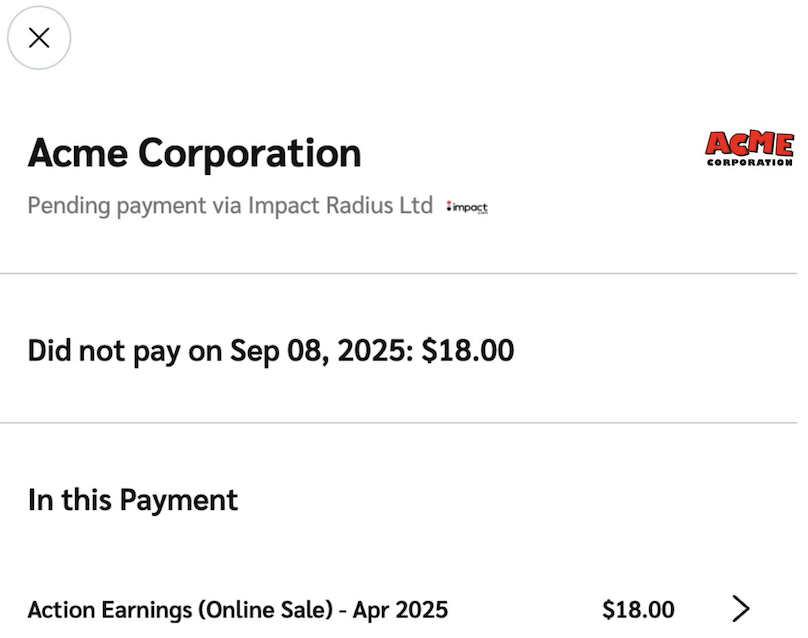
1. Select a **transaction** to see more information about it.
2. You can view further details about the transaction by selecting an **individual line item**.
3. To inquire why a payment is overdue, contact the brand using impact.com's [Messaging](/partner/what-would-you-like-to-learn-about/platform-features/working-with-brands/contacting-a-brand/message-your-brands.md) feature or [contact the brand directly](/partner/what-would-you-like-to-learn-about/platform-features/working-with-brands/contacting-a-brand/access-brand-contact-information.md).
---
# Agent Instructions
This documentation is published with GitBook. GitBook is the documentation platform designed so that both humans and AI agents can read, navigate, and reason over technical content effectively. Learn more at gitbook.com.
## Querying This Documentation
If you need additional information that is not directly available in this page, you can query the documentation dynamically by asking a question.
Perform an HTTP GET request on the current page URL with the `ask` query parameter, and the optional `goal` query parameter:
```
GET https://help.impact.com/partner/what-would-you-like-to-learn-about/platform-features/finance/payments-withdrawals-and-balance/pending-screen-overview-for-partners.md?ask=&goal=
```
`ask` is the immediate question: it should be specific, self-contained, and written in natural language.
`goal` is optional and describes the broader end goal you are ultimately trying to accomplish on behalf of the user. GitBook uses it to tailor the answer towards what is most useful for that goal.
The response will contain a direct answer to the question and relevant excerpts and sources from the documentation.
Use this mechanism when the answer is not explicitly present in the current page, you need clarification or additional context, or you want to retrieve related documentation sections.