# 创建并管理合作伙伴连接

Connections 系统支持批量数据文件传输，将 impact.com 与品牌、合作伙伴及其他组织连接。每个连接（单个连接器）都有特定属性，如数据类型（点击、转化、产品目录等）、方向（入站或出站）、方法（SFTP、FTP、电子邮件）等。连接器向导允许你设置与其他平台的连接，以便 impact.com 能自动批量处理数据，将丰富的数据发送到或从你的系统接收。

{% hint style="warning" %}
**警告：** 你需要将以下任一项加入允许列表： `import.impact.com` 主机名或 35.237.100.93 IP 地址，以向 impact.com 上传数据。
{% endhint %}

#### 创建连接

1. 从顶部导航栏，选择 ![](/files/2de72fd0c7a4b5230c422659116f53f1b693fa11) **\[用户资料] → 设置**. &#x20;
2. 在 *技术*下，选择 **Connections**.
3. 选择 **创建连接** 以访问连接器向导。
4. 继续配置数据上传或数据下载连接。

{% tabs %}
{% tab title="上传连接" %}
一个 *数据上传* 连接允许你向 impact.com 提供有关受众、身份或与卡关联交易的数据。

{% stepper %}
{% step %}

#### 第 1 步：方向

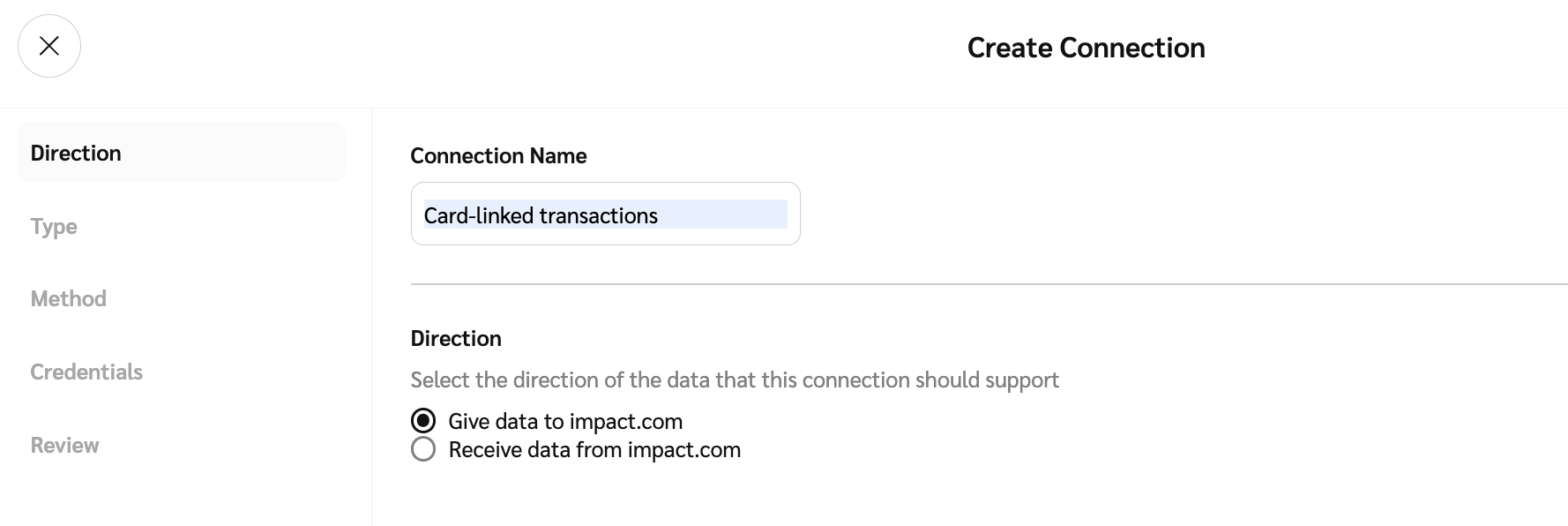
1. 输入连接名称并选择数据的 *方向* ： **将数据提供给 impact.com**.
2. 选择 **下一步** 以继续。

<div data-with-frame="true"><figure><img src="/files/b35315adb37aa96ab96b88ff5ce2bd94d5d2bfbb" alt=""><figcaption></figcaption></figure></div>
{% endstep %}

{% step %}

#### 第 2 步：类型

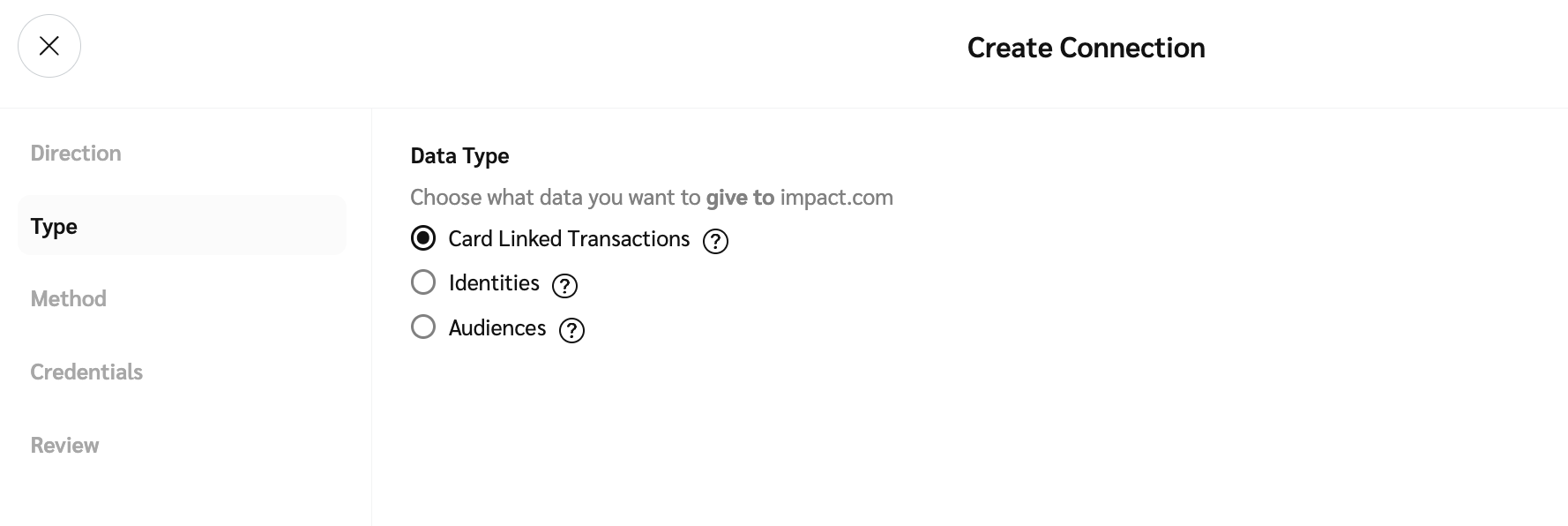
1. 选择连接将支持的数据类型。
2. 选择 **下一步** 以继续。

<div data-with-frame="true"><figure><img src="/files/9be29170966cf43d43c7a89b47c15d2024dae48f" alt=""><figcaption></figcaption></figure></div>
{% endstep %}

{% step %}

#### 第 3 步：方法

1. 选择 *方法* 用于向 impact.com 提供数据： **电子邮件**, **SFTP**，或 **FTP**.

   该 *电子邮件* 方法要求你添加与电子邮件中附件文件名匹配的通配符模式，例如： `audiences_*.csv`.

   * **`*`** 表示任意字符序列。
   * **`?`** 表示任意单个字符。

   <div data-gb-custom-block data-tag="hint" data-style="warning" class="hint hint-warning"><p><strong>警告：</strong> 电子邮件中的所有附件应与通配符模式匹配，否则该电子邮件将被忽略。以以下前缀附加的文件将被忽略， <em>receipt_</em> 或 <em>result_</em> 因为它们保留用于回执或结果文件。</p></div>
2. 选择 *方法论* 要使用，选择 **推送到 impact.com** 或 **从第三方拉取**.
   * 该 *从第三方拉取* 方法要求你输入一个 **文件夹** 包含文件的绝对目录路径，例如： `/home/ShandaLear/Audiences`.
3. ![](/files/a723d42d8d0791f2d8dfa0e160add035a03f5759) **\[打开切换]** 切换开启 **加密** 以为连接启用加密。加密仅适用于入站连接（上传到 impact.com），不适用于出站（从 impact.com 下载）。
   * 选择 **生成新密钥** 以生成新的 2048 位 RSA [公/私钥对](https://en.wikipedia.org/wiki/Public-key_cryptography) 。该密钥对有效期为两年，用于对你的数据文件进行 PGP 加密和解密。你将仅收到公钥，必须使用该公钥在将数据上传到此连接之前对数据文件进行加密。
   * （可选）选择 **复制到剪贴板** 以将新密钥存储到剪贴板。
4. 选择 **下一步** 以继续。

<div data-with-frame="true"><figure><img src="/files/0fd29f77ed299e17e53c150493bf18500a5ba13a" alt=""><figcaption></figcaption></figure></div>
{% endstep %}

{% step %}

#### 第 4 步：凭据

1. 选择 **现有凭据** 从下拉列表中， **编辑现有凭据** 或 **创建新凭据**.
2. 如果你正在创建新凭据，请输入一个描述其使用场景的凭据名称。例如： *从 impact.com 下载报告*，然后选择以下任一项 **公钥** 或 **密码**。如果你选择 **密码**，这些值将为你填充。

   <div data-with-frame="true"><figure><img src="/files/bbb5ebc34345c3806c9899d6a7ca9d32afab5956" alt=""><figcaption></figcaption></figure></div>
3. 你会看到一个弹出窗口显示你配置的凭据。选择 **复制** 以继续。凭据将被复制到你的剪贴板。
4. 选择 **下一步** 以继续。
   {% endstep %}

{% step %}

#### 第 5 步：审核

1. 最后，审核配置，然后选择 **创建** 以创建连接。
2. 恭喜！现在你可以使用新连接向 impact.com 上传数据。
   {% endstep %}
   {% endstepper %}
   {% endtab %}

{% tab title="下载连接" %}
一个 *数据下载* 连接允许你从 impact.com 接收受众或报告数据。

{% stepper %}
{% step %}

#### 第 1 步：方向

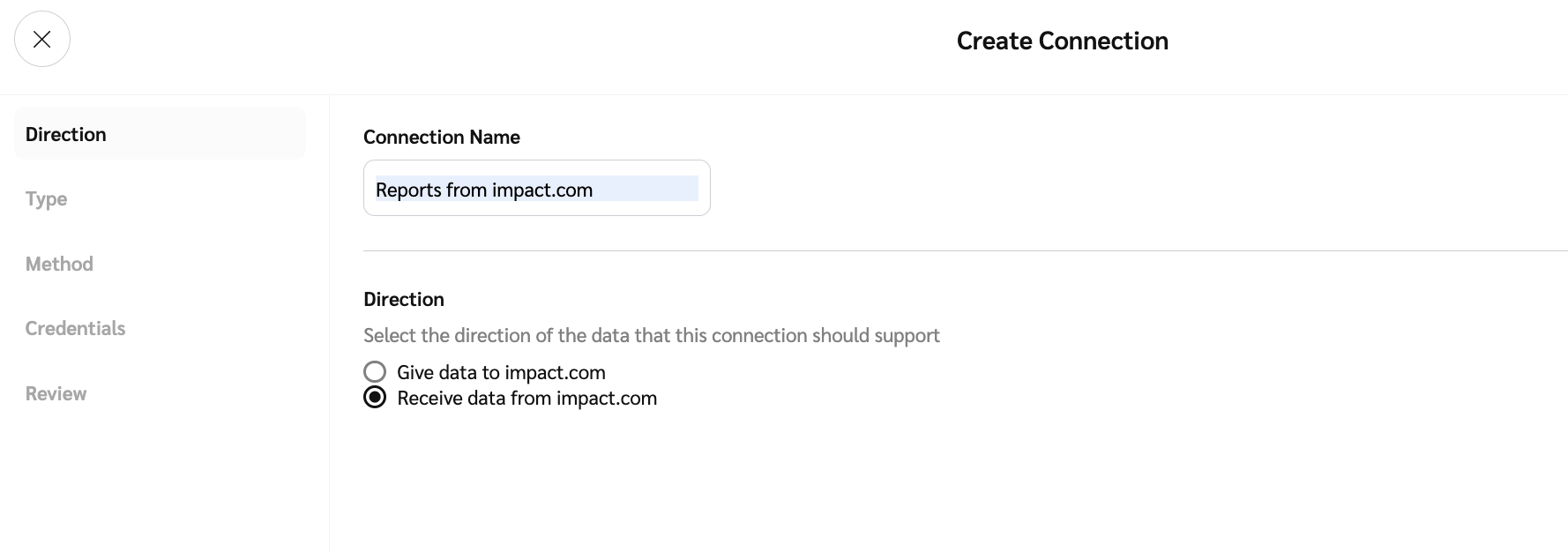
1. 输入连接名称并选择数据的 *方向* ： **从 impact.com 接收数据**.
2. 选择 **下一步** 以继续。

<div data-with-frame="true"><figure><img src="/files/2e13cda88bc4bb1114a32868e06b1b965e08d306" alt=""><figcaption></figcaption></figure></div>
{% endstep %}

{% step %}

#### 第 2 步：类型

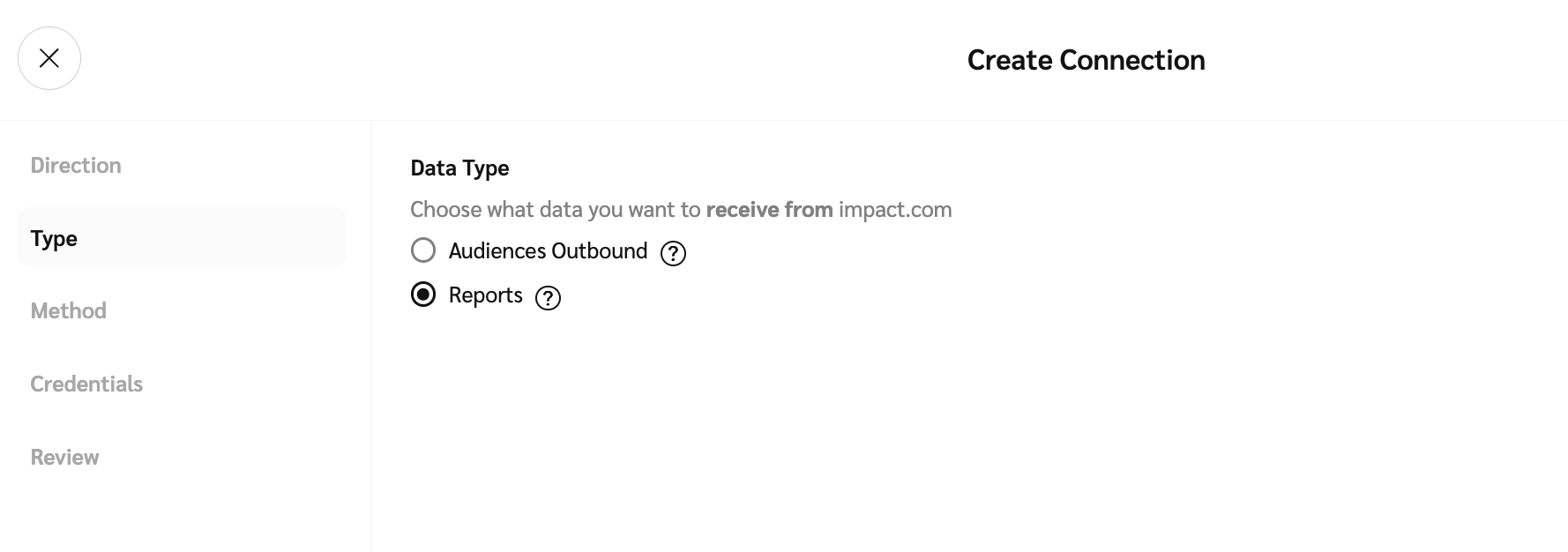
1. 选择连接将支持的数据类型，例如： **报告**.
2. 选择 **下一步** 以继续。

<div data-with-frame="true"><figure><img src="/files/178f756cd5c1da58a6a891649d67d7cc520c3c4b" alt=""><figcaption></figcaption></figure></div>
{% endstep %}

{% step %}

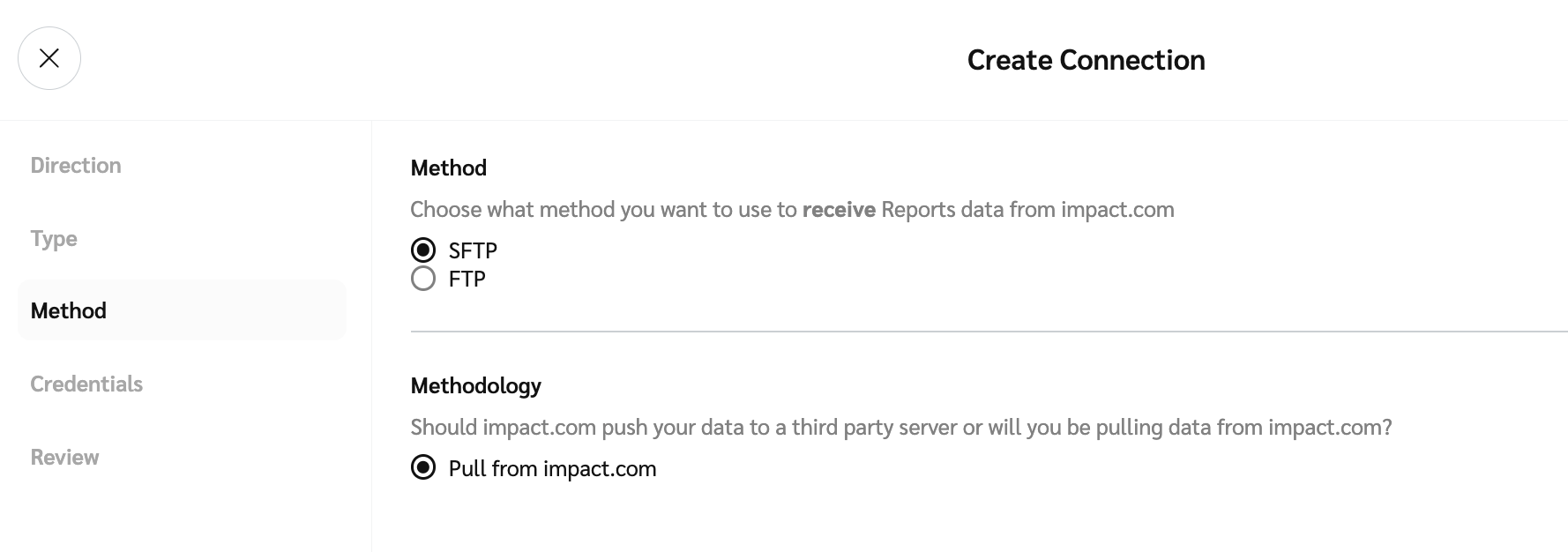
#### 第 3 步：方法

1. 该 *方法* 将为你预先选择： **SFTP**。如有需要，你可以更改此项。
2. 该 *方法论* 将为你预先选择： **从 impact.com 拉取**.
3. 选择 **下一步** 以继续。

<div data-with-frame="true"><figure><img src="/files/fcbdbee39c12b7028ded7298f2230a8667531037" alt=""><figcaption></figcaption></figure></div>
{% endstep %}

{% step %}

#### 第 4 步：凭据

1. 选择 **现有凭据** 从下拉列表中， **编辑现有凭据** 或 **创建新凭据**.
2. 如果你正在创建新凭据，请输入一个描述其使用场景的凭据名称。例如： *从 impact.com 下载报告*，然后选择以下任一项 **公钥** 或 **密码**。如果你选择 **密码**，这些值将为你填充。

   <div data-with-frame="true"><figure><img src="/files/2ebf343e6fb56b87a28bb20dd871ec005a94cff1" alt=""><figcaption></figcaption></figure></div>
3. 你会看到一个弹出窗口显示你配置的凭据。选择 **复制** 以继续。凭据将被复制到你的剪贴板。
4. 选择 **下一步** 以继续。
   {% endstep %}

{% step %}

#### 第 5 步：审核

1. 最后，审核配置，然后选择 **创建** 以创建连接。
2. 恭喜！现在你可以使用新连接向 impact.com 上传数据。
   {% endstep %}
   {% endstepper %}
   {% endtab %}
   {% endtabs %}


---

# Agent Instructions: Querying This Documentation

If you need additional information that is not directly available in this page, you can query the documentation dynamically by asking a question.

Perform an HTTP GET request on the current page URL with the `ask` query parameter:

```
GET https://help.impact.com/partner/zh/nin-xiang-liao-jie-shen-me/account-management/account-settings/create-and-manage-connections-for-partners.md?ask=<question>
```

The question should be specific, self-contained, and written in natural language.
The response will contain a direct answer to the question and relevant excerpts and sources from the documentation.

Use this mechanism when the answer is not explicitly present in the current page, you need clarification or additional context, or you want to retrieve related documentation sections.