> For the complete documentation index, see [llms.txt](https://help.impact.com/llms.txt). Markdown versions of documentation pages are available by appending `.md` to page URLs; this page is available as [Markdown](https://help.impact.com/partner/zh/ni-xiang-liao-jie-shen-me/getting-started/sign-up-after-a-brand-invites-you.md).
# 在品牌邀请你后注册
品牌邀请您加入其计划时,您需要在品牌控制的页面上注册。页面会显示品牌的徽标、封面图片和说明。如果品牌尚未上传自己的素材,则会显示 impact.com 的默认品牌素材。
创建账户分为三个步骤。
## 开始之前
| 所需内容 | 注意事项 |
| -------------------------- | ---------------- |
| 品牌发送的邀请链接 | 通过电子邮件发送,或直接分享给您 |
| 电子邮件地址,或 Google 或 Apple 账户 | 这将决定您之后的登录方式 |
| 手机号码 | 用于接收验证码 |
## 创建账户
{% stepper %}
{% step %}
### 接受品牌条款并选择注册方式
1. 选择品牌协议链接。合同会在单独的标签页中打开,您可以在其中查看付款详情、付款计划、符合条件的活动以及一般条款。
2. 如果品牌使用自定义条款,请选择额外的 PDF 链接并查看内容。
3. 选择  **\[复选框]** 以同意品牌条款。
{% hint style="success" icon="circle-info" %}
**您需要接受两份协议:** 品牌条款适用于您与该品牌的合作。impact.com 合作伙伴计划协议则适用于您使用此平台。您将在最后一步接受该协议。
{% endhint %}
4. 选择注册方式:
{% tabs %}
{% tab title="Google 或 Apple" %}
选择 **使用 Google 继续** 或 **使用 Apple 继续**,然后按照提示授权连接。
{% endtab %}
{% tab title="电子邮件" %}
1. 选择 **使用电子邮件继续**,然后输入您的电子邮件地址、名字、姓氏、密码和手机号码。
2. 选择 **继续**.
{% endtab %}
{% endtabs %}
{% endstep %}
{% step %}
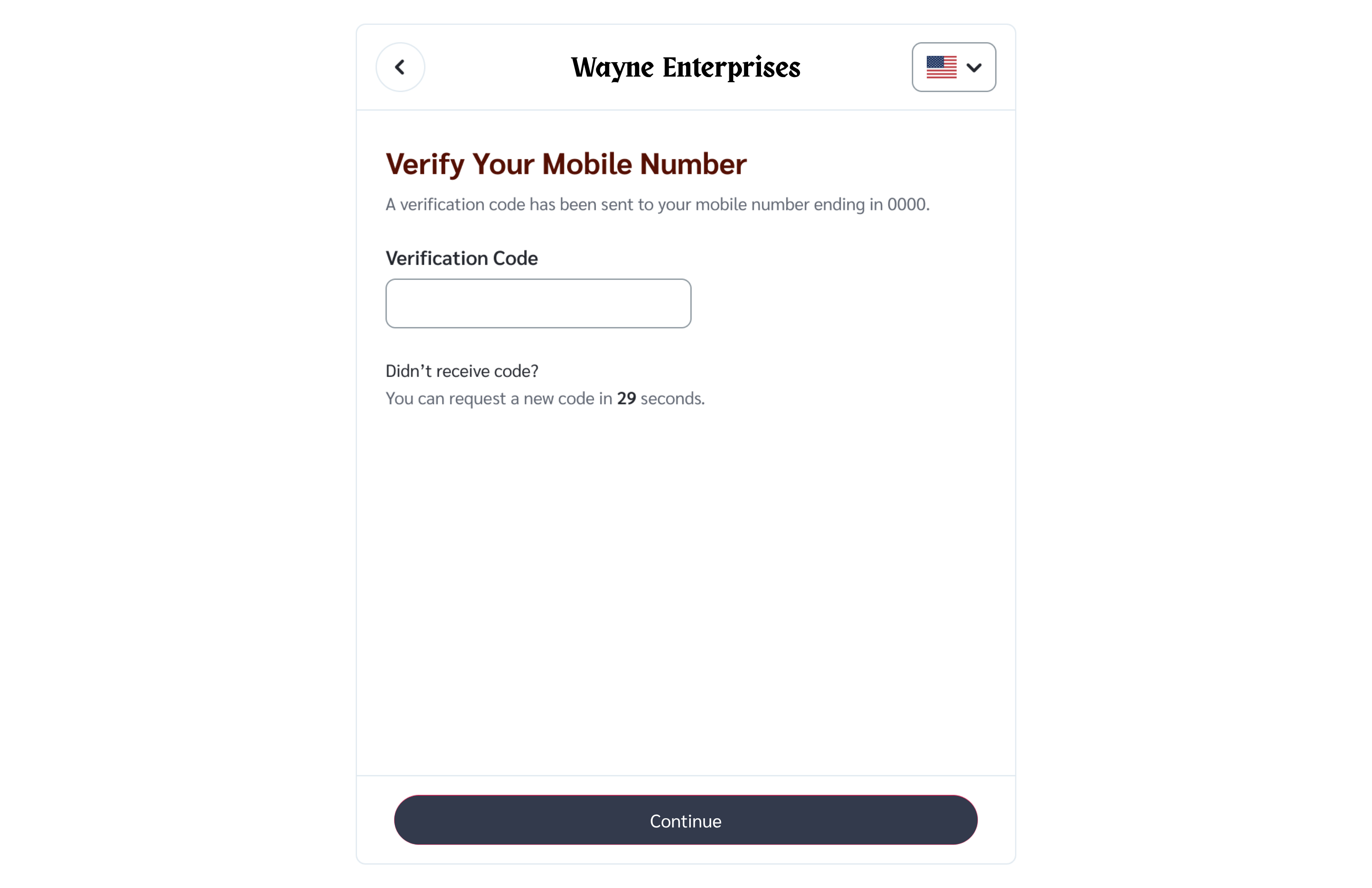
### 验证你的手机号码
1. 在 *验证您的手机号码* 页面上,输入您收到的验证码。
* 根据您所在的国家/地区,验证码会通过短信或电子邮件发送给您。
2. 选择 **继续**。如果没有收到验证码,请选择 **重新发送验证码**.
{% endstep %}
{% step %}
### 确认您的账户详情
继续之前,请检查以下字段:
| 字段 | 检查内容 |
| ------- | ----------------------------------------- |
| *账户名称* | 如果您是个人,请填写您的姓名;如果您是组织,请填写您的公司名称。品牌会看到此名称。 |
| *国家/地区* | 您开展业务的所在地 |
| *时区* | 会影响报告中的日期 |
| *货币* | 会影响您的收款方式 |
{% hint style="success" icon="circle-info" %}
**注意:** 创建账户后,您将无法更改货币,因此请在继续之前确认所选货币正确无误。
{% endhint %}
1. 在 *填写您的账户信息* 屏幕,检查您的 *账户名称*, *国家/地区*, *时区*和 *货币*。系统会根据您的 IP 地址预填国家/地区、时区和货币。如果您输入的名称尚未被使用,账户名称将采用您输入的名称。
2. 选择  **\[复选框]** 以接受 *合作伙伴计划协议*.
3. 设置您的电子邮件偏好。
4. 选择 **继续**.
{% endstep %}
{% endstepper %}
## 接下来会发生什么
一个 *请稍候* 屏幕会在创建账户时显示。接下来将打开您的 [申请清单](https://help.impact.com/partner/zh/ni-xiang-liao-jie-shen-me/getting-started/complete-your-application-checklist.md) ,清单以邀请您的品牌命名。
完成清单中的所有步骤后,品牌才会收到您的申请。
## 其他资源
* [完成申请清单](https://help.impact.com/partner/zh/ni-xiang-liao-jie-shen-me/getting-started/complete-your-application-checklist.md) — 完善您的个人资料并回答品牌问卷,以便品牌收到您的申请。
---
# Agent Instructions
This documentation is published with GitBook. GitBook is the documentation platform designed so that both humans and AI agents can read, navigate, and reason over technical content effectively. Learn more at gitbook.com.
## Querying This Documentation
If you need additional information that is not directly available in this page, you can query the documentation by asking a question.
Perform an HTTP GET request on the following URL with the `ask` and `goal` query parameters:
```
GET https://help.impact.com/partner/zh/ni-xiang-liao-jie-shen-me/getting-started/sign-up-after-a-brand-invites-you.md?ask=&goal=
```
`ask` is the immediate question: it should be specific, self-contained, and written in natural language.
`goal` is what the user is ultimately trying to achieve, the reason they need the answer. Sharing it helps GitBook give you a better, more relevant answer. A goal is most helpful when it describes the outcome the user wants rather than restating the question. For example, with `ask=how do I create an API token`, a goal like `automate deployments from our CI pipeline` lets GitBook tailor the answer to that use case.
The response will contain a direct answer to the question and relevant excerpts and sources from the documentation.
Use this mechanism when the answer is not explicitly present in the current page, you need clarification or additional context, or you want to retrieve related documentation sections.