> For the complete documentation index, see [llms.txt](https://help.impact.com/llms.txt). Markdown versions of documentation pages are available by appending `.md` to page URLs; this page is available as [Markdown](https://help.impact.com/partner/zh/ni-xiang-liao-jie-shen-me/account-management/account-settings/create-and-manage-connections-for-partners.md).

# 为合作伙伴创建并管理连接

Connections 系统支持批量数据文件传输，将 impact.com 与品牌、合作伙伴及其他组织连接起来。每个连接（单个连接器）都有某些属性，例如数据类型（点击、转化、产品目录等）、方向（入站或出站）、方式（SFTP、FTP、电子邮件）等。Connector Wizard 可帮助你设置与其他平台的连接，使 impact.com 能自动批量处理数据，从而向你的系统传入或传出增强后的数据。

{% hint style="warning" %}
**警告：** 你需要将以下项加入允许列表： `import.impact.com` 主机名或 35.237.100.93 IP 地址，以便向 impact.com 上传数据。
{% endhint %}

#### 创建连接

1. 在顶部导航栏中，选择 ![](/files/d599d976891a5c0517520cf3405bba1bb9d7163f) **\[用户资料] → 设置**.
2. 在 *技术*，选择 **连接**.
3. 选择 **创建连接** 以访问 Connector wizard。
4. 继续配置数据上传或数据下载连接。

{% tabs %}
{% tab title="上传连接" %}
一个 *数据上传* 连接可让你向 impact.com 提供有关受众、身份或卡关联交易的数据。

{% stepper %}
{% step %}

#### 第 1 步：方向

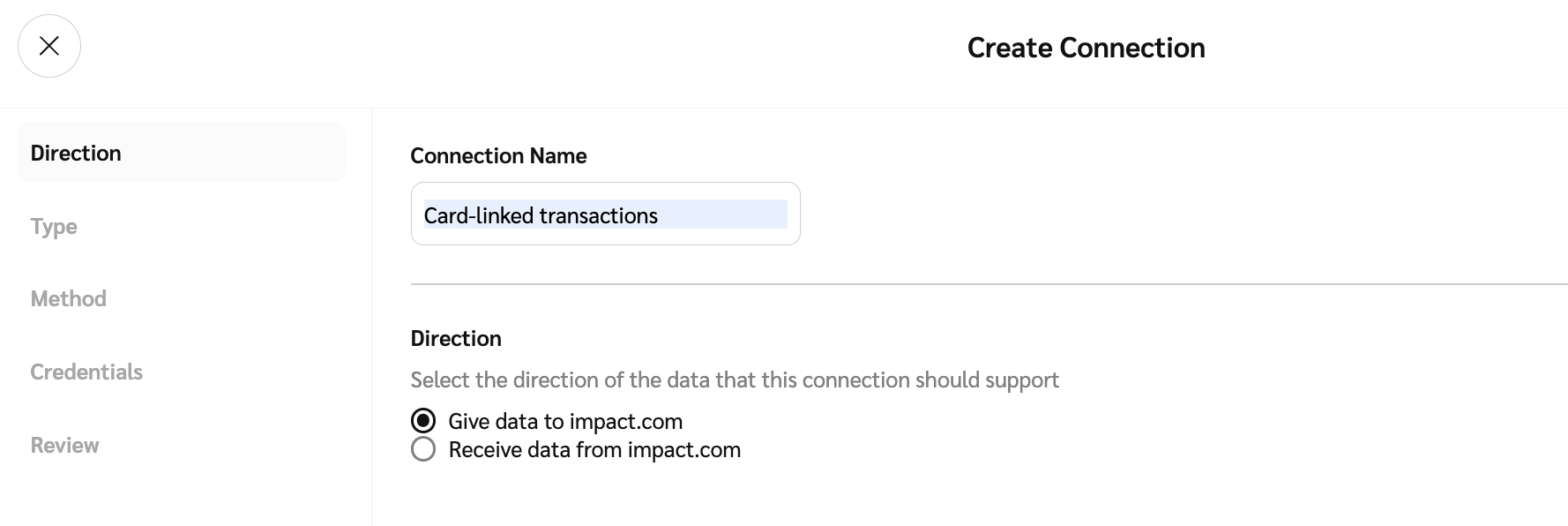
1. 输入连接名称并选择 *方向* ： **向 impact.com 提供数据**.
2. 选择 **下一步** 以继续。

<div data-with-frame="true"><figure><img src="/files/b35315adb37aa96ab96b88ff5ce2bd94d5d2bfbb" alt=""><figcaption></figcaption></figure></div>
{% endstep %}

{% step %}

#### 第 2 步：类型

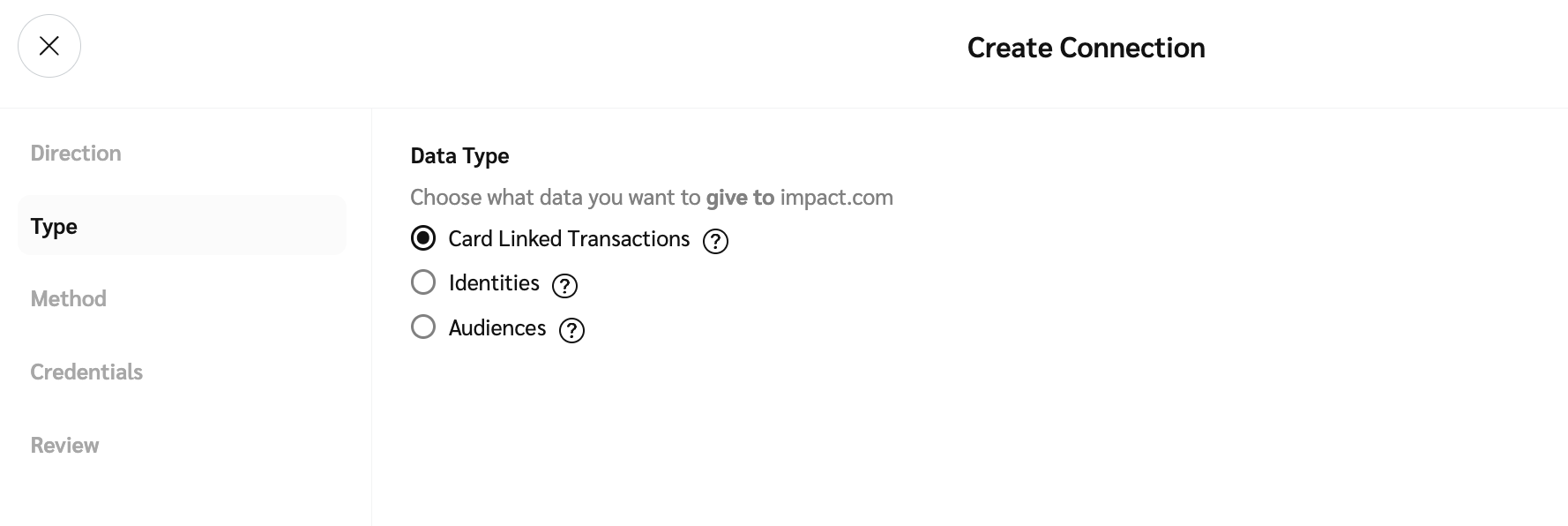
1. 选择该连接将支持的数据类型。
2. 选择 **下一步** 以继续。

<div data-with-frame="true"><figure><img src="/files/9be29170966cf43d43c7a89b47c15d2024dae48f" alt=""><figcaption></figcaption></figure></div>
{% endstep %}

{% step %}

#### 第 3 步：方式

1. 选择 *方式* 用于向 impact.com 提供数据： **电子邮件**, **SFTP**，或 **FTP**.

   该 *电子邮件* 方式要求你添加一个通配符模式，用于匹配电子邮件中的附件文件名，例如 `audiences_*.csv`.

   * **`*`** 表示任意长度的字符序列。
   * **`?`** 表示任意单个字符。

   <div data-gb-custom-block data-tag="hint" data-style="warning" class="hint hint-warning"><p><strong>警告：</strong> 电子邮件中的所有附件都应匹配该通配符模式，否则该邮件将被忽略。带有以下前缀的附件文件 <em>receipt_</em> 或 <em>result_</em> 将被忽略，因为它们保留用于收据文件或结果文件。</p></div>
2. 选择 *方法* 可使用以下方式之一： **推送到 impact.com** 或 **从第三方拉取**.
   * 该 *从第三方拉取* 方法要求你输入一个 **文件夹** ，其中包含文件的绝对目录路径，例如 `/home/ShandaLear/Audiences`.
3. ![](/files/5dbf21c4329d43c5852327d551195b0d5508a882) **\[开启]** 打开 **加密** 以启用该连接的加密。加密仅适用于入站连接（上传到 impact.com），不适用于出站连接（从 impact.com 下载）。
   * 选择 **生成新密钥** 以生成新的 2048 位 RSA [公钥/私钥对](https://en.wikipedia.org/wiki/Public-key_cryptography) 。该密钥对有效期为两年，用于对你的数据文件进行 PGP 加密和解密。你将只收到公钥，且在将数据文件上传到该连接之前，必须使用该公钥对其进行加密。
   * （可选）选择 **复制到剪贴板** 以将新密钥存储到你的剪贴板中。
4. 选择 **下一步** 以继续。

<div data-with-frame="true"><figure><img src="/files/f4874bb1440c55fa3170fe645870d8d7937894cc" alt="" width="563"><figcaption></figcaption></figure></div>
{% endstep %}

{% step %}

#### 第 4 步：凭据

1. 选择 **现有凭据** 从下拉列表中， **编辑现有凭据** 或 **创建新凭据**.
2. 如果你正在创建新凭据，请输入一个能描述其使用场景的凭据名称。例如， *从 impact.com 下载报告*，然后选择以下任一项： **公钥** 或 **密码**。如果你选择 **密码**，系统会为你填充这些值。

   <div data-with-frame="true"><figure><img src="/files/9d01b5d4ac168f7bca1037830fafbba3aab5f855" alt="" width="563"><figcaption></figcaption></figure></div>
3. 你将看到一个弹出窗口，显示你已配置的凭据。选择 **复制** 以继续。凭据将被复制到你的剪贴板。
4. 选择 **下一步** 以继续。
   {% endstep %}

{% step %}

#### 第 5 步：审核

1. 最后，检查配置，然后选择 **创建** 以创建该连接。
2. 恭喜！你现在可以使用新连接向 impact.com 上传数据。
   {% endstep %}
   {% endstepper %}
   {% endtab %}

{% tab title="下载连接" %}
一个 *数据下载* 连接可让你从 impact.com 接收受众或报告数据。

{% stepper %}
{% step %}

#### 第 1 步：方向

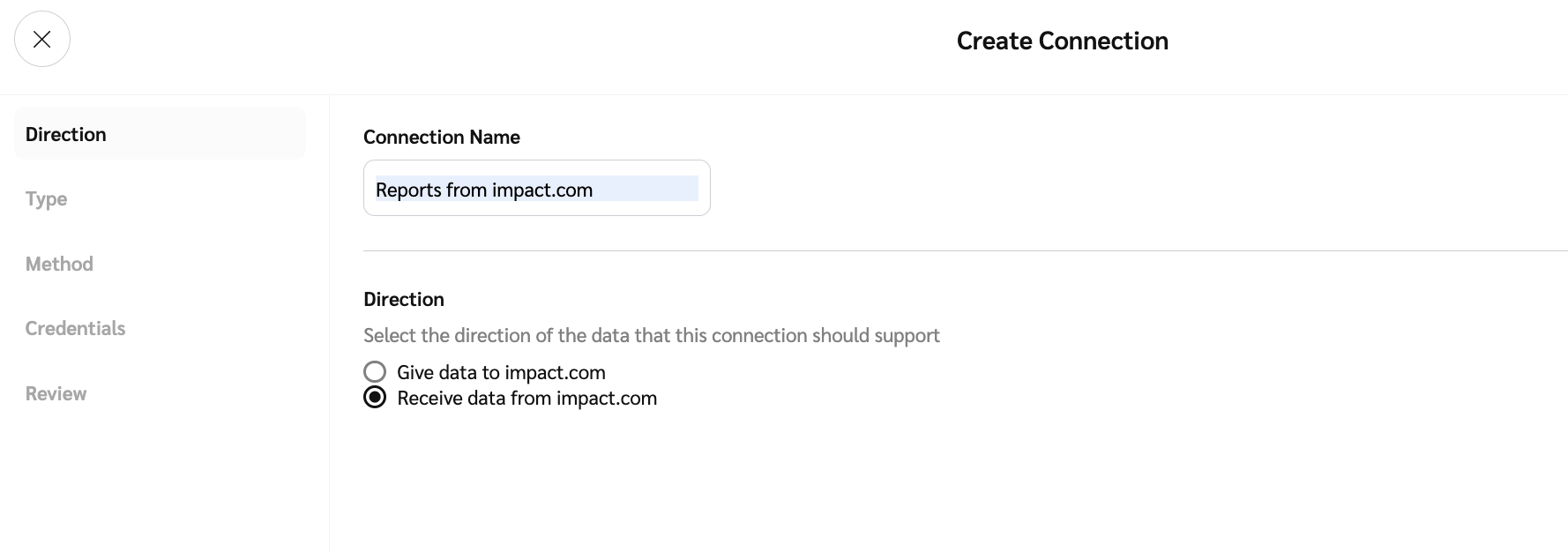
1. 输入连接名称并选择 *方向* ： **从 impact.com 接收数据**.
2. 选择 **下一步** 以继续。

<div data-with-frame="true"><figure><img src="/files/2e13cda88bc4bb1114a32868e06b1b965e08d306" alt=""><figcaption></figcaption></figure></div>
{% endstep %}

{% step %}

#### 第 2 步：类型

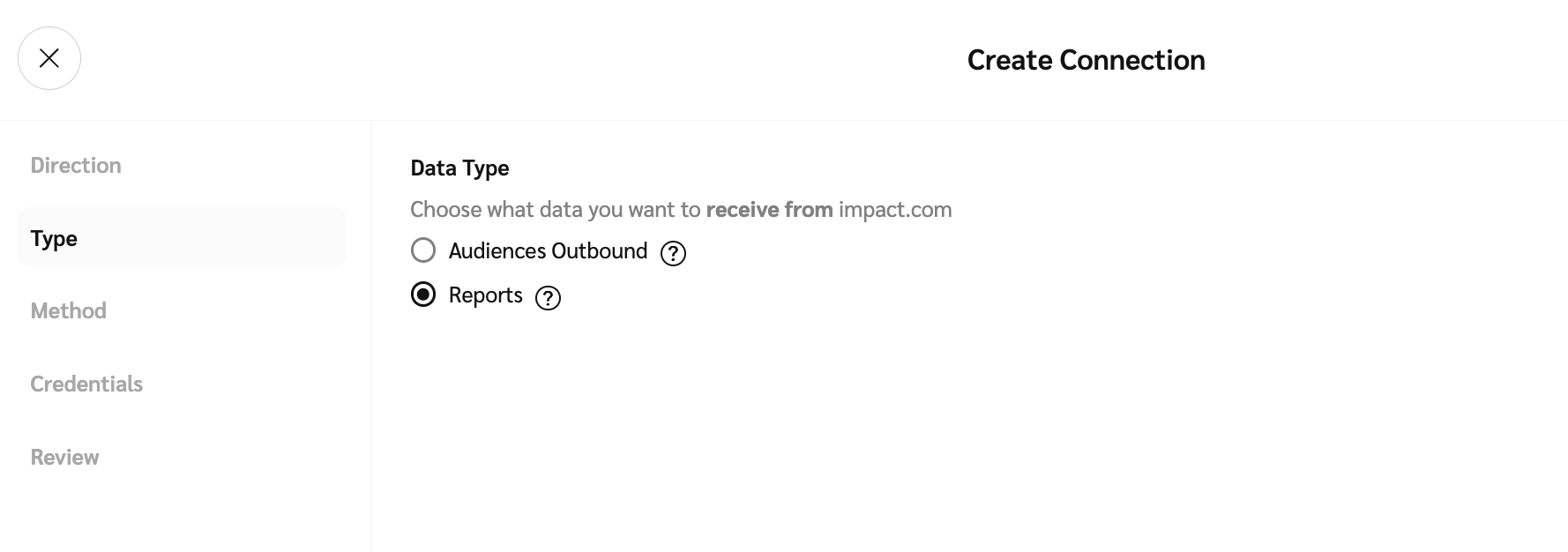
1. 选择该连接将支持的数据类型，例如 **报告**.
2. 选择 **下一步** 以继续。

<div data-with-frame="true"><figure><img src="/files/178f756cd5c1da58a6a891649d67d7cc520c3c4b" alt=""><figcaption></figcaption></figure></div>
{% endstep %}

{% step %}

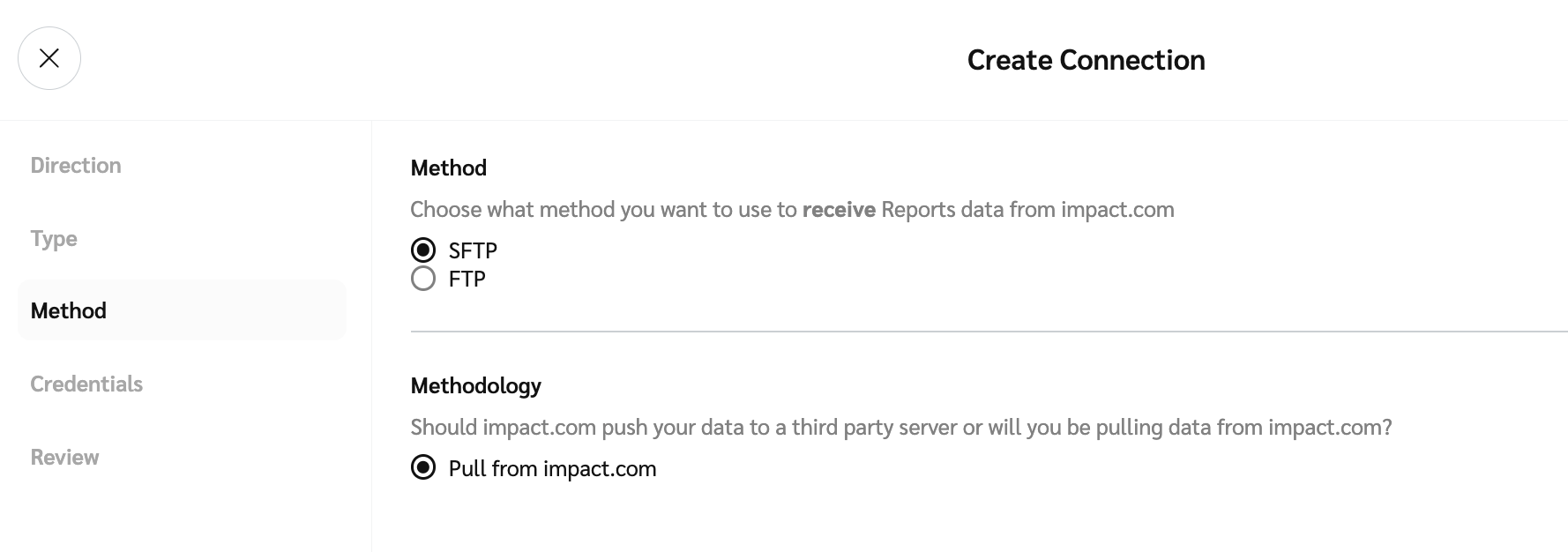
#### 第 3 步：方式

1. 该 *方式* 将为你选择： **SFTP**。如有需要，你可以更改此项。
2. 该 *方法* 将为你选择： **从 impact.com 拉取**.
3. 选择 **下一步** 以继续。

<div data-with-frame="true"><figure><img src="/files/fcbdbee39c12b7028ded7298f2230a8667531037" alt=""><figcaption></figcaption></figure></div>
{% endstep %}

{% step %}

#### 第 4 步：凭据

1. 选择 **现有凭据** 从下拉列表中， **编辑现有凭据** 或 **创建新凭据**.
2. 如果你正在创建新凭据，请输入一个能描述其使用场景的凭据名称。例如， *从 impact.com 下载报告*，然后选择以下任一项： **公钥** 或 **密码**。如果你选择 **密码**，系统会为你填充这些值。

   <div data-with-frame="true"><figure><img src="/files/9d01b5d4ac168f7bca1037830fafbba3aab5f855" alt="" width="563"><figcaption></figcaption></figure></div>
3. 你将看到一个弹出窗口，显示你已配置的凭据。选择 **复制** 以继续。凭据将被复制到你的剪贴板。
4. 选择 **下一步** 以继续。
   {% endstep %}

{% step %}

#### 第 5 步：审核

1. 最后，检查配置，然后选择 **创建** 以创建该连接。
2. 恭喜！你现在可以使用新连接向 impact.com 上传数据。
   {% endstep %}
   {% endstepper %}
   {% endtab %}
   {% endtabs %}


---

# Agent Instructions
This documentation is published with GitBook. GitBook is the documentation platform designed so that both humans and AI agents can read, navigate, and reason over technical content effectively. Learn more at gitbook.com.

## Querying This Documentation
If you need additional information that is not directly available in this page, you can query the documentation dynamically by asking a question.

Perform an HTTP GET request on the current page URL with the `ask` query parameter, and the optional `goal` query parameter:

```
GET https://help.impact.com/partner/zh/ni-xiang-liao-jie-shen-me/account-management/account-settings/create-and-manage-connections-for-partners.md?ask=<question>&goal=<endgoal>
```

`ask` is the immediate question: it should be specific, self-contained, and written in natural language.
`goal` is optional and describes the broader end goal you are ultimately trying to accomplish on behalf of the user. GitBook uses it to tailor the answer towards what is most useful for that goal.

The response will contain a direct answer to the question and relevant excerpts and sources from the documentation.

Use this mechanism when the answer is not explicitly present in the current page, you need clarification or additional context, or you want to retrieve related documentation sections.