> For the complete documentation index, see [llms.txt](https://help.impact.com/llms.txt). Markdown versions of documentation pages are available by appending `.md` to page URLs; this page is available as [Markdown](https://help.impact.com/partner/what-would-you-like-to-learn-about/platform-features/working-with-brands/contacting-a-brand/message-your-brands.md).
# Message Your Brands
Use the *Messages* feature to quickly and easily communicate with both the managers of the programs you have joined and programs you'd like to join. The feature offers you a range of uses, such as streamlining your onboarding with a program, contacting a brand about special arrangements, resolving issues, and more.
{% hint style="warning" %}
**Important:** Refer to impact.com's [Messaging Terms of Use](https://impact.com/terms-of-use-messaging/?_gl=1*j1tga9*_ga*MTI3MTM3MzE1Ni4xNjUyNjkzMjk1*_ga_MDF55NMH0F*MTY2MjAyMTAzMC4zODAuMS4xNjYyMDIxMjk1LjAuMC4w*_ga_MHKLSZ6DR4*MTY2MjAyMTAzMC4zNzcuMS4xNjYyMDIxMjk1LjAuMC4w) to ensure that you stay within messaging guidelines.
{% endhint %}
## Access messages
1. From the top navigation bar, select  **\[Chat]**.
2. On the *Inbox* screen, select  **\[Compose]** and use the  **\[Search]** option on the right to find a program or contact with whose manager you want to chat.
3. You can also attach files to your messages by selecting  **\[Attach]**. The following file types are supported: CSV, PDF, JPEG, PNG, GIF.
## View received messages
1. Messages you receive will appear in both your  **\[Chat]** widget and your [*Inbox*](https://app.impact.com/secure/mediapartner/fr/impact-message.ihtml?u=%2Fmessaging%2Finbox).
2. Continue the conversations you've left off by selecting an existing message thread.
3. To start a thread with a different program, select  **\[Compose]** and search for the program or contact.
### Set message thread status
You can manually mark a message thread as *Unread* or *Spam*:
1. On the  **\[Chat]** widget, open up a thread and:
* Select **Mark as unread** to reset the message notification.
* Select **Mark as spam** to no longer receive notifications from the message thread.
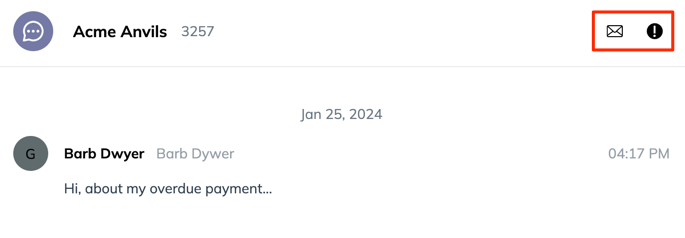
2. On the [*Inbox*](https://app.impact.com/secure/mediapartner/fr/impact-message.ihtml?u=%2Fmessaging%2Finbox) screen, open up a thread and, from the top of the screen:
* Select  **\[Mail]** to mark the message as unread and reset the message notification.
* Select  **\[Exclamation]** to mark the message as spam and no longer receive notifications from the thread.
### Search for message threads
1. On the  **\[Chat]** widget, search for a specific message thread by inputting a keyword from the program's name in the search bar.
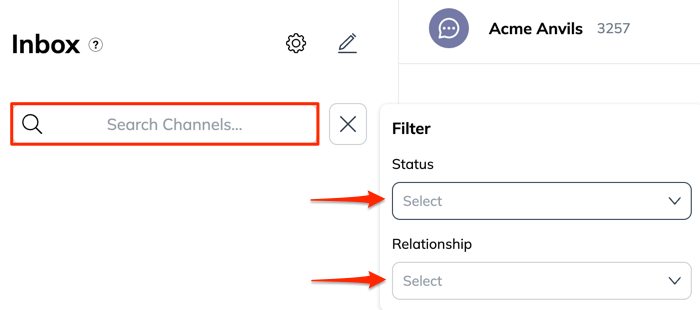
2. On the [*Inbox*](https://app.impact.com/secure/mediapartner/fr/impact-message.ihtml?u=%2Fmessaging%2Finbox) screen:
* You can search for a specific message thread by inputting a keyword from the program's name in the search bar on the left.
* Alternatively, use the  **\[Filters]** to surface programs based on your **Relationship** status with the program and the thread's message **Status**.
## Make your account appear offline
To configure business hours or set yourself as offline, you need to work on the *Inbox* screen.
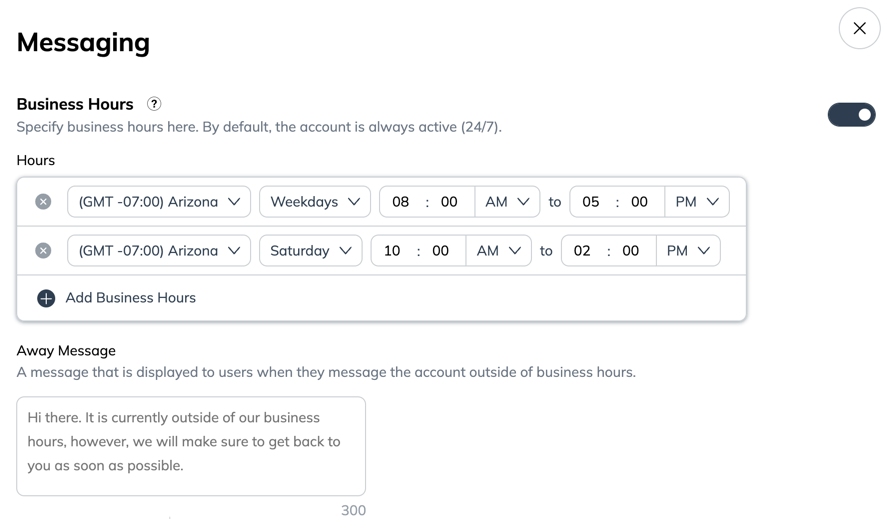
1. In the upper-left of your inbox screen, select  **\[Settings]**.
2. Select  **\[Toggle on] Business Hours**.
3. Use the drop-downs to set your business hours, outside of which your account will appear *Offline*.
* By default, your account will appear *Online* 24/7.
* Optionally, input an **Away Message** to inform brands when you'll be back.
## Best practices for communicating with brands
* Regularly check your impact.com dashboard and [notifications](/partner/what-would-you-like-to-learn-about/platform-features/dashboard/configure-platform-and-email-notifications-for-partners.md).
* Pay attention to [newsletters](/partner/what-would-you-like-to-learn-about/account-management/account-settings/connect-media-properties/connect-a-newsletter.md) and email updates. Brands often send out newsletters with new promotions, product launches, or changes to their program.
* Unsure what the brand is talking about? Learn more about the industry [terminology](https://impact.com/glossary/).
---
# Agent Instructions
This documentation is published with GitBook. GitBook is the documentation platform designed so that both humans and AI agents can read, navigate, and reason over technical content effectively. Learn more at gitbook.com.
## Querying This Documentation
If you need additional information that is not directly available in this page, you can query the documentation by asking a question.
Perform an HTTP GET request on the following URL with the `ask` and `goal` query parameters:
```
GET https://help.impact.com/partner/what-would-you-like-to-learn-about/platform-features/working-with-brands/contacting-a-brand/message-your-brands.md?ask=&goal=
```
`ask` is the immediate question: it should be specific, self-contained, and written in natural language.
`goal` is what the user is ultimately trying to achieve, the reason they need the answer. Sharing it helps GitBook give you a better, more relevant answer. A goal is most helpful when it describes the outcome the user wants rather than restating the question. For example, with `ask=how do I create an API token`, a goal like `automate deployments from our CI pipeline` lets GitBook tailor the answer to that use case.
The response will contain a direct answer to the question and relevant excerpts and sources from the documentation.
Use this mechanism when the answer is not explicitly present in the current page, you need clarification or additional context, or you want to retrieve related documentation sections.