# Data Lab Explained for Partners

{% hint style="warning" %}
**Upgrade**: This feature is available for free with Trackonomics Essentials. To access it, along with a suite of additional tools to grow your program, [activate Trackonomics Essentials](https://impact.com/trackonomics-essentials/) today.
{% endhint %}

Data Lab allows you to view, manage, and build custom cross-network reports specific to your publisher domain. All your impact.com data is available out-of-the-box — and once you [connect your affiliate networks](https://help.impact.com/partner/what-would-you-like-to-learn-about/platform-features/trackonomics/getting-started-with-trackonomics-essentials), you’ll unlock the full power of multi-network reporting.

#### To view or create your own custom report

1. From the top navigation bar, select **Trackonomics → Data Lab**.
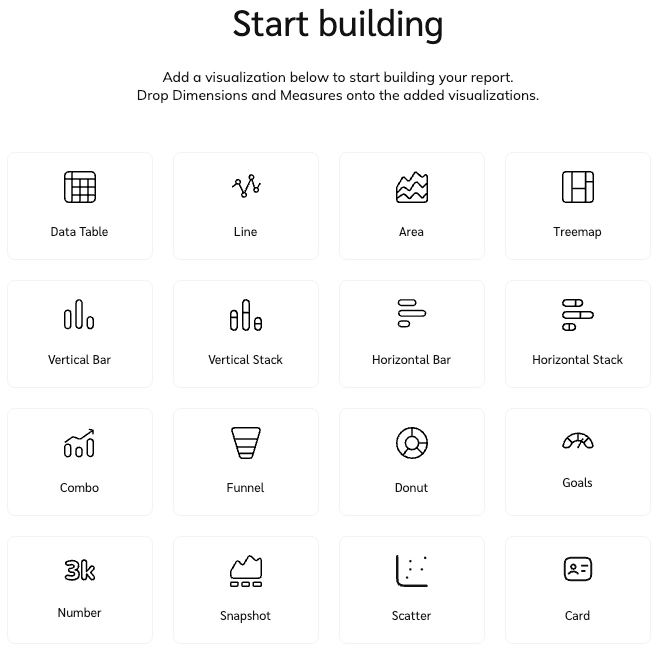
2. If you haven't built any reports yet, select **Build Report**. This will open a new screen that will prompt you to select the type of visualization you want to start with when building your custom report.

   <div data-with-frame="true"><figure><img src="https://347878556-files.gitbook.io/~/files/v0/b/gitbook-x-prod.appspot.com/o/spaces%2Fb2rE79d9UhOKZQLgzSqx%2Fuploads%2Fgit-blob-cfcb26935a9ebd307100a93a9e2ce9bf5d8aeb50%2F0c939955c28b5ae1b1394598cb60c3bcc258c7f075bcefc157337c1e5524a5dc.png?alt=media" alt="" width="494"><figcaption></figcaption></figure></div>
3. Once you have selected a visualization, it will open up the report builder. Here you can select different visualizations, dimensions, and measures to fully customize and build a report tailored to your data needs.

<div data-with-frame="true"><figure><img src="https://347878556-files.gitbook.io/~/files/v0/b/gitbook-x-prod.appspot.com/o/spaces%2Fb2rE79d9UhOKZQLgzSqx%2Fuploads%2FA3A7g42Jz2LLbwYxstKO%2FScreenshot%202026-03-24%20at%2009.36.39.png?alt=media&#x26;token=8e446ba0-e196-4864-bc92-414caabf4bd9" alt="" width="563"><figcaption></figcaption></figure></div>

#### Data Lab editor dashboard

* **Report name**

  Name the report to make it identifiable.
* **Displayed data**

  This is your reporting canvas. The visualizations you select can be dragged and dropped into positions you prefer.
* **Data widgets**

  Select the various widgets you want displayed in the report. See the *Data widgets* section below for more information on the available widgets.

  Some metrics may require you to integrate the Publisher Tag. See [Publisher Tag Implementation for Partners](https://help.impact.com/partner/what-would-you-like-to-learn-about/platform-features/tracking/tracking-links/create-and-manage-links/publisher-tag-implementation-for-partners) for more information.
* **Data customization**

  Select and customize the various dimensions and measures you would like displayed within your visualizations. See the *Data widgets* section below for more information on the available options.

#### Data widgets

There are a number of dimensions and measures that can be added to your report, as well as various data customization options for each.

These data sets can be removed or filtered further as you iterate on your custom report:

* Select ![](https://347878556-files.gitbook.io/~/files/v0/b/gitbook-x-prod.appspot.com/o/spaces%2Fb2rE79d9UhOKZQLgzSqx%2Fuploads%2Fgit-blob-d05e21635c52fff94d35ca4c6b05c1deecc699ef%2F768d04f4d7e1b5b745577812f7d67db99d988bfc34749b6e575a04438d6cee36.svg?alt=media) **\[Remove]** to remove columns.
* Select ![](https://347878556-files.gitbook.io/~/files/v0/b/gitbook-x-prod.appspot.com/o/spaces%2Fb2rE79d9UhOKZQLgzSqx%2Fuploads%2Fgit-blob-4b9429cfc4f3ce4cd61dee51fbe2fb55955f5331%2F17684a2a26dc8fab13a705f53cfaf6803b815677c797f425ffea2439b6322a7b.png?alt=media) **\[Filter]** to filter certain data sets, like currency and country, for more granular results. Filters can be reordered by selecting and dragging the individual filters.
* Pink options indicate numeric data while blue indicates alphanumeric data.
* Add an edit menu by hovering over the **123** or **abc** buttons. You can name the field, and also provide column headers, which become tooltips on the widget when hovering over it in the editor.

<div data-with-frame="true"><figure><img src="https://347878556-files.gitbook.io/~/files/v0/b/gitbook-x-prod.appspot.com/o/spaces%2Fb2rE79d9UhOKZQLgzSqx%2Fuploads%2FSShpbCsL0G3ksgiRI9WO%2FScreenshot%202026-03-24%20at%2009.51.56.png?alt=media&#x26;token=f85675e7-b212-4701-9f2e-f694fc3ffd25" alt="" width="245"><figcaption></figcaption></figure></div>

Search for the data measure in the search bar, and if it does not exist, you can add your own custom measures by selecting ![](https://347878556-files.gitbook.io/~/files/v0/b/gitbook-x-prod.appspot.com/o/spaces%2Fb2rE79d9UhOKZQLgzSqx%2Fuploads%2Fgit-blob-3ca70a1ff22f0720bfb8c9e284c7d8178e3a547b%2Fb6a126b0775291b814c5a97f83039ef72ba42d6d02b0fe20f4790213ea01961e.svg?alt=media) **\[Add]** or **Create Custom Measure**.

* Created measures must follow a formula you set.

  <div data-gb-custom-block data-tag="hint" data-style="info" class="hint hint-info"><p><strong>Example</strong>: Daily commission paid per Impression generated = (Commission Total / Impressions) / 31.</p></div>

<div data-with-frame="true"><figure><img src="https://347878556-files.gitbook.io/~/files/v0/b/gitbook-x-prod.appspot.com/o/spaces%2Fb2rE79d9UhOKZQLgzSqx%2Fuploads%2FhymwtZVh4zkXyBODwhqr%2FScreenshot%202026-03-24%20at%2009.48.17.png?alt=media&#x26;token=ae95f036-b20a-4aa1-9871-bcb1d5e1244c" alt="" width="563"><figcaption></figcaption></figure></div>

<details>

<summary>Visualization customization reference</summary>

<table><thead><tr><th width="185.38671875">Data visualization</th><th>Visualization description</th></tr></thead><tbody><tr><td><img src="https://347878556-files.gitbook.io/~/files/v0/b/gitbook-x-prod.appspot.com/o/spaces%2Fb2rE79d9UhOKZQLgzSqx%2Fuploads%2Fdj3cHCxatok5xwGNjge8%2Fdata-table.svg?alt=media&#x26;token=0475bc34-9c5d-4e51-81ca-24a5c89bb2d2" alt=""> <strong>[Data Table]</strong></td><td><p>• <strong>Add columns</strong> – add various columns of data measures you want to view within the data table, e.g., <em>Actions</em>, <em>Advertiser ID</em>.</p><p>• <strong>Add dimension filter</strong> – This allows you to pull data only for a specific subset of data. E.g., Show the <em>Advertiser Name</em> and <em>Clicks</em> <code>ONLY WHEN</code> Currency = <code>USD</code> &#x26; Country = <code>USA</code>.</p><p>• <strong>Add condition filter</strong> – This lets you filter out data that's over/under your desired threshold. E.g., you can set the Condition <code>Clicks > 100</code>, which will result in the visualization only including rows where clicks are greater than 100.</p><p>• <strong>Select comparison option</strong> – Select whether to compare the data measures to a date range or have it Same as report.</p><p>E.g., <em>Advertiser Name</em> &#x26; <em>Clicks</em> for the last 7 days and compare it to the previous 7 days.</p><p>• <strong>Add a Settings option</strong> – <img src="https://347878556-files.gitbook.io/~/files/v0/b/gitbook-x-prod.appspot.com/o/spaces%2Fb2rE79d9UhOKZQLgzSqx%2Fuploads%2Fgit-blob-d0b6669ae76a7bef06a8d6940d7ad5c16bb8d018%2F7cb018d4face8d7cceb880eb5086c812e764fbcfe6f2a0377f88bc7576973070.svg?alt=media" alt=""> <strong>Toggle on</strong> whether you’d like to show the totals and pagination should the visualization have more data than can be displayed.</p><p>• <strong>Add styling options</strong> – <img src="https://347878556-files.gitbook.io/~/files/v0/b/gitbook-x-prod.appspot.com/o/spaces%2Fb2rE79d9UhOKZQLgzSqx%2Fuploads%2Fgit-blob-d0b6669ae76a7bef06a8d6940d7ad5c16bb8d018%2F7cb018d4face8d7cceb880eb5086c812e764fbcfe6f2a0377f88bc7576973070.svg?alt=media" alt=""> <strong>Toggle on</strong> whether to show the widget title, border, and change the title alignment.</p></td></tr><tr><td><img src="https://347878556-files.gitbook.io/~/files/v0/b/gitbook-x-prod.appspot.com/o/spaces%2Fb2rE79d9UhOKZQLgzSqx%2Fuploads%2Fz6d54pWd1APptDXI4vTp%2Fline.svg?alt=media&#x26;token=232ec71e-975a-4a5e-b612-a28de7f2a2e4" alt=""> <strong>[Line]</strong></td><td><p>• <strong>Add X-axis</strong> – Add data measures to your line graph along the horizontal plane. Data will only display once one of the Y-axis data measures is added.</p><p>• <strong>Add Y-axis right</strong> – Add data measures to your line graph along the right-hand side of the vertical plane.</p><p>• <strong>Add Y-axis left</strong> – Add data measures to your line graph along the left-hand side of the vertical plane.</p><p>• <strong>Add dimension filter</strong> – This allows you to pull data only for a specific subset of data. E.g., show the <em>Advertiser Name</em> and <em>Clicks</em> <code>ONLY WHEN</code> Currency = <code>USD</code> &#x26; Country = <code>USA</code></p><p>• <strong>Add condition filter</strong> – This lets you filter out data that's over/under your desired threshold. E.g., you can set the Condition <code>Clicks > 100</code>, this will result in the visualization only including rows where clicks are greater than 100.</p><p>• <strong>Select comparison option</strong> – Select whether to compare the data measures to a date range or have it Same as report.</p><p>E.g., <em>Advertiser Name</em> &#x26; <em>Clicks</em> for the last 7 days and compare it to the previous 7 days.</p><p>• <strong>Add styling options</strong> – You can <img src="https://347878556-files.gitbook.io/~/files/v0/b/gitbook-x-prod.appspot.com/o/spaces%2Fb2rE79d9UhOKZQLgzSqx%2Fuploads%2Fgit-blob-d0b6669ae76a7bef06a8d6940d7ad5c16bb8d018%2F7cb018d4face8d7cceb880eb5086c812e764fbcfe6f2a0377f88bc7576973070.svg?alt=media" alt=""> <strong>Toggle on</strong> whether to show widget title, border, and change the title alignment.</p></td></tr><tr><td><img src="https://347878556-files.gitbook.io/~/files/v0/b/gitbook-x-prod.appspot.com/o/spaces%2Fb2rE79d9UhOKZQLgzSqx%2Fuploads%2F0s8XTcsXJORublkByrmI%2Farea.svg?alt=media&#x26;token=7ec477b2-8a11-472a-b43e-5539d6c2dfd8" alt=""> <strong>[Area]</strong></td><td><p>• <strong>Add X-axis</strong> – Add data measures to your line graph along the horizontal plane. Data will only display once one of the Y-axis data measures is added.</p><p>• <strong>Series</strong> – Add measures that stack data in a series. You can drag and drop to change in which order the metrics stack.</p><p>• <strong>Add dimension filter</strong> – This allows you to pull data only for a specific subset of data. E.g., show the <em>Advertiser Name</em> and Clicks <code>ONLY WHEN</code> Currency = <code>USD</code> &#x26; Country = <code>USA</code></p><p>• <strong>Add condition filter</strong> – This lets you filter out data that's over/under your desired threshold. E.g., you can set the Condition <code>Clicks > 100</code>, this will result in the visualization only including rows where clicks are greater than 100.</p><p>• <strong>Add styling options</strong> – You can <img src="https://347878556-files.gitbook.io/~/files/v0/b/gitbook-x-prod.appspot.com/o/spaces%2Fb2rE79d9UhOKZQLgzSqx%2Fuploads%2Fgit-blob-d0b6669ae76a7bef06a8d6940d7ad5c16bb8d018%2F7cb018d4face8d7cceb880eb5086c812e764fbcfe6f2a0377f88bc7576973070.svg?alt=media" alt=""> <strong>Toggle on</strong> whether to show the widget title, border, and change the title alignment.</p></td></tr><tr><td><img src="https://347878556-files.gitbook.io/~/files/v0/b/gitbook-x-prod.appspot.com/o/spaces%2Fb2rE79d9UhOKZQLgzSqx%2Fuploads%2F4I1oEMr04rJYOuPBVBWM%2Ftreemap.svg?alt=media&#x26;token=42bb74cb-e0d8-4c23-b42a-88e793d49918" alt=""> <strong>[Treemap]</strong></td><td><p>• <strong>Group</strong> – Select one data measure you’d like data grouped for. A value must be selected in order for the data to be displayed.</p><p>• <strong>Values</strong> – Select one data measure you’d like to see the values for across the grouped measure.</p><p>• <strong>Add dimension filter</strong> – This allows you to pull data only for a specific subset of data. E.g., Show the Advertiser Name and Clicks <code>ONLY WHEN</code> Currency = <code>USD</code> &#x26; Country = <code>USA</code></p><p>• <strong>Add condition filter</strong> – This lets you filter out data that's over/under your desired threshold. E.g., You can set the Condition <code>Clicks > 100</code>, this will result in the visualization only including rows where clicks are greater than 100.</p><p>• <strong>Add settings option</strong> – <img src="https://347878556-files.gitbook.io/~/files/v0/b/gitbook-x-prod.appspot.com/o/spaces%2Fb2rE79d9UhOKZQLgzSqx%2Fuploads%2Fgit-blob-d0b6669ae76a7bef06a8d6940d7ad5c16bb8d018%2F7cb018d4face8d7cceb880eb5086c812e764fbcfe6f2a0377f88bc7576973070.svg?alt=media" alt=""> <strong>Toggle on</strong> whether you’d like to include other.</p><p>• <strong>Add styling options</strong> – You can <img src="https://347878556-files.gitbook.io/~/files/v0/b/gitbook-x-prod.appspot.com/o/spaces%2Fb2rE79d9UhOKZQLgzSqx%2Fuploads%2Fgit-blob-d0b6669ae76a7bef06a8d6940d7ad5c16bb8d018%2F7cb018d4face8d7cceb880eb5086c812e764fbcfe6f2a0377f88bc7576973070.svg?alt=media" alt=""> <strong>Toggle on</strong> whether to show widget title, border, and change the title alignment.</p></td></tr><tr><td><img src="https://347878556-files.gitbook.io/~/files/v0/b/gitbook-x-prod.appspot.com/o/spaces%2Fb2rE79d9UhOKZQLgzSqx%2Fuploads%2FqgxqC1hPrTElJqHjhCFz%2Fbar-chart.svg?alt=media&#x26;token=0fac7b01-5b19-4ef5-8580-e703e0a68c93" alt=""> <strong>[Vertical Bar]</strong></td><td><p>• <strong>Add X-axis</strong> – Add data measures to your line graph along the horizontal plane. This data will only display once one of the Y-axis data measures are added too.</p><p>• <strong>Add Y-axis left</strong> – Add data measures to your line graph along the left hand side of the vertical plane.</p><p>• <strong>Add Y-axis right</strong> – Add data measures to your line graph along the right hand side of the vertical plane.</p><p>• <strong>Add dimension filter</strong> – This allows you to pull data only for a specific subset of data. E.g., Show the Advertiser Name and Clicks <code>ONLY WHEN</code> Currency = <code>USD</code> &#x26; Country = <code>USA</code></p><p>• <strong>Add condition filter</strong> – This lets you filter out data that's over/under your desired threshold. E.g., You can set the Condition <code>Clicks > 100</code>, will result in the visualization only including rows where clicks are greater than 100.</p><p>• <strong>Select comparison option</strong> – Select whether to compare the data measures to a date range or have it Same as report.</p><p>E.g., Advertiser Name &#x26; Clicks for the last 7 days and compare it to the previous 7 days.</p><p>• <strong>Add settings options</strong> – <img src="https://347878556-files.gitbook.io/~/files/v0/b/gitbook-x-prod.appspot.com/o/spaces%2Fb2rE79d9UhOKZQLgzSqx%2Fuploads%2Fgit-blob-d0b6669ae76a7bef06a8d6940d7ad5c16bb8d018%2F7cb018d4face8d7cceb880eb5086c812e764fbcfe6f2a0377f88bc7576973070.svg?alt=media" alt=""> <strong>Toggle on</strong> whether you’d like to show the totals.</p><p>• <strong>Add styling options</strong> – You can <img src="https://347878556-files.gitbook.io/~/files/v0/b/gitbook-x-prod.appspot.com/o/spaces%2Fb2rE79d9UhOKZQLgzSqx%2Fuploads%2Fgit-blob-d0b6669ae76a7bef06a8d6940d7ad5c16bb8d018%2F7cb018d4face8d7cceb880eb5086c812e764fbcfe6f2a0377f88bc7576973070.svg?alt=media" alt=""> <strong>Toggle on</strong> whether to show widget title, border, and change the title alignment.</p></td></tr><tr><td><img src="https://347878556-files.gitbook.io/~/files/v0/b/gitbook-x-prod.appspot.com/o/spaces%2Fb2rE79d9UhOKZQLgzSqx%2Fuploads%2Fd4JH53lVAANZmhPxGXxP%2Fstacked-bar.svg?alt=media&#x26;token=6baddaa6-667e-4bc1-8b9a-0ec261143b09" alt=""> <strong>[Vertical stack]</strong></td><td><p>• <strong>Add X-axis</strong> – Add data measures to your line graph along the horizontal plane. This data will only display once one of the Y-axis data measures are added too.</p><p>• <strong>Series</strong> – Add measures that stack data in a series. You can drag and drop to change which order the metrics stack in.</p><p>• <strong>Add dimension filter</strong> – This allows you to pull data only for a specific subset of data. E.g., Show the Advertiser Name and Clicks <code>ONLY WHEN</code> Currency = <code>USD</code> &#x26; Country = <code>USA</code></p><p>• <strong>Add condition filter</strong> – This lets you filter out data that's over/under your desired threshold. E.g., You can set the Condition <code>Clicks > 100</code>, this will result in the visualization only including rows where clicks are greater than 100.</p><p>• <strong>Select comparison option</strong> – Select whether to compare the data measures to a date range or have it Same as report.</p><p>E.g., Advertiser Name &#x26; Clicks for the last 7 days and compare it to the previous 7 days.</p><p>• <strong>Add styling options</strong> – You can <img src="https://347878556-files.gitbook.io/~/files/v0/b/gitbook-x-prod.appspot.com/o/spaces%2Fb2rE79d9UhOKZQLgzSqx%2Fuploads%2Fgit-blob-d0b6669ae76a7bef06a8d6940d7ad5c16bb8d018%2F7cb018d4face8d7cceb880eb5086c812e764fbcfe6f2a0377f88bc7576973070.svg?alt=media" alt=""> <strong>Toggle on</strong> whether to show widget title, border, and change the title alignment.</p></td></tr><tr><td><img src="https://347878556-files.gitbook.io/~/files/v0/b/gitbook-x-prod.appspot.com/o/spaces%2Fb2rE79d9UhOKZQLgzSqx%2Fuploads%2FsZVjeMhDusbaAOLte6HH%2Fhorizontal-bar.svg?alt=media&#x26;token=82c9311d-f892-4f0f-b29b-8ce592ef45f6" alt=""> <strong>[Horizontal Bar]</strong></td><td><p>• <strong>Add Y-axis</strong> – Add data measures to your line graph along the vertical plane. This data will only display once one of the X-axis data measures is added.</p><p>• <strong>Add X-axis bottom</strong> – Add data measures to your line graph along the bottom horizontal plane. </p><p>• <strong>Add X-axis top</strong> – Add data measures to your line graph along the top horizontal plane. </p><p>• <strong>Add dimension filter</strong> – This allows you to pull data only for a specific subset of data. E.g., Show the Advertiser Name and Clicks <code>ONLY WHEN</code> Currency = <code>USD</code> &#x26; Country = <code>USA</code></p><p>• <strong>Add condition filter</strong> – This lets you filter out data that's over/under your desired threshold. E.g., You can set the Condition <code>Clicks > 100</code>, which will result in the visualization only including rows where clicks are greater than 100.</p><p>• <strong>Select comparison option</strong> – Select whether to compare the data measures to a date range or have it Same as report.</p><p>E.g., Advertiser Name &#x26; Clicks for the last 7 days and compare it to the previous 7 days.</p><p>• <strong>Add settings options</strong> – <img src="https://347878556-files.gitbook.io/~/files/v0/b/gitbook-x-prod.appspot.com/o/spaces%2Fb2rE79d9UhOKZQLgzSqx%2Fuploads%2Fgit-blob-d0b6669ae76a7bef06a8d6940d7ad5c16bb8d018%2F7cb018d4face8d7cceb880eb5086c812e764fbcfe6f2a0377f88bc7576973070.svg?alt=media" alt=""> <strong>Toggle on</strong> whether you’d like to show the totals.</p><p>• <strong>Add styling options</strong> – You can <img src="https://347878556-files.gitbook.io/~/files/v0/b/gitbook-x-prod.appspot.com/o/spaces%2Fb2rE79d9UhOKZQLgzSqx%2Fuploads%2Fgit-blob-d0b6669ae76a7bef06a8d6940d7ad5c16bb8d018%2F7cb018d4face8d7cceb880eb5086c812e764fbcfe6f2a0377f88bc7576973070.svg?alt=media" alt=""> <strong>Toggle on</strong> whether to show the widget title, border, and change the title alignment.</p></td></tr><tr><td><img src="https://347878556-files.gitbook.io/~/files/v0/b/gitbook-x-prod.appspot.com/o/spaces%2Fb2rE79d9UhOKZQLgzSqx%2Fuploads%2FG05Rw7MUQ3ElIud7WYrb%2Fhorizontal-stack.svg?alt=media&#x26;token=a9955275-0c00-4732-8411-13c836cdb845" alt=""> <strong>[Horizontal Stack]</strong></td><td><p>• <strong>Y-Axis</strong> – Add the data measure you’d like displayed along the Y-axis. This data will only display once series data measures are added too.</p><p>• <strong>Series</strong> – Add measures that stack data in a series. You can drag and drop to change in which order the metrics stack.</p><p>• <strong>Add dimension filter</strong> – This allows you to pull data only for a specific subset of data. E.g., Show the Advertiser Name and Clicks <code>ONLY WHEN</code> Currency = <code>USD</code> &#x26; Country = <code>USA</code></p><p>• <strong>Add condition filter</strong> – This lets you filter out data that's over/under your desired threshold. E.g., You can set the Condition <code>Clicks > 100</code>, this will result in the visualization only including rows where clicks are greater than 100.</p><p>• <strong>Select comparison option</strong> – Select whether to compare the data measures to a date range or have it Same as report.</p><p>E.g., Advertiser Name &#x26; Clicks for the last 7 days and compare it to the previous 7 days.</p><p>• <strong>Add styling options</strong> – You can <img src="https://347878556-files.gitbook.io/~/files/v0/b/gitbook-x-prod.appspot.com/o/spaces%2Fb2rE79d9UhOKZQLgzSqx%2Fuploads%2Fgit-blob-d0b6669ae76a7bef06a8d6940d7ad5c16bb8d018%2F7cb018d4face8d7cceb880eb5086c812e764fbcfe6f2a0377f88bc7576973070.svg?alt=media" alt=""> <strong>Toggle on</strong> whether to show widget title, border, and change the title alignment.</p></td></tr><tr><td><img src="https://347878556-files.gitbook.io/~/files/v0/b/gitbook-x-prod.appspot.com/o/spaces%2Fb2rE79d9UhOKZQLgzSqx%2Fuploads%2FtyAkxWruYk8flZ1VdrJN%2Fcombo.svg?alt=media&#x26;token=7fc11f38-31fd-4897-8e60-6a3db501b31d" alt=""> <strong>[Combo]</strong></td><td><p>• <strong>Dimensions</strong> – Add a dimension measure, this reflects along the horizontal plane. You’ll need to add either a line or bar measure too before data is displayed in the visualization.</p><p>• <strong>Line</strong> – Select a measure to add, this is displayed as a line graph.</p><p>• <strong>Bar</strong> – Select a measure to add, this is displayed as a bar graph.</p><p>• <strong>Add dimension filter</strong> – This allows you to pull data only for a specific subset of data. E.g., Show the Advertiser Name and Clicks <code>ONLY WHEN</code> Currency = <code>USD</code> &#x26; Country = <code>USA</code></p><p>• <strong>Add condition filter</strong> – This lets you filter out data that's over/under your desired threshold. E.g., You can set the Condition <code>Clicks > 100</code>, this will result in the visualization only including rows where clicks are greater than 100.</p><p>• <strong>Add settings options</strong> – <img src="https://347878556-files.gitbook.io/~/files/v0/b/gitbook-x-prod.appspot.com/o/spaces%2Fb2rE79d9UhOKZQLgzSqx%2Fuploads%2Fgit-blob-d0b6669ae76a7bef06a8d6940d7ad5c16bb8d018%2F7cb018d4face8d7cceb880eb5086c812e764fbcfe6f2a0377f88bc7576973070.svg?alt=media" alt=""> <strong>Toggle on</strong> whether you’d like to show measures on a dual axis and whether you want to show totals.</p><p>• <strong>Add styling options</strong> – You can <img src="https://347878556-files.gitbook.io/~/files/v0/b/gitbook-x-prod.appspot.com/o/spaces%2Fb2rE79d9UhOKZQLgzSqx%2Fuploads%2Fgit-blob-d0b6669ae76a7bef06a8d6940d7ad5c16bb8d018%2F7cb018d4face8d7cceb880eb5086c812e764fbcfe6f2a0377f88bc7576973070.svg?alt=media" alt=""> <strong>Toggle on</strong> whether to show widget title, border, and change the title alignment.</p></td></tr><tr><td><img src="https://347878556-files.gitbook.io/~/files/v0/b/gitbook-x-prod.appspot.com/o/spaces%2Fb2rE79d9UhOKZQLgzSqx%2Fuploads%2FCT1iwWE7sy46QwNtpHPv%2Ffunnel.svg?alt=media&#x26;token=cdbb43b7-c1ba-4bc3-a188-d83567d127b9" alt=""> <strong>[Funnel]</strong></td><td><p>• <strong>Group</strong> – Select one data measure you’d like data grouped for. A value must be selected in order for the data to be displayed.</p><p>• <strong>Values</strong> – Select one data measure you’d like to see the values for across the grouped measure.</p><p>• <strong>Add dimension filter</strong> – This allows you to pull data only for a specific subset of data. E.g., Show the Advertiser Name and Clicks <code>ONLY WHEN</code> Currency = <code>USD</code> &#x26; Country = <code>USA</code></p><p>• <strong>Add condition filter</strong> – This lets you filter out data that's over/under your desired threshold. E.g., You can set the Condition <code>Clicks > 100</code>, this will result in the visualization only including rows where clicks are greater than 100.</p><p>• <strong>Add settings option</strong> – <img src="https://347878556-files.gitbook.io/~/files/v0/b/gitbook-x-prod.appspot.com/o/spaces%2Fb2rE79d9UhOKZQLgzSqx%2Fuploads%2Fgit-blob-d0b6669ae76a7bef06a8d6940d7ad5c16bb8d018%2F7cb018d4face8d7cceb880eb5086c812e764fbcfe6f2a0377f88bc7576973070.svg?alt=media" alt=""> <strong>Toggle on</strong> whether you’d like to include other.</p><p>• <strong>Add styling options</strong> – You can <img src="https://347878556-files.gitbook.io/~/files/v0/b/gitbook-x-prod.appspot.com/o/spaces%2Fb2rE79d9UhOKZQLgzSqx%2Fuploads%2Fgit-blob-d0b6669ae76a7bef06a8d6940d7ad5c16bb8d018%2F7cb018d4face8d7cceb880eb5086c812e764fbcfe6f2a0377f88bc7576973070.svg?alt=media" alt=""> <strong>Toggle on</strong>whether to show widget title, border, and change the title alignment.</p></td></tr><tr><td><img src="https://347878556-files.gitbook.io/~/files/v0/b/gitbook-x-prod.appspot.com/o/spaces%2Fb2rE79d9UhOKZQLgzSqx%2Fuploads%2FwxmgYFM1DAoPRCJ9zzpT%2Fdonut.svg?alt=media&#x26;token=56724859-400d-4ffd-b4cf-35a71e89c15e" alt=""> <strong>[Donut]</strong></td><td><p>• <strong>Group</strong> – Select one data measure you’d like data grouped for. A value must be selected in order for the data to be displayed.</p><p>• <strong>Values</strong> – Select one data measure you’d like to see the values for across the grouped measure.</p><p>• <strong>Add dimension filter</strong> – This allows you to pull data only for a specific subset of data. E.g., Show the Advertiser Name and Clicks <code>ONLY WHEN</code> Currency = <code>USD</code> &#x26; Country = <code>USA</code></p><p>• <strong>Add condition filter</strong> – This lets you filter out data that's over/under your desired threshold. E.g., You can set the Condition <code>Clicks > 100</code>, this will result in the visualization only including rows where clicks are greater than 100.</p><p>• <strong>Add settings option</strong> – <img src="https://347878556-files.gitbook.io/~/files/v0/b/gitbook-x-prod.appspot.com/o/spaces%2Fb2rE79d9UhOKZQLgzSqx%2Fuploads%2Fgit-blob-d0b6669ae76a7bef06a8d6940d7ad5c16bb8d018%2F7cb018d4face8d7cceb880eb5086c812e764fbcfe6f2a0377f88bc7576973070.svg?alt=media" alt=""> <strong>Toggle on</strong> whether you’d like to include other.</p><p>• <strong>Add styling options</strong> – You can <img src="https://347878556-files.gitbook.io/~/files/v0/b/gitbook-x-prod.appspot.com/o/spaces%2Fb2rE79d9UhOKZQLgzSqx%2Fuploads%2Fgit-blob-d0b6669ae76a7bef06a8d6940d7ad5c16bb8d018%2F7cb018d4face8d7cceb880eb5086c812e764fbcfe6f2a0377f88bc7576973070.svg?alt=media" alt=""> <strong>Toggle on</strong>whether to show widget title, border, and change the title alignment.</p></td></tr><tr><td><img src="https://347878556-files.gitbook.io/~/files/v0/b/gitbook-x-prod.appspot.com/o/spaces%2Fb2rE79d9UhOKZQLgzSqx%2Fuploads%2FE2XTHHmg1MwJaeN3vIoZ%2Fgoals.svg?alt=media&#x26;token=8f0c3021-d74b-4cb8-a246-021463178ba2" alt=""> <strong>[Goals]</strong></td><td><p>• <strong>Measures</strong> – Select a data measure you’d like data displayed for. You can filter the measure depending on what you’ve selected.</p><p>• <strong>Values</strong> – Select one data measure you’d like to see the values for across the grouped measure.</p><p>• <strong>Add dimension filter</strong> – This allows you to pull data only for a specific subset of data. E.g., Show the Advertiser Name and Clicks <code>ONLY WHEN</code> Currency = <code>USD</code> &#x26; Country = <code>USA</code></p><p>• <strong>Add condition filter</strong> – This lets you filter out data that's over/under your desired threshold. E.g., You can set the Condition <code>Clicks > 100</code>, which will result in the visualization only including rows where clicks are greater than 100.</p><p>• <strong>Add settings option</strong> – Enter a value to set a goal to achieve.</p><p>• <strong>Add styling options</strong> – You can <img src="https://347878556-files.gitbook.io/~/files/v0/b/gitbook-x-prod.appspot.com/o/spaces%2Fb2rE79d9UhOKZQLgzSqx%2Fuploads%2Fgit-blob-d0b6669ae76a7bef06a8d6940d7ad5c16bb8d018%2F7cb018d4face8d7cceb880eb5086c812e764fbcfe6f2a0377f88bc7576973070.svg?alt=media" alt=""> <strong>Toggle on</strong> whether to show widget title, border, and change the title alignment.</p></td></tr><tr><td><img src="https://347878556-files.gitbook.io/~/files/v0/b/gitbook-x-prod.appspot.com/o/spaces%2Fb2rE79d9UhOKZQLgzSqx%2Fuploads%2FHSqDnSEqXuPwXqxFqFJL%2Fnumber.svg?alt=media&#x26;token=0860b7cb-e258-466c-a1ae-0f98f304b792" alt=""> <strong>[Number]</strong></td><td><p>• <strong>Measures</strong> – Select a data measure you’d like data displayed for. You can filter the measure depending on what you’ve selected.</p><p>• <strong>Add dimension filter</strong> – This allows you to pull data only for a specific subset of data. E.g., Show the Advertiser Name and Clicks <code>ONLY WHEN</code> Currency = <code>USD</code> &#x26; Country = <code>USA</code></p><p>• <strong>Add condition filter</strong> – This lets you filter out data that's over/under your desired threshold. E.g., You can set the Condition <code>Clicks > 100</code>, which will result in the visualization only including rows where clicks are greater than 100.</p><p>• <strong>Select comparison option</strong> – Select whether to compare the data measures to a date range or have it Same as report.</p><p>E.g., Advertiser Name &#x26; Clicks for the last 7 days and compare it to the previous 7 days.</p><p>• <strong>Add settings option</strong> – <img src="https://347878556-files.gitbook.io/~/files/v0/b/gitbook-x-prod.appspot.com/o/spaces%2Fb2rE79d9UhOKZQLgzSqx%2Fuploads%2Fgit-blob-d0b6669ae76a7bef06a8d6940d7ad5c16bb8d018%2F7cb018d4face8d7cceb880eb5086c812e764fbcfe6f2a0377f88bc7576973070.svg?alt=media" alt=""> <strong>Toggle on</strong> whether you want compacted numbers. You can then select the amount of decimal places you want displayed.</p><p>• <strong>Add styling options</strong> – You can <img src="https://347878556-files.gitbook.io/~/files/v0/b/gitbook-x-prod.appspot.com/o/spaces%2Fb2rE79d9UhOKZQLgzSqx%2Fuploads%2Fgit-blob-d0b6669ae76a7bef06a8d6940d7ad5c16bb8d018%2F7cb018d4face8d7cceb880eb5086c812e764fbcfe6f2a0377f88bc7576973070.svg?alt=media" alt=""> <strong>Toggle on</strong> whether to show the widget title, border, and change the title alignment.</p></td></tr><tr><td><img src="https://347878556-files.gitbook.io/~/files/v0/b/gitbook-x-prod.appspot.com/o/spaces%2Fb2rE79d9UhOKZQLgzSqx%2Fuploads%2FCg460O3QLxkdKfN4GLib%2Ftext.svg?alt=media&#x26;token=a0203809-f8eb-419a-9da2-f73ba5cf5edc" alt=""> <strong>[Text]</strong></td><td>Insert and format text to add headers, notes, or additional context to your report layout.</td></tr><tr><td><img src="https://347878556-files.gitbook.io/~/files/v0/b/gitbook-x-prod.appspot.com/o/spaces%2Fb2rE79d9UhOKZQLgzSqx%2Fuploads%2FhKNTsEyKutWHghpnESdP%2Fsnapshot.svg?alt=media&#x26;token=c7a446dc-ce9c-4dd4-a97e-3635861de701" alt=""> <strong>[Snapshot]</strong></td><td><p>• <strong>Dimensions</strong> – Add dimension measures, these measures reflect along the horizontal plane. </p><p>• <strong>Measures</strong> – Select a data measure you’d like data displayed for. You can filter the measure depending on what you’ve selected.</p><p>• <strong>Add dimension filter</strong> – This allows you to pull data only for a specific subset of data. E.g., Show the Advertiser Name and Clicks <code>ONLY WHEN</code> Currency = <code>USD</code> &#x26; Country = <code>USA</code></p><p>• <strong>Add condition filter</strong> – This lets you filter out data that's over/under your desired threshold. E.g., You can set the Condition <code>Clicks > 100</code>, this will result in the visualization only including rows where clicks are greater than 100. </p><p>• <strong>Select comparison option</strong> – Select whether to compare the data measures to a date range or have it Same as report.</p><p>E.g., Advertiser Name &#x26; Clicks for the last 7 days and compare it to the previous 7 days.</p><p>• <strong>Add settings option</strong> – <img src="https://347878556-files.gitbook.io/~/files/v0/b/gitbook-x-prod.appspot.com/o/spaces%2Fb2rE79d9UhOKZQLgzSqx%2Fuploads%2Fgit-blob-d0b6669ae76a7bef06a8d6940d7ad5c16bb8d018%2F7cb018d4face8d7cceb880eb5086c812e764fbcfe6f2a0377f88bc7576973070.svg?alt=media" alt=""> <strong>Toggle on</strong> whether you want compacted numbers. You can then select the amount of decimal places you want displayed. You can also <img src="https://347878556-files.gitbook.io/~/files/v0/b/gitbook-x-prod.appspot.com/o/spaces%2Fb2rE79d9UhOKZQLgzSqx%2Fuploads%2Fgit-blob-d0b6669ae76a7bef06a8d6940d7ad5c16bb8d018%2F7cb018d4face8d7cceb880eb5086c812e764fbcfe6f2a0377f88bc7576973070.svg?alt=media" alt=""> <strong>Toggle on</strong> sparklines, this helps show the trends, flow, and rate of change in your data.</p><p>• <strong>Add styling options</strong> – You can <img src="https://347878556-files.gitbook.io/~/files/v0/b/gitbook-x-prod.appspot.com/o/spaces%2Fb2rE79d9UhOKZQLgzSqx%2Fuploads%2Fgit-blob-d0b6669ae76a7bef06a8d6940d7ad5c16bb8d018%2F7cb018d4face8d7cceb880eb5086c812e764fbcfe6f2a0377f88bc7576973070.svg?alt=media" alt=""> <strong>Toggle on</strong>whether to show widget title, border, and change the title alignment.</p></td></tr><tr><td><img src="https://347878556-files.gitbook.io/~/files/v0/b/gitbook-x-prod.appspot.com/o/spaces%2Fb2rE79d9UhOKZQLgzSqx%2Fuploads%2FdJoj5DlYWXi6IGJC5fXI%2Fscatter.svg?alt=media&#x26;token=4a6d262e-8b32-401c-adcd-782cab0400fe" alt=""> <strong>[Scatter]</strong></td><td><p>• <strong>Dimensions</strong> – Add dimension measures, this reflects across the graph, depending on the X-axis and Y-axis data selected.</p><p>• <strong>Add X-axis</strong> – Add data measures to your graph along the horizontal plane. </p><p>• <strong>Add Y-axis</strong> – Add data measures to your line graph along the vertical plane.</p><p>• <strong>Bubble Size Measure</strong> – Select a measure to be reflected by bubble visuals. The range of the measure for the time period will determine the size of the bubble on the scatter graph.</p><p>• <strong>Gradient Measure</strong> – Select a measure to be reflected by gradient visuals. The measure’s range determines the color scale.</p><p>For example, if the dimension is <em>Partner</em> and the measure ranges from 1 to 1M, the bubble representing 1M would appear in a different color.</p><p>• <strong>Add dimension filter</strong> – This allows you to pull data only for a specific subset of data. E.g., Show the Advertiser Name and Clicks <code>ONLY WHEN</code> Currency = <code>USD</code> &#x26; Country = <code>USA</code></p><p>• <strong>Add condition filter</strong> – This lets you filter out data that's over/under your desired threshold. E.g., You can set the Condition <code>Clicks > 100</code>, this will result in the visualization only including rows where clicks are greater than 100.</p><p>• <strong>Add styling options</strong> – You can <img src="https://347878556-files.gitbook.io/~/files/v0/b/gitbook-x-prod.appspot.com/o/spaces%2Fb2rE79d9UhOKZQLgzSqx%2Fuploads%2Fgit-blob-d0b6669ae76a7bef06a8d6940d7ad5c16bb8d018%2F7cb018d4face8d7cceb880eb5086c812e764fbcfe6f2a0377f88bc7576973070.svg?alt=media" alt=""> <strong>Toggle on</strong> whether to show widget title, border, and change the title alignment.</p><p>You can also <img src="https://347878556-files.gitbook.io/~/files/v0/b/gitbook-x-prod.appspot.com/o/spaces%2Fb2rE79d9UhOKZQLgzSqx%2Fuploads%2Fgit-blob-d0b6669ae76a7bef06a8d6940d7ad5c16bb8d018%2F7cb018d4face8d7cceb880eb5086c812e764fbcfe6f2a0377f88bc7576973070.svg?alt=media" alt=""> <strong>Toggle on</strong> show legend to provide data keys in the top right corner of the visualization.</p></td></tr><tr><td><img src="https://347878556-files.gitbook.io/~/files/v0/b/gitbook-x-prod.appspot.com/o/spaces%2Fb2rE79d9UhOKZQLgzSqx%2Fuploads%2FKTpwzRP2eBCT4zfjptdL%2Fcard-chart.svg?alt=media&#x26;token=5043fbae-8743-4914-82a9-704376eb4bb2" alt=""> <strong>[Card]</strong></td><td><p>• You can select one (and only one) dimension to be used as the card's primary image. This dimension should contain the image URL.</p><p>• You can add one or more additional dimensions to display as text on the card. Only the value of the dimension (e.g., "New Product") will be displayed, while the dimension's name will be hidden.</p><p>• You can also add one or more measures. Both the name and the value of the measure will be displayed on the card (e.g., "Revenue $17,897").</p></td></tr></tbody></table>

</details>

#### Manage your visualizations

You can customize the name, resize, download, clone, and delete each visualization added.

<div data-with-frame="true"><figure><img src="https://347878556-files.gitbook.io/~/files/v0/b/gitbook-x-prod.appspot.com/o/spaces%2Fb2rE79d9UhOKZQLgzSqx%2Fuploads%2FZXLy80uWxGeE3XTUZKPS%2FScreenshot%202026-03-24%20at%2013.56.58.png?alt=media&#x26;token=97285086-4331-428f-9f8b-d51cba9c664f" alt="" width="563"><figcaption></figcaption></figure></div>

* **To name the data visualization**:

  Select the *Untitled* field in the top-right corner and give the visualization a name. In the above example, we’ve added a data table and named it accordingly.
* **To resize the data visualization**:

  Place your cursor over the angled bracket in either the bottom left or right corner and drag it to the desired size.
* **To download the data visualization**:

  Select ![](https://347878556-files.gitbook.io/~/files/v0/b/gitbook-x-prod.appspot.com/o/spaces%2Fb2rE79d9UhOKZQLgzSqx%2Fuploads%2Fgit-blob-ec3276f07285180fbb2167a40e148d3e43e8681c%2F05aa88f72076df5a744d4620574f19cc187b7154fe1f3bb73ad7a892b7d23002.svg?alt=media) **\[Download]** and choose whether you’d like to save the data in PDF or CSV format.
* **To clone the data visualization**:

  Select ![](https://347878556-files.gitbook.io/~/files/v0/b/gitbook-x-prod.appspot.com/o/spaces%2Fb2rE79d9UhOKZQLgzSqx%2Fuploads%2Fgit-blob-c746d936c908b9090325464502f7c10acda0e993%2F2a92939e8e78dd7e0c0416b1a250d5ef1d7ab0dec966fb5ed320ca62acfc06c5.svg?alt=media) **\[Menu] → Clone**. This will create a copy of the same visualization. You can then change or modify the data fields, allowing you to have two sets of data tables but with different data. This could be a great way to help categorize or organize your data sets.
* **To delete the data visualization**:

  Select ![](https://347878556-files.gitbook.io/~/files/v0/b/gitbook-x-prod.appspot.com/o/spaces%2Fb2rE79d9UhOKZQLgzSqx%2Fuploads%2Fgit-blob-c746d936c908b9090325464502f7c10acda0e993%2F2a92939e8e78dd7e0c0416b1a250d5ef1d7ab0dec966fb5ed320ca62acfc06c5.svg?alt=media) **\[Menu] → Delete**. This can be used to remove the data visualizations you no longer want displayed in your report.
