# Add Reporting Information to Your Tracking Links

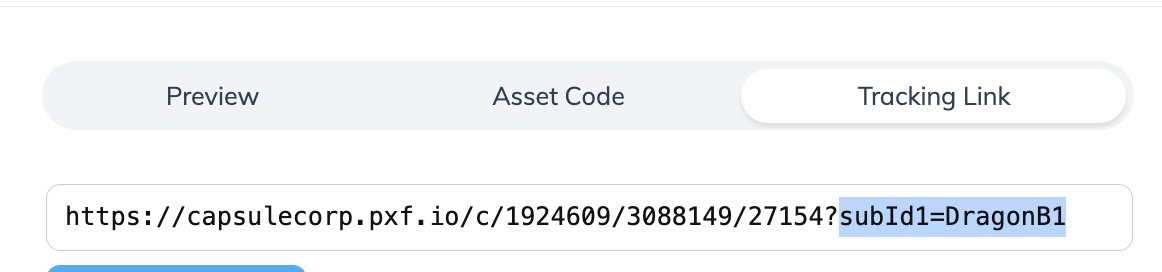
impact.com allows you to enhance the [tracking links](https://help.impact.com/partner/what-would-you-like-to-learn-about/platform-features/tracking/tracking-links/create-and-manage-links/create-tracking-links) you create by adding special parameters to promote your partnered brands. These query string parameters are added to the end of a tracking link URL to help organize information for effective analysis. This allows you to extract valuable insights during reporting, such as identifying your most traffic-generating promotional channels. Refer to the [Performance by Vanity Link](https://app.impact.com/secure/mediapartner/report/viewReport.report?handle=partner_perf_by_vlink) report for detailed insights into how your links are performing.

{% hint style="danger" %}
**Warning:** impact.com strongly recommends adding parameters on the impact.com platform rather than appending them manually. Altering your tracking links manually leaves room for error, which could prevent you from utilizing your reporting information effectively. When getting a tracking link from impact.com, you may see certain meta tags that a brand already added to the tracking link. These meta tags **must not be removed** as doing so will result in inaccurate tracking.
{% endhint %}

#### Add static parameters via the dashboard widget

Use this method if you want to add parameters to a tracking link you generate for a specific brand program. This method allows you to use the *Create a link* dashboard widget to quickly fill the tracking link's Sub ID and Shared ID fields with static values that do not change.

{% tabs %}
{% tab title="Dashboard widget" %}

1. Follow the steps to [create a tracking link for a specific brand program](https://help.impact.com/partner/what-would-you-like-to-learn-about/platform-features/tracking/tracking-links/create-tracking-links#create-a-tracking-link-for-a-specific-brand-program) via the dashboard widget.
2. Before selecting *Create* to create the tracking link, select **Advanced**.
3. Add optional *Sub IDs*, a *Shared Id*, or a *Promotional Property* to the link.
   * *Sub ID*s and *Shared ID*s can be added to a tracking link, allowing impact.com to track and report on information you find useful. See the *Parameters reference & examples* below for more information.
   * *Promotional Properties* that can be added to a tracking link include websites, social media apps, or mobile apps that were enabled and added to your [Marketplace Profile](https://help.impact.com/partner/what-would-you-like-to-learn-about/platform-features/working-with-brands/applying-to-brands/update-and-manage-your-public-profile).
4. Select **Create**.

   * The parameters you added will be appended to the end of the tracking link, but they will not display in the shareable link field.

   <div data-with-frame="true"><figure><img src="https://347878556-files.gitbook.io/~/files/v0/b/gitbook-x-prod.appspot.com/o/spaces%2Fb2rE79d9UhOKZQLgzSqx%2Fuploads%2Fgit-blob-8f475900ae360117812cd5adc3c536146b3c715d%2Ff6adca821399828cd03d7b920f760196229333008ff59f8da7d6ae3c70ec3ed2.png?alt=media" alt="" width="375"><figcaption></figcaption></figure></div>

{% endtab %}

{% tab title="Dashboard widget V2" %}

1. Follow the steps to [create a tracking link for a specific brand program](https://help.impact.com/partner/what-would-you-like-to-learn-about/platform-features/tracking/tracking-links/create-tracking-links#create-a-tracking-link-for-a-specific-brand-program) via the dashboard widget V2.
2. From the slideout, you can optionally add a *Landing page* URL.
3. Select **Advanced** ![](https://347878556-files.gitbook.io/~/files/v0/b/gitbook-x-prod.appspot.com/o/spaces%2Fb2rE79d9UhOKZQLgzSqx%2Fuploads%2FcPa68OltbIaD3QiiS0J4%2FDrop-down.svg?alt=media\&token=db083c4f-c5aa-47e3-91ab-9a2b9a2152ea) **\[Drop-down menu]**.
4. Add optional *Sub IDs*, a *Shared ID*, or a *Media Property*.
   * *Sub IDs* and *Shared IDs* can be added to a tracking link, allowing impact.com to track and report on information you find useful. See the [*Parameters reference & examples*](#parameters-reference-and-examples) below for more information.
   * *Media Properties* that can be added to a tracking link include websites, social media apps, or mobile apps that were enabled and added to your [Marketplace Profile](https://help.impact.com/partner/what-would-you-like-to-learn-about/platform-features/working-with-brands/applying-to-brands/update-and-manage-your-public-profile).

{% hint style="success" icon="memo-circle-info" %}
**Note for Trackonomics Essentials users**: You can also use your custom Sub ID templates if you’ve set up templates in your account. See [Sub ID Templates Explained](https://help.impact.com/partner/what-would-you-like-to-learn-about/platform-features/trackonomics/sub-id-templates-explained) to learn more.
{% endhint %}

5. Select **Update & Copy Link**.
   * If you’ve set your link preferences to generate short links by default, any added parameters will be appended to the end of the tracking link, but won’t display in the shareable link field. If you’ve set your link preferences to generate regular links, then you’ll see the parameters.
     {% endtab %}
     {% endtabs %}

#### Add static parameters via the web extension

Use this method if you want to add parameters to a tracking link for a specific brand program. This method allows you to fill the tracking link's Sub ID and Shared ID fields with static values that do not change.

1. Follow the steps to [create a tracking link for a specific brand program](https://help.impact.com/partner/what-would-you-like-to-learn-about/platform-features/tracking/tracking-links/create-and-manage-links/create-tracking-links) via the web extension.
2. Before copying the tracking link, select **Show advanced settings**.
3. Add optional *Sub IDs* or a *Shared Id* to the link.
   * *Sub ID*s and *Shared ID*s can be appended to a tracking link, allowing impact.com to track and report on information you find useful. See the *Parameters reference & examples* below for more information.
   * The parameters you added will be added to the end of the tracking link.

     <div data-with-frame="true"><figure><img src="https://347878556-files.gitbook.io/~/files/v0/b/gitbook-x-prod.appspot.com/o/spaces%2Fb2rE79d9UhOKZQLgzSqx%2Fuploads%2Fgit-blob-48397541f56ade4b4e6230c2468eb2211955858e%2Fbfad32e876062ddd18622f13bc2e36642f7e90f68130b1b56895964242efce91.jpg?alt=media" alt="" width="563"><figcaption></figcaption></figure></div>

#### Add static & dynamic parameters via an asset slide-out

Use this method if you want to add parameters to a tracking link you retrieve from a specific brand asset or deal. This method allows you to fill the tracking link's Sub ID and Shared ID fields with either static values that do not change, or dynamically populated values (e.g., `{{MemberID}}`).

1. Follow the steps to [Get a tracking link for a specific ad](https://help.impact.com/partner/what-would-you-like-to-learn-about/platform-features/tracking/tracking-links/create-and-manage-links/create-tracking-links) or [deal](https://help.impact.com/partner/what-would-you-like-to-learn-about/platform-features/marketing-content/deals/view-and-manage-deals-as-a-partner).
2. Before copying the tracking link, select ![](https://347878556-files.gitbook.io/~/files/v0/b/gitbook-x-prod.appspot.com/o/spaces%2Fb2rE79d9UhOKZQLgzSqx%2Fuploads%2Fgit-blob-d0b6669ae76a7bef06a8d6940d7ad5c16bb8d018%2F7cb018d4face8d7cceb880eb5086c812e764fbcfe6f2a0377f88bc7576973070.svg?alt=media) **\[Toggle on] Tracking Parameters**.
3. Add optional *Sub IDs*, a *Shared Id*, or a *Promotional Property* to the link.
   * *Sub ID*s and *Shared ID*s can be added to a tracking link, allowing impact.com to track and report on information you find useful. See the *Parameters reference & examples* section for more information.
   * *Promotional Properties* that can be added to a tracking link include websites, social media apps, or mobile apps that were enabled and added to your [Marketplace Profile](https://help.impact.com/partner/what-would-you-like-to-learn-about/platform-features/working-with-brands/applying-to-brands/update-and-manage-your-public-profile).
4. Add optional dynamic parameters in the *Sub ID* fields.
   * See the *Dynamic parameters example* reference below for more information.
5. Select **Save**.
   * The parameters you added will be added to the end of the tracking link.
6. Select **Copy Tracking Link**.

<details>

<summary>Dynamic parameters example</summary>

{% hint style="success" icon="memo-circle-info" %}
**Note:** The example below is for illustration purposes only. When setting up your own dynamic tracking, use the syntax and parameter values that are appropriate to your tracking setup.
{% endhint %}

Dynamic parameters are particularly useful for certain partner types, like Cashback and Loyalty websites, because they can help you ensure that members are correctly credited for clicks and actions.

One use case for adding a dynamic parameter to your tracking link is to track which member in your site clicked on a link and purchased something. To track this dynamic value:

1. Add the text **{{MemberID}}** in one of your *Sub ID* fields.
2. Select **Save**.

   * This will generate a tracking link similar to the following: `https://acmecorp.sjv.io/c/111111/222222/33344?subId1=%257B%257BMemberID%257D%257D`
   * When a member of your website clicks on this link, your website will populate the *Sub ID* field with the member's actual ID (e.g., "12345678"), and this dynamically populated value will be reflected in impact.com reporting.

   <div data-gb-custom-block data-tag="hint" data-style="danger" class="hint hint-danger"><p><strong>Warning:</strong> You can only add dynamic parameters to links on an ad card—it won't work with other link-creation methods. Ensure that your system is configured to accept dynamic variables. Work with your technical team or refer to your website provider's documentation for more information on how your website handles these types of variables.</p></div>

</details>

#### Parameters reference & examples

<details>

<summary>SubId1, SubId2, &#x26; SubId3</summary>

The *SubId* parameter accepts a custom value that appears only in partner reporting (Advanced Action Listing, Performance by Sub ID). [Learn more about Sub ID values.](https://help.impact.com/partner/what-would-you-like-to-learn-about/platform-features/tracking/tracking-links/link-parameters/sub-id-and-shared-id-parameters-explained-for-partners)

{% hint style="info" %}
**Examples:**

`https://le.pxf.io/c/1416144/674249/8882?subId1=blog`

`https://le.pxf.io/c/1416144/674249/8882?subId2=blogarticle123`

`https://le.pxf.io/c/1416144/674249/8882?subId3=instagrambio`
{% endhint %}

</details>

<details>

<summary>SharedId</summary>

The *SharedId* parameter accepts a custom value that appears both in partner reporting (Advanced Action Listing, Performance by Sub ID) and brand reporting. [Learn more about Shared ID values.](https://help.impact.com/partner/what-would-you-like-to-learn-about/platform-features/tracking/tracking-links/link-parameters/sub-id-and-shared-id-parameters-explained-for-partners)

{% hint style="info" %}
**Example:**

`https://le.pxf.io/c/1416144/674249/8882?SharedId=partnerblog`
{% endhint %}

</details>

<details>

<summary>u</summary>

The *u* parameter is used for deep linking to a specific URL. The brand you're partnered with must also [allow deep linking](https://help.impact.com/partner/what-would-you-like-to-learn-about/platform-features/tracking/tracking-links/tracking-links-overview#before-you-begin-0-0), and the deep-linked URL must be a domain and path permitted by the brand.

Keep in mind that the URL used must be percent-encoded (i.e., using valid [ASCII characters](https://www.w3schools.com/charsets/ref_html_ascii.asp)) ![](https://347878556-files.gitbook.io/~/files/v0/b/gitbook-x-prod.appspot.com/o/spaces%2Fb2rE79d9UhOKZQLgzSqx%2Fuploads%2Fgit-blob-19030cdc586c42c2acb6fcf373f21925f0e089f1%2F43c928c1170f7294404de624b014d01b7f4a081cf6362a4833092870d77808d3.svg?alt=media). We recommend adding this parameter using one of the methods above if you're not comfortable manually encoding a URL.

{% hint style="info" %}
**Example:**

`https://le.pxf.io/c/1416144/674249/8882?u=https%3A%2F%2Fexample.com%2Fstore%2Fproduct.html`
{% endhint %}

</details>

<details>

<summary>TrafCat</summary>

The *Traffic Category* parameter is a manually added custom value used primarily to label the category of traffic coming from a tracking link.

Usually, this value is specified by the brand for you to use and used in context for where links are placed (e.g., "Toolbar" for traffic coming from a web toolbar). Brands can configure payout rules based on this parameter in the terms they propose to you.

{% hint style="info" %}
**Example:**

`https://le.pxf.io/c/1416144/674249/8882?trafcat=toolbar`
{% endhint %}

</details>

<details>

<summary>TrafSrc</summary>

The *Traffic Source* parameter is a manually added custom value used primarily to identify the source from which traffic is coming.

Usually, this value is specified by the brand for you to use and used to determine from where traffic is coming (e.g, "Paid Search"). Brands can configure payout rules based on this parameter in the terms they propose to you.

{% hint style="info" %}
**Example:**

`https://le.pxf.io/c/1416144/674249/8882?trafsrc=paidsearch`
{% endhint %}

</details>

<details>

<summary>ProdSku</summary>

The *Product SKU* parameter is a manually appended custom value used to identify a brand's specific product SKU for tracking links that send traffic to a specific product. *Product Catalog* tracking links automatically add this value, but you can add this value manually if requested by the brand.

{% hint style="info" %}
**Example:**

`https://le.pxf.io/c/1416144/674249/8882?prodsku=KS944RUR`
{% endhint %}

</details>

<details>

<summary>Param1, Param2, Param3, &#x26; Param4</summary>

The *Param* parameter is a manually added custom value that works almost identically to the *SharedId* parameter. Brands may request that you pass values in these query strings, as they will appear in specific reports to brands, but not partners.

{% hint style="info" %}
**Examples:**

`https://le.pxf.io/c/1416144/674249/8882?param1=ZveVDzsLSNLf`

`https://le.pxf.io/c/1416144/674249/8882?param2=product100`

`https://le.pxf.io/c/1416144/674249/8882?param3=desktop`

`https://le.pxf.io/c/1416144/674249/8882?param4=somevalue`
{% endhint %}

</details>

<details>

<summary>PartnerCustId</summary>

The *Partner Customer ID* parameter represents the customer ID of the visitor in your system in the tracking link. This parameter can help impact.com track users across devices for more accurate attribution.

{% hint style="info" %}
**Example:**

`https://le.pxf.io/c/1416144/674249/8882?partnercustid={partner_customer_id}`

Where `{partner_customer_id}` is a unique value you assign to customers on your website.
{% endhint %}

</details>

<details>

<summary>impacttest</summary>

You can append the *impacttest* parameter to your tracking link when testing (to identify the click as a test click).

{% hint style="info" %}
**Example:**

`https://le.pxf.io/c/1416144/674249/8882?impacttest=1`
{% endhint %}

</details>

{% hint style="success" icon="memo-circle-info" %}
**Note:** When getting a tracking link from impact.com, you may see certain meta tags that a brand already added to the tracking link. These meta tags **must not be removed**—doing so will result in inaccurate tracking.
{% endhint %}
