> For the complete documentation index, see [llms.txt](https://help.impact.com/llms.txt). Markdown versions of documentation pages are available by appending `.md` to page URLs; this page is available as [Markdown](https://help.impact.com/partner/what-would-you-like-to-learn-about/platform-features/reporting-for-partners/performance-reports-for-partners/performance-by-sub-id-and-shared-id-for-partners.md).
# Performance by Sub ID & Shared ID for Partners
The *Performance by Sub ID and Shared ID* report shows you a wide range of tracking data broken down by [parameters](/partner/what-would-you-like-to-learn-about/platform-features/tracking/tracking-links/link-parameters/sub-id-and-shared-id-parameters-explained-for-partners.md) that you've appended to your tracking links. KPIs like actions, clicks, and more can all be found here.
## Manage the report
1. From the top navigation bar, select **Reports →** **More Reports**.
* Alternatively, from the top navigation bar, select **Reports** **→ More → More Reports**.
2. From the *Category* filter next to the search bar, select **Performance**.
3. Select [**Performance by Sub ID and Shared ID**](https://app.impact.com/secure/mediapartner/report/viewReport.report?handle=partner_performance_by_subid).
* You can also pin the report to the top navigation bar by hovering over the row and selecting **\[Pin]**.
* You can also add the report to your *Favorited list* by selecting  **\[Heart]**.
4. Below the report title, filter for the data you want to view. Select **Apply** when you have your filters in place.
* View the [*Filter reference*](#filter-reference) below for more information.
* You can use the icons at the top-right of the page to[**\[Schedule\]**](/partner/what-would-you-like-to-learn-about/platform-features/reporting-for-partners/report-management/schedule-a-report-as-a-partner.md),**\[Download]** in PDF, Excel, or CSV format, or[**\[Export\]**](https://integrations.impact.com/partner-api-reference/reference/reports/report-export) the report via API.
#### Access the report data
You can view the report data as a trend graph or table and compare certain metrics.
{% tabs %}
{% tab title="Trend graph" %}
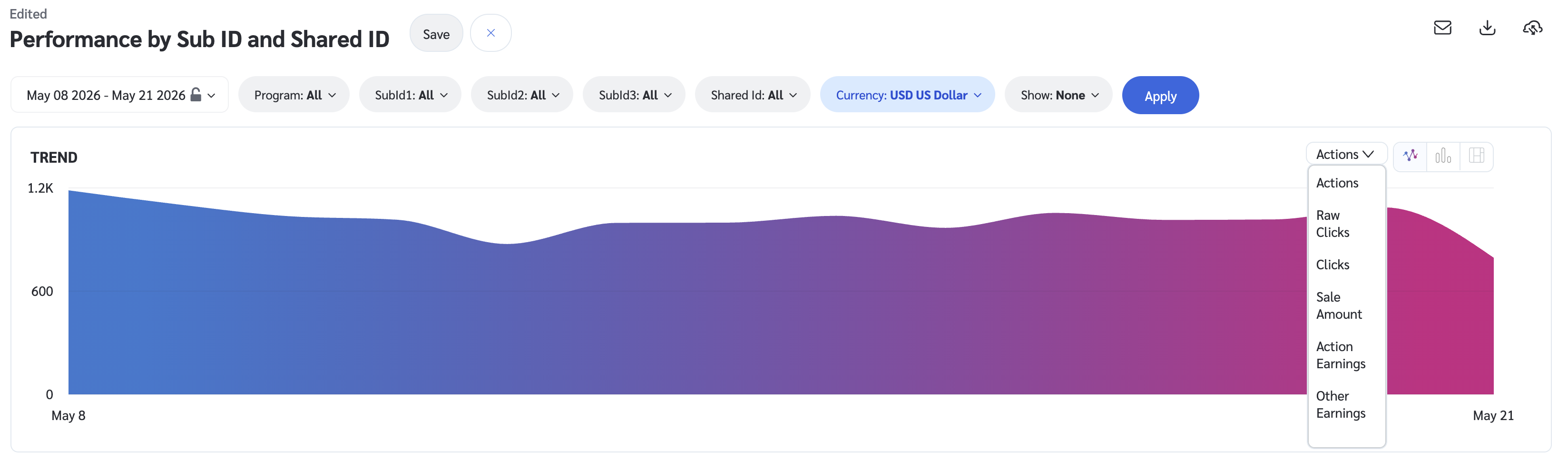
The trend graph enables you to filter your report according to the core group of metrics that drives the highest value. This view provides the selected metric’s daily trends over a specific date range.
1. Select the  **\[Drop-down menu]** in the upper-right corner, then choose a specific metric.
2. Alternate between the line, bar, and treemap views by selecting the view icon.
{% endtab %}
{% tab title="Data table" %}
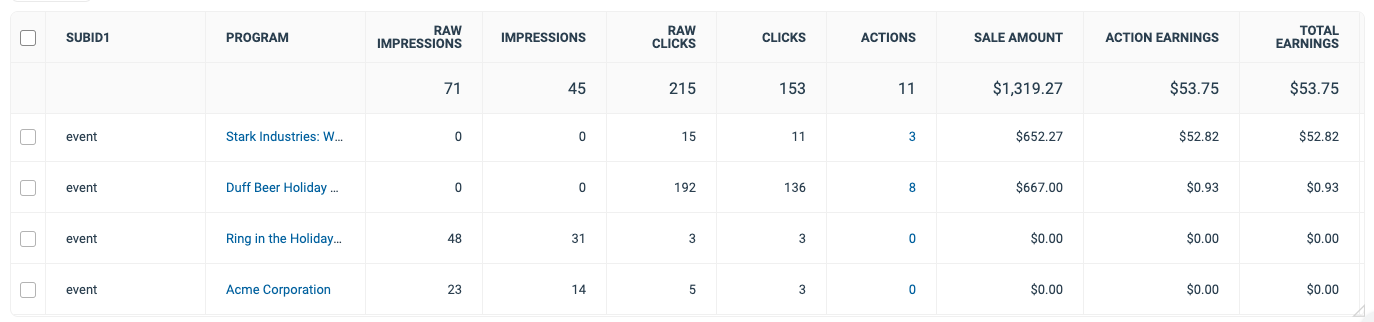
Below the trend graph is the data table. The data table provides different data points displayed in a column view. You can compare these trends provided in the detailed set of comparable numbers over the selected date range.
* Refer to the *Report data column reference* below for more information on the columns found in the data table.
* Add or remove columns from the report table using the  **\[Columns]** icon at the top-right of the report.
{% endtab %}
{% tab title="Comparison graph" %}
The comparison graph compares the *Shared IDs and Sub IDs* of selected rows in the data table based on the metric selected in the trend graph. This graph will show a daily trend of the selected shared IDs and sub IDs over the selected date range.
1. Select the specific metric from the  **\[Drop-down menu]** in the trend graph.
2. Select the empty checkbox next to the row in the data table for the ads you want to compare.
* Each selected checkbox will be displayed in a specific color that will reflect in the trend graph.
3. Select **Graph rows** to compare the selected rows.
4. Select **Clear compare** to clear the trend view.
Filter data by when it was created. You can also compare two periods of time against each other.
You can pull a maximum of 32 days of data. However, you can still perform Year-over-Year reporting by selecting \[Unchecked box]compare to {Previous year}.
|
| Program | Select the specific program(s) for which you want to see performance data. |
| SubId 1-3 |
Filter performance data by a SubId parameter.
If you want to filter according to empty sub Ids, enter (blank) in the search field.
|
| Currency | Set the currency in which you want to view report data. impact.com will convert the amounts to your selected currency. |
Add columns from a selection of data points. These data points will get added to the table after you select **Apply**.
#### Show
| Data Point | Description |
| --------------------------- | ---------------------------------------------------------------------------------------------------------------------------------------------------------------------------------------------------------------------------------------------------------------------------------------------------------------------------------------------- |
| Payable Clicks (CPCv2) | See clicks you've driven that are eligible for payout. |
| Sale Metrics | This includes your Sale CR (Sale conversion rate—the number of sales divided by the number of clicks), Sale EPA (Earnings per sale action—Sale earnings divided by the number of sale actions), and Sale EPC (Earnings per unique click—Sale earnings divided by the number of unique clicks) metrics. |
| Shared Id | Show parameters you've appended to your tracking links. |
| SubId1, SubId2, SubId3 | Show parameters you've appended to your tracking links. |
| Lead Metrics | This includes your Lead CR (Lead conversion rate—the number of leads divided by the number of clicks), Lead EPA (Earnings per lead action—Earnings associated with lead actions divided by the number of lead actions), and Lead EPC (Earnings per unique click—Earnings associated with lead actions divided by the number of unique clicks). |
| Call Metrics | This includes the Calls (The number of tracked calls), Converted Calls (The number of call actions—pay-per-ring, pay-per-duration, and pay-per-call conversions, excluding reversed actions), and Call Earnings (Earnings associated with converted call actions) metrics. |
| Mobile Install Metrics | This includes the number of mobile install actions and the earnings associated with those actions. |
| Other Mobile Action Metrics | This includes the number of mobile-related (non-install) actions and the earnings associated with those actions. |
| Reversals | This metric shows the number of reversals per program in the chosen period. |
| CTR Metrics | This metric shows you your click-through rate per program during the chosen period. |
Report data column reference
| Column | Description |
| --------------- | -------------------------------------------------------------------------------------------------------------------------------------------------------------------------------------------------------------------------------------------------------------------------------- |
| SubId 1 | The parameter appended to your tracking URLs. |
| Program |
The program associated with the SubId performance data.
Select the program name to see a dashboard of analytics for that program.
|
| Raw Impressions | The total number of times content related to the appended parameters was displayed on a user's screen. |
| Impressions | The total number of times content related to the appended parameters was displayed on *unique* users' screens. |
| Raw Clicks | The total number of clicks tracked. |
| Clicks | The total number of SubId link clicks that took your audience to your partnered brand's landing page. |
| Actions |
The total number of conversions (sales, app installs, etc.) tracked for a particular SubId. This number excludes any reversed conversions.
Select the number of actions to view an action listing for this report row over the chosen time period.
|
| Sale Amount | This is the total amount of revenue you have generated for your partnered brands for this SudId and Shared Id combined. |
| Action Earnings | The amount of compensation you receive for driving the traffic that resulted in conversions for this SubId and Shared Id combined. |
| Total Earnings | See total compensation earned for this row's SubId and Shared Id combined over the chosen time period. This is the total compensation you received from the brand for that SubId. (e.g., *Action Earnings* + *Click Cost* earnings + performance bonus). |
| EPA | This metric shows you your earnings per conversion (sales, app installs, etc.) per SubId and Shared Id during the chosen period. |
| EPC | View the earnings per link click (EPC) associated with a particular SubId and Shared Id combined. This amount is calculated by dividing the total action earnings by the total number of clicks. |
| Conversion Rate | The number of actions divided by the total number of clicks for your SubId or Shared Id on this day. |
| AOV |
The average order value associated with your SubId and Shared Id.
AOV=Sale Amount divided by Actions.
|
---
# Agent Instructions
This documentation is published with GitBook. GitBook is the documentation platform designed so that both humans and AI agents can read, navigate, and reason over technical content effectively. Learn more at gitbook.com.
## Querying This Documentation
If you need additional information that is not directly available in this page, you can query the documentation by asking a question.
Perform an HTTP GET request on the following URL with the `ask` and `goal` query parameters:
```
GET https://help.impact.com/partner/what-would-you-like-to-learn-about/platform-features/reporting-for-partners/performance-reports-for-partners/performance-by-sub-id-and-shared-id-for-partners.md?ask=&goal=
```
`ask` is the immediate question: it should be specific, self-contained, and written in natural language.
`goal` is what the user is ultimately trying to achieve, the reason they need the answer. Sharing it helps GitBook give you a better, more relevant answer. A goal is most helpful when it describes the outcome the user wants rather than restating the question. For example, with `ask=how do I create an API token`, a goal like `automate deployments from our CI pipeline` lets GitBook tailor the answer to that use case.
The response will contain a direct answer to the question and relevant excerpts and sources from the documentation.
Use this mechanism when the answer is not explicitly present in the current page, you need clarification or additional context, or you want to retrieve related documentation sections.

![[Unchecked box]](https://paligoapp-cdn-eu1.s3.eu-west-1.amazonaws.com/impact/attachments/f01cdffa431a4d75ff09c130b66974d4-396370c2cdec89ba7d714c4c58e6845b.svg) \[Unchecked box] compare to {Previous year}.
\[Unchecked box] compare to {Previous year}.