# Request a Sponsored Text Asset as a Partner

One type of asset you can use to drive traffic to brands is the *Sponsored Text* asset. This asset type comes in the form of short text strings and is similar to the sponsored ads you would find on search engine result pages.

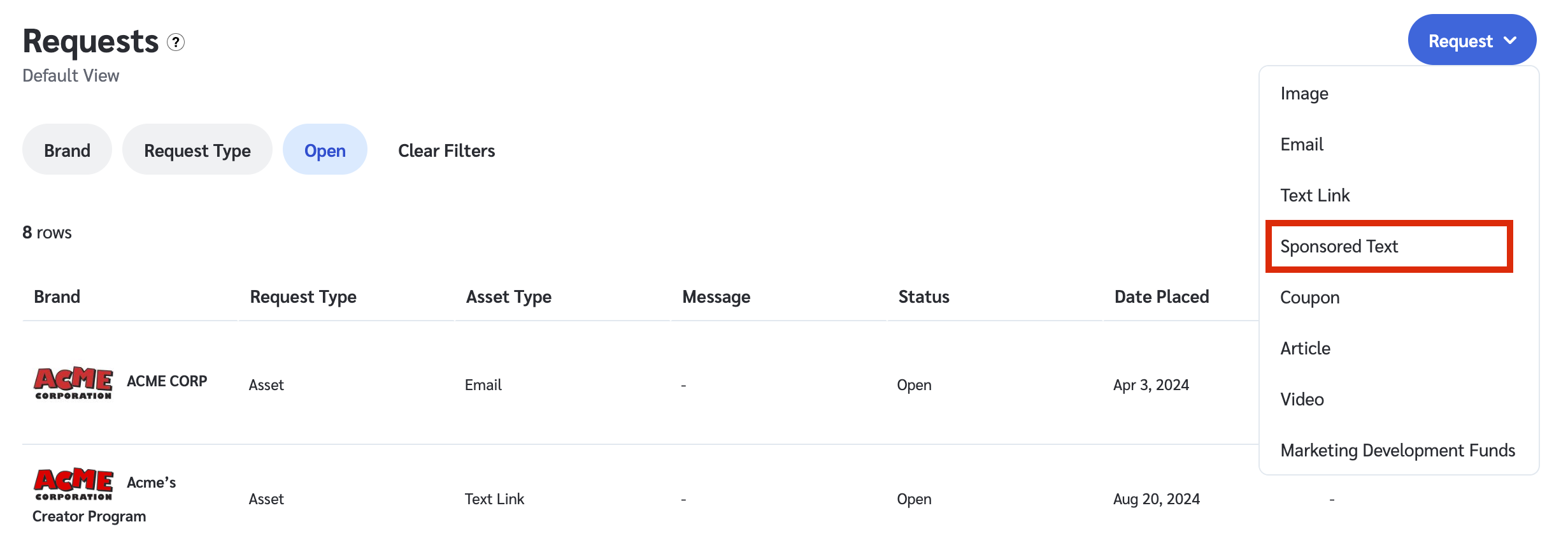
#### Request a new Sponsored Text ad

1. From the top navigation menu, select **Content → Requests**.
2. In the upper-right corner, select **Request → Sponsored Text**.
3. Fill out the form.
   * See the *Sponsored Text field reference* below for more information.
4. Select **Submit**.

   <div data-with-frame="true"><figure><img src="https://347878556-files.gitbook.io/~/files/v0/b/gitbook-x-prod.appspot.com/o/spaces%2Fb2rE79d9UhOKZQLgzSqx%2Fuploads%2Fgit-blob-729b1adbb0c7b4b1a11c9396dbb8770b9532f1b1%2F7c5223943c9b4e551298e42a2f917670a93f2a1bc143284f87afa1dc25ca09d8.png?alt=media" alt=""><figcaption></figcaption></figure></div>

<details>

<summary>Sponsored Text field reference</summary>

| **Form Field**          | **Description**                                                                                            |
| ----------------------- | ---------------------------------------------------------------------------------------------------------- |
| Brand                   | Select the brand to which this request will be sent from the drop-down menu.                               |
| Deal                    | Optionally, select the deal with which this asset will be associated.                                      |
| Video Format            | Select the format in which you’d like to receive the video.                                                |
| Language                | Optionally, select in which language you want the asset to be.                                             |
| Date Needed             | Select the date by which you want the asset.                                                               |
| Exclusive Ad            | Optionally, request the asset exclusively for your use.                                                    |
| Optional Example        | Optionally, add an example of what you might want the asset to look like or what copy could be used in it. |
| Additional Instructions | Optionally, include any additional comments for the brand to consider when they review your request.       |
</details>

#### Review your Sponsored Text request status

After you submit your request, you can check on its status.

1. From the top navigation menu, select **Content → Requests**.
2. Locate your request.
   * Select the **Brand** filter, then select the brand to which you sent the request.
   * Select **Request Type** → **Asset**.
3. To view the details of your request, hover over the request and select ![](https://347878556-files.gitbook.io/~/files/v0/b/gitbook-x-prod.appspot.com/o/spaces%2Fb2rE79d9UhOKZQLgzSqx%2Fuploads%2Fgit-blob-8ec3e877b1397045c61d394485e72ac4d93120ee%2Fc6ddb46c637059f06e86c790a911217a9428f5c47b5efef046f90555e85b03cd.svg?alt=media) **\[More] → View**.

   * Here, you can see any comments the brand may have made while processing and finalizing the request.

   <div data-with-frame="true"><figure><img src="https://347878556-files.gitbook.io/~/files/v0/b/gitbook-x-prod.appspot.com/o/spaces%2Fb2rE79d9UhOKZQLgzSqx%2Fuploads%2Fgit-blob-6b5ba75b09138efd649baf741d3b2b08e6f91de3%2F0997dff5db404776432bc717484276fe5b62ef5d6fc740be4da1b44d9966ae47.png?alt=media" alt=""><figcaption></figcaption></figure></div>
