> For the complete documentation index, see [llms.txt](https://help.impact.com/llms.txt). Markdown versions of documentation pages are available by appending `.md` to page URLs; this page is available as [Markdown](https://help.impact.com/partner/what-would-you-like-to-learn-about/platform-features/finance/submit-your-electronic-tax-document.md).
# Submit Your Electronic Tax Document
{% hint style="danger" %}
**Important:** To ensure compliance, this process must be completed by a single account user. If a different user attempts to continue the submission process, they will have to restart from step 1.
{% endhint %}
When submitting a tax document to impact.com, you will be required to fill out an online form that will ensure your tax document is compliant with tax law. You cannot manually submit a pre-filled tax document, and submitting a tax document through the mobile app is not currently supported. To submit a tax document, use a web browser on a mobile device or a laptop/desktop computer.
If you [invoice via an impact.com entity](/other/reference-documentation/understanding-impactcoms-trading-models.md), you are not required to submit a W-8 tax form.
## Submit the tax document
1. From the top navigation bar, select  **\[User profile] → Settings**.
2. Under the *Finance* section, select [**Tax Documents**](https://app.impact.com/secure/mediapartner/finance/fr/finance-electronic-document.ihtml?u=%2Fsecure%2Ffinance%2Fapp%2Fview-document-main-flow.ihtml).
3. Select **Submit Tax Document** to submit or **Resubmit** your tax documentation.
4. Select the option that best describes the Account Holder (for *Individual*, see [Option 1](#option-1-individual) below, for *Entity* see [Option 2](#option-2-entity)).
1. Select  **\[Expand]** to view the fields you need to fill in and fill in the rest of the details (see the required fields described below).
2. All fields with an **\* \[Asterisk]** in the app are mandatory.
### Option 1: Individual
If you are a sole proprietor or a disregarded entity with a single owner for tax purposes, choose the 'individual' path, providing your first and last name. You can add your business, trade, or "doing business as" (DBA) later, after selecting your tax form.
{% hint style="success" %}
**Note**: In most cases, you enter your Social Security Number (SSN), unless you are a sole proprietor and you have an Employer Identification Number (EIN). Then you may enter either your SSN or EIN. Don't enter the EIN for a disregarded entity.
{% endhint %}
Basic details reference
| Field | Description |
| --------------------- | --------------------------------------------------------------------------------------------------------------------------------------------------------------------------------------------------------------------------------------------------------------------------------------------------------------------------------------------------------------------------------------------------------------------------------------------------------------------------------------------------------------------------------------------------------------------------- |
| Are you a U.S. Entity |
This will determine what tax form is provided to you so be sure to make the correct selection:
Select Yes if you are an individual who was born in the U.S., Puerto Rico, Guam, or the U.S. Virgin Islands, or who retains U.S. Green Card entitlement, or who has a parent who is a U.S. citizen.
Select No if you are an individual who was not born in the U.S., Puerto Rico, Guam, or the U.S. Virgin Islands, who does not retain U.S. Green Card entitlement, and whose parents are not considered U.S. persons.
|
| Unique Identifier | This field is system-generated and pre-populated. You cannot edit this field. |
| Entity Name | Provide the name of the entity to which the tax information pertains. |
Tax Identification Numbers
| Field | Description |
| ------------------- | ---------------------------------------------------------------------------------------------------------------------------------------------------------------------------------------------------------------------------------------------------------------------------------------------------------------------------------------------------------------------------------------------------------------------------------------------------------------------------------------------------------------------------------------------------------------------------------------------------------------------------------------------------------------------------------------------------------- |
| U.S. TIN Type |
Select the relevant Tax Identification Number
• Employer Identity Number
• U.S. TIN not applicable
|
| U.S. TIN (SSN/EIN) |
Provide your U.S. tax identification number if applicable.
• Should be 9-digit number (NN-NNNNNNN)
|
| Foreign TIN Country | If you are outside of the U.S., you will need to select your country from the drop-down menu to which your Tax Identification Number belongs. |
| Foreign TIN |
If you selected a foreign TIN country, provide your foreign Tax Identification Number.
• Select \[Information] for more information on the required format specific to your country.
• If the format of your TIN doesn't match the default format for your selected country, select Alternative TIN Format and enter your TIN.
|
| GIIN |
Provide your Global Intermediary Identification Number if applicable. A GIIN is assigned by the FATCA Registration System to financial institutions and direct reporting non-financial foreign entities.
• Select \[Information] for more information on the required format.
|
Permanent residence address
{% hint style="success" %}
**Note**: Make sure your **name** and **mailing address** are correct on your submitted tax form, as this is where we mail the Form 1099-MISC at the end of the tax year.
{% endhint %}
| Field | Description |
| -------------------------- | ------------------------------------------------------------------------------------------------------------------------------------------------------------------------------------------------------------------------------------------------------------------------------------------------------- |
| Country of residence | Select your country from the drop-down menu. |
| Address Street Number/Name | Provide the number and name of your street. |
| Address Apt/Suite | Provide your suite or apartment number and name if applicable. |
| City or town | Provide the name of the city or town your address is in. |
| State or province | Provide the name of the state or province your address is in. |
| ZIP or postal code | Provide the ZIP or postal code number associated with your address. |
| Yes or No questions |
State whether or not your address is a post office box, or an In Care Of address and whether there is an alternative mailing address or not.
If you select yes to an alternative address, you will be asked to provide the alternative address information too.
|
Contact details
| Field | Description |
| ------------------------ | ----------------------------------------------------------------------------------------------------------------------------------------- |
| First Name | Provide the first name of the contact person. |
| Last Name | Provide the surname of the contact person. |
| Email | Provide the email address via which you'd like to be contacted. |
| Primary Contact Number | Provide the main cellphone or telephone number to contact. |
| Alternative phone number | Provide an alternative number to contact in case the primary contact number can't be reached. You can add more than 1 alternative number. |
### Option 2: Entity
Basic details reference
| Field | Description |
| ----------------------------------------------------------------------------------------------------- | --------------------------------------------------------------------------------------------------------------------------------------------------------------------------------------------------------------------------------------------------------------------------------------------------------------------------------------------------------------------------------------------------------------------------------------------------------------------------------------------------------------------------------------------------------------------------- |
| Are you a U.S. Individual |
This will determine what tax form is provided to you so be sure to make the correct selection:
Select Yes if you are an individual who was born in the U.S., Puerto Rico, Guam, or the U.S. Virgin Islands, or who retains U.S. Green Card entitlement, or who has a parent who is a U.S. citizen.
Select No if you are an individual who was not born in the U.S., Puerto Rico, Guam, or the U.S. Virgin Islands, who does not retain U.S. Green Card entitlement, and whose parents are not considered U.S. persons.
|
| Unique Identifier | This field is system-generated and pre-populated. It cannot be changed. |
| First Name | Provide the first name of the account holder. |
| Last Name | Provide the surname of the account holder. |
|
Country of Citizenship
\[Non-US individuals]
| Select your country from the drop-down menu. |
|
Date of birth
\[Non-US individuals]
| Select your birth date from the pop-up calendar. |
|
Name of disregarded entity receiving the payments
\[Non-US individuals]
| Enter the name of the person or business receiving payment. |
Tax Identification Numbers
| Field | Description |
| ------------------- | --------------------------------------------------------------------------------------------------------------------------------------------------------------------------------------------------------------------------------------------------------------------------------------------------------------------------------------------------------------------------------------------------------------------------------------------------------------------------------------------------------------------------------------------------------------------------------------------------------------------------------------------------------- |
| U.S. TIN Type |
Select the relevant Tax Identification Number:
• SSN/ITIN
• U.S. TIN not applicable
|
| U.S. TIN (SSN/EIN) |
Provide your U.S. tax identification number if applicable.
• Should be 9-digit number (NNN-NN-NNNN)
|
| Foreign TIN Country | If you are outside of the U.S. you will need to select your country from the drop-down menu to which your Tax Identification Number belongs. |
| Foreign TIN |
If you selected a foreign TIN country, provide your foreign Tax Identification Number.
• Select \[Information] for information on the required format for your country's TIN.
• If the format of your TIN doesn't match the default format for your selected country, select Alternative TIN Format and enter your TIN.
|
Permanent residence address
{% hint style="success" %}
**Note**: Make sure your **name** and **mailing address** are correct on your submitted tax form, as this is where we mail the Form 1099-MISC at the end of the tax year.
{% endhint %}
| Field | Description |
| -------------------------- | --------------------------------------------------------------------------------------------------------------------------------------------------------------------------------------------------------------------------------------------------------------------------------------------------- |
| Country of residence | Select your country from the drop-down menu. |
| Address Street Number/Name | Provide the number and name of your street. |
| Address Apt/Suite | Provide your suite or apartment number and name if applicable. |
| City or town | Provide the name of the city or town your address is in. |
| State or province | Provide the name of the state or province your address is in. |
| ZIP or postal code | Provide the ZIP or postal code number associated with your address is in. |
| Yes or No questions |
State whether or not your address is a post office box, or an In Care Of address and whether there is an alternative mailing address or not.
If you select yes to an alternative address, you will be asked to provide the alternative address information.
|
Contact details
| Field | Description |
| ------------------------ | ------------------------------------------------------------------------------------------------------------------------------------------------ |
| First Name | Provide the first name of the contact person. |
| Last Name | Provide the last name/surname of the contact person. |
| Email | Provide the email address you'd like to be contacted via. |
| Primary Contact Number | Provide the main cellphone or telephone number to contact. |
| Alternative phone number | Provide an optional alternative contact number in case the primary contact number cannot be reached. You can add more than 1 alternative number. |
5. Select  **\[Checkbox] I confirm the information above is correct**, then select **Continue**.
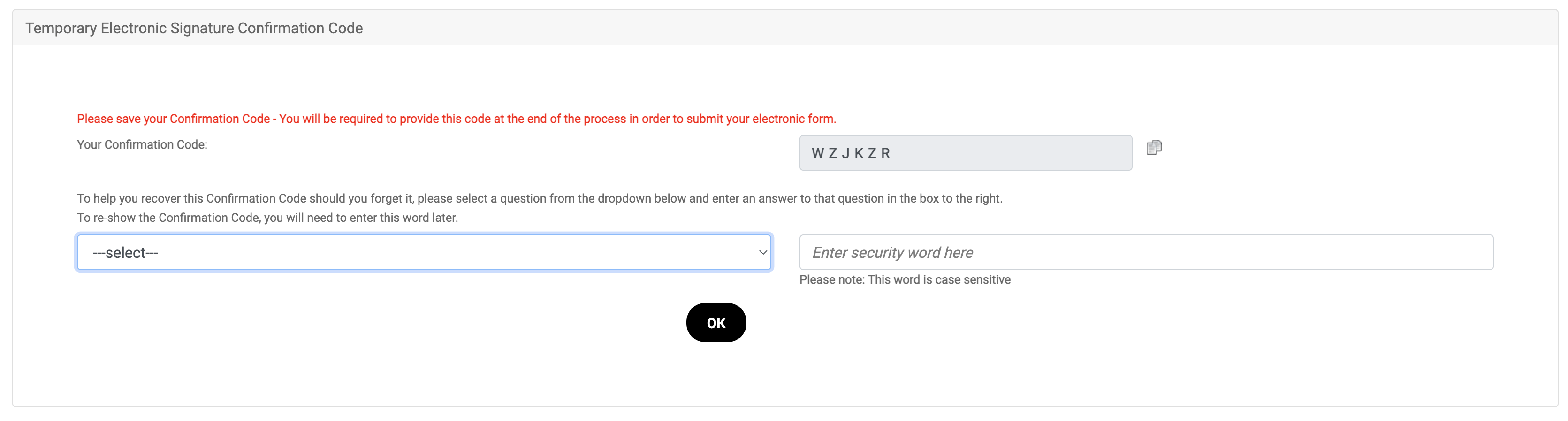
6. You'll see a 6-digit confirmation code. **Copy** this code and keep it on hand as you will need it to complete the process.
7. Below the code, select a security question and provide the answer in the field to the right. This will serve as a backup in the case that you forget or lose your confirmation code.
8. Select **OK**.
9. Next, select the relevant tax form to fill in and sign. Select **Continue**.
{% hint style="success" %}
**Note:** Refer to the [electronic tax documents overview](/partner/what-would-you-like-to-learn-about/platform-features/finance/finance-documents/electronic-tax-documents-for-partners-explained.md) help article for additional information regarding tax form differences and criteria for filling out W-8 and W-9 tax form information. There is also a guide on the tax selection page to assist in making the right selection.
{% endhint %}
10. Fill in the relevant information required for your selection and select **Continue** to progress through each step.
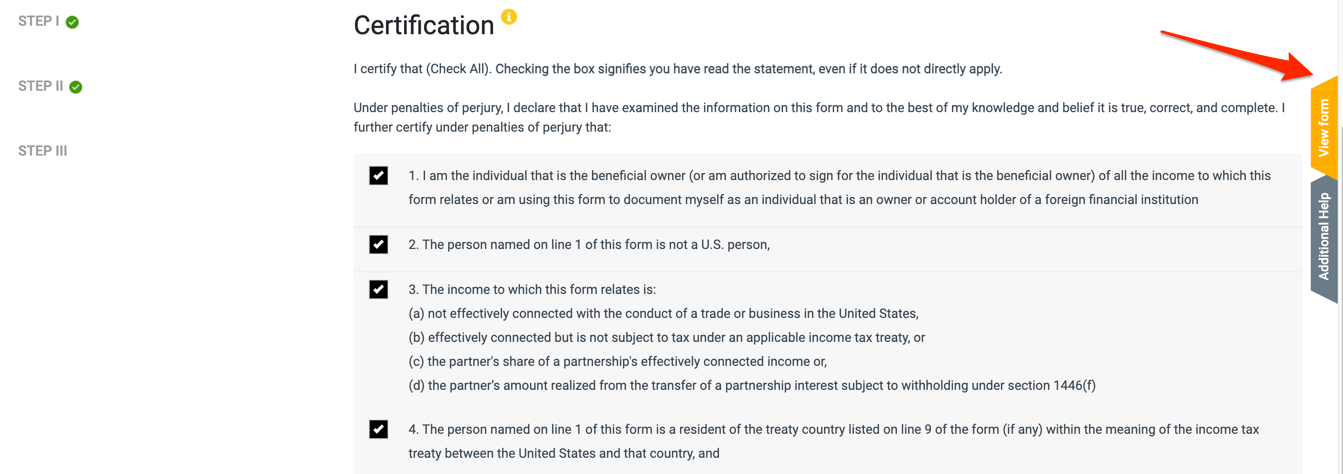
11. Certify your submission by selecting the relevant boxes, then select **Continue**.
* Optionally, select the yellow **View Form** tab to the far right. This will allow you to view the information and download the form to save a copy of it.
12. Provide your full name for the signature, and enter the 6-digit confirmation code that you copied in step 7. Enter the date and select  **\[Checkbox] I confirm my acceptance of the above declarations**.
{% hint style="success" %}
**Note:** Your signatory name should match the name provided on your tax form.
{% endhint %}
13. Select **Submit electronically**.
14. Next, confirm your electronic submission declaration and consent to whether or not you'd like to receive a recipient statement electronically. Then select **Submit electronically**.
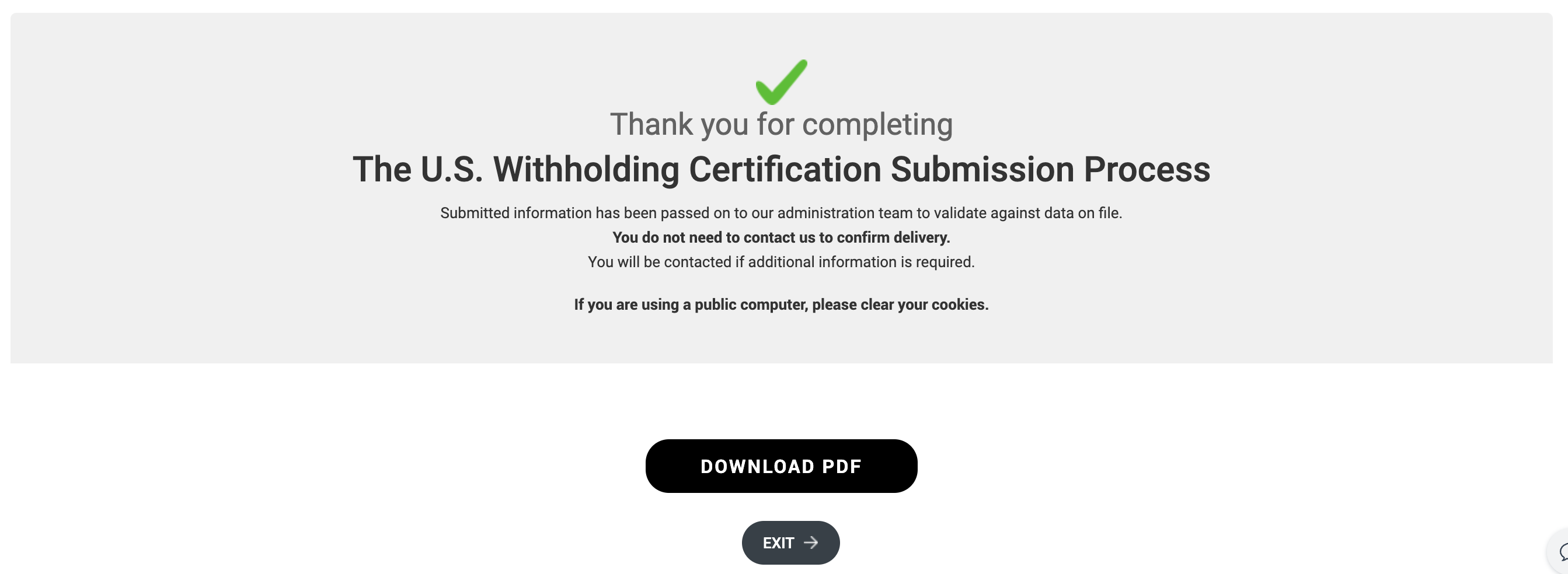
15. From here, impact.com's team will validate the information against data on file. Once your submission is successful, the banner message about validation will be removed.
16. Select **Download PDF** to download a copy of your tax document. Alternatively, select **Exit**.
## Next steps
Submitting your tax form is the first logistical step toward receiving payouts from brands. Make sure to also:
* [Verify your phone number](/partner/what-would-you-like-to-learn-about/platform-features/finance/payments-withdrawals-and-balance/how-do-partners-get-paid.md#step-2-verify-your-phone-number-0-1)
* [Add your bank details](/partner/what-would-you-like-to-learn-about/platform-features/finance/payments-withdrawals-and-balance/how-do-partners-get-paid.md#step-3-set-up-your-bank-details-0-2)
---
# Agent Instructions
This documentation is published with GitBook. GitBook is the documentation platform designed so that both humans and AI agents can read, navigate, and reason over technical content effectively. Learn more at gitbook.com.
## Querying This Documentation
If you need additional information that is not directly available in this page, you can query the documentation by asking a question.
Perform an HTTP GET request on the following URL with the `ask` and `goal` query parameters:
```
GET https://help.impact.com/partner/what-would-you-like-to-learn-about/platform-features/finance/submit-your-electronic-tax-document.md?ask=&goal=
```
`ask` is the immediate question: it should be specific, self-contained, and written in natural language.
`goal` is what the user is ultimately trying to achieve, the reason they need the answer. Sharing it helps GitBook give you a better, more relevant answer. A goal is most helpful when it describes the outcome the user wants rather than restating the question. For example, with `ask=how do I create an API token`, a goal like `automate deployments from our CI pipeline` lets GitBook tailor the answer to that use case.
The response will contain a direct answer to the question and relevant excerpts and sources from the documentation.
Use this mechanism when the answer is not explicitly present in the current page, you need clarification or additional context, or you want to retrieve related documentation sections.
 \[Information] for more information on the required format specific to your country.