> For the complete documentation index, see [llms.txt](https://help.impact.com/llms.txt). Markdown versions of documentation pages are available by appending `.md` to page URLs; this page is available as [Markdown](https://help.impact.com/partner/what-would-you-like-to-learn-about/impactcom-mobile-app/mobile-app-creator-campaigns/join-creator-campaigns-on-the-mobile-app.md).

# Join Creator Campaigns on the Mobile App

You can browse and apply to eligible brand campaigns in the Campaigns marketplace or from your dashboard, or join campaigns that brands invite you to. How you join depends on your relationship with the brand:

<details>

<summary>You have a contract with the brand</summary>

If you apply to a creator campaign from the marketplace while already joined to the associated program, the brand must approve your application before you can start working as a creator for that campaign.

Alternatively, if the brand invites you to its creator campaign via the marketplace, you're approved automatically when you accept the invitation.

</details>

<details>

<summary>You have no contract with the brand</summary>

If you apply to a creator campaign via the marketplace without first joining the associated program, impact.com registers this as a double application to both the campaign and the program. The brand then chooses whether to approve your application to the program alone, or both the program and the campaign. If the brand approves your program application, you work as a partner to the brand, and the brand may approve your campaign application at any future point.

Alternatively, if the brand invites you to its creator campaign via the marketplace, you're approved automatically to both the campaign and the program when you accept the invitation.

</details>

<details>

<summary>You join via campaign Invite link</summary>

If a brand invites you to its creator campaign via a campaign *Invite link*, they're inviting you to both the creator campaign and the associated program (if you aren't already joined to the program). If you sign up via the link, you're approved automatically only to the program. The brand must still approve your campaign application before you can start working as a creator for that campaign.

</details>

## Browse campaigns

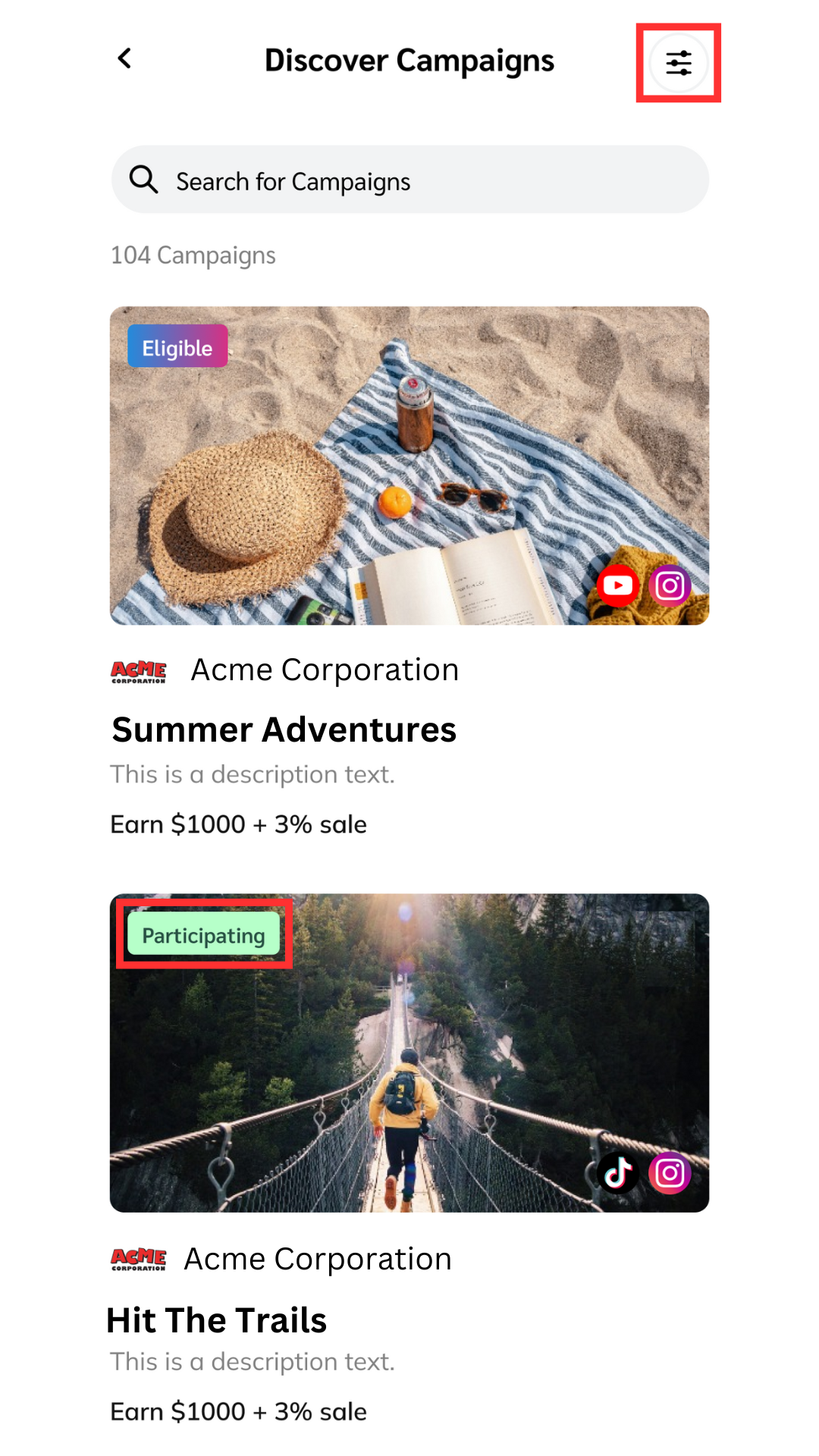
You can review campaigns of various statuses (for example, *Applied*, *In Negotiating*, and *Participating*).

1. From the navigation bar at the bottom of your screen, select ![Discover](https://347878556-files.gitbook.io/~/files/v0/b/gitbook-x-prod.appspot.com/o/spaces%2Fb2rE79d9UhOKZQLgzSqx%2Fuploads%2Fgit-blob-35961b52dbef3eb40a6bf6105fe09c31da9cf8d5%2Fbc8ad019d1124bda96c027b8aa307415958044436ec6fbb88ee11e06cc87cf09.svg?alt=media) **\[Discover]**.
2. From the tabs at the top of the *Discover* screen, select **Campaigns → Discover Campaigns**.

   * Note the status badges to quickly identify categories of campaigns.
   * Use ![Filters](https://347878556-files.gitbook.io/~/files/v0/b/gitbook-x-prod.appspot.com/o/spaces%2Fb2rE79d9UhOKZQLgzSqx%2Fuploads%2Fgit-blob-7cfd25b971c29a0610f2e298c20fbd9fd30ae9e6%2Fb9fc56922a355ba3112ddf49588fbe3cb2030c765ff244dd14a06eda4c9bf555.svg?alt=media) **\[Filters]** in the upper-right corner to narrow the list.

   <div data-with-frame="true"><figure><img src="https://347878556-files.gitbook.io/~/files/v0/b/gitbook-x-prod.appspot.com/o/spaces%2Fb2rE79d9UhOKZQLgzSqx%2Fuploads%2Fgit-blob-758f94d65311ae407ded521be10fda99a10f3d8d%2F854e569b53231bc101f9f11de4d0d07ecde2ff4d5bebebc778b4a1e5bb7710c1.png?alt=media" alt="Discover Campaigns screen with campaign status badges" width="375"><figcaption></figcaption></figure></div>

<details>

<summary>Campaign status reference</summary>

| Status         | Description                                                                                                                                                                                                                                                                                                                                                                                                                                                                                             |
| -------------- | ------------------------------------------------------------------------------------------------------------------------------------------------------------------------------------------------------------------------------------------------------------------------------------------------------------------------------------------------------------------------------------------------------------------------------------------------------------------------------------------------------- |
| Eligible       | <p>See all the campaigns that fit your profile based on your <a href="/partner/what-would-you-like-to-learn-about/platform-features/working-with-brands/applying-to-brands/profile-management/update-and-manage-your-public-profile.md">public profile information</a>. Your eligibility options improve when you add details to the <em>personal information</em> section of your public profile.</p><p>You can <strong>apply</strong> to any active campaign listed in the <em>Eligible</em> tab.</p> |
| Invited        | <p>See all the campaigns to which brands have invited you.</p><p>You can view the proposal and accept, negotiate, or decline the terms.</p>                                                                                                                                                                                                                                                                                                                                                             |
| Applied        | <p>See all the campaigns to which you applied but have not yet received a hiring decision.</p><p>Applications move to <em>In Negotiation</em> if you are required to bid your compensation or otherwise negotiate the Statement of Work (SoW) during the application.</p>                                                                                                                                                                                                                               |
| In Negotiation | <p>See all the campaigns to which you have applied and for which you are actively negotiating the SoW or the proposed flat fee.</p><p>You can view the proposal and accept or further negotiate the terms.</p>                                                                                                                                                                                                                                                                                          |
| Participating  | See all the campaigns to which you are currently hired.                                                                                                                                                                                                                                                                                                                                                                                                                                                 |
| Complete       | See all the campaigns that you have completed.                                                                                                                                                                                                                                                                                                                                                                                                                                                          |

</details>

<details>

<summary>Filter descriptions</summary>

| Filter           | Description                                                                                  |
| ---------------- | -------------------------------------------------------------------------------------------- |
| Sort By          | Arrange campaigns by launch date. You can arrange them in *Ascending* or *Descending* order. |
| Relationship     | Filter campaigns by their status, for example, *Participating*.                              |
| Category         | Filter campaigns by their category, for example, *Art & Entertainment*.                      |
| Brands           | Filter campaigns by the brands who published them.                                           |
| Social Platforms | Filter campaigns by their required social platforms.                                         |

</details>

## Apply to eligible campaigns

Before joining or accepting to join a campaign, you can view and negotiate the compensation, usage rights, and tasks (depending on the campaign settings).

1. From the navigation bar at the bottom of your screen, select ![Discover](https://347878556-files.gitbook.io/~/files/v0/b/gitbook-x-prod.appspot.com/o/spaces%2Fb2rE79d9UhOKZQLgzSqx%2Fuploads%2Fgit-blob-35961b52dbef3eb40a6bf6105fe09c31da9cf8d5%2Fbc8ad019d1124bda96c027b8aa307415958044436ec6fbb88ee11e06cc87cf09.svg?alt=media) **\[Discover]**.
2. From the tabs at the top of the *Discover* screen, select **Campaigns → Discover Campaigns**.
3. In the upper-right, select ![Filters](https://347878556-files.gitbook.io/~/files/v0/b/gitbook-x-prod.appspot.com/o/spaces%2Fb2rE79d9UhOKZQLgzSqx%2Fuploads%2Fgit-blob-7cfd25b971c29a0610f2e298c20fbd9fd30ae9e6%2Fb9fc56922a355ba3112ddf49588fbe3cb2030c765ff244dd14a06eda4c9bf555.svg?alt=media) **\[Filters]** and set the *Relationship* status to **Eligible**.
4. Select **Apply** to save the filter.
   * Now you can review your *Eligible* campaigns to find one that's a good fit for you.
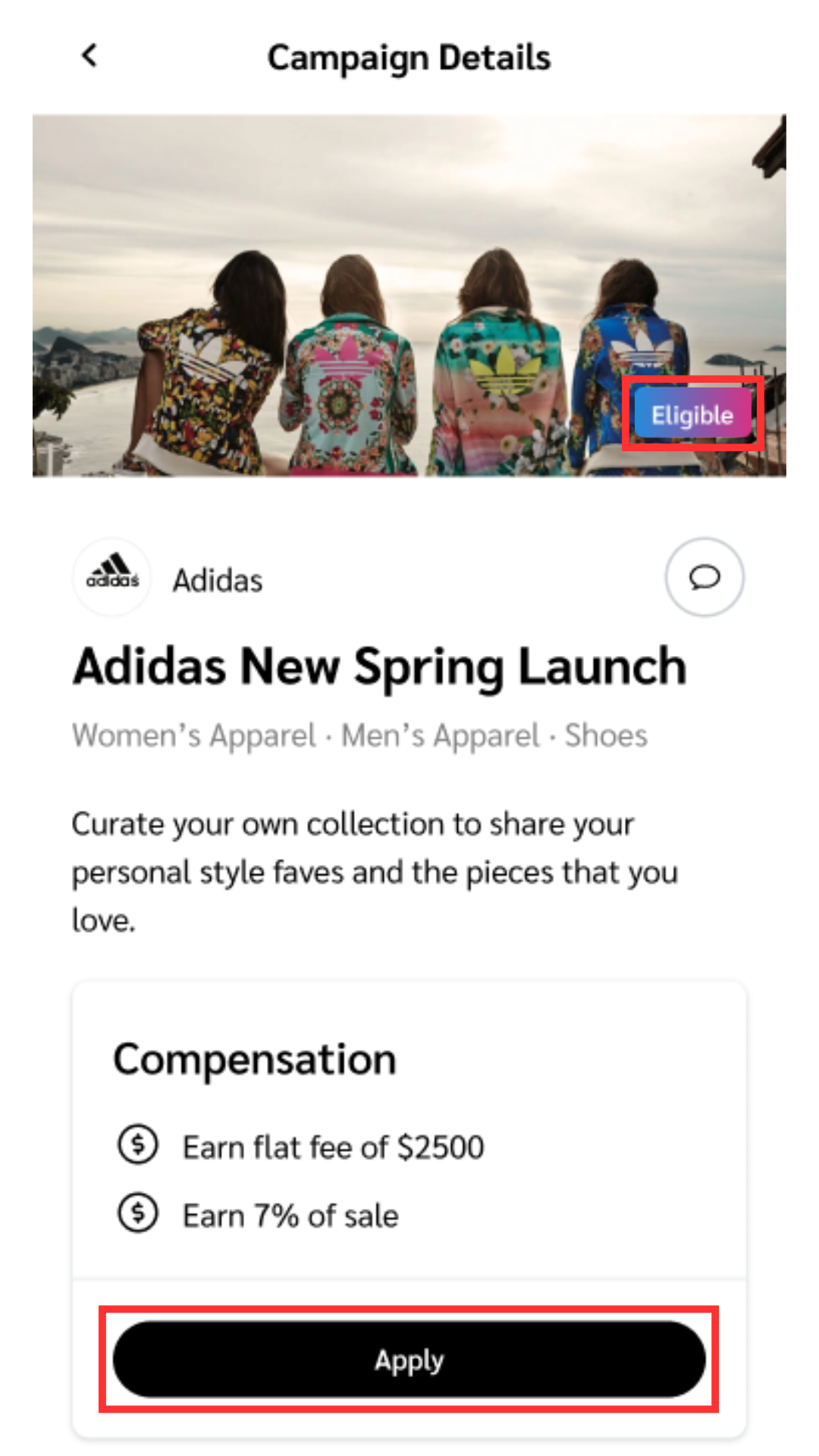
5. Select the campaign to which you want to apply and on the *Campaign Details* screen, select **Apply**.
6. In the textbox provided, enter a brief note to let the brand know why you want to work with them, then select **Continue**.
7. If the campaign contains negotiable items, you see these choices:

   * *Enter bid* — this option appears if the brand allows you to name your compensation rate.
   * *Negotiate* — this option appears if the brand allows you to propose new terms, such as timelines, tasks, and usage rights (where applicable).
     * When negotiating terms, select ![Toggle On](https://347878556-files.gitbook.io/~/files/v0/b/gitbook-x-prod.appspot.com/o/spaces%2Fb2rE79d9UhOKZQLgzSqx%2Fuploads%2FEv341AdIiPndQSb7uGMI%2FToggle%20on.svg?alt=media\&token=4ae8972d-c510-4ee2-adc5-e7170981650b) **\[Toggle On] See negotiable fields only** to more easily edit the negotiable fields.
   * *Apply* — this option allows you to indicate if you're satisfied with the campaign terms as is.

   <div data-gb-custom-block data-tag="hint" data-style="warning" class="hint hint-warning"><p><strong>Important:</strong> Applying to a campaign means you accept its terms, so review them carefully before you continue.</p></div>
8. When you're ready, select ![Checked box](https://347878556-files.gitbook.io/~/files/v0/b/gitbook-x-prod.appspot.com/o/spaces%2Fb2rE79d9UhOKZQLgzSqx%2Fuploads%2Fgit-blob-d2954616dc486c3e12c9211e20ff376bda0ab1af%2F7586e04e82e7c7203e5c82320dd417f8ac564cae5035024fdf0eb2ed017e6376.svg?alt=media) **\[Checked box] I have read, understood...the {Brand} Contract Terms**.
9. Finalize your application by selecting **Enter bid / Send / Apply** (depending on the choice you made in step 7).

   * You'll return to the *Campaign Details* screen, where you can **View statement of work**.
   * You receive an email and in-app notification when the brand accepts or declines your application.
   * Alternatively, the brand may counter your bid or your proposed terms, and you can continue negotiating until an agreement is reached.

   <div data-with-frame="true"><figure><img src="https://347878556-files.gitbook.io/~/files/v0/b/gitbook-x-prod.appspot.com/o/spaces%2Fb2rE79d9UhOKZQLgzSqx%2Fuploads%2Fgit-blob-11cecc536945c60963e2410b8b7ef5ab23757b17%2F86138a220b749dcab186eea1161d2eab9be4f0771be84e54527dc48ddc5391d5.png?alt=media" alt="Campaign Details screen after applying" width="375"><figcaption></figcaption></figure></div>

<details>

<summary>Campaign Details reference</summary>

| Field                 | Description                                                                                                                                                                                      |
| --------------------- | ------------------------------------------------------------------------------------------------------------------------------------------------------------------------------------------------ |
| Compensation          | The amount and type of payment you receive working for this campaign. Depending on the campaign's settings, you may be permitted to negotiate or bid your own compensation terms before joining. |
| Tasks                 | The promotional task that a campaign requires you to fulfill to receive compensation from a brand.                                                                                               |
| Who we're looking for | The required social media platforms, geographical location, or other characteristics that the brand is looking for in a creator.                                                                 |
| Content Guidelines    | The brand's expectations from you when posting promotional content, such as deadlines, hashtags, or handles you must use.                                                                        |
| Content Rights        | The access permissions a brand requires over your promotional content, such as the duration for which they may repost or utilize your content for their campaign.                                |
| Moodboard             | A photo collage that visually expresses the content theme that the brand is angling for.                                                                                                         |

</details>

## Accept campaign invites

1. From the navigation bar at the bottom of your screen, select ![Discover](https://347878556-files.gitbook.io/~/files/v0/b/gitbook-x-prod.appspot.com/o/spaces%2Fb2rE79d9UhOKZQLgzSqx%2Fuploads%2Fgit-blob-35961b52dbef3eb40a6bf6105fe09c31da9cf8d5%2Fbc8ad019d1124bda96c027b8aa307415958044436ec6fbb88ee11e06cc87cf09.svg?alt=media) **\[Discover]**.
2. From the tabs at the top of the *Discover* screen, select **Campaigns → Discover Campaigns**.
3. In the upper-right, select ![Filters](https://347878556-files.gitbook.io/~/files/v0/b/gitbook-x-prod.appspot.com/o/spaces%2Fb2rE79d9UhOKZQLgzSqx%2Fuploads%2Fgit-blob-7cfd25b971c29a0610f2e298c20fbd9fd30ae9e6%2Fb9fc56922a355ba3112ddf49588fbe3cb2030c765ff244dd14a06eda4c9bf555.svg?alt=media) **\[Filters]** and set the *Relationship* status to **Invited**.
4. Select **Apply** to save the filter.
   * Now you can review your *Invited* campaigns to find one that's a good fit for you.
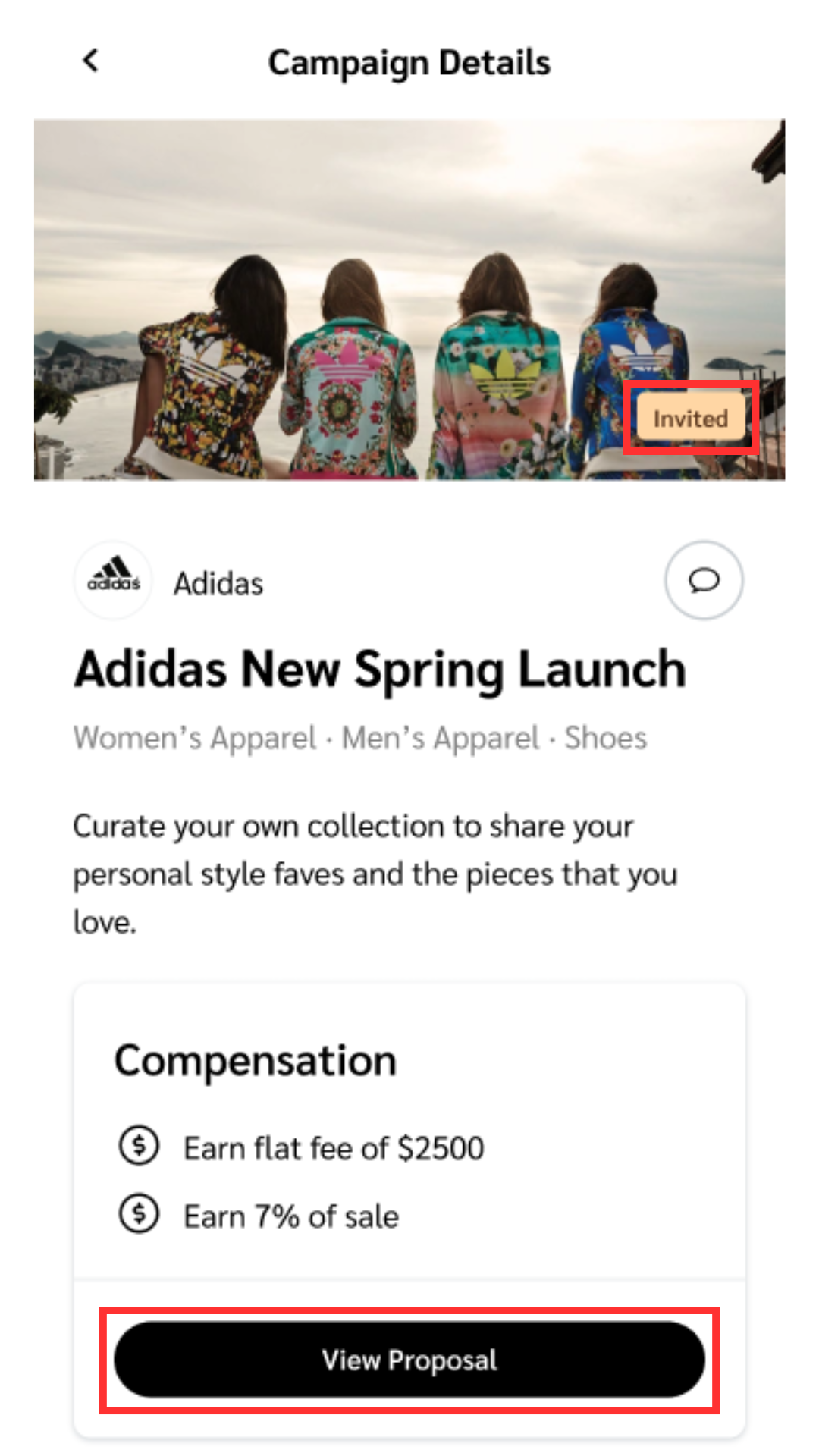
5. Select the campaign to which you want to apply and on the *Campaign Details* screen, select **View Proposal**.
6. In the textbox provided, enter a brief note to let the brand know why you want to work with them, then select **Continue**.
7. If the campaign contains negotiable items, you see these choices:

   * *Enter bid* — this option appears if the brand allows you to name your compensation rate.
   * *Negotiate* — this option appears if the brand allows you to propose new terms, such as timelines, tasks, and usage rights (where applicable).
     * When negotiating terms, select ![Toggle On](https://347878556-files.gitbook.io/~/files/v0/b/gitbook-x-prod.appspot.com/o/spaces%2Fb2rE79d9UhOKZQLgzSqx%2Fuploads%2FEv341AdIiPndQSb7uGMI%2FToggle%20on.svg?alt=media\&token=4ae8972d-c510-4ee2-adc5-e7170981650b) **\[Toggle On] See negotiable fields only** to more easily edit the negotiable fields.
   * *Apply* — this option allows you to indicate if you're satisfied with the campaign terms as is.

   <div data-gb-custom-block data-tag="hint" data-style="warning" class="hint hint-warning"><p><strong>Important:</strong> Applying to a campaign means you accept its terms, so review them carefully before you continue.</p></div>
8. When you're ready, select ![Checked box](https://347878556-files.gitbook.io/~/files/v0/b/gitbook-x-prod.appspot.com/o/spaces%2Fb2rE79d9UhOKZQLgzSqx%2Fuploads%2Fgit-blob-d2954616dc486c3e12c9211e20ff376bda0ab1af%2F7586e04e82e7c7203e5c82320dd417f8ac564cae5035024fdf0eb2ed017e6376.svg?alt=media) **\[Checked box] I have read, understood...the {Brand} Contract Terms**.
9. Finalize your application by selecting **Enter bid / Send / Apply** (depending on the choice you made in step 7).

   * You'll return to the *Campaign Details* screen, where you can **View statement of work** (SoW).
   * You receive an email and in-app notification when the brand accepts or declines your application.
   * Alternatively, the brand may counter your bid or your proposed terms, and you can continue negotiating until an agreement is reached.

   <div data-with-frame="true"><figure><img src="https://347878556-files.gitbook.io/~/files/v0/b/gitbook-x-prod.appspot.com/o/spaces%2Fb2rE79d9UhOKZQLgzSqx%2Fuploads%2Fgit-blob-0c756ba6589a158a23533902d12f8b009df722cb%2F8609345b85a83455ab6c693a7fce8bb5171828a7b68b6c1a7bad4da09da3441d.png?alt=media" alt="Campaign proposal screen with negotiable terms" width="375"><figcaption></figcaption></figure></div>

{% hint style="success" icon="circle-info" %}
**Note:** When a brand invites you to a campaign, you also receive an email invitation you can join from.
{% endhint %}


---

# Agent Instructions
This documentation is published with GitBook. GitBook is the documentation platform designed so that both humans and AI agents can read, navigate, and reason over technical content effectively. Learn more at gitbook.com.

## Querying This Documentation
If you need additional information that is not directly available in this page, you can query the documentation by asking a question.

Perform an HTTP GET request on the following URL with the `ask` and `goal` query parameters:

```
GET https://help.impact.com/partner/what-would-you-like-to-learn-about/impactcom-mobile-app/mobile-app-creator-campaigns/join-creator-campaigns-on-the-mobile-app.md?ask=<question>&goal=<user_goal>
```

`ask` is the immediate question: it should be specific, self-contained, and written in natural language.
`goal` is what the user is ultimately trying to achieve, the reason they need the answer. Sharing it helps GitBook give you a better, more relevant answer. A goal is most helpful when it describes the outcome the user wants rather than restating the question. For example, with `ask=how do I create an API token`, a goal like `automate deployments from our CI pipeline` lets GitBook tailor the answer to that use case.

The response will contain a direct answer to the question and relevant excerpts and sources from the documentation.

Use this mechanism when the answer is not explicitly present in the current page, you need clarification or additional context, or you want to retrieve related documentation sections.