# Generate Campaign Tracking Links on the Mobile App

If you're participating in a Creator campaign, you can grab tracking links for assets related to specific tasks.

1. From the navigation bar at the bottom of your screen, select ![](/files/JqmrdZgcTHlsNGEmf88v) **\[Tasks]**.
2. On the *Campaign Tasks* screen, find and select the task for which you want to generate a tracking link.
   * Select ![](/files/7N7LmXjqLCWSxTl31N2O) **\[Filter]** in the upper-right corner to filter tasks according to specific categories. Refer to the *Filter reference* below for more information.
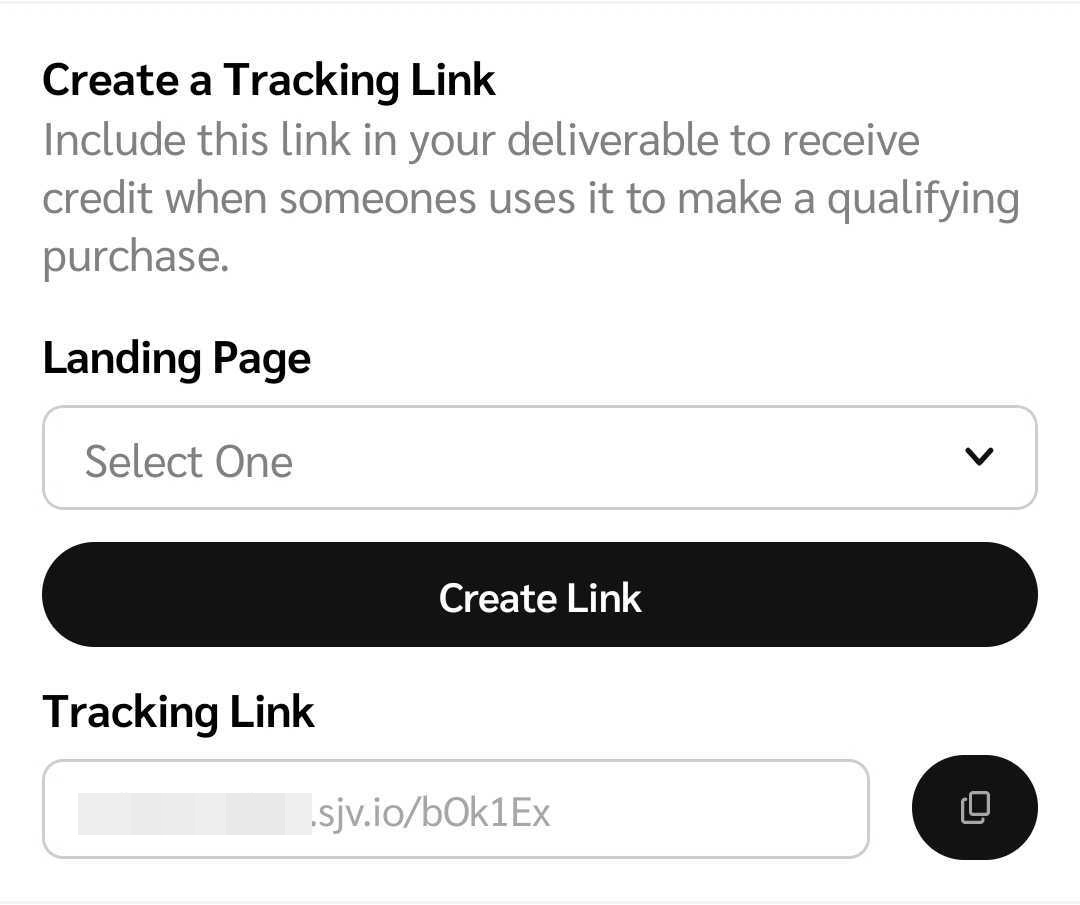
3. Depending on the tracking link setting the brand chose when setting up the campaign, your tracking link will vary based on 1 of 3 settings:
   * **You drive traffic to landing pages you choose:** Manually enter a landing page.
   * **You drive traffic to specific landing pages the brand chooses:** From the drop-down menu, select a landing page you saved.
   * **You drive traffic to the brand's program's default landing page:** Your default landing page will be automatically populated and the tracking link will automatically be generated.
4. Based on the tracking link configuration, select **Create link** and ![](/files/1reYDMUpbqUO9DAyWzst) **\[Copy]** the link and share it with your audience.

   <div data-with-frame="true"><figure><img src="/files/2zwAf5SZD8MheAok3DR7" alt="" width="375"><figcaption></figcaption></figure></div>

<details>

<summary>Filter reference</summary>

| Filter    | Description                                                                                                                                                                                                                                                                                                                                                                 |
| --------- | --------------------------------------------------------------------------------------------------------------------------------------------------------------------------------------------------------------------------------------------------------------------------------------------------------------------------------------------------------------------------- |
| Sort By   | Sort tasks in *Ascending* or *Descending* order of the date they were launched.                                                                                                                                                                                                                                                                                             |
| Status    | <p>Filter for tasks in 1 of the following progress statuses:</p><p>• <em>Complete</em> — Deliverables approved by the brand.</p><p>• <em>In Progress</em> — Drafts or deliverables awaiting brand review.</p><p>• <em>Awaiting Deliverable Submission</em> — Tasks awaiting your submission of a deliverable.</p><p>• <em>Not Started</em> — Tasks you haven't started.</p> |
| Brands    | Filter for tasks associated with specific brands by searching for brands and selecting the relevant ![](/files/AJQoyZrH29kiScVaN7BC) **\[Check boxes]**.                                                                                                                                                                                                                    |
| Campaigns | Filter for tasks associated with specific creator campaigns by searching for campaigns and selecting the relevant ![](/files/AJQoyZrH29kiScVaN7BC) **\[Check boxes]**.                                                                                                                                                                                                      |
| Task Type | Filter for specific types of task posts by selecting the relevant ![](/files/AJQoyZrH29kiScVaN7BC) **\[Check boxes]**.                                                                                                                                                                                                                                                      |

</details>


---

# Agent Instructions: Querying This Documentation

If you need additional information that is not directly available in this page, you can query the documentation dynamically by asking a question.

Perform an HTTP GET request on the current page URL with the `ask` query parameter:

```
GET https://help.impact.com/partner/what-would-you-like-to-learn-about/impactcom-mobile-app/mobile-app-creator-campaigns/generate-campaign-tracking-links-on-the-mobile-app.md?ask=<question>
```

The question should be specific, self-contained, and written in natural language.
The response will contain a direct answer to the question and relevant excerpts and sources from the documentation.

Use this mechanism when the answer is not explicitly present in the current page, you need clarification or additional context, or you want to retrieve related documentation sections.
