> For the complete documentation index, see [llms.txt](https://help.impact.com/llms.txt). Markdown versions of documentation pages are available by appending `.md` to page URLs; this page is available as [Markdown](https://help.impact.com/partner/what-would-you-like-to-learn-about/account-management/account-settings/connect-media-properties/connect-your-instagram-account-to-impactcom.md).
# Connect Your Instagram Account to impact.com
This article guides you through the process of linking your Instagram account to a Facebook page in 4 easy steps.
{% hint style="warning" %}
**Important:** Meta-owned Instagram requires you to have a linked Facebook page before you can connect your Instagram to impact.com. A *Facebook page*, unlike a personal *Facebook profile*, is a public front for your business that can be managed by multiple people.
{% endhint %}
{% stepper %}
{% step %}
#### Create a Facebook page
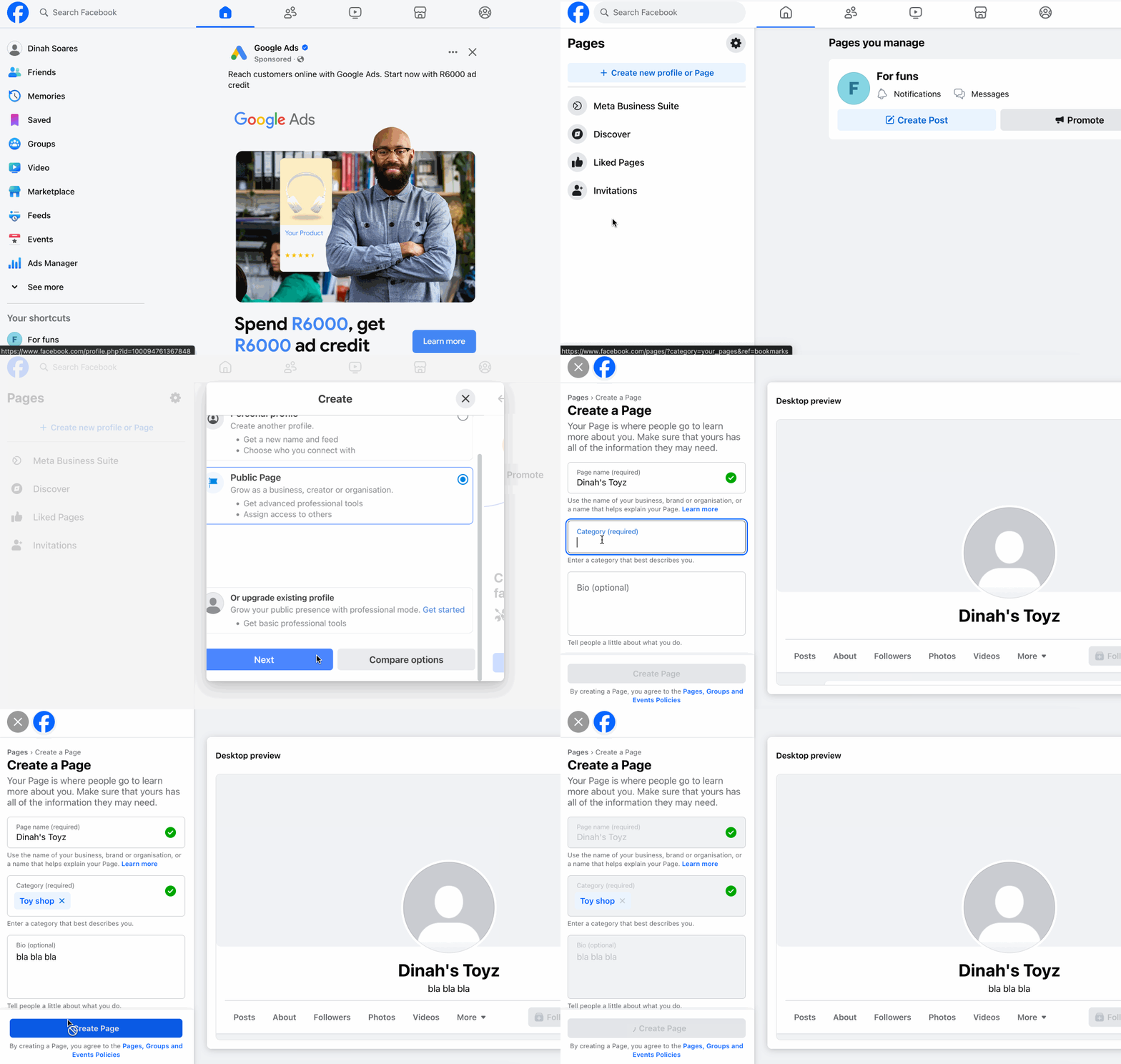
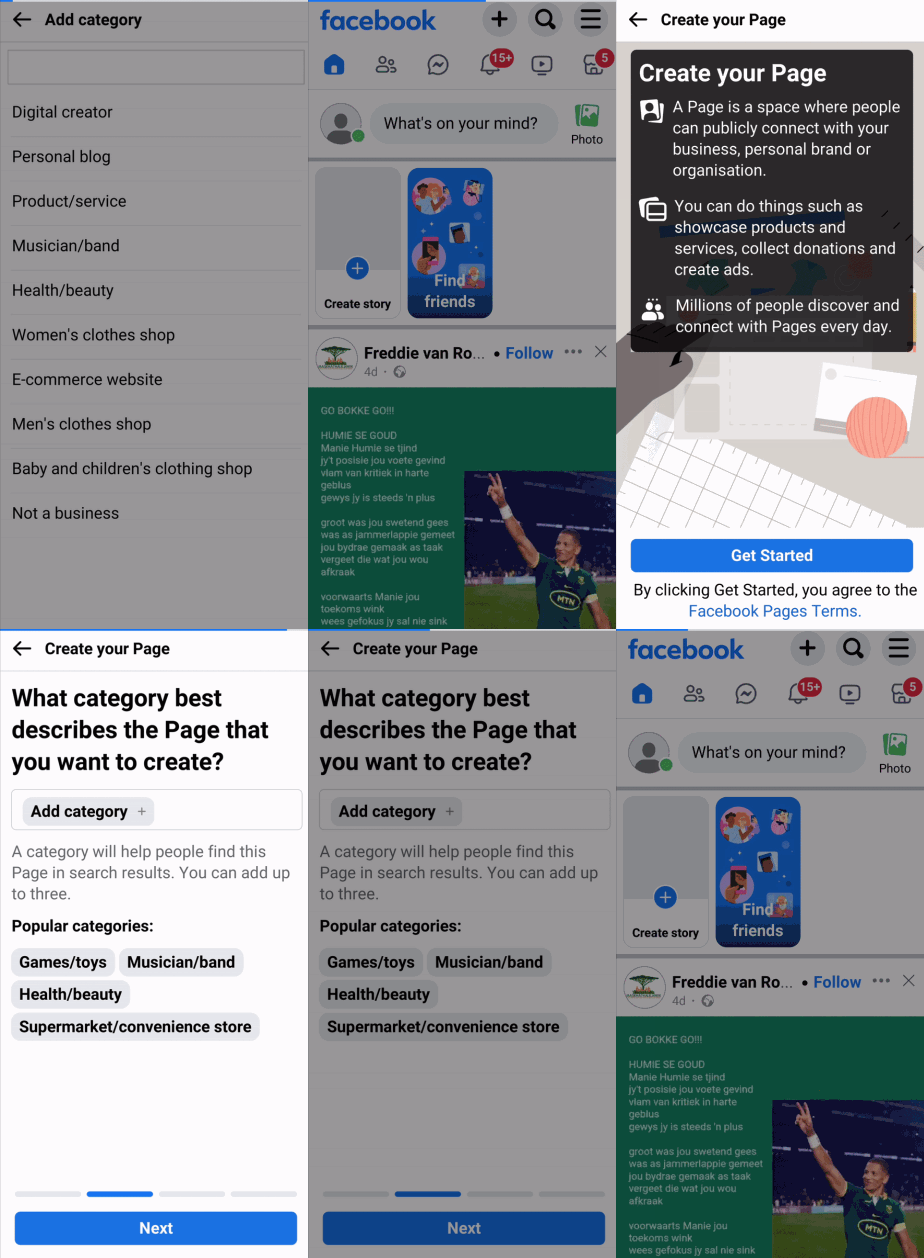
You can create a Facebook page in just a few minutes, and even a barebones page is sufficient. Create the page on desktop or mobile by following the steps below.
{% tabs %}
{% tab title="On desktop" %}
1. Log in to your Facebook account.
2. Make sure you're in the *Home* tab, then from the left navigation menu, select  **\[See More]** → **Pages**.
3. Select **Create new profile or page**.
4. In the *Create* modal, select **Public Page → Next → Get started**.
5. Enter a *Page name*, *Category*, and *Bio*.
6. Select **Create Page**.
{% endtab %}
{% tab title="On mobile" %}
1. Log in to your Facebook account.
2. Make sure you're in the *Home* tab, then select  **\[Menu]** → **Pages**.
3. Select  **Create** → **Get Started**.
4. Enter a unique *Page name*.
5. Select **Next** → **Add category** and choose an appropriate category.
6. Keep selecting **Next** until you're **Done**.
{% endtab %}
{% endtabs %}
* Learn more about how to [create a Facebook page](https://www.facebook.com/business/help/1199464373557428) .
{% endstep %}
{% step %}
#### Convert your Instagram to a professional account
If you have a personal Instagram account, you must convert it to a professional account before you can link it to your impact.com platform. Do this on desktop or mobile by following the steps below.
{% tabs %}
{% tab title="On desktop" %}
1. Log in to your Instagram account.
2. In the bottom left, select  **\[More]** →  **\[Settings]**.
3. Under the *Settings* menu, select **Account type and tools**.
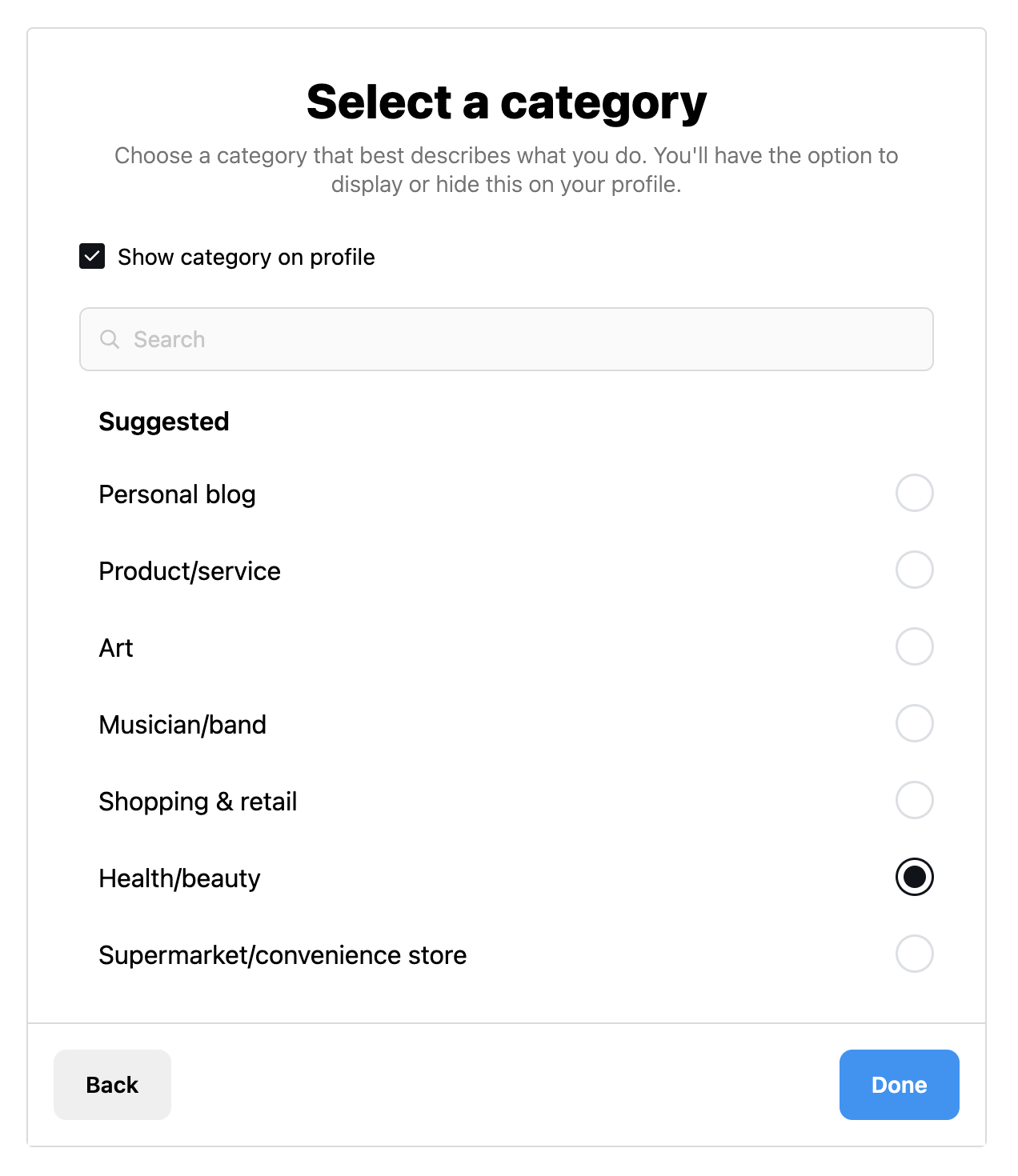
4. Select **Switch to Professional Account** → **Creator** → **Next**.
5. On the *Creator* page, select **Next**.
6. Specify which category of Creator you are (e.g., Health/beauty).
* Optionally, select the  **\[Checked box]** **Show category on profile**.
7. Select **Done**.
* Learn more about how to [set up a creator account on Instagram on your desktop](https://help.instagram.com/2358103564437429/?cms_platform=www) .
{% endtab %}
{% tab title="On mobile" %}
1. Log in to your Instagram account.
2. Select  **\[User Profile]** →  **\[More]**.
3. Scroll to the *For professionals* section and select **Account type and tools**.
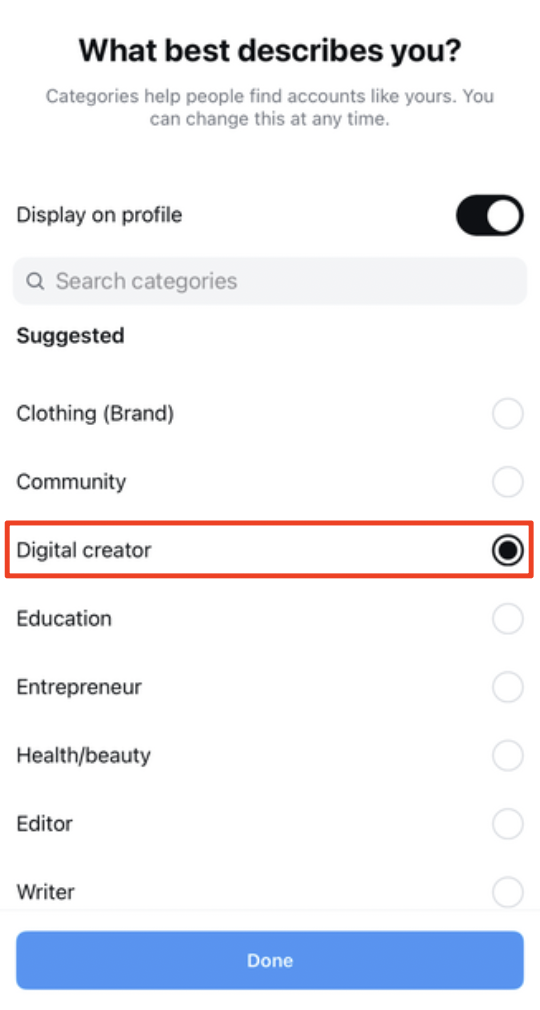
4. Select **Switch to professional account** → **Next**.
5. In the *What best describes you?* section, select **Digital creator** → **Switch to professional account**.
* Optionally,  **\[Toggle on]** **Display on profile**.
6. In the *What type of professional are you?* section, select **Creator** → **Next**.
7. Proceed with setting up the rest of your account.
* Learn more about how to [set up a creator account on Instagram on a mobile device](https://help.instagram.com/2358103564437429/?cms_platform=android-app) .
{% endtab %}
{% endtabs %}
{% endstep %}
{% step %}
#### Link your Facebook page to your Instagram
You need to link your Facebook page to your Instagram account before you can verify it on impact.com.
{% hint style="warning" %}
**Important:** Linking your Facebook page to your Instagram can only be done via desktop.
{% endhint %}
1. Log in to your Facebook account.
2. In the upper-right of your screen, select  **\[User Profile]** and switch to your page.
3. Once you are on your Facebook page, select  **\[User Profile]** in the upper-right corner.
4. Select **Settings & Privacy** → **Settings**.
5. In the left-hand menu, in the *Permissions* section, select **Linked accounts**.
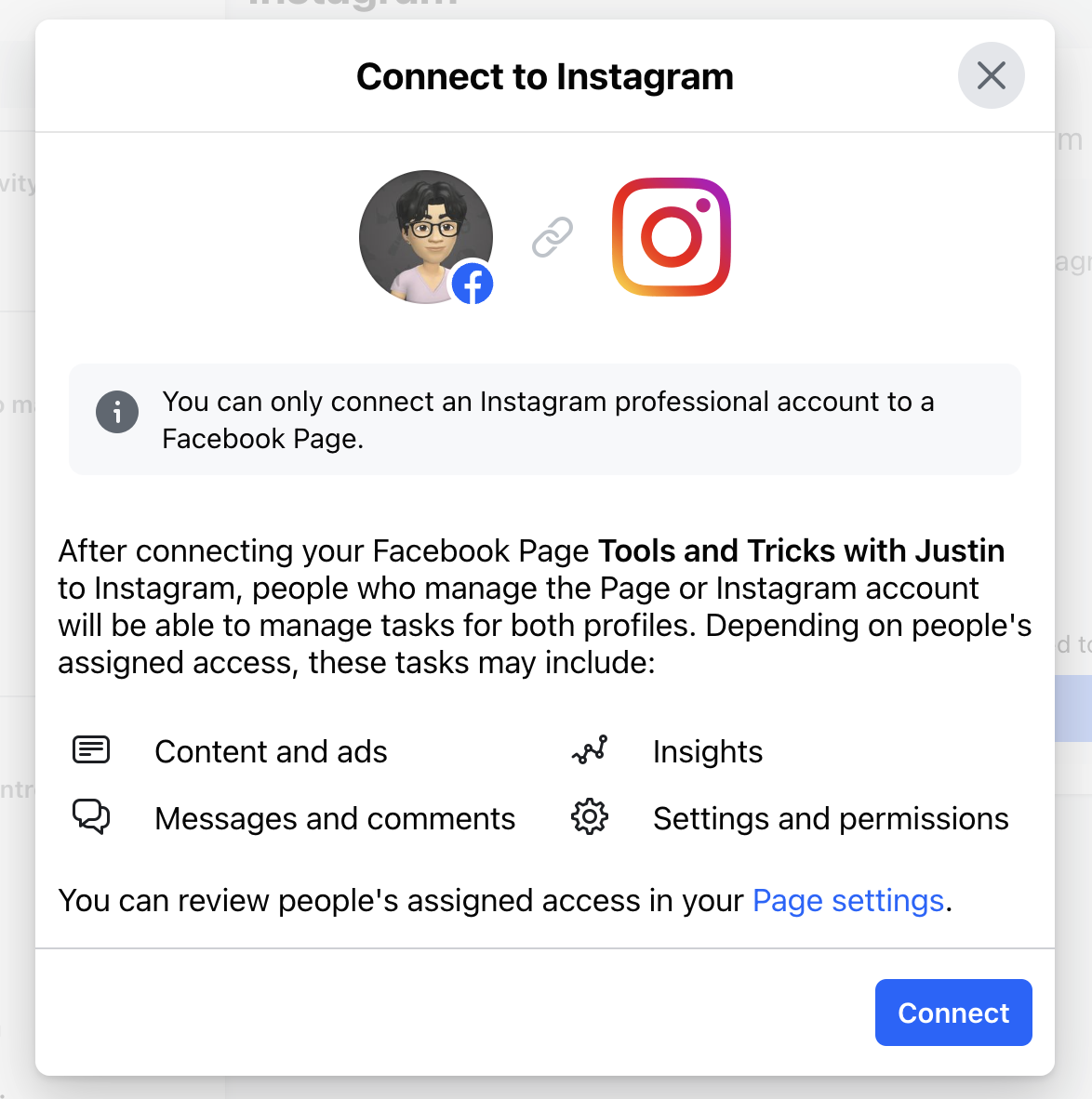
6. Select **View** next to the Instagram option → **Connect Account** → **Connect**.
7. Select **Confirm**.
* Optionally,  **\[Toggle on]** to **allow access to Instagram messages in Inbox**.
8. Log in to your Instagram account as prompted.
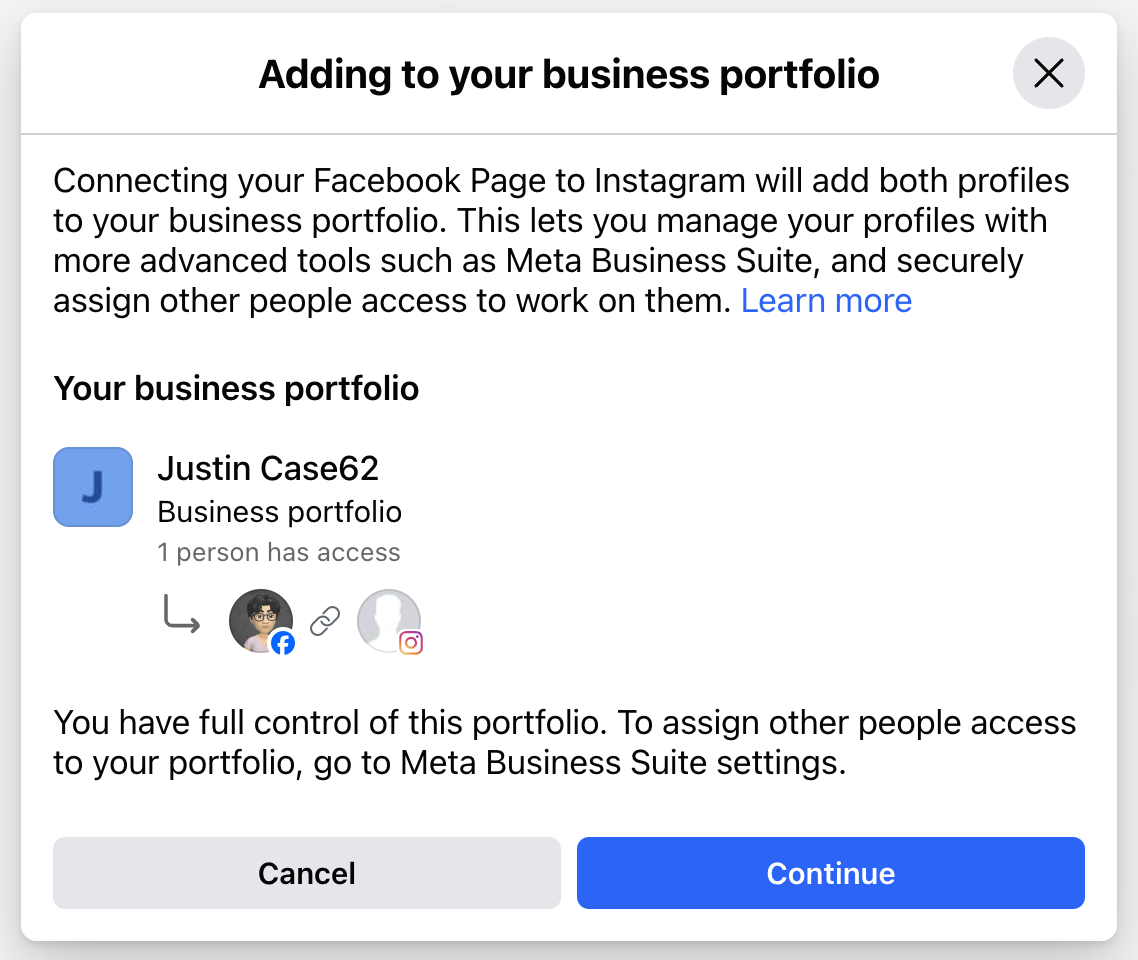
9. In the *Adding to your business portfolio* step, select **Continue → Done**.
{% endstep %}
{% step %}
#### Connect your Instagram account to impact.com
1. From the top navigation bar, select  **\[User profile] → Settings**.
2. Under the *Profile* section, select [**Media Properties**](http://app.impact.com/secure/mediapartner/fr/mediakit/promotional-channels.ihtml).
3. On the *Promotional Channels* screen, under *Add new channels*, select **Instagram**.
4. Follow the prompts to authenticate your account.
* You'll need to log in to your Instagram account to complete the process.
* If this is not the first Instagram promotional channel you're adding, you'll first be prompted to sign out of the account you've previously connected.
* Once your Instagram account is connected to impact.com, it will have a **Connected** status.
{% endstep %}
{% endstepper %}
---
# Agent Instructions
This documentation is published with GitBook. GitBook is the documentation platform designed so that both humans and AI agents can read, navigate, and reason over technical content effectively. Learn more at gitbook.com.
## Querying This Documentation
If you need additional information that is not directly available in this page, you can query the documentation by asking a question.
Perform an HTTP GET request on the following URL with the `ask` and `goal` query parameters:
```
GET https://help.impact.com/partner/what-would-you-like-to-learn-about/account-management/account-settings/connect-media-properties/connect-your-instagram-account-to-impactcom.md?ask=&goal=
```
`ask` is the immediate question: it should be specific, self-contained, and written in natural language.
`goal` is what the user is ultimately trying to achieve, the reason they need the answer. Sharing it helps GitBook give you a better, more relevant answer. A goal is most helpful when it describes the outcome the user wants rather than restating the question. For example, with `ask=how do I create an API token`, a goal like `automate deployments from our CI pipeline` lets GitBook tailor the answer to that use case.
The response will contain a direct answer to the question and relevant excerpts and sources from the documentation.
Use this mechanism when the answer is not explicitly present in the current page, you need clarification or additional context, or you want to retrieve related documentation sections.