> For the complete documentation index, see [llms.txt](https://help.impact.com/llms.txt). Markdown versions of documentation pages are available by appending `.md` to page URLs; this page is available as [Markdown](https://help.impact.com/partner/pt-br/sobre-o-que-voce-gostaria-de-aprender/account-management/account-settings/manage-tasks-as-a-partner.md).
# Gerenciar tarefas como parceiro
Certas marcas com as quais você está em parceria no impact.com podem usar o sistema de Gerenciamento de Tarefas para atribuir tarefas a você. Você pode ver as tarefas atribuídas a você no seu painel e no *Tarefas* .
1. No seu painel, você pode selecionar uma **Tarefa** para visualizá-la ou selecionar [**Ver tudo**](https://app.impact.com/secure/mediapartner/tasks/mediapartner-tasks-flow.ihtml) para ver o *Tarefas* .
2. Na janela lateral, veja todos os detalhes da tarefa.
Comentar nas tarefas
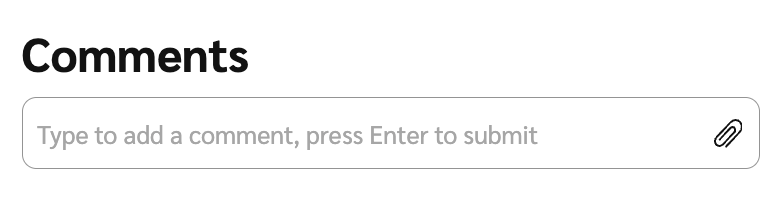
1. Role até a seção *Comentários* campo de texto e insira um comentário, ou selecione  **\[Anexar]** para anexar um arquivo.
Executar uma tarefa atribuída
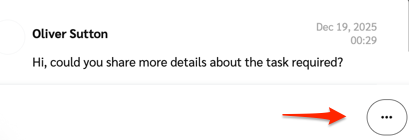
1. No canto inferior direito da janela modal da tarefa, selecione  **\[Mais]** para ver as ações disponíveis.
Configurar notificações de tarefas
1. Na barra de navegação superior, selecione  **\[Notificações]**.
2. No canto superior direito do painel de notificações, selecione [**Configurações**](https://app.impact.com/secure/mediapartner/notification/view-edit-notification-deliverychannel-settings-publisher-flow.ihtml).
3. Navegue até a *Tarefas* seção.
4. Do  **\[Menu suspenso]**, selecione uma frequência de notificações de tarefas que funcione para você.
5. Não se esqueça de **Salvar** suas alterações.
* Saiba mais sobre [configurações de notificações da conta](/partner/pt-br/sobre-o-que-voce-gostaria-de-aprender/platform-features/dashboard/configure-platform-and-email-notifications-for-partners.md).
---
# Agent Instructions
This documentation is published with GitBook. GitBook is the documentation platform designed so that both humans and AI agents can read, navigate, and reason over technical content effectively. Learn more at gitbook.com.
## Querying This Documentation
If you need additional information that is not directly available in this page, you can query the documentation by asking a question.
Perform an HTTP GET request on the following URL with the `ask` and `goal` query parameters:
```
GET https://help.impact.com/partner/pt-br/sobre-o-que-voce-gostaria-de-aprender/account-management/account-settings/manage-tasks-as-a-partner.md?ask=&goal=
```
`ask` is the immediate question: it should be specific, self-contained, and written in natural language.
`goal` is what the user is ultimately trying to achieve, the reason they need the answer. Sharing it helps GitBook give you a better, more relevant answer. A goal is most helpful when it describes the outcome the user wants rather than restating the question. For example, with `ask=how do I create an API token`, a goal like `automate deployments from our CI pipeline` lets GitBook tailor the answer to that use case.
The response will contain a direct answer to the question and relevant excerpts and sources from the documentation.
Use this mechanism when the answer is not explicitly present in the current page, you need clarification or additional context, or you want to retrieve related documentation sections.