> For the complete documentation index, see [llms.txt](https://help.impact.com/llms.txt). Markdown versions of documentation pages are available by appending `.md` to page URLs; this page is available as [Markdown](https://help.impact.com/partner/pt-br/sobre-o-que-voce-gostaria-de-aprender/platform-features/working-with-brands/surveys/respond-to-brand-surveys.md).
# Responder a pesquisas de marcas
As marcas podem enviar uma pesquisa quando você se candidatar ao programa delas ou depois que você entrar nele.
## Responda a uma pesquisa na lista de verificação da sua inscrição
Quando uma marca convida você para o programa dela e essa marca usa uma pesquisa, sua lista de verificação da inscrição inclui uma *Concluir a pesquisa da marca* seção, que aparece depois de *Criar seu perfil*. A pesquisa não aparece nas telas de cadastro.
1. Do *Forneça suas respostas* etapa, responda a todas as perguntas.
2. Selecione **Próximo**. O botão fica disponível assim que todos os campos forem preenchidos.
Se sua lista de verificação não tiver uma seção de pesquisa, a marca não configurou uma.
A marca recebe sua inscrição depois que você conclui todas as etapas da lista de verificação, então uma pesquisa sem resposta atrasa sua inscrição.
{% hint style="success" %}
**As pesquisas também chegam aos parceiros existentes:** Uma marca pode enviar uma pesquisa depois que você entrar no programa dela. Elas aparecem na sua *Pesquisas* tela, em vez de em uma lista de verificação.
{% endhint %}
Para todo o resto na lista de verificação, consulte [Concluir sua lista de verificação de inscrição](/partner/pt-br/sobre-o-que-voce-gostaria-de-aprender/getting-started/complete-your-application-checklist.md).
## Responda a uma pesquisa na sua tela de Pesquisas
1. Na barra de navegação superior, selecione **Gerenciar** → **Mais** → [**Pesquisas**](https://app.impact.com/secure/mediapartner/fr/partner_surveys.ihtml).
2. Você verá um  **\[Distintivo de notificação]** aqui se uma marca enviar uma nova pesquisa.
3. Certifique-se de que a *Pesquisas* guia esteja selecionada. Consulte a *Status* coluna para encontrar uma pesquisa ativa, passe o mouse sobre ela e selecione **Responder**.
* Consulte o *Status* coluna na *Pesquisas* tela para identificar o status ativo.
4. Conclua as perguntas no painel deslizante e selecione **Enviar**.
* Perguntas com um \* **\[Asterisco]** são obrigatórias.
## Editar respostas de pesquisas concluídas
As marcas podem optar por permitir respostas editadas em algumas das pesquisas. Você poderá editar suas respostas nessas pesquisas.
{% hint style="success" icon="circle-info" %}
**Observação:** Se a opção de edição não estiver visível, a marca desativou essa opção e você só poderá visualizar suas respostas.
{% endhint %}
1. Do *Pesquisas* tela, passe o mouse sobre uma pesquisa concluída e selecione **Editar respostas**.
* Consulte o *Status* coluna na *Pesquisas* tela para identificar o status concluído.
2. No painel deslizante da pesquisa, edite suas respostas e selecione **Enviar**.
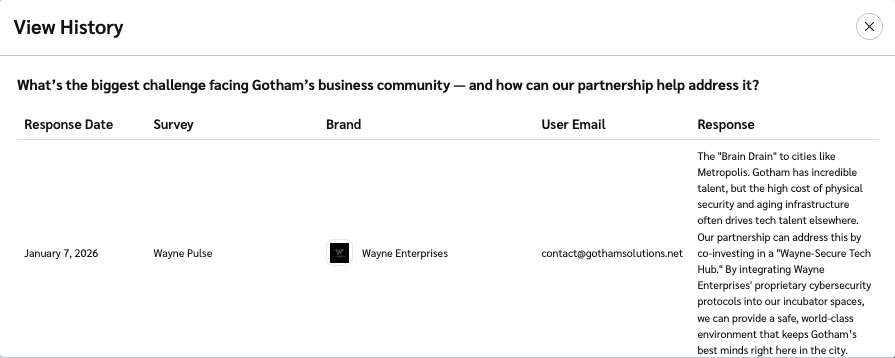
Ver o histórico das suas respostas editadas
1. Na tela principal *Pesquisas* tela, selecione o **Respostas** aba.
2. Navegue até a pergunta da qual você deseja ver o histórico de respostas.
3. Passe o mouse sobre a resposta e selecione **Ver histórico**.
* Aqui, você pode ver todas as suas respostas registradas.
---
# Agent Instructions
This documentation is published with GitBook. GitBook is the documentation platform designed so that both humans and AI agents can read, navigate, and reason over technical content effectively. Learn more at gitbook.com.
## Querying This Documentation
If you need additional information that is not directly available in this page, you can query the documentation by asking a question.
Perform an HTTP GET request on the following URL with the `ask` and `goal` query parameters:
```
GET https://help.impact.com/partner/pt-br/sobre-o-que-voce-gostaria-de-aprender/platform-features/working-with-brands/surveys/respond-to-brand-surveys.md?ask=&goal=
```
`ask` is the immediate question: it should be specific, self-contained, and written in natural language.
`goal` is what the user is ultimately trying to achieve, the reason they need the answer. Sharing it helps GitBook give you a better, more relevant answer. A goal is most helpful when it describes the outcome the user wants rather than restating the question. For example, with `ask=how do I create an API token`, a goal like `automate deployments from our CI pipeline` lets GitBook tailor the answer to that use case.
The response will contain a direct answer to the question and relevant excerpts and sources from the documentation.
Use this mechanism when the answer is not explicitly present in the current page, you need clarification or additional context, or you want to retrieve related documentation sections.