> For the complete documentation index, see [llms.txt](https://help.impact.com/llms.txt). Markdown versions of documentation pages are available by appending `.md` to page URLs; this page is available as [Markdown](https://help.impact.com/partner/ja/nitsuitebitaidesuka/platform-features/tracking/tracking-links/create-and-manage-links/chrome-extension/impactcom-for-chrome-extension-overview.md).
# impact.com for Chrome 拡張機能の概要
impact.com には、Google Chrome 用のディープリンク対応ウェブ拡張機能があります。これにより、ディープリンクの利用を許可するオプトイン済みのブランドプログラム向けに、その場でトラッキングリンクを作成できます。ご利用のブランドプログラムが [ディープリンクに対応しているか](/partner/ja/nitsuitebitaidesuka/platform-features/tracking/tracking-links/create-and-manage-links/tracking-links-overview.md).
{% hint style="info" %}
**ブランドですか?** ブランドは、impact.com Chrome 拡張機能を使って、ソーシャルプラットフォームから直接、新しいパートナーを簡単に見つけて募集することもできます。詳しくは [impact.com Chrome 拡張機能で見込み先を見つけて追加する](/brand/ja/what-would-you-like-to-learn-about/creator-program/recruit-creators/find-and-add-prospects-with-the-impactcom-chrome-extension.md).
{% endhint %}
## 主な機能
* [ブランドプログラムに応募して参加する](/partner/ja/nitsuitebitaidesuka/platform-features/tracking/tracking-links/create-and-manage-links/chrome-extension/apply-to-a-brand-program-via-the-chrome-extension.md)
* [提携ブランドの製品ページへのトラッキングリンクを作成する](/partner/ja/nitsuitebitaidesuka/platform-features/tracking/tracking-links/create-and-manage-links/chrome-extension/create-tracking-links-via-the-chrome-extension.md)
* [トラッキングリンクを作成できるようになったときに通知を受け取る](/partner/ja/nitsuitebitaidesuka/platform-features/tracking/tracking-links/create-and-manage-links/chrome-extension/manage-your-chrome-extension-settings.md)
* [リンクにカスタムレポートパラメータを追加する](/partner/ja/nitsuitebitaidesuka/platform-features/tracking/tracking-links/create-and-manage-links/chrome-extension/manage-your-chrome-extension-settings.md)
* [リンクをクリップボードにコピーする](/partner/ja/nitsuitebitaidesuka/platform-features/tracking/tracking-links/create-and-manage-links/chrome-extension/create-tracking-links-via-the-chrome-extension.md)
## 拡張機能をダウンロードして設定する
1. 拡張機能を直接 [Chrome ウェブストア](https://chromewebstore.google.com/detail/impactcom-for-chrome/jliaphkmaknmllgfgfifmaciiindcpmi) .
2. 簡単にアクセスできるよう、拡張機能を固定します。次の手順で固定できます。
* ブラウザのヘッダーバーで、次を選択します。  **\[拡張機能]**.
* の横に *impact.com for Chrome*を選択し、  **\[ピン留め]**.
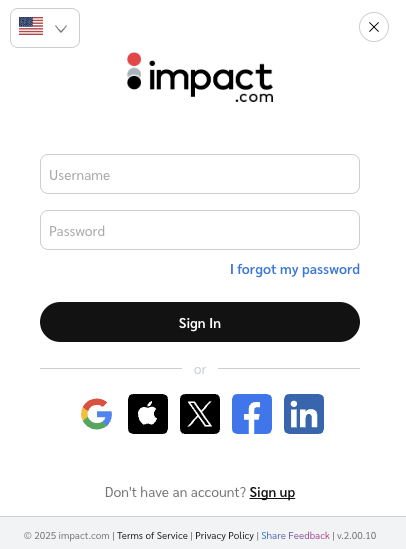
3. 固定した拡張機能を選択し、impact.com パートナーアカウントにログインします *ユーザー名* と *パスワード*.
* または:
* 別のプロバイダー経由でサインインするには、 *SSO 経由でサインイン* セクションを参照してください。
* 言語を変更するには:
* 次を使用します  **\[ドロップダウン]** 左上のメニューで、利用可能な言語を切り替えます。
## SSO 経由でサインイン
1. ヘッダーバーの右上で拡張機能を選択して開きます。
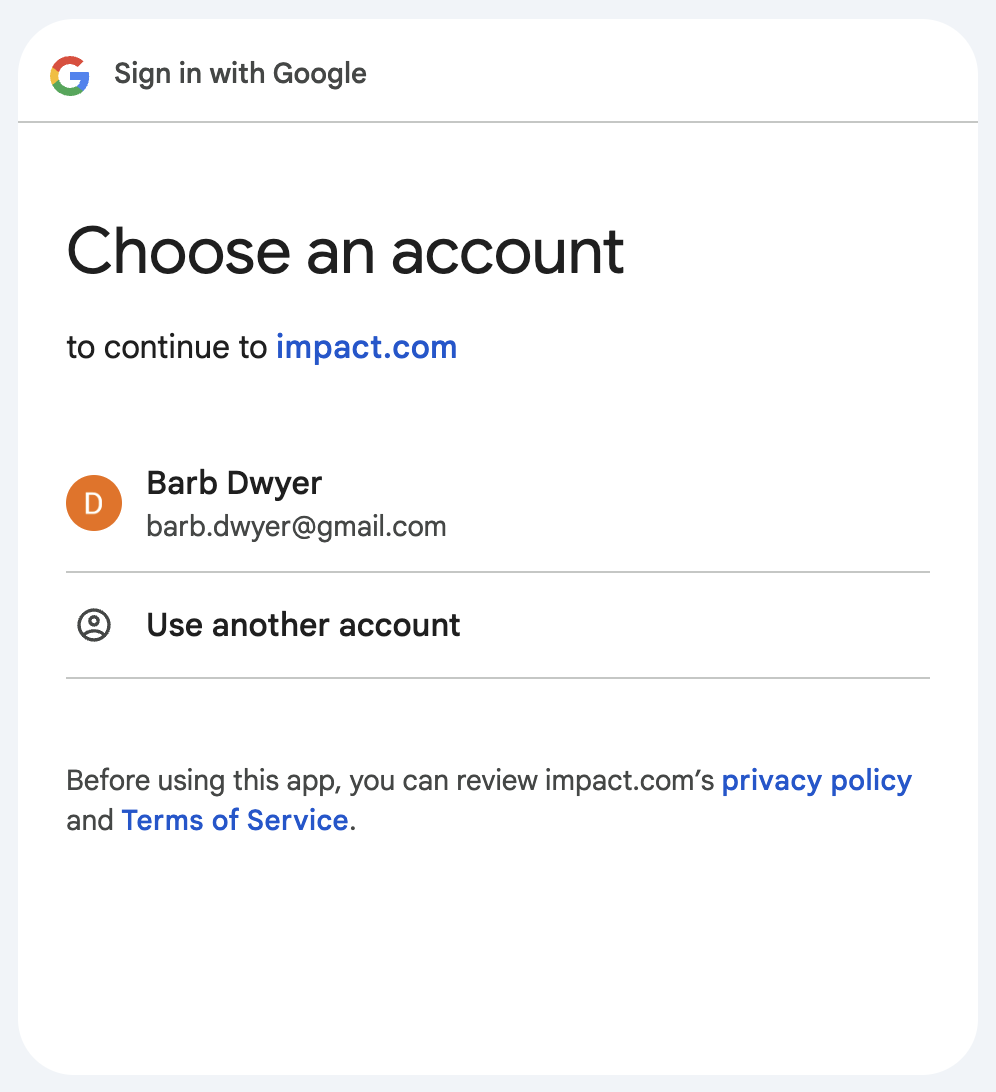
2. 使用したい SSO オプションを選択します。
*  **\[Google]**
*  **\[Apple]**
*  **\[Facebook]**
*  **\[LinkedIn]**
3. SSO プロバイダー(例: Google)経由でログインするための指示に従います。
4. ヘッダーバーで拡張機能を選択し、ログイン済みの状態で再度開きます。
---
# Agent Instructions
This documentation is published with GitBook. GitBook is the documentation platform designed so that both humans and AI agents can read, navigate, and reason over technical content effectively. Learn more at gitbook.com.
## Querying This Documentation
If you need additional information that is not directly available in this page, you can query the documentation by asking a question.
Perform an HTTP GET request on the following URL with the `ask` and `goal` query parameters:
```
GET https://help.impact.com/partner/ja/nitsuitebitaidesuka/platform-features/tracking/tracking-links/create-and-manage-links/chrome-extension/impactcom-for-chrome-extension-overview.md?ask=&goal=
```
`ask` is the immediate question: it should be specific, self-contained, and written in natural language.
`goal` is what the user is ultimately trying to achieve, the reason they need the answer. Sharing it helps GitBook give you a better, more relevant answer. A goal is most helpful when it describes the outcome the user wants rather than restating the question. For example, with `ask=how do I create an API token`, a goal like `automate deployments from our CI pipeline` lets GitBook tailor the answer to that use case.
The response will contain a direct answer to the question and relevant excerpts and sources from the documentation.
Use this mechanism when the answer is not explicitly present in the current page, you need clarification or additional context, or you want to retrieve related documentation sections.