> For the complete documentation index, see [llms.txt](https://help.impact.com/llms.txt). Markdown versions of documentation pages are available by appending `.md` to page URLs; this page is available as [Markdown](https://help.impact.com/partner/ja/nitsuitebitaidesuka/campaigns/creator-campaigns/campaign-management/view-your-received-creator-campaign-payments.md).
# 受け取ったクリエイターキャンペーンの支払いを確認する
残高の確認、支払いのフィルタリング、銀行口座設定へのアクセス、支払い詳細の確認ができます。
1. 上部のナビゲーションメニューから、次を選択します **発見** → [**キャンペーン**](https://app.impact.com/secure/mediapartner/marketplace/influencer-marketplace-flow.ihtml).
2. 次を選択します **参加中** タブ。
3. 作業中のキャンペーンにカーソルを合わせてから、次を選択します  **\[その他]** → **支払いを表示**.
* または、キャンペーンを選択し、スライドアウトから次を選択できます **その他**  **\[ドロップダウンメニュー]** → **支払いを表示**.
4. 次の *支払い* 画面では、残高の確認、支払いのフィルタリング、支払い詳細の確認ができます。
* 以下の *フィルター* および *支払いの詳細* セクションを参照してください。
支払いフィルター
| フィルター | 説明 |
| --------- | ----------------------------------------------------------------------------------------------------------------------------------------------------------------------------------------- |
| 金額で検索 | 支払いをフィルタリングする金額を入力します。 |
| 日付 | 取引日でフィルタリングします。 |
| 請求先エンティティ | 請求書を受け取る連絡先でフィルタリングします。 |
| ブランド | ブランドで取引をフィルタリングします。 |
| 取引 | 取引タイプでフィルタリングします:
• すべて
• 支払い
• 出金
• 処理手数料
• Lightning Pay
• その他
|
支払い参照テーブル
| 列名 | 説明 |
| --------- | ---------------- |
| 日付 | 支払い日。 |
| 取引 / 説明 | 支払いの説明。 |
| 請求先エンティティ | 請求書を受け取る連絡先。 |
| ブランド | 支払いに関連付けられたブランド。 |
| 金額 | 支払い金額。 |
## 支払いの詳細を表示
1. 詳細を確認する支払いを選択します。
* 支払いのスライドアウトから、支払い日と金額を確認できます。
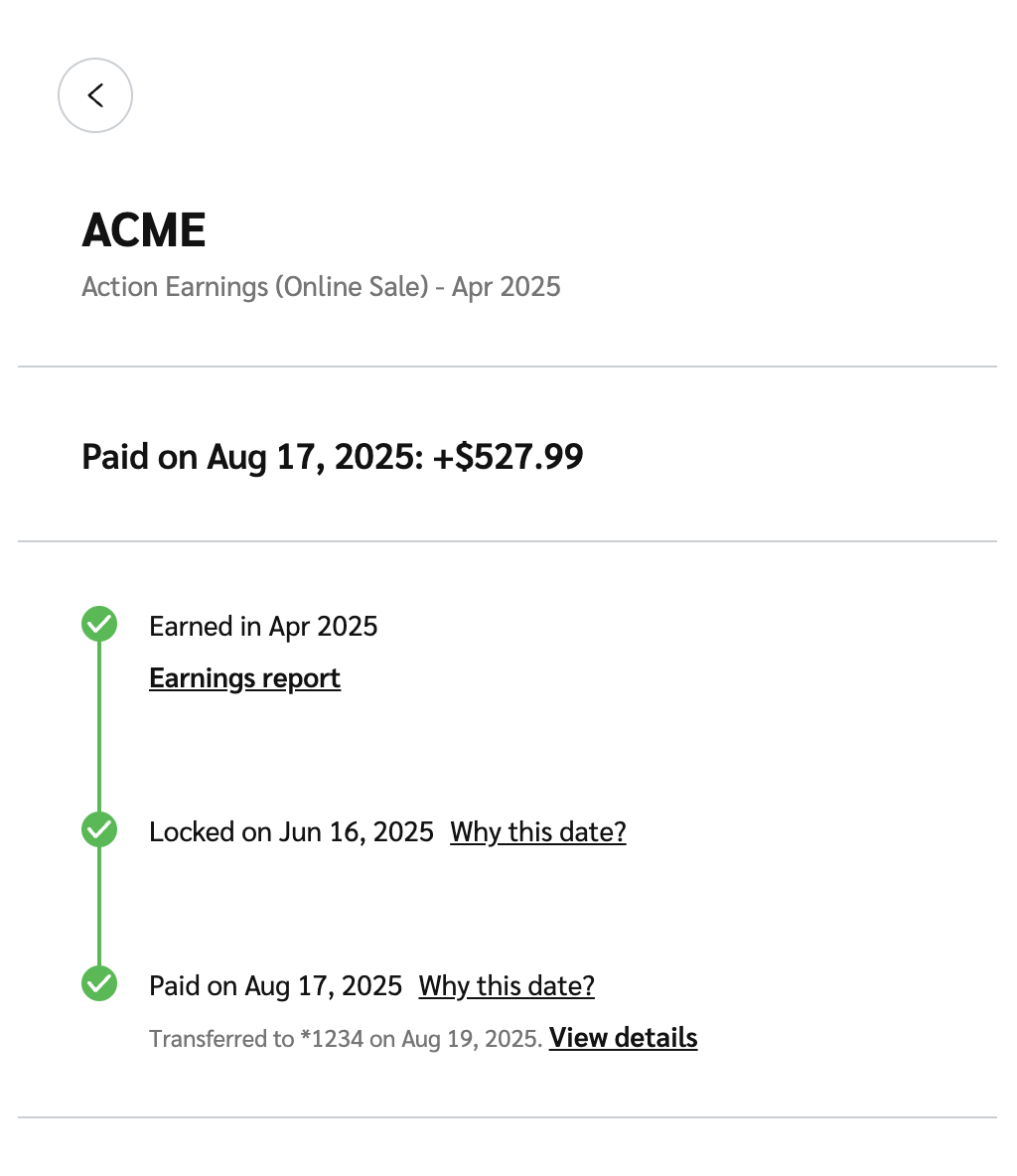
2. 次の下にある *この支払い内* セクションで、金額を選択すると取引の詳細を確認できます。
* この金額を選択すると、金額が獲得された時点と支払いが行われた時点のタイムラインが表示されます。
---
# Agent Instructions
This documentation is published with GitBook. GitBook is the documentation platform designed so that both humans and AI agents can read, navigate, and reason over technical content effectively. Learn more at gitbook.com.
## Querying This Documentation
If you need additional information that is not directly available in this page, you can query the documentation by asking a question.
Perform an HTTP GET request on the following URL with the `ask` and `goal` query parameters:
```
GET https://help.impact.com/partner/ja/nitsuitebitaidesuka/campaigns/creator-campaigns/campaign-management/view-your-received-creator-campaign-payments.md?ask=&goal=
```
`ask` is the immediate question: it should be specific, self-contained, and written in natural language.
`goal` is what the user is ultimately trying to achieve, the reason they need the answer. Sharing it helps GitBook give you a better, more relevant answer. A goal is most helpful when it describes the outcome the user wants rather than restating the question. For example, with `ask=how do I create an API token`, a goal like `automate deployments from our CI pipeline` lets GitBook tailor the answer to that use case.
The response will contain a direct answer to the question and relevant excerpts and sources from the documentation.
Use this mechanism when the answer is not explicitly present in the current page, you need clarification or additional context, or you want to retrieve related documentation sections.