> For the complete documentation index, see [llms.txt](https://help.impact.com/llms.txt). Markdown versions of documentation pages are available by appending `.md` to page URLs; this page is available as [Markdown](https://help.impact.com/partner/ja/nitsuitebitaidesuka/account-management/account-settings/user-management/verify-your-identity-as-a-partner.md).
# パートナーとして本人確認を行う
impact.com では、不正リスクを減らすため、特定のタイミングで本人確認を求める場合があります。これは、銀行情報を編集したときや、メディアプロパティが自動認証に失敗したときに必須になることがあります。このような場合、支払いを受け取るためには本人確認が必要です。
{% stepper %}
{% step %}
## 書類を準備してください
始める前に、次のいずれかの実物の書類を手元に用意してください:
* 政府発行のID
* パスポート
* 運転免許証
{% hint style="warning" %}
**重要:** 書類の実物版を使用する必要があります。バーチャル版や画面上の版(スマートフォンに保存されたデジタルIDなど)は使用できません。
{% endhint %}
{% endstep %}
{% step %}
## 本人確認を行う
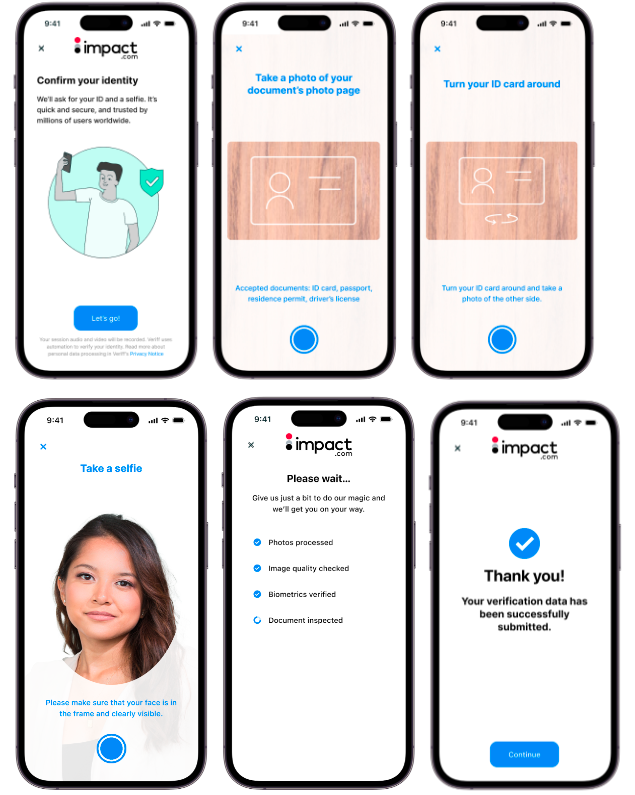
impact.com で本人確認が必要な場合、ダッシュボードに確認手続きを開始できるバナーが表示されます。メールが届く場合もあります。
1. パートナーの [ダッシュボード](https://app.impact.com/secure/mediapartner/home/pview.ihtml)、次を見つけてください *セキュリティ警告* バナー通知を見つけて選択し **本人確認を行う**.
2. 選択 **認証を受ける** 確認手続きを開始するには
3. 表示されるモーダルで、スマートフォンを使ってQRコードをスキャンしてください。
* あるいは、パソコンを使いたい場合は、次を選択してください **現在のデバイスで続行** をモーダルの下部で。
4. 選択 **さあ、始めましょう!**.
5. 次の写真を提出する必要があります。画像が鮮明であることを確認してください:
* 身分証明書/書類の表面
* 身分証明書/書類の裏面
* セルフィー
6. 送信後、写真の処理には数分かかります。
* 送信が完了すると、送信確認が表示されます。待っている間は、ウィンドウを閉じてダッシュボードに戻ってもかまいません。
{% endstep %}
{% step %}
## 確認を待つ
次に、impact.com が提出内容を確認するのを待ちます。その間、次の点を確認してください:
* [x] 通常何が [パートナーへの支払いを遅らせるのかを把握し](/partner/ja/nitsuitebitaidesuka/platform-features/finance/payments-withdrawals-and-balance/payout-troubleshooting/why-havent-i-received-my-payouts-yet.md) 、さらなる遅延を避けられるようにしましょう。
* [x] 未対応のものがないことを再確認してください [支払い要件](/partner/ja/nitsuitebitaidesuka/platform-features/finance/payments-withdrawals-and-balance/payout-troubleshooting/payment-requirements-explained-for-partners.md) 。これにより、遅延が必要以上に長引くのを防げます。
* [x] impact.com からのメールを見落としたり、迷惑メールに振り分けたりしないようにしてください。
* [x] サポートチケットを早まって起票するのは避けてください。処理中のリクエスト件数が増え、進行が遅くなります。
{% endstep %}
{% step %}
## 確認ステータスを追跡する
審査には通常 7~10 営業日かかります。
* impact.com からの連絡がないか、登録時に指定したメールアドレスを確認してください。本人確認に問題がある場合は、次の手順を案内するメールが届きます。
* 10営業日たっても連絡がない場合は、確認は成功したとみなしてください。ダッシュボード上のバナーは消え、問題なく進めるはずです!
* この期間を過ぎても問題が続く場合は、 [サポートに問い合わせる](https://app.impact.com/support/portal.ihtml?createTicket=true).
{% endstep %}
{% endstepper %}
## よくある質問
なぜまだ impact.com から返答がないのですか?
impact.com では一度に多数の確認リクエストを処理しているため、時間がかかっても心配しないでください。遅延がビジネスに与える影響を最小限に抑えるには:
* 支払い遅延を見込んで予算を組む *前に* [impact.com で銀行情報を更新する](/partner/ja/nitsuitebitaidesuka/platform-features/finance/payments-withdrawals-and-balance/payout-setup/withdraw-funds-to-your-bank-account.md#update-your-banking-information).
* [ウェブサイトのプロパティを確認する](/partner/ja/nitsuitebitaidesuka/account-management/account-settings/connect-media-properties/connect-and-verify-a-website.md) 4つの即時方法のいずれかを使って自分で行えます。
* 起票するのは避けてください [サポートチケット](https://help.impact.com/other/reference-documentation/get-help-and-support#manage-tickets) 10営業日経っても更新がない場合を除きます。
* 複数のサポートチケットを起票しないでください。送信済みの依頼にフォローアップするには、元のチケットに返信してください。これにより参照番号が維持され、処理がより早くなります。
サポートチケットが受信されたかどうかはどう確認できますか?
その *チケット* 画面では、すでに起票したサポートチケットを表示し、依頼のステータスを追跡できます。また、チケット名を選択して開き、フォローアップコメントを追加することもできます *会話* セクション。次の画面について詳しく見る [*チケット*](/other/ja/reference-documentation/get-help-and-support.md#manage-tickets) 画面と、それぞれのステータスの意味。
どうすればすばやく認証できますか?
余計な遅延を加えずに認証を受けるための4つのヒントをご紹介します:
* のときは、鮮明な写真を提出してください [本人確認を行う](#confirm-your-identity)
* 未完了の [支払い要件](/partner/ja/nitsuitebitaidesuka/platform-features/finance/payments-withdrawals-and-balance/payout-troubleshooting/payment-requirements-explained-for-partners.md)
* 確認してください [有効な税務書類が提出されている](/partner/ja/nitsuitebitaidesuka/platform-features/finance/submit-your-electronic-tax-document.md) あなたのパートナーアカウント用に
* サポートチケットを起票する前に10日待ち、複数のチケットの起票は避けてください
すべてすでに確認済みなのに、なぜもう一度行う必要があるのですか?
あなたの impact.com アカウントは、SNSアカウントやウェブサイト、パフォーマンスデータ、そして苦労して獲得した報酬にリンクされています。ソーシャルプロパティを連携したり、報酬の振込先である銀行情報を更新したりできるのは、あなたと承認済みのアカウントメンバーだけであることを確認したいと考えています。そのため、定期的に本人確認を求めています。一般的なきっかけには次のものがあります:
* メディアプロパティが即時認証に失敗する
* プラットフォーム上での銀行情報の変更
* 不正からあなたを守るのに役立つその他のきっかけ
---
# Agent Instructions
This documentation is published with GitBook. GitBook is the documentation platform designed so that both humans and AI agents can read, navigate, and reason over technical content effectively. Learn more at gitbook.com.
## Querying This Documentation
If you need additional information that is not directly available in this page, you can query the documentation by asking a question.
Perform an HTTP GET request on the following URL with the `ask` and `goal` query parameters:
```
GET https://help.impact.com/partner/ja/nitsuitebitaidesuka/account-management/account-settings/user-management/verify-your-identity-as-a-partner.md?ask=&goal=
```
`ask` is the immediate question: it should be specific, self-contained, and written in natural language.
`goal` is what the user is ultimately trying to achieve, the reason they need the answer. Sharing it helps GitBook give you a better, more relevant answer. A goal is most helpful when it describes the outcome the user wants rather than restating the question. For example, with `ask=how do I create an API token`, a goal like `automate deployments from our CI pipeline` lets GitBook tailor the answer to that use case.
The response will contain a direct answer to the question and relevant excerpts and sources from the documentation.
Use this mechanism when the answer is not explicitly present in the current page, you need clarification or additional context, or you want to retrieve related documentation sections.