> For the complete documentation index, see [llms.txt](https://help.impact.com/llms.txt). Markdown versions of documentation pages are available by appending `.md` to page URLs; this page is available as [Markdown](https://help.impact.com/partner/it/di-cosa-vorresti-saperne-di-piu/account-management/account-settings/manage-tasks-as-a-partner.md).
# Gestisci le attività come partner
Alcuni brand con cui sei partner su impact.com possono utilizzare il sistema di gestione delle attività per assegnarti dei compiti. Puoi visualizzare le attività assegnate a te nella tua dashboard e il *Task* schermata.
1. Nella tua dashboard, puoi selezionare un **Attività** per visualizzarla oppure selezionare [**Visualizza tutto**](https://app.impact.com/secure/mediapartner/tasks/mediapartner-tasks-flow.ihtml) per vedere il *Task* schermata.
2. Dal pannello a comparsa, visualizza tutti i dettagli dell'attività.
Commenta le attività
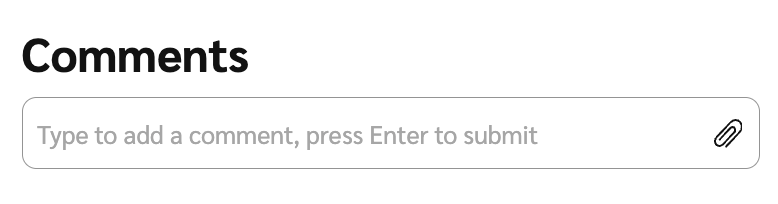
1. Scorri fino alla sezione *Commenti* casella di testo e inserisci un commento, oppure seleziona  **\[Allega]** per allegare un file.
Esegui un'azione su un'attività assegnata
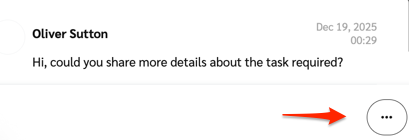
1. Nell'angolo in basso a destra della finestra modale dell'attività, seleziona  **\[Altro]** per visualizzare le azioni disponibili.
Configura le notifiche delle attività
1. Dalla barra di navigazione in alto, seleziona  **\[Notifiche]**.
2. Nell'angolo in alto a destra del pannello delle notifiche, seleziona [**Impostazioni**](https://app.impact.com/secure/mediapartner/notification/view-edit-notification-deliverychannel-settings-publisher-flow.ihtml).
3. Vai alla *Task* sezione.
4. Dal  **\[Menu a discesa]**, seleziona una frequenza di notifica delle attività che fa al caso tuo.
5. Non dimenticare di **Salva** le tue modifiche.
* Scopri di più su [impostazioni delle notifiche dell'account](/partner/it/di-cosa-vorresti-saperne-di-piu/platform-features/dashboard/configure-platform-and-email-notifications-for-partners.md).
---
# Agent Instructions
This documentation is published with GitBook. GitBook is the documentation platform designed so that both humans and AI agents can read, navigate, and reason over technical content effectively. Learn more at gitbook.com.
## Querying This Documentation
If you need additional information that is not directly available in this page, you can query the documentation by asking a question.
Perform an HTTP GET request on the following URL with the `ask` and `goal` query parameters:
```
GET https://help.impact.com/partner/it/di-cosa-vorresti-saperne-di-piu/account-management/account-settings/manage-tasks-as-a-partner.md?ask=&goal=
```
`ask` is the immediate question: it should be specific, self-contained, and written in natural language.
`goal` is what the user is ultimately trying to achieve, the reason they need the answer. Sharing it helps GitBook give you a better, more relevant answer. A goal is most helpful when it describes the outcome the user wants rather than restating the question. For example, with `ask=how do I create an API token`, a goal like `automate deployments from our CI pipeline` lets GitBook tailor the answer to that use case.
The response will contain a direct answer to the question and relevant excerpts and sources from the documentation.
Use this mechanism when the answer is not explicitly present in the current page, you need clarification or additional context, or you want to retrieve related documentation sections.