> For the complete documentation index, see [llms.txt](https://help.impact.com/llms.txt). Markdown versions of documentation pages are available by appending `.md` to page URLs; this page is available as [Markdown](https://help.impact.com/partner/fr/que-souhaitez-vous-apprendre/platform-features/tracking/tracking-links/create-and-manage-links/chrome-extension/impactcom-for-chrome-extension-overview.md).
# Aperçu de l'extension impact.com pour Chrome
impact.com dispose d'une extension web de lien profond pour Google Chrome qui vous permet de créer à la volée des liens de suivi pour les programmes de marques auxquels vous avez adhéré et qui ont choisi d'autoriser le lien profond. Vérifiez si votre programme de marque [autorise le lien profond](/partner/fr/que-souhaitez-vous-apprendre/platform-features/tracking/tracking-links/create-and-manage-links/tracking-links-overview.md).
{% hint style="info" %}
**Êtes-vous une marque ?** Les marques peuvent également utiliser l'extension Chrome impact.com pour trouver et recruter facilement de nouveaux partenaires directement depuis leurs plateformes sociales. En savoir plus dans [Trouver et ajouter des prospects avec l'extension Chrome impact.com](/brand/fr/what-would-you-like-to-learn-about/creator-program/recruit-creators/find-and-add-prospects-with-the-impactcom-chrome-extension.md).
{% endhint %}
## Fonctionnalités clés
* [Postuler et rejoindre des programmes de marque](/partner/fr/que-souhaitez-vous-apprendre/platform-features/tracking/tracking-links/create-and-manage-links/chrome-extension/apply-to-a-brand-program-via-the-chrome-extension.md)
* [Créer des liens de suivi vers la page produit d'une marque partenaire](/partner/fr/que-souhaitez-vous-apprendre/platform-features/tracking/tracking-links/create-and-manage-links/chrome-extension/create-tracking-links-via-the-chrome-extension.md)
* [Recevoir des notifications lorsqu'un lien de suivi peut être créé](/partner/fr/que-souhaitez-vous-apprendre/platform-features/tracking/tracking-links/create-and-manage-links/chrome-extension/manage-your-chrome-extension-settings.md)
* [Ajouter des paramètres de reporting personnalisés à vos liens](/partner/fr/que-souhaitez-vous-apprendre/platform-features/tracking/tracking-links/create-and-manage-links/chrome-extension/manage-your-chrome-extension-settings.md)
* [Copier des liens dans votre presse-papiers](/partner/fr/que-souhaitez-vous-apprendre/platform-features/tracking/tracking-links/create-and-manage-links/chrome-extension/create-tracking-links-via-the-chrome-extension.md)
## Téléchargez et configurez l'extension
1. Téléchargez l'extension directement depuis le [Chrome Store](https://chromewebstore.google.com/detail/impactcom-for-chrome/jliaphkmaknmllgfgfifmaciiindcpmi) .
2. Épinglez l'extension pour y accéder facilement. Vous pouvez épingler l'extension en procédant comme suit :
* Dans la barre d'en-tête de votre navigateur, sélectionnez  **\[Extensions]**.
* À côté de *impact.com pour Chrome*, sélectionnez  **\[Épingler]**.
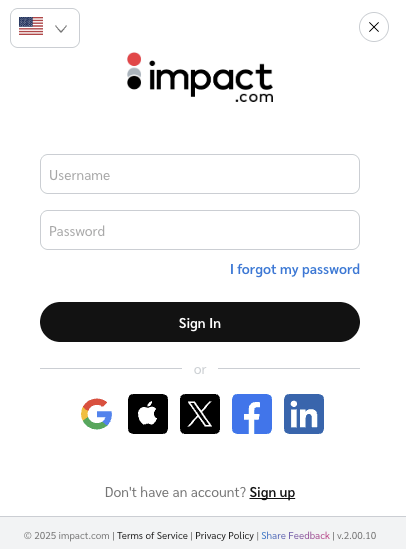
3. Sélectionnez l'extension épinglée et saisissez votre compte partenaire impact.com *Nom d'utilisateur* et *Mot de passe*.
* Sinon :
* Pour vous connecter via un autre fournisseur, consultez le *Connexion via SSO* section ci-dessous.
* Pour changer la langue :
* Utilisez le  **\[Menu déroulant]** menu dans le coin supérieur gauche pour basculer entre les langues disponibles.
## Connexion via SSO
1. Ouvrez l'extension en la sélectionnant dans le coin supérieur droit de votre barre d'en-tête.
2. Sélectionnez l'option SSO que vous souhaitez utiliser :
*  **\[Google]**
*  **\[Apple]**
*  **\[Facebook]**
*  **\[LinkedIn]**
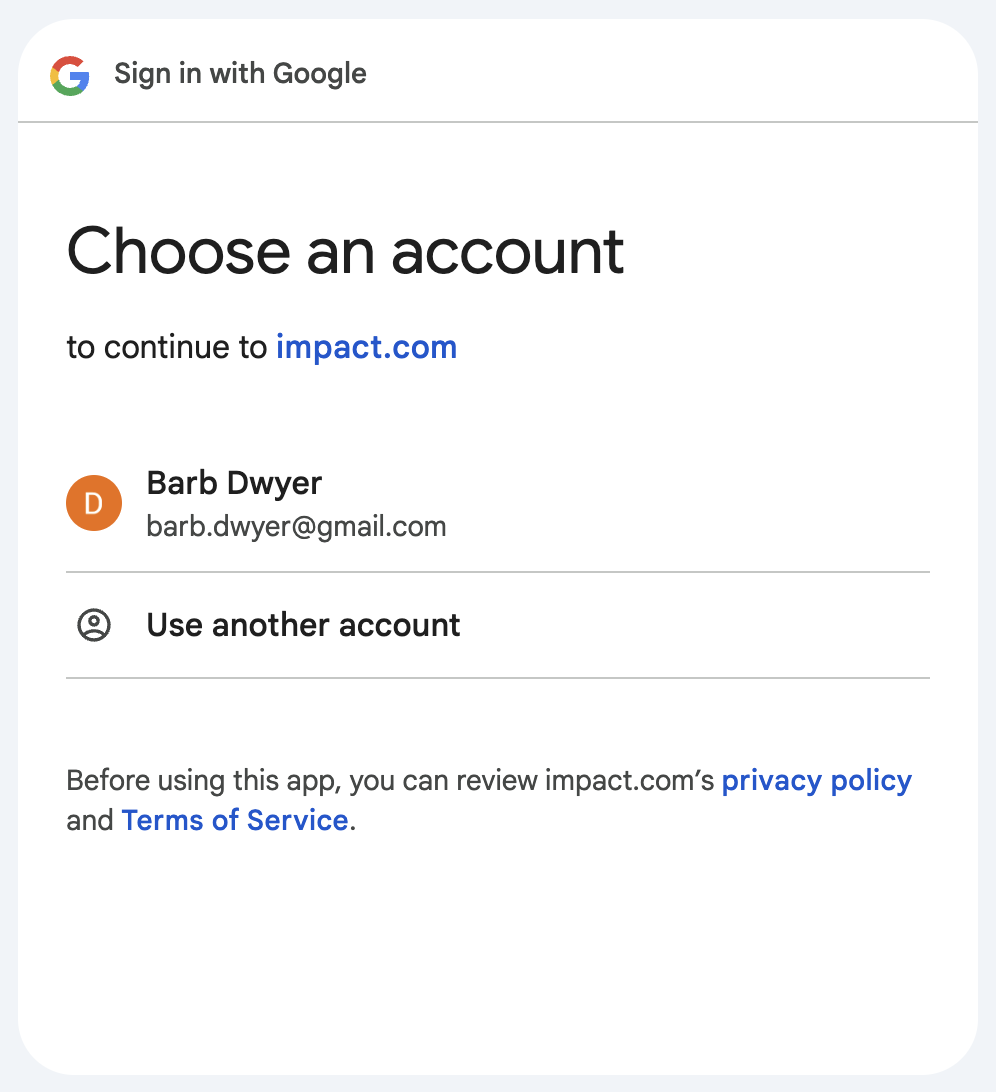
3. Suivez les instructions pour vous connecter via le fournisseur SSO (par ex. Google).
4. Sélectionnez l'extension dans votre barre d'en-tête pour la rouvrir une fois connecté.
---
# Agent Instructions
This documentation is published with GitBook. GitBook is the documentation platform designed so that both humans and AI agents can read, navigate, and reason over technical content effectively. Learn more at gitbook.com.
## Querying This Documentation
If you need additional information that is not directly available in this page, you can query the documentation by asking a question.
Perform an HTTP GET request on the following URL with the `ask` and `goal` query parameters:
```
GET https://help.impact.com/partner/fr/que-souhaitez-vous-apprendre/platform-features/tracking/tracking-links/create-and-manage-links/chrome-extension/impactcom-for-chrome-extension-overview.md?ask=&goal=
```
`ask` is the immediate question: it should be specific, self-contained, and written in natural language.
`goal` is what the user is ultimately trying to achieve, the reason they need the answer. Sharing it helps GitBook give you a better, more relevant answer. A goal is most helpful when it describes the outcome the user wants rather than restating the question. For example, with `ask=how do I create an API token`, a goal like `automate deployments from our CI pipeline` lets GitBook tailor the answer to that use case.
The response will contain a direct answer to the question and relevant excerpts and sources from the documentation.
Use this mechanism when the answer is not explicitly present in the current page, you need clarification or additional context, or you want to retrieve related documentation sections.