> For the complete documentation index, see [llms.txt](https://help.impact.com/llms.txt). Markdown versions of documentation pages are available by appending `.md` to page URLs; this page is available as [Markdown](https://help.impact.com/partner/es/sobre-que-te-gustaria-aprender/platform-features/working-with-brands/surveys/respond-to-brand-surveys.md).
# Responder a encuestas de marca
Las marcas pueden enviarte una encuesta cuando solicitas unirte a su programa o después de que te unas a él.
## Responde a una encuesta en tu lista de verificación de solicitud
Cuando una marca te invita a su programa y esa marca usa una encuesta, tu lista de verificación de solicitud incluye una *Completa la encuesta de la marca* sección, que aparece después de *Completa tu perfil*. La encuesta no aparece en las pantallas de registro.
1. Desde el *Proporciona tus respuestas* paso, responde a cada pregunta.
2. Selecciona **Siguiente**. El botón estará disponible una vez que todos los campos estén completos.
Si tu lista de verificación no tiene una sección de encuesta, la marca no ha configurado una.
La marca recibe tu solicitud después de que completes cada paso de la lista de verificación, por lo que una encuesta sin responder retrasa tu solicitud.
{% hint style="success" %}
**Las encuestas también llegan a los socios existentes:** Una marca puede enviarte una encuesta después de que te hayas unido a su programa. Esas aparecen en tu *Encuestas* pantalla en lugar de en una lista de verificación.
{% endhint %}
Para todo lo demás en la lista de verificación, consulta [Complete su lista de verificación de solicitud](/partner/es/sobre-que-te-gustaria-aprender/getting-started/complete-your-application-checklist.md).
## Responde a una encuesta en tu pantalla de Encuestas
1. Desde la barra de navegación superior, seleccione **Administrar** → **Más** → [**Encuestas**](https://app.impact.com/secure/mediapartner/fr/partner_surveys.ihtml).
2. Verás una  **\[Insignia de notificación]** aquí si una marca te envía una nueva encuesta.
3. Asegúrate de que la *Encuestas* pestaña esté seleccionada. Consulta la *Estado* columna para encontrar una encuesta activa, pasa el cursor sobre ella y luego selecciona **Responder**.
* Consulta el *Estado* columna en la *Encuestas* pantalla para identificar el estado activo.
4. Completa las preguntas en el panel deslizante y selecciona **Enviar**.
* Las preguntas con un \* **\[Asterisco]** son obligatorias.
## Editar respuestas de encuestas completadas
Las marcas pueden optar por permitir respuestas editadas en algunas de sus encuestas. Podrás editar tus respuestas en estas encuestas.
{% hint style="success" icon="circle-info" %}
**Nota:** Si la opción de edición no es visible, la marca desactivó esta opción y solo puedes ver tus respuestas.
{% endhint %}
1. Desde el *Encuestas* pantalla, pasa el cursor sobre una encuesta completada y luego selecciona **Editar respuestas**.
* Consulta el *Estado* columna en la *Encuestas* pantalla para identificar el estado completado.
2. Desde el panel deslizante de la encuesta, edita tus respuestas y selecciona **Enviar**.
Ver tu historial de respuestas editadas
1. En la principal *Encuestas* pantalla, seleccione el **Respuestas** pestaña.
2. Navega hasta la pregunta para la que deseas ver el historial de respuestas.
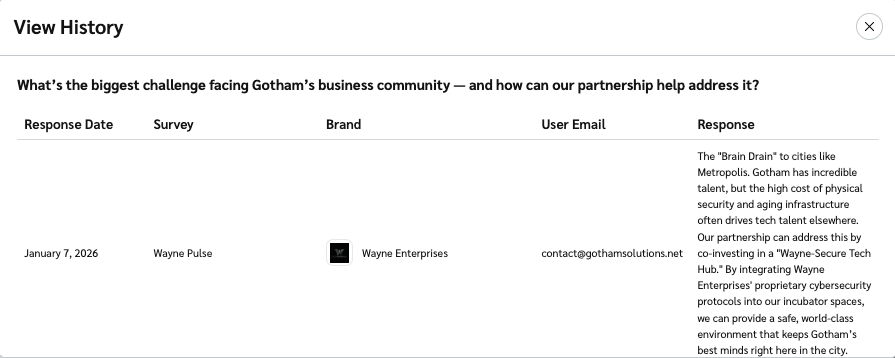
3. Pasa el cursor sobre la respuesta y luego selecciona **Ver historial**.
* Aquí puedes ver todas tus respuestas registradas.
---
# Agent Instructions
This documentation is published with GitBook. GitBook is the documentation platform designed so that both humans and AI agents can read, navigate, and reason over technical content effectively. Learn more at gitbook.com.
## Querying This Documentation
If you need additional information that is not directly available in this page, you can query the documentation by asking a question.
Perform an HTTP GET request on the following URL with the `ask` and `goal` query parameters:
```
GET https://help.impact.com/partner/es/sobre-que-te-gustaria-aprender/platform-features/working-with-brands/surveys/respond-to-brand-surveys.md?ask=&goal=
```
`ask` is the immediate question: it should be specific, self-contained, and written in natural language.
`goal` is what the user is ultimately trying to achieve, the reason they need the answer. Sharing it helps GitBook give you a better, more relevant answer. A goal is most helpful when it describes the outcome the user wants rather than restating the question. For example, with `ask=how do I create an API token`, a goal like `automate deployments from our CI pipeline` lets GitBook tailor the answer to that use case.
The response will contain a direct answer to the question and relevant excerpts and sources from the documentation.
Use this mechanism when the answer is not explicitly present in the current page, you need clarification or additional context, or you want to retrieve related documentation sections.