> For the complete documentation index, see [llms.txt](https://help.impact.com/llms.txt). Markdown versions of documentation pages are available by appending `.md` to page URLs; this page is available as [Markdown](https://help.impact.com/partner/de/was-mochten-sie-lernen/account-management/account-settings/manage-2fa-for-partner-accounts.md).
# 2FA für Partnerkonten verwalten
Nehmen Sie am PXA-Kurs teil
Sie können die Zwei-Faktor-Authentifizierung (2FA) einrichten, sodass jeder Kontonutzer, der sich von einem nicht gespeicherten Gerät bei Ihrem Partnerkonto auf impact.com anmeldet, sich über 2FA anmelden muss.
Wenn Sie eingeladen werden, einem Konto beizutreten, und Ihre Registrierungsart die Anmeldung mit Benutzername und Passwort umfasst, werden Sie automatisch für 2FA registriert. Ihre Standard-Authentifizierungsmethode wird auf E-Mail festgelegt. Es wird jedoch empfohlen, dass Sie eine [Authenticator-App](/other/de/reference-documentation/enable-user-level-two-factor-authentication.md).
{% hint style="success" %}
**Hinweis**: Wenn ein Kontonutzer erfolgreich authentifiziert wurde, wird sein Gerät automatisch als vertrauenswürdiges Gerät gespeichert – das bedeutet, dass er sich bei weiteren Anmeldungen nicht über 2FA anmelden muss. Kontonutzer werden erst wieder zur 2FA aufgefordert, wenn sich ihr Gerät geändert hat oder ungewöhnliche Aktivitäten erkannt wurden.
{% endhint %}
## 2FA-Anmeldung aktivieren
1. Wählen Sie in der oberen Navigationsleiste  **\[Nutzerprofil] → Einstellungen**.
2. Unter *Allgemein*wählen Sie [**Authentifizierung von Kontonutzer**](https://app.impact.com/secure/mediapartner/accountSettings/account-security-settings-flow.ihtml?).
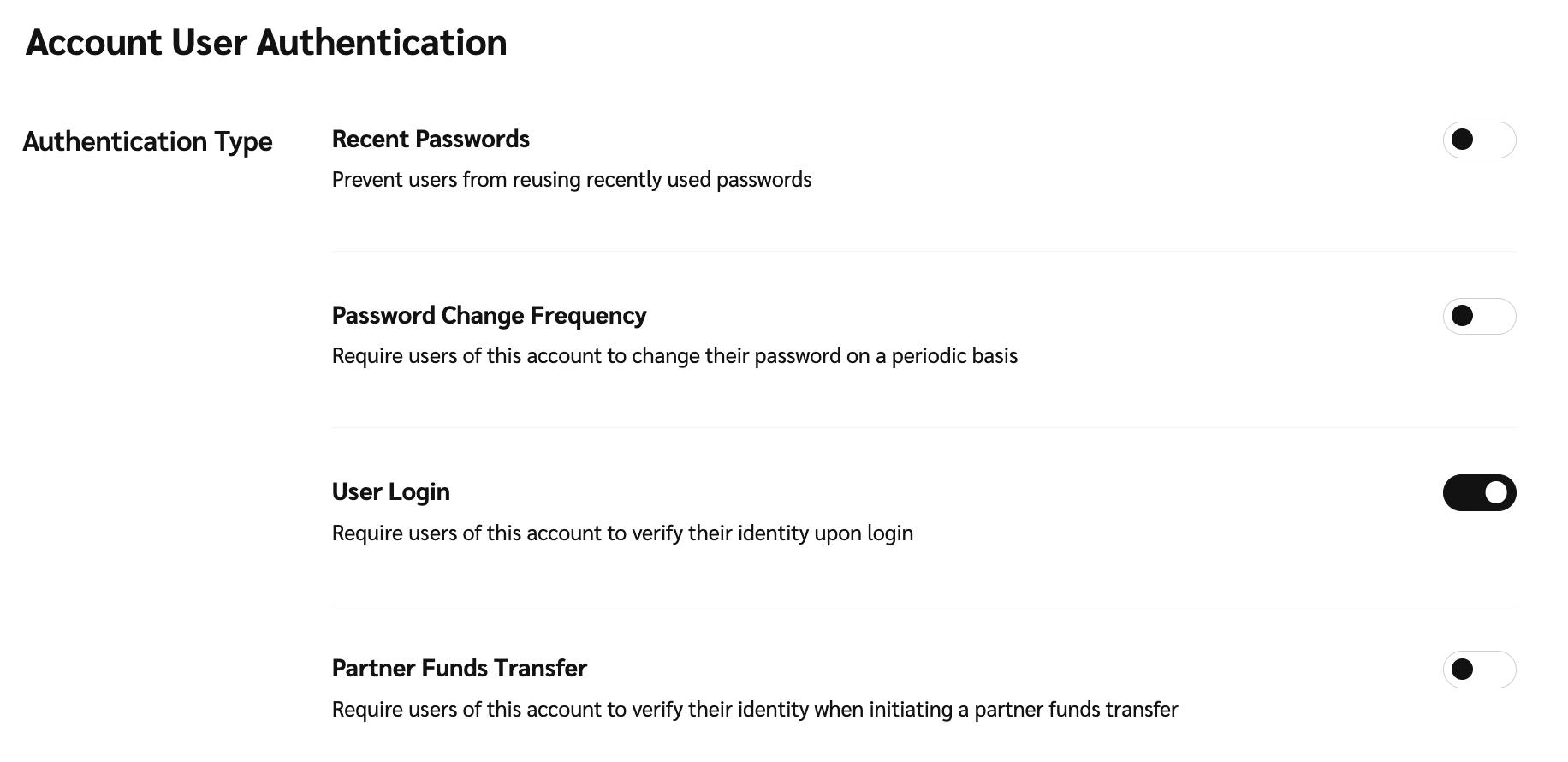
3. Auf dem *Authentifizierung von Kontonutzer* Bildschirm, wählen Sie  **\[Umschalten auf Ein] Von Benutzern dieses Kontos verlangen, dass sie ihre Identität bei der Anmeldung verifizieren**.
4. Wählen Sie **Speichern**.
## 2FA für PFTs aktivieren
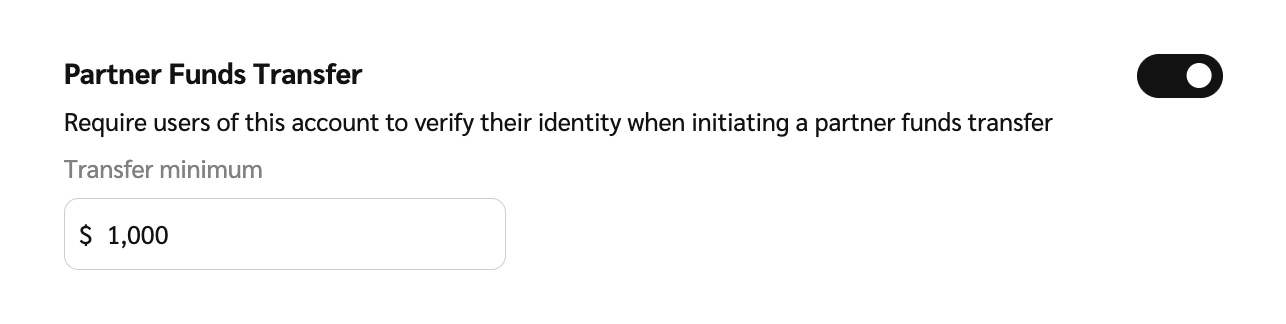
Dadurch wird eine verpflichtende 2FA-Prüfung für Kontonutzer aktiviert, die einen Partner-Fonds-Transfer über den Mindestüberweisungsbetrag hinweg versuchen – sobald sie authentifiziert sind, wird der PFT ausgeführt.
1. Wählen Sie in der oberen Navigationsleiste  **\[Nutzerprofil] → Einstellungen**.
2. Unter *Allgemein*wählen Sie [**Authentifizierung von Kontonutzer**](https://app.impact.com/secure/mediapartner/accountSettings/account-security-settings-flow.ihtml?).
3. Auf dem *Authentifizierungsbildschirm für Kontonutzer*wählen Sie  **\[Umschalten] Von Benutzern dieses Kontos verlangen, dass sie ihre Identität beim Einleiten eines Partner-Fonds-Transfers verifizieren**.
4. Unter *Mindestüberweisungsbetrag*, geben Sie einen Wert als Mindestbetrag ein, um 2FA zu verlangen.
5. Wählen Sie **Speichern**.
## Verwaltete gespeicherte 2FA-Geräte
1. Wählen Sie in der oberen Navigationsleiste  **\[Benutzerprofil] → Profil bearbeiten**.
2. Unter *Sicherheit* → *Geräte und Aktivitäten*, sehen Sie sich eine Liste gespeicherter Geräte für das Konto an.
3. Wählen Sie **Gerät entfernen** wenn Sie impact.com auf diesem Gerät nicht mehr nutzen.
Haben Sie Fragen zu 2FA? Lesen Sie unseren Artikel über [Häufig gestellte Fragen zur Zwei-Faktor-Authentifizierung](/other/de/reference-documentation/two-factor-authentication-faqs.md).
---
# Agent Instructions
This documentation is published with GitBook. GitBook is the documentation platform designed so that both humans and AI agents can read, navigate, and reason over technical content effectively. Learn more at gitbook.com.
## Querying This Documentation
If you need additional information that is not directly available in this page, you can query the documentation by asking a question.
Perform an HTTP GET request on the following URL with the `ask` and `goal` query parameters:
```
GET https://help.impact.com/partner/de/was-mochten-sie-lernen/account-management/account-settings/manage-2fa-for-partner-accounts.md?ask=&goal=
```
`ask` is the immediate question: it should be specific, self-contained, and written in natural language.
`goal` is what the user is ultimately trying to achieve, the reason they need the answer. Sharing it helps GitBook give you a better, more relevant answer. A goal is most helpful when it describes the outcome the user wants rather than restating the question. For example, with `ask=how do I create an API token`, a goal like `automate deployments from our CI pipeline` lets GitBook tailor the answer to that use case.
The response will contain a direct answer to the question and relevant excerpts and sources from the documentation.
Use this mechanism when the answer is not explicitly present in the current page, you need clarification or additional context, or you want to retrieve related documentation sections.