> For the complete documentation index, see [llms.txt](https://help.impact.com/llms.txt). Markdown versions of documentation pages are available by appending `.md` to page URLs; this page is available as [Markdown](https://help.impact.com/brand/zh/what-would-you-like-to-learn-about/platform-features/review-partner-applications/manage-applications-and-send-proposals.md).

# 管理申请并发送提案

<a href="https://pxa.impact.com/student/activity/1087831?sid=0c0e3e5c-54c9-4435-9bee-ebcdccb7f292&#x26;sid_i=0?utm_source=app.impact.com&#x26;utm_medium=owned-platform&#x26;utm_content=part-351&#x26;utm_campaign=help-center" class="button primary">参加 PXA 课程</a>

{% embed url="<https://files.gitbook.com/v0/b/gitbook-x-prod.appspot.com/o/spaces%2FwMLlMoFBtKJa8ptd3zaw%2Fuploads%2FM649z66ubxjs2Zs6dSLU%2Fdis-250-4.mp4?alt=media&token=edb2f768-7631-4eee-a48b-065986230776>" %}

在决定是否接受或拒绝合作伙伴的申请时，您可能首先想确定该合作伙伴是否合适。要打开申请人的资料：

1. 在左侧导航菜单中，选择 ![](/files/209022bdb234289211a24a980f6227a8684cc439) **\[参与] → 合作伙伴 →** [**申请**](https://app.impact.com/secure/advertiser/engage/contracts/activity/adv-manage-pending-public-ios-v2-flow.ihtml).
2. 在 *申请* 屏幕上，找到您感兴趣的合作伙伴并选择 **其名称**.

   * 这将打开一个侧滑面板，显示有关该合作伙伴的多项详细信息，并允许您联系该合作伙伴。

   <div data-gb-custom-block data-tag="hint" data-style="info" class="hint hint-info"><p><strong>提示：</strong> 要给潜在合作伙伴发送电子邮件，请选择 <img src="/files/87765d47f42a38d8c7fb407cb686be5fc30a73e8" alt=""> <strong>[电子邮件]</strong> 并按照 <a href="/pages/a6215e281b801e1bec3feca6b2c784be6d84ae67"><em>电子邮件详细信息参考</em></a> 中的说明进行操作。</p></div>
3. 您可以通过选择 ![](/files/c46af45ed38054207bea364019555922218ea1dd) **\[电子邮件图标]** 并按以下步骤操作：
   1. 输入 **发件人名称** ，收件人在收到电子邮件时将看到该名称。
   2. 输入 **回复电子邮件** 地址，收件人在回复此电子邮件时将联系该地址。
   3. 输入 **主题** 。
   4. 在 *内容* 部分，使用所见即所得编辑器创建或编辑电子邮件内容。将鼠标悬停在图标上可查看格式和内容选项（例如，要上传附件，请选择 ![](/files/f4bae48853505f8d068380f3a9684d0a1a67076c) **\[文件]** 并拖放您的文件）。
   5. 可选地，选择 **显示特殊令牌选项**。这使您可以在电子邮件内容中嵌入特殊令牌，以动态填充值。
      * 请参阅 *特殊令牌参考* ，了解有关这些选项的更多信息。
   6. 选择 **发送**.

<details>

<summary>特殊令牌参考</summary>

| 令牌                 | 说明                                     |
| ------------------ | -------------------------------------- |
| {adcode\<adid>}    | 特定广告的广告代码（例如：{adcode\_12}）。            |
| {mpid}             | 合作伙伴 ID（例如：98765）。                     |
| {mpname}           | 合作伙伴公司名称。                              |
| {firstName}        | 合作伙伴账户用户的名字（例如：John）。                  |
| {lastName}         | 合作伙伴账户用户的姓氏（例如：Doe）。                   |
| {currentDay}       | 当前日期（例如：2038 年 1 月 19 日）。              |
| {currentTime}      | 当前时间，包含秒（例如：19-Jan-2038 03:14:08 UTC）。 |
| {currentMonthYear} | 当前月份和年份（例如：2038 年 1 月）。                |

</details>

#### 查看申请人信息

{% tabs %}
{% tab title="属性" %}
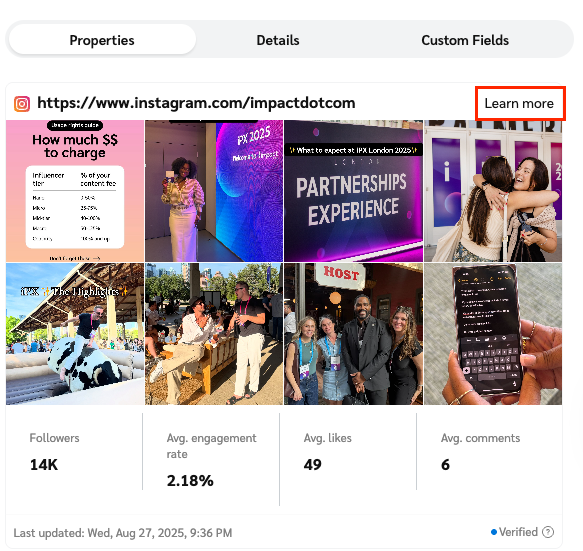
此选项卡列出合作伙伴的媒体资产，即其：

* 网站
* 社交媒体页面
* 移动应用
* 电子邮件通讯
* 播客
* 线下及其他媒体资产

<div data-with-frame="true"><figure><img src="/files/7358eeab35ceaa95dc2735ea5ed60c3ef942c69c" alt="" width="437"><figcaption></figcaption></figure></div>
{% endtab %}

{% tab title="详情" %}
此选项卡显示合作伙伴自行提供的描述、其商业模式、推广类别、可下载的媒体套件、相关链接、推广区域和财务详情。

<div data-with-frame="true"><figure><img src="/files/29ef0d05d9eb3ae1494c2fa6e0ff10ee1792e025" alt="" width="455"><figcaption></figcaption></figure></div>
{% endtab %}

{% tab title="自定义字段" %}
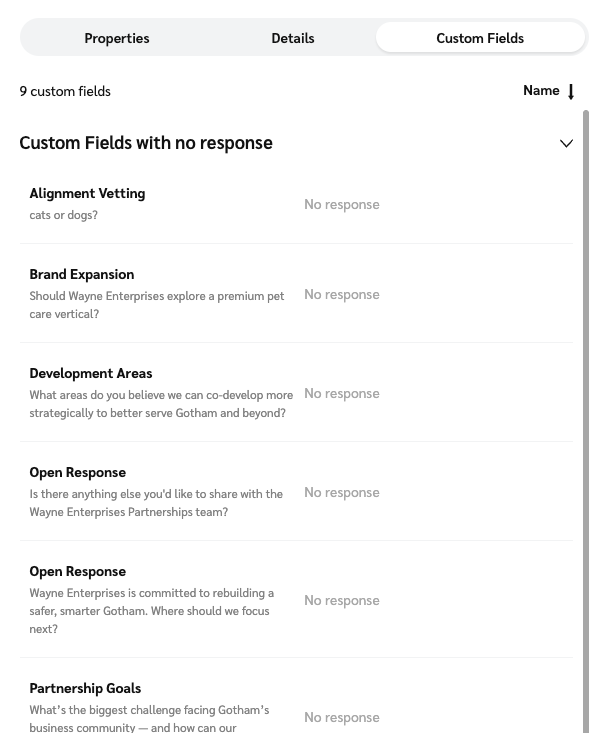
仅当您启用了带有 [自定义字段](/brand/zh/what-would-you-like-to-learn-about/platform-features/reach-out-to-partners/surveys/create-custom-fields-for-surveys.md)的调查时，此选项卡才可见。它会显示合作伙伴对您的自定义字段问题的回答以及他们附加的任何文件。

<div data-with-frame="true"><figure><img src="/files/b482049cd58025add299f664e01ed3b3272cab0d" alt="" width="448"><figcaption></figcaption></figure></div>
{% endtab %}
{% endtabs %}

#### 接受申请人

1. 在左侧导航菜单中，选择 ![](/files/209022bdb234289211a24a980f6227a8684cc439) **\[参与] → 合作伙伴 →** [申请](https://app.impact.com/secure/advertiser/engage/contracts/activity/adv-manage-pending-public-ios-v2-flow.ihtml).
2. 在 *申请* 屏幕上，找到您感兴趣的申请人并选择 **其名称**，然后在侧滑弹窗中选择 **接受**.
   * 或者，将鼠标悬停在 *申请* 屏幕中的申请上并选择 ![](/files/48274f9251fd79e93a99aad7b4393690b07a61c9) **\[更多] → 接受**.
3. 该 *接受申请* 弹窗将出现。请根据需要审核并更新以下设置：
   * **合同条款：** 查看合作伙伴申请时所依据的合同条款，或发送新的提案。更多信息请参阅 [向新合作伙伴发送反提案](/brand/zh/what-would-you-like-to-learn-about/platform-features/review-partner-applications/manage-applications-and-send-proposals.md).
   * **开始日期：** 选择合同应当何时生效 *立即* 或 *在未来*.
   * **合同期限：** 选择合同应为 *长期* 或 *临时*。如果是临时合同，请选择结束日期以及合同到期时适用的备用条款。
   * **合作伙伴组：** 输入合作伙伴组名称，以将该合作伙伴添加到指定组。
   * **将选定的申请人添加到其他项目：** ![](/files/3980f01ba7b178cc917bfb7b270feb4fac2992c6) **\[开启]** 如果您管理多个项目，并且希望将该合作伙伴添加到其申请的项目之外的更多项目中。
   * **将申请人标记为预选合作伙伴：** ![](/files/3980f01ba7b178cc917bfb7b270feb4fac2992c6) **\[开启]** 如果您希望在未来创建的任何项目中自动接受该合作伙伴。
   * **消息：** 可选地，给合作伙伴留一条接受消息。该消息将作为默认或自定义欢迎电子邮件发送。
4. 在弹窗底部，选择 **接受**.

<div data-with-frame="true"><figure><img src="/files/3b28c8ed0f55e4c8a43ca83af6e88aa03ab453e8" alt="" width="375"><figcaption></figcaption></figure></div>

{% hint style="warning" %}
**重要：** 在接受任何合作伙伴的提案时， *新的* 或 *加入*，请仔细查看条款 **，彻底**，因为接受该申请将使协议对您具有约束力。如果合作伙伴提出 *投放费用*，这可能会意外影响您的预算。
{% endhint %}

#### 拒绝申请人

1. 在左侧导航菜单中，选择 ![](/files/209022bdb234289211a24a980f6227a8684cc439) **\[参与] → 合作伙伴 →** [**申请**](https://app.impact.com/secure/advertiser/engage/contracts/activity/adv-manage-pending-public-ios-v2-flow.ihtml).
2. 在 *申请* 屏幕上，找到您想要拒绝的申请人并 **选择其名称**，然后在侧滑弹窗中选择 **拒绝**.
   * 或者，将鼠标悬停在 *申请* 屏幕中的申请上并选择 ![](/files/48274f9251fd79e93a99aad7b4393690b07a61c9) **\[更多] → 拒绝**.
3. 该 *拒绝申请* 弹窗将出现。请根据需要审核并更新以下设置：
   * **合同条款：** 查看合作伙伴申请时所依据的合同条款。
   * **原因：** 选择拒绝该申请的原因，让合作伙伴了解其被拒绝的原因。
   * **阻止合作伙伴重新申请：** 选择是否要阻止该合作伙伴重新申请特定项目或所有项目。（选择 *我的所有项目* 仅适用于您有权访问的项目，且可能不包括所有可用的品牌项目。）
   * **消息：** 可选地，给合作伙伴留一条通过电子邮件接收的拒绝消息。您可以在此详细说明该合作伙伴为何未能满足您的要求。
4. 在弹窗底部，选择 **拒绝**.

<div data-with-frame="true"><figure><img src="/files/91acf59db305caa55cf21d6bb8fa1884af03b3c3" alt="" width="375"><figcaption></figcaption></figure></div>

#### 发送反提案

如果合作伙伴为加入您的项目提出了自己的条款，您可以用不同的合同进行反提案（例如，一套更适合该合作伙伴商业模式的不同条款）。

1. 在左侧导航菜单中，选择 ![](/files/209022bdb234289211a24a980f6227a8684cc439) **\[参与] → 合作伙伴 →** [**申请**](https://app.impact.com/secure/advertiser/engage/contracts/activity/adv-manage-pending-public-ios-v2-flow.ihtml).
2. 在 *申请* 屏幕上，找到您想要拒绝的申请人并 **选择其名称**，然后在侧滑弹窗中选择 **反提案**.
   * 或者，将鼠标悬停在 *申请* 屏幕中的申请上并选择 ![](/files/48274f9251fd79e93a99aad7b4393690b07a61c9) **\[更多] → 反提案**.
3. 在 *反提案* 屏幕上，根据需要审核并更新以下设置：
   * **模板条款：** 使用下拉菜单选择新的模板条款。
   * **合同日期：** 设置合同开始日期，并指定合同应为 *长期* 或 *临时*。如果是临时合同，请选择结束日期以及合同到期时适用的备用条款。
   * **审批选项：** 选择 *提议* 并使用复选框指定此反提案是否有到期日期，以及合作伙伴是否可以针对您的反提案提出他们自己的反提案。
   * **备注：** 可选地，留下一条评论来解释您的反提案。
4. 在屏幕底部，选择 **保存**.

<div data-with-frame="true"><figure><img src="/files/507b087d105c0ea16872e3217f1a24bb3beffbd6" alt="" width="375"><figcaption></figcaption></figure></div>

{% hint style="success" %}
**注意**：提案状态更改为 `已反提案` 当任一方重新提议条款时。即使条款细节未发生变化，也会发生这种情况，因为重新提议会更新签署日期，而系统将其解释为新的反提案。
{% endhint %}


---

# Agent Instructions
This documentation is published with GitBook. GitBook is the documentation platform designed so that both humans and AI agents can read, navigate, and reason over technical content effectively. Learn more at gitbook.com.

## Querying This Documentation
If you need additional information that is not directly available in this page, you can query the documentation dynamically by asking a question.

Perform an HTTP GET request on the current page URL with the `ask` query parameter, and the optional `goal` query parameter:

```
GET https://help.impact.com/brand/zh/what-would-you-like-to-learn-about/platform-features/review-partner-applications/manage-applications-and-send-proposals.md?ask=<question>&goal=<endgoal>
```

`ask` is the immediate question: it should be specific, self-contained, and written in natural language.
`goal` is optional and describes the broader end goal you are ultimately trying to accomplish on behalf of the user. GitBook uses it to tailor the answer towards what is most useful for that goal.

The response will contain a direct answer to the question and relevant excerpts and sources from the documentation.

Use this mechanism when the answer is not explicitly present in the current page, you need clarification or additional context, or you want to retrieve related documentation sections.