> For the complete documentation index, see [llms.txt](https://help.impact.com/llms.txt). Markdown versions of documentation pages are available by appending `.md` to page URLs; this page is available as [Markdown](https://help.impact.com/brand/zh/what-would-you-like-to-learn-about/platform-features/reach-out-to-partners/messaging/see-impactcom-messages-from-partners-in-slack.md).
# 在 Slack 中查看来自合作伙伴的 impact.com 消息
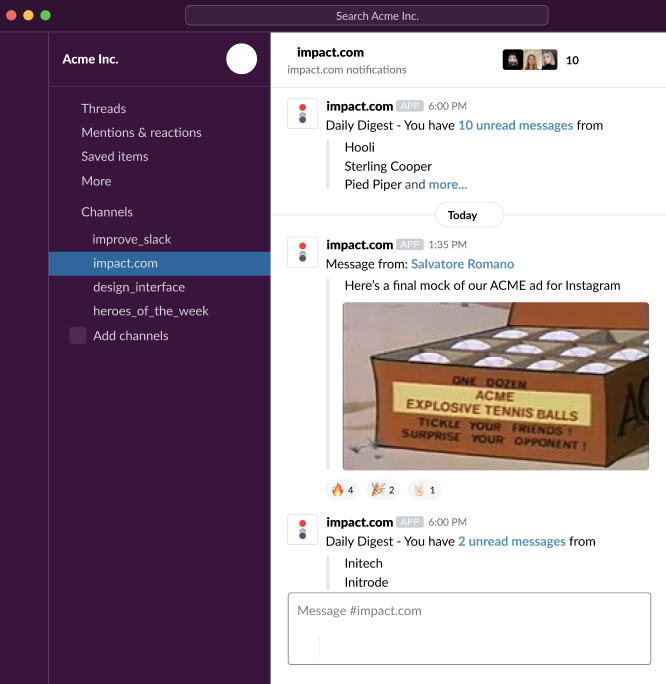
impact.com [消息](/brand/zh/what-would-you-like-to-learn-about/platform-features/reach-out-to-partners/messaging/send-a-message-to-a-partner.md) 可让你与已加入你计划的合作伙伴交换消息,你也可以选择在 Slack 上接收合作伙伴消息和通知。请继续阅读,了解如何使用 Slack 的 [传入 Webhook](https://api.slack.com/messaging/webhooks),以便你可以在 Slack 应用中查看 impact.com 消息。
## 运作方式
* 你将在 Slack 工作区中创建一个新应用,并为你希望显示通知的频道生成一个 Webhook URL。
* 在你的 impact.com 账户中,你将为该频道添加 webhook URL,以启用集成。
* 连接后,每当你在 impact.com 中收到消息时,Slack 都会通过该频道通知你。
## 在 Slack 中创建一个 impact.com 应用
{% hint style="warning" %}
**重要:** 你需要拥有 Slack 工作区的开发者访问权限才能创建应用。
{% endhint %}
1. 访问 Slack 的 [应用仪表板](https://api.slack.com/apps) 并登录 Slack 开发者平台。
2. 选择 **创建应用**.
3. 为该应用指定一个 **名称**,例如 `Acme Inc`.
4. 选择 **工作区** 来托管该应用。
5. 选择 **创建应用**.
## 启用传入 Webhooks 并创建 Webhook URL
1. 在 Slack 的 [应用仪表板](https://api.slack.com/apps)中,找到并选择你创建的 **impact.com 应用** 。
2. 在该应用的管理仪表板中,找到左侧的 *功能* 部分并选择 **传入 Webhook**.
3. 在……旁边 *启用传入 Webhooks*,选择  **\[开启]** 以启用它。
4. 页面刷新后,转到 *你工作区的 Webhook URL 部分* 并选择 **向工作区添加新的 Webhook**.
5. 在提示中,使用 **下拉菜单** 选择 impact.com 可以发布到哪个频道。
6. 选择 **授权**.
7. 在……中 *Webhook URL* 部分下,选择 **复制** 来复制该频道的完整 Webhook URL。
## 将你的 Slack Webhook URL 添加到 impact.com
1. 打开你的 impact.com 品牌账户。在顶部导航菜单中,选择  **\[通知]** → [**设置**](https://app.impact.com/secure/advertiser/notification/view-edit-notification-deliverychannel-settings-advertiser-flow.ihtml).
2. 在……上 *通知频率* 页面,滚动到 *消息* 部分。
3. 使用  **\[下拉菜单]** 以选择 **特定设置(高级)**.
4. 在……中 *新消息* 字段,选择 **Slack**.
5. 在……中 *Slack 集成* 字段,粘贴你的 **Slack Webhook URL**.
6. 选择 **保存**.
{% hint style="success" %}
**注意:** 新消息最多可能需要一小时才能送达 Slack。另外,你可以在 Slack 中回复通知,但合作伙伴不会收到:通知只会单向发送。
{% endhint %}
---
# Agent Instructions
This documentation is published with GitBook. GitBook is the documentation platform designed so that both humans and AI agents can read, navigate, and reason over technical content effectively. Learn more at gitbook.com.
## Querying This Documentation
If you need additional information that is not directly available in this page, you can query the documentation by asking a question.
Perform an HTTP GET request on the following URL with the `ask` and `goal` query parameters:
```
GET https://help.impact.com/brand/zh/what-would-you-like-to-learn-about/platform-features/reach-out-to-partners/messaging/see-impactcom-messages-from-partners-in-slack.md?ask=&goal=
```
`ask` is the immediate question: it should be specific, self-contained, and written in natural language.
`goal` is what the user is ultimately trying to achieve, the reason they need the answer. Sharing it helps GitBook give you a better, more relevant answer. A goal is most helpful when it describes the outcome the user wants rather than restating the question. For example, with `ask=how do I create an API token`, a goal like `automate deployments from our CI pipeline` lets GitBook tailor the answer to that use case.
The response will contain a direct answer to the question and relevant excerpts and sources from the documentation.
Use this mechanism when the answer is not explicitly present in the current page, you need clarification or additional context, or you want to retrieve related documentation sections.