> For the complete documentation index, see [llms.txt](https://help.impact.com/llms.txt). Markdown versions of documentation pages are available by appending `.md` to page URLs; this page is available as [Markdown](https://help.impact.com/brand/zh/what-would-you-like-to-learn-about/account-administration/program-settings/tracking-settings/set-third-party-gateway-urls-and-click-tracking.md).

# 设置第三方网关 URL 和点击跟踪

<a href="https://pxa.impact.com/student/activity/1117597?sid=0c0e3e5c-54c9-4435-9bee-ebcdccb7f292&#x26;sid_i=0?utm_source=app.impact.com&#x26;utm_medium=owned-platform&#x26;utm_content=tra-350&#x26;utm_campaign=help-center" class="button primary">参加 PXA 课程</a>

{% hint style="warning" %}
**警告：** 在修改本文中讨论的高级设置之前， [联系支持](https://app.impact.com/support/portal.ihtml?createTicket=true) 或者联系你的 CSM。
{% endhint %}

#### 查看并修改第三方网关 URL 参数

1. 从顶部导航栏中选择 ![](/files/1cbb667ec4878308f24ec4acd13cbf03ede0bdfe) **\[用户资料] → 设置**.
2. 在 *项目* 列，查找 *跟踪*下，选择 **网关**.
3. 向下滚动到 *第三方网关 URL* 字段添加 1 个。
4. ![](/files/3980f01ba7b178cc917bfb7b270feb4fac2992c6) **\[切换开启]** 的 *通过第三方网关 URL 发送所有流量* 部分以查看下面的更多详细信息。
5. 如果你想通过第三方 URL 路由流量，可以配置该 URL，以及想要附加的任何查询字符串参数。
   * 如果你使用第三方跟踪系统，可以使用此功能在该系统中记录点击数据。&#x20;

<div data-with-frame="true"><figure><img src="/files/fa49a38038c356f568844a4d927580ae7e708102" alt="" width="563"><figcaption></figcaption></figure></div>

<details>

<summary>查询字符串参数参考</summary>

| 参数                | 描述                                                                                         |
| ----------------- | ------------------------------------------------------------------------------------------ |
| `{gwlurl}`        | 你的网关落地页 URL，所有访客将被重定向到该 URL，并由 `{gwlurl}` 令牌填充以确保准确跟踪。                                     |
| `{clickid}`       | 分配给点击事件的唯一点击 ID。                                                                           |
| `{iradid}`        | 来源广告 ID。                                                                                   |
| `{ircid}`         | 来源程序 ID。                                                                                   |
| `{irpid}`         | 来源合作伙伴 ID。                                                                                 |
| `{iradname}`      | 来源广告名称。                                                                                    |
| `{iradtype}`      | 来源广告类型。                                                                                    |
| `{iradsize}`      | 来源广告尺寸（宽 x 高）。                                                                             |
| `{prodsku}`       | 来源广告中产品的 SKU。                                                                              |
| `{irmpname}`      | 来源合作伙伴名称。                                                                                  |
| `{irmptype}`      | 来源媒体类型。                                                                                    |
| `{sharedid}`      | 来源合作伙伴提供的 ID。                                                                              |
| `{irmpgroupname}` | 合作伙伴组名称。                                                                                   |
| `{mp_value1}`     | 来源合作伙伴的自定义合作伙伴值 1。                                                                         |
| `{mp_value2}`     | 来源合作伙伴的自定义合作伙伴值 2。                                                                         |
| `{mp_value3}`     | 来源合作伙伴的自定义合作伙伴值 3。                                                                         |
| `{timestamp}`     | UNIX 时间戳。                                                                                  |
| `{randint}`       | 0 到 10,000,000 之间的随机整数（不包括 10,000,000）。                                                    |
| `{CUSTOM}`        | 这使你能够捕获跟踪链接中传递的值。例如，如果你发送了 `http://trackinglink.com?myvar=1`，那么你可以添加 `{myvar}` 以在跟踪模板中使用它。 |

</details>

#### 查看并修改点击跟踪设置

1. 从顶部导航栏中选择 ![](/files/1cbb667ec4878308f24ec4acd13cbf03ede0bdfe) **\[用户资料] → 设置**.
2. 在 *程序设置* 列，查找 *跟踪*下，选择 **网关**.
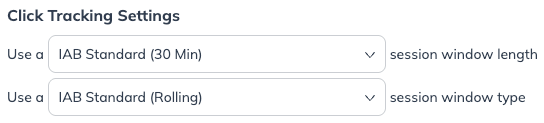
3. 在 *点击跟踪设置*中，修改点击跟踪窗口的持续时间。

   * 默认值为 IAB 标准的 30 分钟滚动窗口，这意味着每个新的点击（与同一个 `ClickId`相关）都会保持点击跟踪会话处于活动状态。

   <div data-with-frame="true"><figure><img src="/files/5e5f9be568adbfd53905e3fc7f6ab421dd4f9631" alt=""><figcaption></figcaption></figure></div>


---

# Agent Instructions
This documentation is published with GitBook. GitBook is the documentation platform designed so that both humans and AI agents can read, navigate, and reason over technical content effectively. Learn more at gitbook.com.

## Querying This Documentation
If you need additional information that is not directly available in this page, you can query the documentation dynamically by asking a question.

Perform an HTTP GET request on the current page URL with the `ask` query parameter:

```
GET https://help.impact.com/brand/zh/what-would-you-like-to-learn-about/account-administration/program-settings/tracking-settings/set-third-party-gateway-urls-and-click-tracking.md?ask=<question>
```

The question should be specific, self-contained, and written in natural language.
The response will contain a direct answer to the question and relevant excerpts and sources from the documentation.

Use this mechanism when the answer is not explicitly present in the current page, you need clarification or additional context, or you want to retrieve related documentation sections.