# Configure Deep Linking Logic with URI Schemes

Certain mobile apps with custom in-app browsers don't support all deep linking technologies, making it necessary to use [URI schemes](https://en.wikipedia.org/wiki/List_of_URI_schemes) to ensure consistent tracking when standard deep linking fails. Follow the steps in this article to enhance the accuracy of your conversion tracking when users engage with your sales landing page via these custom in-app browsers.

#### Desired outcome flowchart

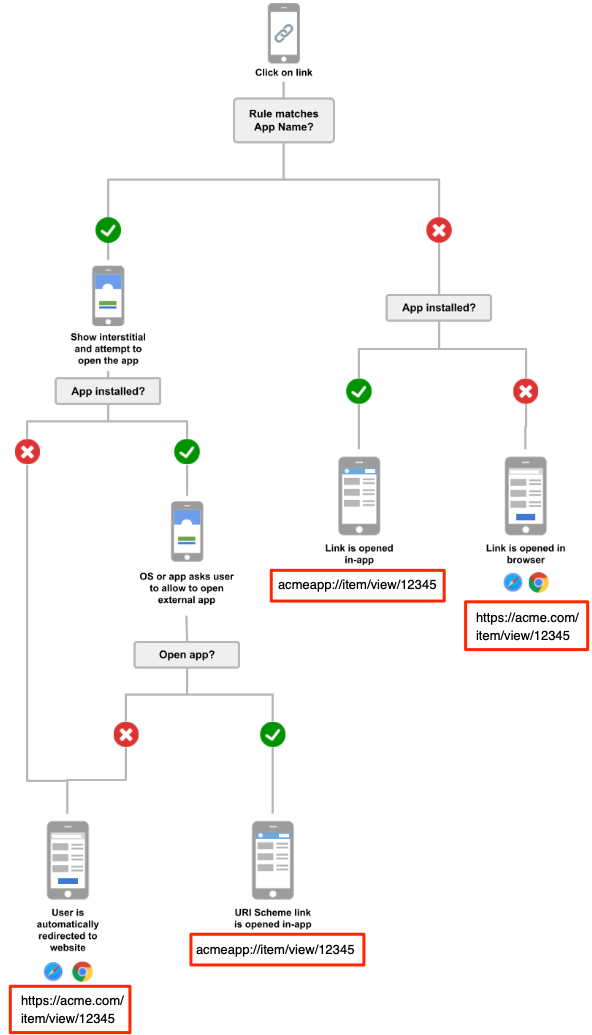
The flowchart below represents the outcome for which you're aiming. In short, you want to configure a redirect rule on impact.com to route users who click your tracking link to the relevant mobile app page whenever possible. If not possible due to the app not being installed on the user's device, you'll want to direct them to the web version of that page. You can also configure an interstitial landing page on impact.com, as this will allow you to ensure that the user is only redirected to destination pages recognized by your app.

<div data-with-frame="true"><figure><img src="https://4048883401-files.gitbook.io/~/files/v0/b/gitbook-x-prod.appspot.com/o/spaces%2FwMLlMoFBtKJa8ptd3zaw%2Fuploads%2Fgit-blob-fed65268965e8e1db8473062d52095b14b220e3d%2F260dbc4571ab3a646158dccf6f817e64888da69f1fe481f7a4d9c2f90fe73003.png?alt=media" alt="" width="296"><figcaption></figcaption></figure></div>

#### Prerequisites

* Your mobile app's URI scheme, e.g. **`acmeapp://`**`item/view/12345`, must be the same across Android and iOS versions of your app.
* Your web URL paths must be mapped to your mobile app URI scheme in order for redirection to work, e.g., if ACME Corporation's URL is `https://acme.com/item/view/12345`, their URI will be `acmeapp://item/view/12345`.
* You must know any unsupported paths (i.e., paths that aren't mapped) within your mobile app so that you can implement corresponding filters to the interstitial page within the rule conditions, as detailed below.

#### Configure URI scheme tracking

{% stepper %}
{% step %}

#### **Step 1: Configure URI scheme tracking on your app**

Configure your mobile app to track when the referrer is a URI scheme.

1. Parse the `clickid` from the URI scheme and other relevant gateway tracking parameters.
2. Call the PageLoad API, passing the URI to the PageUrl field on app open events.

   * See the [Create a Page Load](https://integrations.impact.com/impact-brand/reference/create-a-pageload) API reference for more details.

   <div data-gb-custom-block data-tag="hint" data-style="info" class="hint hint-info"><p><strong>Example:</strong> <code>acmeapp://item/view/12345?clickid=abcdef12345</code>.</p></div>

{% endstep %}

{% step %}

#### **Step 2: Configure your program's URI scheme**

1. From the top navigation bar, select ![](https://4048883401-files.gitbook.io/~/files/v0/b/gitbook-x-prod.appspot.com/o/spaces%2FwMLlMoFBtKJa8ptd3zaw%2Fuploads%2Fgit-blob-1183576591b45997efe4dc81a25024640591d02a%2F245137dc972a7a7f6165b59538fcdbac8fd5bd8fee4ba9f20c1a2982c5b58b57.svg?alt=media) **\[User profile] → Settings**.&#x20;
2. In the right column, under *Tracking*, select **General**.
3. In the URI Scheme field, select ![](https://4048883401-files.gitbook.io/~/files/v0/b/gitbook-x-prod.appspot.com/o/spaces%2FwMLlMoFBtKJa8ptd3zaw%2Fuploads%2Fgit-blob-a600f51d86cbf3c02c36ea5cf311867b2bb4cf89%2F00a06da7505c774dc36762a66bcd169b1d62cb35af729e3383729755194758fb.svg?alt=media) **\[Edit]**.
4. Enter your mobile app's **URI scheme**, excluding `://` from the end of the scheme.
   * If multiple URI schemes are listed, impact.com will default to the first scheme.
5. Select **Save**.
   {% endstep %}

{% step %}

#### **Step 3: Create redirect rule**

1. From the top navigation bar, select ![](https://4048883401-files.gitbook.io/~/files/v0/b/gitbook-x-prod.appspot.com/o/spaces%2FwMLlMoFBtKJa8ptd3zaw%2Fuploads%2Fgit-blob-1183576591b45997efe4dc81a25024640591d02a%2F245137dc972a7a7f6165b59538fcdbac8fd5bd8fee4ba9f20c1a2982c5b58b57.svg?alt=media) **\[User profile] → Settings**.&#x20;
2. In the right column, under *Technical*, select **Blocking & Redirect**.
3. In the upper-right corner, select **Configure rule**.
4. **Name** the rule descriptively.
   * The name should indicate the purpose of the rule.
5. Add a *Condition* with the **App Name** parameter, and enter the mobile app platforms for which the rule is applicable.
   * impact.com recommends including *Facebook*, *Instagram*, and *X*.
6. Optionally, ![](https://4048883401-files.gitbook.io/~/files/v0/b/gitbook-x-prod.appspot.com/o/spaces%2FwMLlMoFBtKJa8ptd3zaw%2Fuploads%2Fgit-blob-6282f271b7521383385339243690b303086736d9%2F3b5a585dd2895bdf1c30d1236c72ba590dddd18717863b27074c8d313d05ae20.svg?alt=media) **\[Add another]** condition with the **Landing Page** parameter, and specify paths and domains for which you want to redirect users.

   * This step is recommended and will allow you to use the feature only for paths that your app can recognize.
   * Use [regex](https://en.wikipedia.org/wiki/Regular_expression) to match landing pages that contain specific paths — see the example below.

   ```programlisting
   ^(https?:\/\/)?(www\.)?(domain\.com|sub\.domain\.com)(\/(shop|product)(\/[^?]*?)?)?(\/?(\?.*)?)?$
   ```
7. Optionally, ![](https://4048883401-files.gitbook.io/~/files/v0/b/gitbook-x-prod.appspot.com/o/spaces%2FwMLlMoFBtKJa8ptd3zaw%2Fuploads%2Fgit-blob-6282f271b7521383385339243690b303086736d9%2F3b5a585dd2895bdf1c30d1236c72ba590dddd18717863b27074c8d313d05ae20.svg?alt=media) **\[Add another]** condition with the **Probability** parameter and specify a percentage of traffic to be rerouted for A/B testing.

   <div data-with-frame="true"><figure><img src="https://4048883401-files.gitbook.io/~/files/v0/b/gitbook-x-prod.appspot.com/o/spaces%2FwMLlMoFBtKJa8ptd3zaw%2Fuploads%2Fgit-blob-05f2884f968b97207049961a1cd2ce056a3bc4b1%2F1744c6326d9b8b16c9d5495cb7869eaf1a4cd0a19b02dbcf3b851af38154ee8b.png?alt=media" alt="" width="536"><figcaption></figcaption></figure></div>

{% endstep %}

{% step %}

#### **Step 4: Customize interstitial for Mobile Deep Linking**

1. In the *Action* field, use the ![](https://4048883401-files.gitbook.io/~/files/v0/b/gitbook-x-prod.appspot.com/o/spaces%2FwMLlMoFBtKJa8ptd3zaw%2Fuploads%2Fgit-blob-c2cb550b55c51ea1eeff0acbd6f437a03b621a2c%2F60d033ae8a04c14498d5229c3c0160ac05feea7f605dbd770741793c900469f0.svg?alt=media) **\[Dropdown menu]** to select **Mobile Deep Linking**.
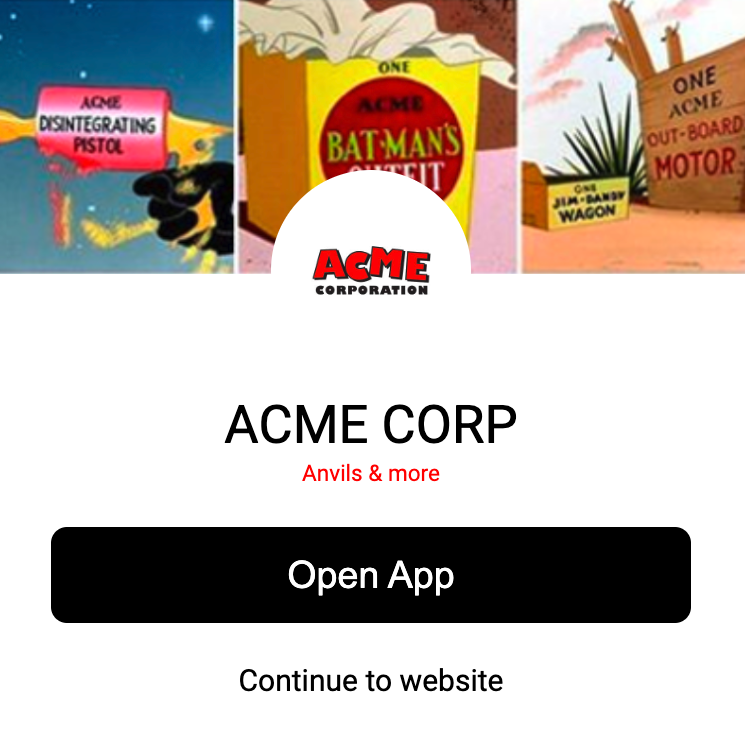
2. Customize the interstitial template to align with your brand:

| Fields                           | Description                                                                                                                                                                                                                                                    |
| -------------------------------- | -------------------------------------------------------------------------------------------------------------------------------------------------------------------------------------------------------------------------------------------------------------- |
| Header text & font color         | Your header text is a short phrase displayed on your interstitial in large type. You can specify what this text says and define the font color using the color picker or [hexadecimal](https://en.wikipedia.org/wiki/Hexadecimal) notation.                    |
| Sub header text & font color     | Your subheader text is a short phrase displayed on your interstitial below your header text. You can specify what this text says and define the font color using the color picker or [hexadecimal](https://en.wikipedia.org/wiki/Hexadecimal) notation.        |
| Upload logo                      | Upload your brand logo in .gif, .jpg, .png, or .svg format. The image can't be > 1 MB in size.                                                                                                                                                                 |
| Upload cover image               | Upload a suitable background image in .gif, .jpg, .png, or .svg format. The image can't be > 1 MB in size.                                                                                                                                                     |
| Open App button label & colors   | Your button label is the text displayed on the button that opens the URI scheme to your mobile app. You can specify what this text says and define the font color using the color picker or [hexadecimal](https://en.wikipedia.org/wiki/Hexadecimal) notation. |
| Continue link label & font color | Your link label is the text displayed on the link that opens your destination web page URL. You can specify what this text says and define the font color using the color picker or [hexadecimal](https://en.wikipedia.org/wiki/Hexadecimal) notation.         |

<div data-with-frame="true"><figure><img src="https://4048883401-files.gitbook.io/~/files/v0/b/gitbook-x-prod.appspot.com/o/spaces%2FwMLlMoFBtKJa8ptd3zaw%2Fuploads%2Fgit-blob-05ea3ea50f8f93b549691e27fe0bc882cd02a9c9%2Fbdbeb71e1227b728b8a97a7b0fa9083cd676a5ab73dd505b312ee1a60c80f751.png?alt=media" alt="" width="373"><figcaption></figcaption></figure></div>
{% endstep %}

{% step %}

#### **Step 5: Configure app open logic & auto-redirect**

1. In the *Action* field, scroll to the end of the visual customization options and fill in the following fields.

   | Field            | Description                                                                                                                                                                                                                                                                                                                                                                                                                                                                                                                                                                                                                                                                                                                                                                     |
   | ---------------- | ------------------------------------------------------------------------------------------------------------------------------------------------------------------------------------------------------------------------------------------------------------------------------------------------------------------------------------------------------------------------------------------------------------------------------------------------------------------------------------------------------------------------------------------------------------------------------------------------------------------------------------------------------------------------------------------------------------------------------------------------------------------------------- |
   | App Open         | <p>Indicate when to open your mobile app:</p><p>• <strong>As soon as the interstitial loads</strong> <mark style="color:$success;">\[Recommended]</mark> — automatically open your mobile app on the user's device as soon as the interstitial loads.</p><p>• <strong>When the button is tapped</strong> — after the interstitial loads, require the user to approve your mobile app opening on their device.</p>                                                                                                                                                                                                                                                                                                                                                               |
   | Auto-redirect    | Select the ![](https://4048883401-files.gitbook.io/~/files/v0/b/gitbook-x-prod.appspot.com/o/spaces%2FwMLlMoFBtKJa8ptd3zaw%2Fuploads%2Fgit-blob-b5e1740618ed6571d97b8fed7c25a7678f85d375%2F299632fb6f4f91fbf9847471754cc6180e4284a65b4960af4c4ea472a159f552.svg?alt=media) **\[Unchecked box]** to define a timeout in case the app open fails, after which they'll be redirected automatically to the web link. impact.com recommends a **10**-second timeout.                                                                                                                                                                                                                                                                                                                 |
   | Default URI Path | Enter a URI path, such as for your website's home page, to be used when one isn't extracted from the URL. This ensures that your app opens successfully even from a custom in-app browser that would otherwise fail to open your app. E.g., if your destination page URL is `https://acme.com`, and you input a default URI path of `home`, the resulting URI scheme link will be `acmeapp://home`.                                                                                                                                                                                                                                                                                                                                                                             |
   | Custom URI Regex | <p>By default, impact.com creates a URI scheme link by appending paths from the destination landing page URL to the URI scheme. E.g., if your destination page URL is <code><https://acme.com/product/12345></code>, and your URI scheme is <code>acmeapp</code>, the resulting URI scheme will be <code>acmeapp\://product/12345</code>.</p><p>However, you can also use <a href="https://en.wikipedia.org/wiki/Regular_expression">regex</a> to specify which parts of a destination page URL must be extracted and appended to the URI scheme. E.g., if your destination page URL is <code><https://acme.com/product/12345></code>, and you input a regex of <code>acme.com.\*$</code>, the resulting URI scheme will be <code>acmeapp\://acme.com/product/12345</code>.</p> |
2. Remember to **Save** your rule when you're done.
   {% endstep %}
   {% endstepper %}

#### Using interstitials with postbacks

If you use [postbacks](https://help.impact.com/brand/what-would-you-like-to-learn-about/account-administration/account-settings/notifications/enable-event-notification-postbacks-for-brands) to track conversions across various impact.com program types, impact.com recommends implementing the interstitial only on your primary program. The primary program handles the last redirect before the destination page, ensuring that all clicks are tracked before opening your mobile app. This approach ensures that attribution works accurately when the conversion is posted to one of the child programs.