# Create & Manage Email Workflows

<a href="https://pxa.impact.com/student/activity/1117576?sid=0c0e3e5c-54c9-4435-9bee-ebcdccb7f292&#x26;sid_i=0?utm_source=app.impact.com&#x26;utm_medium=owned-platform&#x26;utm_content=dis-350&#x26;utm_campaign=help-center" class="button primary">Take the PXA course</a>

Email workflows can help automate communications with your partners by sending emails to specific partner segments. You can select a workflow template that includes pre-configured segments and example email copy, or create an email workflow from scratch. Once activated, email workflows run once per hour.

#### Create an email workflow via a template

{% hint style="warning" %}
This feature is only available with specific impact.com editions or add-ons. [Contact us](https://app.impact.com/secure/advertiser/support/customer-support-portal-flow.ihtml) to upgrade your account and get access!
{% endhint %}

In most situations, we recommend starting from a *template workflow* and adjusting the segment conditions to meet your needs. If no template workflows cover your use case, then you can create a [custom workflow](#para-idm73509281162832) without the suggested partner segment conditions or email copy.

1. From the left navigation menu, select ![](https://4048883401-files.gitbook.io/~/files/v0/b/gitbook-x-prod.appspot.com/o/spaces%2FwMLlMoFBtKJa8ptd3zaw%2Fuploads%2Fgit-blob-230534471fef5f40808e921e41ee44e4a06ded03%2Fe6cb9548999afdc1ed3ce4942e4cb5b45b5cecbd323267aac2a7cd1915fccc09.svg?alt=media) **\[Engage] → Partners → Automation →** [**Workflows**](https://app.impact.com/secure/advertiser/fr/ps-bar-ui.ihtml?route=/workflows).
2. At the top-right corner of the page, select **Create Workflow** → **Email Workflow**.
   * If you don't have existing workflows, then **Create Workflow** is displayed in the center of the screen.
3. From the *Engage with my partners* section, select an email workflow template to get started.

<details>

<summary>Available templates</summary>

A workflow template includes a pre-configured segment and initial copy for the content of the email. Some templates include multiple workflows that are *chained*, meaning that a sequence of actions will be taken based on the workflows' configuration.

Templates with multiple workflows are indicated by colored icons on the template card. If you chose a chained template, then you'll need to select **Edit** below the first workflow to open the workflow creation screen.

| Template                                                                                             | Description                                                                                                                                                                                                                                                                                                                                                                                                                                                                                    |
| ---------------------------------------------------------------------------------------------------- | ---------------------------------------------------------------------------------------------------------------------------------------------------------------------------------------------------------------------------------------------------------------------------------------------------------------------------------------------------------------------------------------------------------------------------------------------------------------------------------------------- |
| <p>Automate prospect invites</p><p><em>(Performance & Creator)</em></p>                              | Send an email invite when you add a partner to Prospects, follow up 7 and 14 days after inviting, and auto-accept them when they sign up.                                                                                                                                                                                                                                                                                                                                                      |
| <p>Partner/Creator Onboarding</p><p><em>(Performance & Creator)</em></p>                             | Send automated onboarding emails to new partners or creators to quickly get them promoting.                                                                                                                                                                                                                                                                                                                                                                                                    |
| <p>Unlock the power of top creators</p><p><em>(Creator only)</em></p>                                | Approve top creators and reach millions of engaged followers.                                                                                                                                                                                                                                                                                                                                                                                                                                  |
| <p>Welcome & kickstart a new partner/creator</p><p><em>(Performance & Creator)</em></p>              | <p>Send a welcome email to newly joined partners, then help them become productive by sending follow-up emails with onboarding materials. Emails sent via this workflow can only be sent in 1 language.</p><p><strong>Caution:</strong> After you activate this workflow, ensure that your <a href="https://app.impact.com/secure/advertiser/campaign/campaign-systememails-settings-flow.ihtml">system welcome emails</a> are turned off to avoid sending your partners duplicate emails.</p> |
| <p>Celebrate a partner's first sale</p><p><em>(Performance only)</em></p>                            | Congratulate partners on their first sale with a custom message.                                                                                                                                                                                                                                                                                                                                                                                                                               |
| <p>Celebrate top-performing partners</p><p><em>(Performance only)</em></p>                           | Congratulate partners on achieving a milestone within a specific time frame.                                                                                                                                                                                                                                                                                                                                                                                                                   |
| <p>Partner/Creator reactivation</p><p><em>(Performance and evergreen Creator programs only)</em></p> | Automate inactive partner re-engagement with emails at 3 specific intervals. You can adjust the intervals when you set up the workflows.                                                                                                                                                                                                                                                                                                                                                       |

</details>

4. Enter a brief **Workflow Name** of up to 50 characters.
5. Optionally, enter a **Description**.
6. ![](https://4048883401-files.gitbook.io/~/files/v0/b/gitbook-x-prod.appspot.com/o/spaces%2FwMLlMoFBtKJa8ptd3zaw%2Fuploads%2Fgit-blob-d0b6669ae76a7bef06a8d6940d7ad5c16bb8d018%2F7cb018d4face8d7cceb880eb5086c812e764fbcfe6f2a0377f88bc7576973070.svg?alt=media) **\[Toggle on]** **Schedule Activation** to select a specific date from which the email workflow will be activated.
   1. Once active, the system automatically triggers emails to partners who qualify under your segment conditions. Double-check your criteria before scheduling, as email delivery depends entirely on these rules.
7. Set up the **Partner Segment** to which this workflow should apply. A segment will be pre-configured for you, and you can make adjustments as needed.
   * For important tips and detailed examples specific to setting up your partner segments, refer to [Partner Segments for Email Workflows Explained](https://help.impact.com/brand/what-would-you-like-to-learn-about/platform-features/reach-out-to-partners/email-workflows/partner-segments-for-email-workflows-explained).

<details>

<summary>Edit a partner segment</summary>

1. Within the segment selection field, select ![](https://files.gitbook.com/v0/b/gitbook-x-prod.appspot.com/o/spaces%2FwMLlMoFBtKJa8ptd3zaw%2Fuploads%2Fgit-blob-a600f51d86cbf3c02c36ea5cf311867b2bb4cf89%2F00a06da7505c774dc36762a66bcd169b1d62cb35af729e3383729755194758fb.svg?alt=media) **\[Edit]**.
2. Review the segment setup and make any desired changes.

   * Optionally, select ![](https://4048883401-files.gitbook.io/~/files/v0/b/gitbook-x-prod.appspot.com/o/spaces%2FwMLlMoFBtKJa8ptd3zaw%2Fuploads%2Fgit-blob-6282f271b7521383385339243690b303086736d9%2F3b5a585dd2895bdf1c30d1236c72ba590dddd18717863b27074c8d313d05ae20.svg?alt=media) **\[And]** to add more conditions.

   <div data-gb-custom-block data-tag="hint" data-style="warning" class="hint hint-warning"><p><strong>Make sure your changes don't conflict with other conditions or workflows:</strong> For example, if you want to send two emails after a prospect joins, verify that the <em>Original Joined Date</em> conditions follow a clear sequence (e.g., first <code>7 Days Ago</code>, then <code>14 Days Ago</code>) and do not overlap (e.g., avoid pairing <code>Last 7 Days</code> with <code>Last 14 Days</code>).</p></div>
3. Select **Preview Segment Partners** to see which partners will be targeted by the workflow and confirm that the results meet your expectations.
4. Select **Save** at the bottom of the slideout.
   * Check your segment conditions carefully before saving! We recommend that you avoid making changes to a segment after your workflow has been activated.

<div data-with-frame="true"><figure><img src="https://4048883401-files.gitbook.io/~/files/v0/b/gitbook-x-prod.appspot.com/o/spaces%2FwMLlMoFBtKJa8ptd3zaw%2Fuploads%2Fgit-blob-7cf1684d130323e4a114e0eb29112a6505d19092%2F71c4ebb0453311d57f0606acbdfc8f6b2fa1726132116e834b7827d18797bc53.png?alt=media" alt=""><figcaption></figcaption></figure></div>

</details>

4. In the *Contact Type* section, use the ![](https://4048883401-files.gitbook.io/~/files/v0/b/gitbook-x-prod.appspot.com/o/spaces%2FwMLlMoFBtKJa8ptd3zaw%2Fuploads%2Fgit-blob-c2cb550b55c51ea1eeff0acbd6f437a03b621a2c%2F60d033ae8a04c14498d5229c3c0160ac05feea7f605dbd770741793c900469f0.svg?alt=media) **\[Drop-down menu]** to include or remove specific contact types from the email list.
   * **Marketplace:** Default email address for the partner account currently in the impact.com marketplace.
   * **Custom:** Custom contacts [added manually](https://help.impact.com/brand/what-would-you-like-to-learn-about/platform-features/partner-management/get-partner-contact-information#add-a-contact-to-your-contact-list-0-0) or via the [Import Prospect feature](https://help.impact.com/brand/what-would-you-like-to-learn-about/platform-features/prospect-import-for-brands/prospect-import-explained). The custom contact type is used when you have a lead list, sourced contacts, or met someone externally, and want to invite them to work with you.
5. In the *Action Type* section, set up the email that will be sent to your selected partners.

<details>

<summary>Set up the email</summary>

1. Select ![](https://4048883401-files.gitbook.io/~/files/v0/b/gitbook-x-prod.appspot.com/o/spaces%2FwMLlMoFBtKJa8ptd3zaw%2Fuploads%2Fgit-blob-a600f51d86cbf3c02c36ea5cf311867b2bb4cf89%2F00a06da7505c774dc36762a66bcd169b1d62cb35af729e3383729755194758fb.svg?alt=media) **\[Edit]** to adjust the body and settings of the template email, including any sign-up instructions or dynamic content.
   * If you are using the *Partner Reactivation* template, don't remove the link—it redirects partners to a page where they can quickly and easily grab their tracking links and start promoting.
2. Complete your email information:
   * Optionally, ![](https://4048883401-files.gitbook.io/~/files/v0/b/gitbook-x-prod.appspot.com/o/spaces%2FwMLlMoFBtKJa8ptd3zaw%2Fuploads%2Fgit-blob-d0b6669ae76a7bef06a8d6940d7ad5c16bb8d018%2F7cb018d4face8d7cceb880eb5086c812e764fbcfe6f2a0377f88bc7576973070.svg?alt=media) **\[Toggle on]** the *Messaging Template* setting to apply an existing messaging template, then select a template from the ![](https://4048883401-files.gitbook.io/~/files/v0/b/gitbook-x-prod.appspot.com/o/spaces%2FwMLlMoFBtKJa8ptd3zaw%2Fuploads%2Fgit-blob-c2cb550b55c51ea1eeff0acbd6f437a03b621a2c%2F60d033ae8a04c14498d5229c3c0160ac05feea7f605dbd770741793c900469f0.svg?alt=media) **\[Drop-down menu]**.
   * **Name:** The name that recipients will see when they receive the email.
   * **Email:** The email address from which the email is sent.
   * **Reply to:** The email address that partners will contact when they reply to this email.
   * **Cc/Bcc:** ![](https://4048883401-files.gitbook.io/~/files/v0/b/gitbook-x-prod.appspot.com/o/spaces%2FwMLlMoFBtKJa8ptd3zaw%2Fuploads%2Fgit-blob-d0b6669ae76a7bef06a8d6940d7ad5c16bb8d018%2F7cb018d4face8d7cceb880eb5086c812e764fbcfe6f2a0377f88bc7576973070.svg?alt=media) **\[Toggle on]** to include a Cc or Bcc email recipient in addition to the partners in your chosen segment.
   * **Subject:** The subject of the email.
   * **Content:** Use the WYSIWYG editor to create or edit your newsletter content.
   * Optionally, below *Insert a signup link*, select the ![](https://4048883401-files.gitbook.io/~/files/v0/b/gitbook-x-prod.appspot.com/o/spaces%2FwMLlMoFBtKJa8ptd3zaw%2Fuploads%2Fgit-blob-c2cb550b55c51ea1eeff0acbd6f437a03b621a2c%2F60d033ae8a04c14498d5229c3c0160ac05feea7f605dbd770741793c900469f0.svg?alt=media) **\[Drop-down menu]** to select one of your template terms, then select **Insert**. This will add a **Join my program** button to the content that acts as a sign-up link to your template terms.
   * Optionally, insert other dynamic fields into your newsletter. You can see the dynamic fields available by selecting ![](https://4048883401-files.gitbook.io/~/files/v0/b/gitbook-x-prod.appspot.com/o/spaces%2FwMLlMoFBtKJa8ptd3zaw%2Fuploads%2Fgit-blob-3ca70a1ff22f0720bfb8c9e284c7d8178e3a547b%2Fb6a126b0775291b814c5a97f83039ef72ba42d6d02b0fe20f4790213ea01961e.svg?alt=media) **\[Expand]** to the right of the option.
3. If you want this email to be saved for future re-use, then ![](https://4048883401-files.gitbook.io/~/files/v0/b/gitbook-x-prod.appspot.com/o/spaces%2FwMLlMoFBtKJa8ptd3zaw%2Fuploads%2Fgit-blob-d0b6669ae76a7bef06a8d6940d7ad5c16bb8d018%2F7cb018d4face8d7cceb880eb5086c812e764fbcfe6f2a0377f88bc7576973070.svg?alt=media) **\[Toggle on]** **Save as new messaging template** and enter a messaging template **Name**.
4. Select **Done** at the bottom of the slideout. Alternatively, you can select **Send test email**. The test will be directed to the email address connected with your user account.

</details>

3. Select **Activate Workflow** or **Save as draft**.
   * Alternatively, if you selected a template that includes multiple workflows, select **Save** and continue setting up the other workflows. When all workflows have been set up, select **Activate Workflows** to launch them.
   * Activated workflows process automatically at the top of the hour.
   * Draft workflows can be accessed from the main *Workflows* screen.

<details>

<summary>Create a custom email workflow</summary>

{% hint style="warning" %}
**Important:** We recommend modifying a template workflow rather than creating a custom workflow whenever possible.
{% endhint %}

1. From the left navigation menu, select ![](https://4048883401-files.gitbook.io/~/files/v0/b/gitbook-x-prod.appspot.com/o/spaces%2FwMLlMoFBtKJa8ptd3zaw%2Fuploads%2Fgit-blob-230534471fef5f40808e921e41ee44e4a06ded03%2Fe6cb9548999afdc1ed3ce4942e4cb5b45b5cecbd323267aac2a7cd1915fccc09.svg?alt=media) **\[Engage] → Partners → Automation → Workflows**.
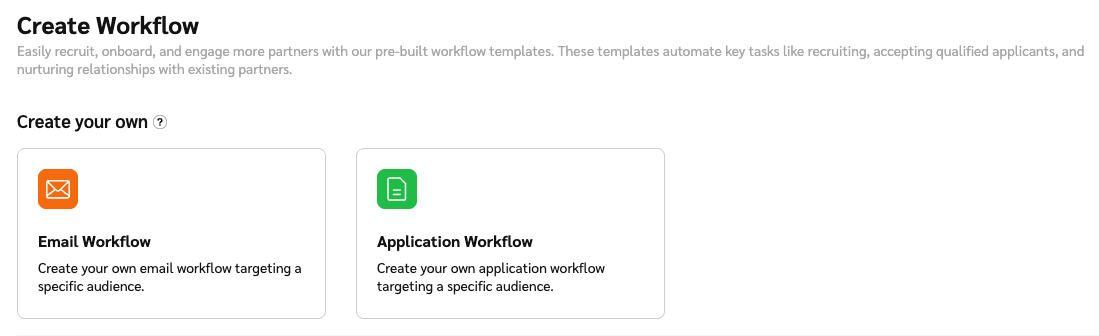
2. At the top-right corner of the page, select **Create Workflow**.
   * If you don't have existing workflows, then **Create Workflow** is displayed in the center of the screen.
3. Below *Create your own*, select **Email workflow**.

   * Multiple email and [application](https://help.impact.com/brand/what-would-you-like-to-learn-about/platform-features/review-partner-applications/automate-partner-application-processing/create-workflows-to-automatically-process-partner-applications) workflows can work together to engage with your partners and process their applications. To set up multiple workflows with complementary segment conditions, repeat the process above, starting on the *Workflows* screen.

   <div data-with-frame="true"><figure><img src="https://4048883401-files.gitbook.io/~/files/v0/b/gitbook-x-prod.appspot.com/o/spaces%2FwMLlMoFBtKJa8ptd3zaw%2Fuploads%2Fgit-blob-80f62a1a9d358d0fdc3a0ba0e0d7f04b751ec066%2F10bab97cc25913cb7d9a532b5b47beae3f90c1beaac33f67e6c11025f9e88d8d.png?alt=media" alt=""><figcaption></figcaption></figure></div>
4. Set up your **Partner Segment**.

**Create a partner segment**

1. Select **Add Segment**.
2. In the slideout, choose an existing segment from the drop-down list, or select **Create new segment**.
3. Set up the segment conditions.
   * At least one segment condition is needed. Refer to [Partner Segments for Email Workflows Explained](https://help.impact.com/brand/what-would-you-like-to-learn-about/platform-features/reach-out-to-partners/email-workflows/partner-segments-for-email-workflows-explained) for complete details, best practices, and setup examples.
   * Select ![](https://4048883401-files.gitbook.io/~/files/v0/b/gitbook-x-prod.appspot.com/o/spaces%2FwMLlMoFBtKJa8ptd3zaw%2Fuploads%2Fgit-blob-6282f271b7521383385339243690b303086736d9%2F3b5a585dd2895bdf1c30d1236c72ba590dddd18717863b27074c8d313d05ae20.svg?alt=media) **\[And]** to add another condition.
4. Select **Preview Segment Partners** to see which partners will be targeted by the workflow and confirm that the results meet your expectations.

   <div data-gb-custom-block data-tag="hint" data-style="warning" class="hint hint-warning"><p><strong>Check the segment conditions carefully:</strong> If you plan to use this workflow as part of a series, make sure the partner segment conditions don't create conflicting logic with the other workflows in the series. For example, if you want to send 2 emails after a partner joins, make sure that the <em>Original Joined Date</em> conditions of workflow 1 and workflow 2 are chronologically sequential ( <code>7 Days Ago</code> and <code>14 Days Ago</code>, rather than <code>Last 14 Days</code> and <code>Last 7 Days</code>).</p></div>
5. Select **Save** at the bottom of the slideout.

<div data-with-frame="true"><figure><img src="https://4048883401-files.gitbook.io/~/files/v0/b/gitbook-x-prod.appspot.com/o/spaces%2FwMLlMoFBtKJa8ptd3zaw%2Fuploads%2Fgit-blob-5744e153b6650832d3b40dc835271f59c11c0529%2F22512a3e301d4f23e5487cd1c8dc42450c2aaa6442e88549b9ac26497e69a6e5.png?alt=media" alt=""><figcaption></figcaption></figure></div>

5. In the *Action Type* section, set up the email that will be sent to your selected partners.
   * Refer to the [*Set up the email*](#para-idm73509284172068) section above for more information.
6. Select **Activate Workflow** or **Save as draft**.
   * Alternatively, if you selected a template that includes multiple workflows, select **Save** and continue setting up the other workflows. When all workflows have been set up, select **Activate Workflows** to launch them.
   * Activated workflows process automatically at the top of the hour.
   * Draft workflows can be accessed from the main *Workflows* screen.

</details>

#### Manage an existing email workflow

You can edit, pause, or delete a workflow at any time.

1. From the left navigation menu, select![](https://4048883401-files.gitbook.io/~/files/v0/b/gitbook-x-prod.appspot.com/o/spaces%2FwMLlMoFBtKJa8ptd3zaw%2Fuploads%2Fgit-blob-230534471fef5f40808e921e41ee44e4a06ded03%2Fe6cb9548999afdc1ed3ce4942e4cb5b45b5cecbd323267aac2a7cd1915fccc09.svg?alt=media) **\[Engage] → Partners → Automation →** [**Workflows**](https://app.impact.com/secure/advertiser/fr/ps-bar-ui.ihtml?route=/workflows).
2. Select the **Email** tab.
3. Hover your cursor over the email workflow you want to manage.
   * Select **View Report** to [view statistics](https://help.impact.com/brand/what-would-you-like-to-learn-about/platform-features/reach-out-to-partners/email-workflows/review-email-workflow-performance-and-engagement) related to this workflow's opens, clicks, and bounced emails.
   * Select **Edit** to adjust your workflow settings.
   * Select ![](https://4048883401-files.gitbook.io/~/files/v0/b/gitbook-x-prod.appspot.com/o/spaces%2FwMLlMoFBtKJa8ptd3zaw%2Fuploads%2Fgit-blob-8ec3e877b1397045c61d394485e72ac4d93120ee%2Fc6ddb46c637059f06e86c790a911217a9428f5c47b5efef046f90555e85b03cd.svg?alt=media) **\[More]** to access the **Activate**, **Pause**, **Duplicate**, **Issue Log**, or **Delete** options.

#### Email Workflows FAQ

<details>

<summary>Which type of contacts can receive Workflow emails?</summary>

Only partners with a Marketplace email type can receive Workflow emails. A marketplace contact is set if the partner has only one user or if the partner configures it from within their public profile.

</details>

<details>

<summary>Is there a limit to how many emails can be sent?</summary>

Yes. The partner segment is limited to 10,000 email addresses. If your segment conditions result in more than 10,000 email addresses, then no emails will be sent. Reach out to your CSM or [contact support](https://app.impact.com/support/portal.ihtml?createTicket=true&) to help you troubleshoot your segment configuration.

</details>

<details>

<summary>What is the easiest way to stop emails from being sent if I make a mistake?</summary>

The best approach is to pause the Workflow as quickly as possible. If the *Last Processed* column is blank (or `-`), then processing never started and no partners were targeted. If *Last Processed* has a date, use the reporting option within the Workflow UI to see who already received the email.

</details>

<details>

<summary>How do I prevent Email Workflows from sending welcome messages meant for new partners to existing partners I've shifted to a new contract?</summary>

If one of your email workflows sends a welcome email to new partners, make sure that you're setting up your segment using the condition *Original Joined Date* `is` **Today**. It ensures that only net new partners, starting from when the workflow is enabled, will receive a welcome email.

</details>