> For the complete documentation index, see [llms.txt](https://help.impact.com/llms.txt). Markdown versions of documentation pages are available by appending `.md` to page URLs; this page is available as [Markdown](https://help.impact.com/brand/what-would-you-like-to-learn-about/platform-features/promo-codes/regular-expression/regex-outside-the-parentheses.md).
# Regex Outside the Parentheses
[Regex](/brand/what-would-you-like-to-learn-about/platform-features/promo-codes/regular-expression/regex-explained.md) (or Regular Expression) is a type of code you can use when you want to match a portion of the characters in your uploaded product SKUs, categories, or promo codes with the values that are passed to impact.com with conversions. You can use regex with impact.com's Match Expression tool to identify product SKUs, categories, or promo codes for which you want to pay out differently.
#### Outside the parentheses
The regex you place [inside](/brand/what-would-you-like-to-learn-about/platform-features/promo-codes/regular-expression/regex-inside-the-parentheses.md) the Match Expression tool parentheses represents the value(s) you're trying to match for in your accompanying exception list. If you want to do more than exactly exactly with items in a list of SKUs, categories, or promo codes, you'll need to add regex outside the parentheses. The operators outside of the parentheses will match the bracketed value(s) with incoming conversions that have corresponding SKUs, categories, or promo codes.
#### Example scenario
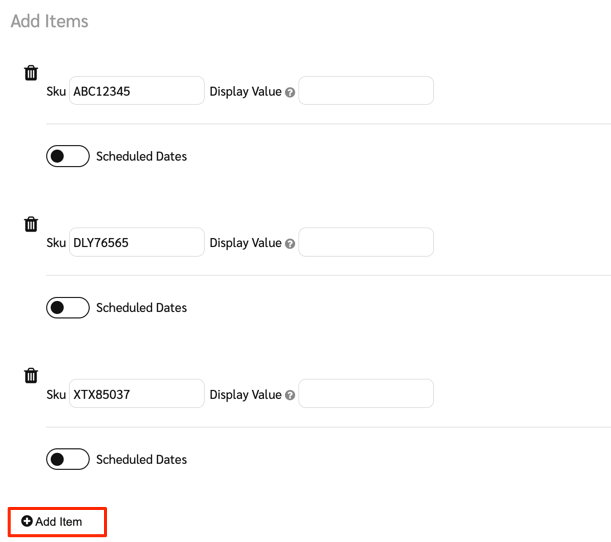
Your brand, *ACME Auto*, would like to decrease payout to partners on all tires. *ACME Auto* doesn't have an exhaustive list of tire brands because it plans to add new tire brands to its catalog in future. However, you know that all tire SKUs start with 3 letters, representing the tire brand, followed by 5 numbers (e.g. `ABC12345`, `DLY76565`, and `XTX85037`).
Because all tire SKUs start with 3 letters followed by 5 numbers, you can set up a regex for that SKU pattern and use the Match Expression tool to find matches in the current SKU exception list. In future, *ACME Auto* can then add additional 3-letter brand codes as needed.
#### Step 1: Create a SKU list
1. From the top navigation bar, select  **\[User profile] → Settings**.
2. On the right, under the *Exception Lists* section, select **SKU**.
3. Select **Add New SKU List**.
4. Enter a **List Name**.
5. Select the **event type** you want to associate with this SKU list.
#### Step 2: Set up the regex
1. Select **Show advanced settings** and enter your regex in the **Match Expression** field.
* Inside parentheses, add what you want to match for:
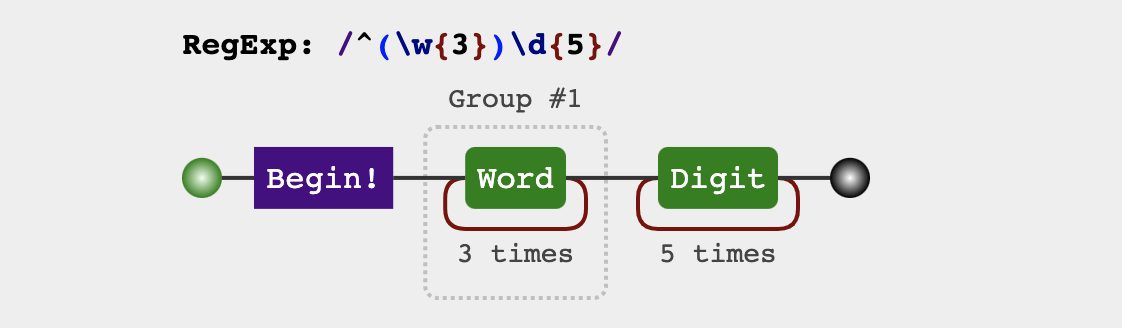
* Add the regex characters `\w{3}` to match for the 3-letter "text" portion of the items in your SKU list.
* Outside the parenthesis:
* Add `^` before the opening parentheses to assert the position at the start of a line, ensuring that there are no preceding characters.
* Add `\d{5}` after the closing parentheses to match for the bracketed expression only when there are 5 digits after the 3-letter text combination.
* The final expression should be `^(\w{3})\d{5}`.
2. Select **Save and Add items**.
#### Step 3: Add exception list items
1. List the values you want to match in 1 of 2 ways:
* **Add Items manually** by entering all current tire brand SKUs in the *Sku* fields.
* Alternatively, **Upload a CSV or Excel file** listing all current tire brand SKUs under the *SKU* column.
* See [Create a SKU exception list](/brand/what-would-you-like-to-learn-about/account-administration/program-settings/exception-lists/create-sku-exception-lists.md) for more information.
2. To add new tire brands, simply add new SKU list items manually or via upload.
* E.g., add **BHG123** for a new tire with the 3-letter brand code of *BHG*.
3. Select **Save**.
* You'll see your new SKU list on the *SKU Lists* screen.
#### What next?
Now that you've set up a regex Match Expression and added corresponding SKU list items, all *ACME Auto*'s tires will be matched as part of the exception list. Any future tire brands (assuming they also have SKUs starting with 3 letters followed by 5 numbers) can be added to the SKU list when necessary. Any incoming conversions that match the regex will be flagged as part of the exception list and contract rules will be applied accordingly.
Now you can add rules to *ACME Auto*'s template terms, such as decreasing payout whenever these SKUs are present. See [Set Payout Rules for Category, SKU, or Promo Code Exception Lists](/brand/what-would-you-like-to-learn-about/account-administration/program-settings/exception-lists/set-payout-rules-for-exception-lists.md) for more details.
---
# Agent Instructions
This documentation is published with GitBook. GitBook is the documentation platform designed so that both humans and AI agents can read, navigate, and reason over technical content effectively. Learn more at gitbook.com.
## Querying This Documentation
If you need additional information that is not directly available in this page, you can query the documentation by asking a question.
Perform an HTTP GET request on the following URL with the `ask` and `goal` query parameters:
```
GET https://help.impact.com/brand/what-would-you-like-to-learn-about/platform-features/promo-codes/regular-expression/regex-outside-the-parentheses.md?ask=&goal=
```
`ask` is the immediate question: it should be specific, self-contained, and written in natural language.
`goal` is what the user is ultimately trying to achieve, the reason they need the answer. Sharing it helps GitBook give you a better, more relevant answer. A goal is most helpful when it describes the outcome the user wants rather than restating the question. For example, with `ask=how do I create an API token`, a goal like `automate deployments from our CI pipeline` lets GitBook tailor the answer to that use case.
The response will contain a direct answer to the question and relevant excerpts and sources from the documentation.
Use this mechanism when the answer is not explicitly present in the current page, you need clarification or additional context, or you want to retrieve related documentation sections.
.png?alt=media&token=c030c1ca-d821-43a8-b304-558c6e47ab7d)