# Partner Participation Value Report

The partner participation report shows how partners are driving conversions and the value they are bringing to you. This report helps you drive productive partnerships and understand how partnerships are performing.

**Gain valuable insights with Optimize:** This report is just a small preview of what Optimize reporting can offer. [Sign up to Optimize](https://help.impact.com/brand/what-would-you-like-to-learn-about/account-administration/account-settings/subscription-add-ons/get-the-optimize-add-on) for even more insightful metrics and maximize the potential of your partnerships.

#### Manage the report

{% hint style="warning" %}
This feature is only available with specific impact.com editions or add-ons. [Contact us](https://app.impact.com/secure/advertiser/support/customer-support-portal-flow.ihtml) to upgrade your account and get access!
{% endhint %}

1. From the left navigation bar, select ![](https://4048883401-files.gitbook.io/~/files/v0/b/gitbook-x-prod.appspot.com/o/spaces%2FwMLlMoFBtKJa8ptd3zaw%2Fuploads%2Fgit-blob-230534471fef5f40808e921e41ee44e4a06ded03%2Fe6cb9548999afdc1ed3ce4942e4cb5b45b5cecbd323267aac2a7cd1915fccc09.svg?alt=media) **\[Engage]** → **Reports → More Reports**.
2. Select [Partner with Participation Value](https://app.impact.com/secure/advertiser/report/viewReport.report?handle=partner_participation_value).

   <div data-with-frame="true"><figure><img src="https://4048883401-files.gitbook.io/~/files/v0/b/gitbook-x-prod.appspot.com/o/spaces%2FwMLlMoFBtKJa8ptd3zaw%2Fuploads%2Fgit-blob-77e31b377c2d4d0100e09793b152b2cfac3d6a78%2Ffe6a2f96ac14295439145e6fca13dc94ca3d7687291f46d7276c1bf077d6d190.png?alt=media" alt=""><figcaption></figcaption></figure></div>
3. Below *Partner with Participation Value*, you can filter for the data you want to view. Select ![](https://4048883401-files.gitbook.io/~/files/v0/b/gitbook-x-prod.appspot.com/o/spaces%2FwMLlMoFBtKJa8ptd3zaw%2Fuploads%2Fgit-blob-26956d35e17c61868ca8dba76097721fd6066ab4%2F69945c787eb2db89761c82e0cd32fb31d2fc690bfb8592d9a08b7e7983b7445b.svg?alt=media) **\[Search]** when you have the filters in place that you want.
   * View the *Filter reference* below for more information.
   * You can use the icons at the top-right of the page to ![](https://4048883401-files.gitbook.io/~/files/v0/b/gitbook-x-prod.appspot.com/o/spaces%2FwMLlMoFBtKJa8ptd3zaw%2Fuploads%2FKG07S1laT6SIusRgHwBA%2FPin.svg?alt=media\&token=1fef79ba-7abe-4eb4-8341-5b33074bee1c)**pin**, ![](https://4048883401-files.gitbook.io/~/files/v0/b/gitbook-x-prod.appspot.com/o/spaces%2FwMLlMoFBtKJa8ptd3zaw%2Fuploads%2Fgit-blob-ac65d9303f4002a9572c597d7e38a09962900df0%2Fccb680aef192b944a1effa9b19830de17e22540e98e1bfa40e1bc0a240aa51ee.svg?alt=media)[schedule](https://help.impact.com/brand/what-would-you-like-to-learn-about/platform-features/multi-program-reports/data-lab-custom-reports/schedule-a-custom-report), ![](https://4048883401-files.gitbook.io/~/files/v0/b/gitbook-x-prod.appspot.com/o/spaces%2FwMLlMoFBtKJa8ptd3zaw%2Fuploads%2Fgit-blob-1c990ed7d1179d6bc54ec8a2f98688d63ffdf977%2F1ca7fd10d94ed494c076e86be8f0d3f371693b11c47f1b26ec0435a27e0e48c5.svg?alt=media)[**download**](https://help.impact.com/brand/what-would-you-like-to-learn-about/platform-features/multi-program-reports/report-management/download-a-report) (in PDF, Excel, or CSV format), or![\[Export report\] vNext](https://help.impact.com/~gitbook/image?url=https%3A%2F%2Fpaligoapp-cdn-eu1.s3.eu-west-1.amazonaws.com%2Fimpact%2Fattachments%2Ff01cdffa431a4d75ff09c130b66974d4-fd77f03a4c5618018e59013607ed56bc.svg\&width=300\&dpr=3\&quality=100\&sign=11f4a40e\&sv=2)[export the report](https://integrations.impact.com/impact-brand/reference/export-reports) (via API).

#### Access the report data

You can view the report data as a trend graph or table and compare certain metrics.

{% tabs %}
{% tab title="Trend graph" %}
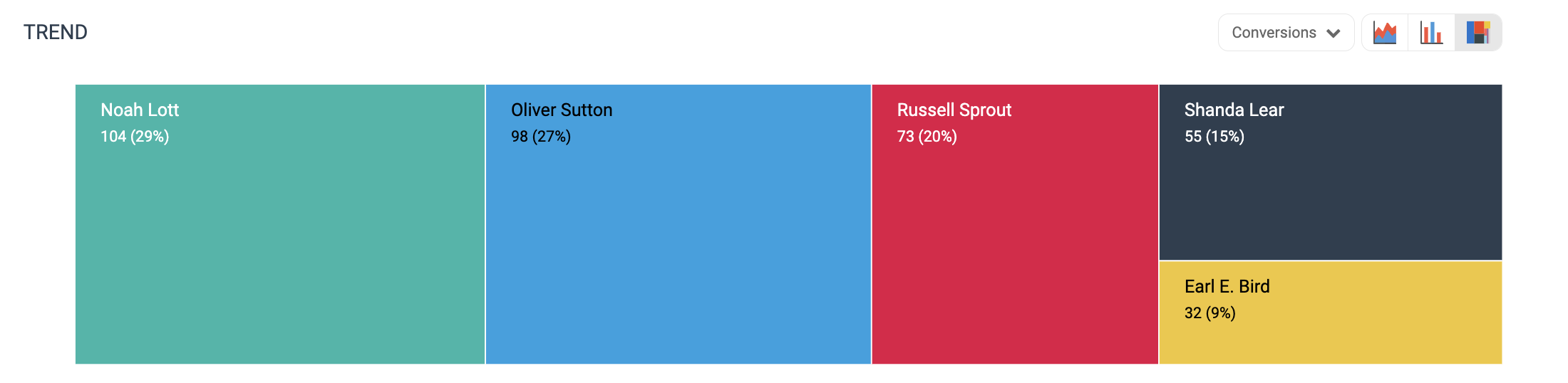
The trend graph enables you to filter your report according to *Conversions* or *Revenue*. This view provides the selected metric’s daily trends over a specific date range.

1. Select the drop-down in the upper-right corner, then, choose a specific metric.
2. Alternate between the ![](https://4048883401-files.gitbook.io/~/files/v0/b/gitbook-x-prod.appspot.com/o/spaces%2FwMLlMoFBtKJa8ptd3zaw%2Fuploads%2Fgit-blob-89fd6df04f02bd93168845e5d72a6900304dabb8%2F251e8aac2e8a4286d3d3beb8caf874d3c2ad0f3a202e9083772f38ddce10e352.svg?alt=media) line, ![](https://4048883401-files.gitbook.io/~/files/v0/b/gitbook-x-prod.appspot.com/o/spaces%2FwMLlMoFBtKJa8ptd3zaw%2Fuploads%2Fgit-blob-4f6f33cb850705d4769b40da9c4ada48d898a290%2F50f4c74e39733bfccf223c3de04d29376c8bcf916ae097f134ae6f1c8a252be6.svg?alt=media) bar, and ![](https://4048883401-files.gitbook.io/~/files/v0/b/gitbook-x-prod.appspot.com/o/spaces%2FwMLlMoFBtKJa8ptd3zaw%2Fuploads%2Fgit-blob-b0e79bfaa02eede5ae8956b9af1371edc3a77d52%2Fb7c1c20ba44b256bcfcbff5d442eeaf210edc4313615aa0dd15994c7572910a3.svg?alt=media) treemap views by selecting the view icon.
   * The treemap view is a great visual option for comparing partner participation value.

     <div data-with-frame="true"><figure><img src="https://4048883401-files.gitbook.io/~/files/v0/b/gitbook-x-prod.appspot.com/o/spaces%2FwMLlMoFBtKJa8ptd3zaw%2Fuploads%2Fgit-blob-3f9bc6a339b2ed8bc1ba9ecb19f2b64be0b9d71c%2Ffff0f7e898eba4d0ba8aa82f783818eac2f096633e8b4e884bc3ce5d7d322acf.png?alt=media" alt=""><figcaption></figcaption></figure></div>

{% endtab %}

{% tab title="Data table" %}
Below the trend graph is the data table. The data table provides different data points displayed in a column view. This view provides a detailed set of comparable numbers over the selected date range.

* Refer to the *Report data column reference* below for more information on the columns found in the data table.
* Add or remove columns from the report table using the ![](https://4048883401-files.gitbook.io/~/files/v0/b/gitbook-x-prod.appspot.com/o/spaces%2FwMLlMoFBtKJa8ptd3zaw%2Fuploads%2Fgit-blob-55f9a4ba17f1edde22510bc766728b311864c461%2Feaf620c7b74ff071d06c5e1b12bb1bd184361280cdc0ea896c3f8058c11b8532.svg?alt=media) **\[Columns]** icon at the top-right of the report.

<div data-with-frame="true"><figure><img src="https://4048883401-files.gitbook.io/~/files/v0/b/gitbook-x-prod.appspot.com/o/spaces%2FwMLlMoFBtKJa8ptd3zaw%2Fuploads%2Fgit-blob-1e99321efcc849092da4b9c6152c50472193cff8%2F32c274a7166bbaf5e7692ef19eeb32bf95eb5fd6cb4f50c99cebd719a2d51912.png?alt=media" alt=""><figcaption></figcaption></figure></div>
{% endtab %}

{% tab title="Comparison graph" %}
The comparison graph compares the *participation value* of selected rows in the data table based on the metric selected in the trend graph. This graph will show a daily trend of the selected value over the selected date range.

1. Select the specific metric from the drop-down in the trend graph.
2. Select the empty checkbox next to the row in the data table for the metrics you want to compare.
   * Each selected checkbox will be displayed in a specific color that will reflect in the trend graph.
3. Select **Graph rows** to compare the selected rows.
4. Select **Clear compare** to clear the trend view.

   <div data-with-frame="true"><figure><img src="https://4048883401-files.gitbook.io/~/files/v0/b/gitbook-x-prod.appspot.com/o/spaces%2FwMLlMoFBtKJa8ptd3zaw%2Fuploads%2Fgit-blob-1f78234a45da3ea8b0c52967a2177b53a6ac8345%2F157490d3fb9fe07dc2e8024dedad22ee9d5d954bb91a906474afc6dc4a90d1fc.png?alt=media" alt=""><figcaption></figcaption></figure></div>

{% endtab %}
{% endtabs %}

<details>

<summary>Filter reference</summary>

|            |                                                                                                                                                                                                                                                                                                                                                                                                                                                                                                                                                                                                                                                                                                           |
| ---------- | --------------------------------------------------------------------------------------------------------------------------------------------------------------------------------------------------------------------------------------------------------------------------------------------------------------------------------------------------------------------------------------------------------------------------------------------------------------------------------------------------------------------------------------------------------------------------------------------------------------------------------------------------------------------------------------------------------- |
| **Filter** | **Description**                                                                                                                                                                                                                                                                                                                                                                                                                                                                                                                                                                                                                                                                                           |
| Date Range | <p>Filter data by when it was created. You can also compare two periods of time against each other.</p><p>You can pull a maximum of <strong>366 days</strong> of data. However, you can still perform Year-over-Year reporting by selecting <img src="https://4048883401-files.gitbook.io/~/files/v0/b/gitbook-x-prod.appspot.com/o/spaces%2FwMLlMoFBtKJa8ptd3zaw%2Fuploads%2Fgit-blob-b5e1740618ed6571d97b8fed7c25a7678f85d375%2F299632fb6f4f91fbf9847471754cc6180e4284a65b4960af4c4ea472a159f552.svg?alt=media" alt=""> <strong>\[Unchecked box]</strong> <strong>compare to {Previous year}</strong>.</p><p>If you want to pull more than 366 data days, you will need to create multiple reports.</p> |
| Partner    | Select partners for which you want to view performance data.                                                                                                                                                                                                                                                                                                                                                                                                                                                                                                                                                                                                                                              |
| Measure    | <p>Select the method with which you'd like to measure participation value.</p><p>• <strong>% Action</strong> - The total percentage value of how many actions a partner drove</p><p>• <strong>Actions</strong> - The total number of actions a partner drove</p><p>• <strong>% Revenue</strong> - The total percentage value of revenue lead through sales that a partner drove</p><p>• <strong>Revenue</strong> - The total revenue lead through sales that a partner generated</p>                                                                                                                                                                                                                      |
| Event Type | Filter data by [event types](https://help.impact.com/brand/what-would-you-like-to-learn-about/platform-features/event-types/event-types-explained) to specify which types of events you want to see partner participation value data for.                                                                                                                                                                                                                                                                                                                                                                                                                                                                 |
| Currency   | Set the currency in which you want to view the report data. impact.com will convert the amounts to your selected currency.                                                                                                                                                                                                                                                                                                                                                                                                                                                                                                                                                                                |

</details>

<details>

<summary>Report data column reference</summary>

Your choice for the *Measure* filter will change what data is presented in your report's table. The first reference table below will represent table columns where a percentage measure was selected (i.e., % Actions and % Revenue). The second table below will represent report table columns where a number measure was selected (i.e., Actions and Revenue).

**Percentage measure**

| Data column                        | Description                                                                                                                                        |
| ---------------------------------- | -------------------------------------------------------------------------------------------------------------------------------------------------- |
| Insights Level                     | The relevant partner driving participation value.                                                                                                  |
| Participate Revenue / Participated | Shows the total revenue amount or the total number of actions driven in which the partner had at least one touchpoint in the conversion.           |
| % Winner                           | The total **% \[Percentage]** value that was earned by the partner, where the partner was the final touchpoint in the conversion.                  |
| % Solo                             | The total **% \[percentage]** value of the partner's conversions in which they were the sole touchpoint from the start to the end of a conversion. |

**Number measure**

| Data column                        | Description                                                                                                                                                  |
| ---------------------------------- | ------------------------------------------------------------------------------------------------------------------------------------------------------------ |
| Insights Level                     | The relevant partner driving participation value.                                                                                                            |
| Participate Revenue / Participated | Shows the total revenue amount or the total number of actions driven in which the partner had at least one touchpoint in the conversion.                     |
| Winning Revenue                    | The total revenue amount earned or number of actions driven by the partner, where they were the final touchpoint in the conversion.                          |
| Solo Revenue                       | The total revenue amount or number of actions of the partner's conversions in which they were the sole touchpoint from the start to the end of a conversion. |

</details>
