# Create Custom Reports in Data Lab

{% hint style="success" %}
**Before you begin:** Refer to [Data Lab Introduction](https://help.impact.com/brand/what-would-you-like-to-learn-about/platform-features/multi-program-reports/data-lab-custom-reports/data-lab-introduction) before continuing with this article.
{% endhint %}

{% stepper %}
{% step %}

### Step 1: Pick a visualization

{% hint style="warning" %}
This feature is only available to specific impact.com editions or add-ons. [Contact support](https://app.impact.com/support/portal.ihtml?createTicket=true&) to get access.
{% endhint %}

1. From the left navigation menu, select ![](https://4048883401-files.gitbook.io/~/files/v0/b/gitbook-x-prod.appspot.com/o/spaces%2FwMLlMoFBtKJa8ptd3zaw%2Fuploads%2Fgit-blob-230534471fef5f40808e921e41ee44e4a06ded03%2Fe6cb9548999afdc1ed3ce4942e4cb5b45b5cecbd323267aac2a7cd1915fccc09.svg?alt=media) **\[Engage] → Reports**.
2. Select **Data Lab**.
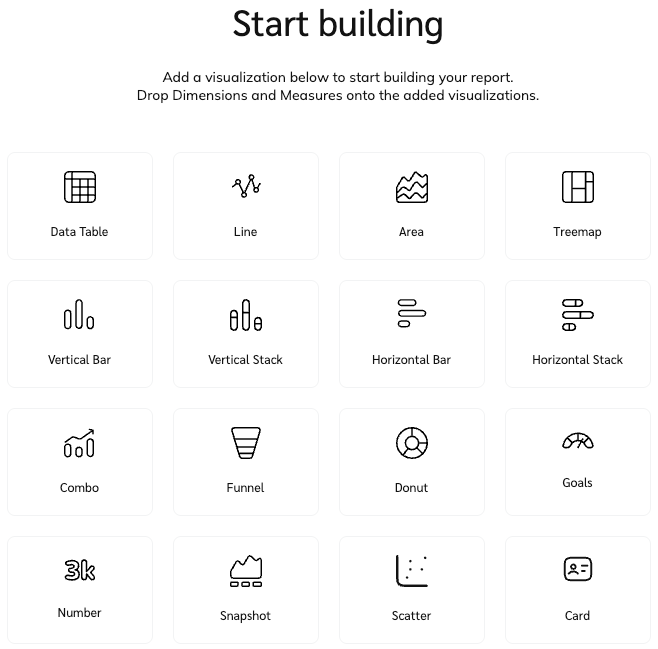
3. Choose 1 of 14 *visualizations* to start your custom report.

   * You can add multiple visualizations of the same data, one visualization with different data, or switch between charts as you build your report.

   <div data-with-frame="true"><figure><img src="https://4048883401-files.gitbook.io/~/files/v0/b/gitbook-x-prod.appspot.com/o/spaces%2FwMLlMoFBtKJa8ptd3zaw%2Fuploads%2Fgit-blob-cfcb26935a9ebd307100a93a9e2ce9bf5d8aeb50%2F0c939955c28b5ae1b1394598cb60c3bcc258c7f075bcefc157337c1e5524a5dc.png?alt=media" alt="" width="494"><figcaption></figcaption></figure></div>
4. Once you have selected a visualization, it will open up the report builder. Here you can select different visualizations, dimensions, and measures to fully customize and build a report tailored to your data needs.

<div data-with-frame="true"><figure><img src="https://4048883401-files.gitbook.io/~/files/v0/b/gitbook-x-prod.appspot.com/o/spaces%2FwMLlMoFBtKJa8ptd3zaw%2Fuploads%2FFjDX5NwjZaswl378kQXl%2FScreenshot%202026-03-25%20at%2012.25.49.png?alt=media&#x26;token=e995131c-a061-4495-bf6c-c844c92f3e25" alt="" width="563"><figcaption></figcaption></figure></div>
{% endstep %}

{% step %}

### Step 2: Name your report and set a date range

1. With your first visualization selected, give your report a name by selecting **Untitled** in the top-left corner.&#x20;
   * You can adjust the alignment, apply bold or underline formatting to specific words, and change the font size. You can also add descriptive subtext below the report name to provide more context to your data.
2. Below the report name, you can select or enter a **date range**, and, if needed, the comparison date range.
3. Next to the date range, you can select for which **programs** and **channels** this report should show data. These filters will apply to all visualizations in the report.
   * Select ![](https://4048883401-files.gitbook.io/~/files/v0/b/gitbook-x-prod.appspot.com/o/spaces%2FwMLlMoFBtKJa8ptd3zaw%2Fuploads%2Fgit-blob-8ec3e877b1397045c61d394485e72ac4d93120ee%2Fc6ddb46c637059f06e86c790a911217a9428f5c47b5efef046f90555e85b03cd.svg?alt=media) **\[More]** in the filter bar to add additional filters.

<div data-with-frame="true"><figure><img src="https://4048883401-files.gitbook.io/~/files/v0/b/gitbook-x-prod.appspot.com/o/spaces%2FwMLlMoFBtKJa8ptd3zaw%2Fuploads%2FXCHpQlPDlj7ewKu4ueiC%2FScreenshot%202026-03-25%20at%2012.53.23.png?alt=media&#x26;token=f9eb08f8-742c-404e-9ede-27eb74917288" alt="" width="375"><figcaption></figcaption></figure></div>
{% endstep %}

{% step %}

### Step 3: Modify the visualization

1. You can name your visualizations by selecting *Untitled* and entering what you want to call the visualization.
2. Next to the visualization name, you can select ![](https://4048883401-files.gitbook.io/~/files/v0/b/gitbook-x-prod.appspot.com/o/spaces%2FwMLlMoFBtKJa8ptd3zaw%2Fuploads%2Fgit-blob-c746d936c908b9090325464502f7c10acda0e993%2F2a92939e8e78dd7e0c0416b1a250d5ef1d7ab0dec966fb5ed320ca62acfc06c5.svg?alt=media) **\[More]** to *Delete, Clone*, or *Download* a CSV or PDF file for the visualization data (exported CSV files can include comparison charts).

<figure><img src="https://4048883401-files.gitbook.io/~/files/v0/b/gitbook-x-prod.appspot.com/o/spaces%2FwMLlMoFBtKJa8ptd3zaw%2Fuploads%2FXkik2wC81t2W6ioKBobV%2FDataLab.gif?alt=media&#x26;token=7cea1862-4016-4a11-b642-344a204ffe0c" alt="" width="563"><figcaption></figcaption></figure>

**Additional ways to modify visualizations**

* **Change your visualization size** by dragging the small arrow on the bottom-right of the visualization.
* **Move the visualization** by hovering your cursor to the right of the visualization's name and dragging it to your desired location.
* **Change the visualization type** by selecting it, then choosing one of the other visualizations above the right toolbar.
* **Add more visualizations** to your report by dragging and dropping them onto an empty part of your report.

#### Data Lab editor dashboard

* **Report name**

  Name the report to make it identifiable.
* **Displayed data**

  This is your reporting canvas. The visualizations you select can be dragged and dropped into positions you prefer.
* **Data widgets**

  Select the various widgets you want displayed in the report. See *Step 4: Add data to your visualization* below for more information.
* **Data customization**

  Select and customize the various dimensions and measures you would like displayed within your visualizations. See *Step 4: Add data to your visualization* below for more information on the available options.
  {% endstep %}

{% step %}

### Step 4: Add data to your visualization

For each visualization, you can add *Dimensions* (which have blue icons next to them) and *Measures* (which have red icons next to them) if the visualization needs it. These can be called by other names, like "x-axis" or "series".

1. To add a **Dimension** or **Measure** to a visualization, find the element you want to add from the toolbar on the right.
2. Drag and drop that element under the **X-Axis** heading if it has a blue icon next to it or under the *Series* heading if it has a red icon next to it.
   * Alternatively, you can just drag and drop the Dimensions and Measures straight onto the visualization.
   * Select ![](https://4048883401-files.gitbook.io/~/files/v0/b/gitbook-x-prod.appspot.com/o/spaces%2FwMLlMoFBtKJa8ptd3zaw%2Fuploads%2Fgit-blob-d05e21635c52fff94d35ca4c6b05c1deecc699ef%2F768d04f4d7e1b5b745577812f7d67db99d988bfc34749b6e575a04438d6cee36.svg?alt=media) **\[Remove]** to remove columns.
   * Select ![](https://4048883401-files.gitbook.io/~/files/v0/b/gitbook-x-prod.appspot.com/o/spaces%2FwMLlMoFBtKJa8ptd3zaw%2Fuploads%2Fgit-blob-4b9429cfc4f3ce4cd61dee51fbe2fb55955f5331%2F17684a2a26dc8fab13a705f53cfaf6803b815677c797f425ffea2439b6322a7b.png?alt=media) **\[Filter]** to filter certain data sets, like currency and country, for more granular results. Filters can be reordered by selecting and dragging the individual filters.
   * For a pivot, you can select the **Select All** checkbox to select up to the first 25 options.
   * Pink options indicate numeric data while blue indicates alphanumeric data.
   * Add an edit menu by hovering over the **123** or **abc** buttons. You can name the field, and also provide column headers, which become tooltips on the widget when hovering over it in the editor.

<div data-with-frame="true"><figure><img src="https://4048883401-files.gitbook.io/~/files/v0/b/gitbook-x-prod.appspot.com/o/spaces%2FwMLlMoFBtKJa8ptd3zaw%2Fuploads%2FbetOXBV1gavITF0IYNYf%2FScreenshot%202026-03-25%20at%2013.12.32.png?alt=media&#x26;token=c4c120d4-b0af-4870-9667-933be691376d" alt="" width="242"><figcaption></figcaption></figure></div>

3. You can rename the **Dimension** or **Measure** by selecting its label and then typing in your preferred name.

* See tabs below to learn more about Dimensions and Measures

{% tabs %}
{% tab title="Dimensions" %}
Dimensions contain qualitative values (such as partner names, products, or geographical data). You can use dimensions to categorize, segment, and reveal the details in your data.

<details>

<summary>Dimensions reference table</summary>

<table><thead><tr><th width="249.82421875">Dimension</th><th>Description</th></tr></thead><tbody><tr><td>Action Id</td><td>Numeric value that impact.com assigns to an action.</td></tr><tr><td>Action Status</td><td><p>Current life cycle status of the action.</p><p>Possible statuses:</p><p>• Pending: Action is awaiting its locking date for approval, or to be manually approved. Actions that have been modified will also have this state.</p><p>• Approved: Action reached its locking date and was approved, or was manually approved and will pay out the partner. No further modifications can occur.</p><p>• Reversed: Action was reversed and will not pay out the partner.</p></td></tr><tr><td>Action Status Detail</td><td>Additional details to describe the status of the action.</td></tr><tr><td>Ad Campaign Group</td><td>The name of the ad campaign group. Ad campaign groups are used to simplify managing campaigns by bundling them together.</td></tr><tr><td>Ad Campaign Id</td><td>The unique identifier assigned to the campaign.</td></tr><tr><td>Ad Campaign Name</td><td>The name associated with each of the campaigns.</td></tr><tr><td>Ad Group Id</td><td>The unique identifier associated with the ad group.</td></tr><tr><td>Ad Group Name</td><td>The ad group name of the ad that triggered the click.</td></tr><tr><td>Ad Id</td><td>The unique identifier of the advert that drove the click.</td></tr><tr><td>Ad Name</td><td>The name of the ad on which the data is based.</td></tr><tr><td>Ad Placement</td><td>The location of the ad on the partner's page. Typical values are "Home", and "Forum".</td></tr><tr><td>Ad Position</td><td>Specifies the slot on the page the ad was on. Typically differentiates "Top", "Bottom", or "Side".</td></tr><tr><td>Ad Status</td><td><p>The current status of the ad.</p><p>Ad statuses include:</p><p>• Active</p><p>• Expired</p><p>• Pending</p></td></tr><tr><td>Ad Type</td><td>The asset type, e.g., text link, rich media, article, coupon, image.</td></tr><tr><td>Alt Ad Id</td><td>The unique ID that impact.com assigns to an external promotional asset.</td></tr><tr><td>Alt Ad Name</td><td>The name of the external ad that triggered the click.</td></tr><tr><td>Alt Ad Type</td><td>The asset type, e.g., text link, rich media, article, coupon, or image of the external ad.</td></tr><tr><td>Batch Date</td><td>The date on which a batch file was created.</td></tr><tr><td>Batch Id</td><td>The unique identifier for a batch file.</td></tr><tr><td>Browser</td><td>Browser type such as Chrome.</td></tr><tr><td>Browser Version</td><td>The browser version number of the browser type. If the browser name is Chrome and the browser version is 65, it displays as Chrome version 65.</td></tr><tr><td>Catalog Product Brand</td><td>The name of the brand that owns the product catalog.</td></tr><tr><td>Catalog Product Business</td><td>A custom category which can be classified as a product subcategory.</td></tr><tr><td>Catalog Product Category</td><td>The group or kind of products with which the item is associated.</td></tr><tr><td>Catalog Product Current List Price</td><td>The current consumer price of the item.</td></tr><tr><td>Catalog Product Description</td><td>The description of the product.</td></tr><tr><td>Catalog Product Manufacturer</td><td>The person or group that makes the item.</td></tr><tr><td>Catalog Product MPN</td><td>Catalog Product Manufacturer Part Number.</td></tr><tr><td>Catalog Product Name</td><td>The name of the item in the catalog.</td></tr><tr><td>Catalog Product Original List Price</td><td>The original price of the item.</td></tr><tr><td>Catalog Product Stock Availability</td><td>The availability of the item. E.g., in stock, out of stock, or limited availability.</td></tr><tr><td>Catalog Product Subcategory</td><td>The second or third level of categorization for a product store.</td></tr><tr><td>Catalog Product Target Age Group</td><td>The age group that the item targets.</td></tr><tr><td>Catalog Product Target Gender</td><td>A specific gender meant to use the item.</td></tr><tr><td>Catalog Product URL</td><td>The URL that leads to the item's online store listing.</td></tr><tr><td>Category List</td><td><p>Category exception lists associated with partners who gets paid according to different rates based on a category.</p><p>Learn more about <a href="../../../account-administration/program-settings/exception-lists/create-category-and-sku-exception-lists">exception lists</a>.</p></td></tr><tr><td>Channel</td><td>The marketing channel that drove the action.</td></tr><tr><td>City</td><td>The city derived from the Geo-Location of the event.</td></tr><tr><td>Content type</td><td>The ad type a creator used. E.g., an image.</td></tr><tr><td>Country/Region</td><td>Country derived from the Geo-Location of the event.</td></tr><tr><td>Country/Region Group</td><td>Territories or groups of countries derived from the geo-location of the event.</td></tr><tr><td>Creator Campaign ID</td><td>The unique identifier of the creator campaign.</td></tr><tr><td>Creator Campaign Name</td><td>The name of the Creator campaign.</td></tr><tr><td>Credit Tier</td><td>Credit policy of the event (Standard or Non-Preferred).</td></tr><tr><td>Currency</td><td>The currency in which amounts are displayed.</td></tr><tr><td>Customer City</td><td>The city in which the customer is located.</td></tr><tr><td>Customer Country/Region</td><td>The region (or state) in which the customer is located.</td></tr><tr><td>Customer Country/Region Group</td><td>Territories or groups of countries in which customers are located and derived from the geo-location of the event.</td></tr><tr><td>Customer Id</td><td>The unique identifier for a customer.</td></tr><tr><td>Customer Postcode</td><td>The postcode of the location in which the customer generated the action.</td></tr><tr><td>Customer State/Region</td><td>The region of the customer, such as APAC.</td></tr><tr><td>Customer Status</td><td><p>The type of customer (e.g., existing) that generated data for that row.</p><p>Learn more about <a href="../../tracking/set-up-tracking/configure-customer-status-mapping">customer status mapping</a>.</p></td></tr><tr><td>Date</td><td>View product sales data by date.</td></tr><tr><td>Day Of Week</td><td>A specific day of the week.</td></tr><tr><td>Day Of Year</td><td>A specific day of the year.</td></tr><tr><td>Day Type</td><td>Indicates if the day is a weekday or weekend.</td></tr><tr><td>Deal Name</td><td><p>The name of the deal.</p><p>Learn more about <a href="../../deals/deal-types-overview">deals</a>.</p></td></tr><tr><td>Deal Scope</td><td>The extent to which the deal applies to the store.</td></tr><tr><td>Deal Status</td><td><p>The state of the deal. Statuses include:</p><p>• <strong>Active:</strong> Deal is currently active.</p><p>• <strong>Expired:</strong> Deal is not currently active.</p><p>• <strong>Pending:</strong> Deal is currently waiting for approval.</p></td></tr><tr><td>Deal Type</td><td>What the deal offers. E.g., Gift with a purchase deal.</td></tr><tr><td>Delivery Type</td><td>Type of delivery method specified for an item, e.g., in store pickup.</td></tr><tr><td>Device Category</td><td>The specific category to which a device belongs, e.g., Desktop.</td></tr><tr><td>Device Group</td><td>The specific group to which a device belongs, e.g., Apple Mac.</td></tr><tr><td>Device Manufacturer</td><td>The group that makes the device.</td></tr><tr><td>Disposition Status</td><td>The reason for a reversed action, e.g., a returned item.</td></tr><tr><td>Due Date</td><td>Lists the due date of a specific payment</td></tr><tr><td>Event Type</td><td>The specific action by your partners' audience that was tracked. E.g., Online Sale/CPA, App Install, etc.</td></tr><tr><td>Event Type Category</td><td>The category to which the tracked action belongs, e.g., click, lead or sale.</td></tr><tr><td>Event Type Id</td><td>Unique identifier for the event type (or action tracker) that tracked this conversion.</td></tr><tr><td>Landing Page</td><td>The domain to which an action links.</td></tr><tr><td>Landing URL</td><td>The landing page's entire URL to which an action links.</td></tr><tr><td>Location ID</td><td>The ID of the location from where the customer generated the action.</td></tr><tr><td>Location Name</td><td>The name of the location from where the customer generated the action.</td></tr><tr><td>Location Type</td><td>The kind of location from where the customer generated the action.</td></tr><tr><td>Locking Date</td><td><p>The date on which an action locks.</p><p>Learn more about the <a href="../../actions-and-payouts/understand-the-action-life-cycle-and-finance">action life cycle</a>.</p></td></tr><tr><td>Media Type</td><td>The type of media property, e.g., website.</td></tr><tr><td>Modification Date</td><td><p>The date on which the modification took place.</p><p>Learn more about <a href="../../submit-and-modify-conversion-data/batch-modify-conversion-data/batch-modifications-and-reversals-overview">action modifications</a>.</p></td></tr><tr><td>Modification Reason</td><td>The <a href="../../submit-and-modify-conversion-data/batch-modify-conversion-data/batch-modifications-and-reversals-reference">reason code</a> for the modification or reversal.</td></tr><tr><td>Month</td><td>The year in which a measure occurred. It is based on a calendar year or customized reporting calendar if a brand has one set up.</td></tr><tr><td>Month Year</td><td>The month and year in which a measure occurred. It is based on a calendar year or customized reporting calendar if brand has one set up.</td></tr><tr><td>Network</td><td>A third-party network that won actions during the period specified for this report.</td></tr><tr><td>Note</td><td>Any notes added to a dimension.</td></tr><tr><td>Operating System</td><td>The operating system that the device currently runs on (e.g., iOS 10 or Android 4).</td></tr><tr><td>Order ID</td><td>Value that the advertiser assigns to the order—typically an order ID or confirmation number.</td></tr><tr><td>Original Currency</td><td>The currency in which an action was driven.</td></tr><tr><td>OS Version</td><td>The operating system version number.</td></tr><tr><td>Partner</td><td>The partner's name.</td></tr><tr><td>Partner (Partner Id)</td><td>A unique identifier for the partner's impact.com account.</td></tr><tr><td>Partner Company URL</td><td>A partner's company URL, which is their company property.</td></tr><tr><td>Partner Country/Region</td><td>The country/region in which the partner resides.</td></tr><tr><td>Partner Country/Region Group</td><td>The Country/Region Group to which the partner has been assigned based on their country.</td></tr><tr><td>Partner Currency</td><td>The currency code of the partner's default currency.</td></tr><tr><td>Partner Date Joined</td><td>The date on which the partner joined your program.</td></tr><tr><td>Partner Group</td><td>The partner group to which the partner is joined, e.g., creators.</td></tr><tr><td>Partner Group ID</td><td>The unique identifier for the partner group to which the partner is joined.</td></tr><tr><td>Partner Promo Method</td><td>The promotional methods for the partner, e.g., creator content.</td></tr><tr><td>Partner Size</td><td>The partner's impact.com <a href="../../reach-out-to-partners/partner-management/partner-size-rating-criteria">size rating</a> is determined by a number of factors and is represented by a scale rating, e.g. <em>Extra Large</em>, <em>Small</em>.</td></tr><tr><td>Partner State/Region</td><td>The State/Region in which a partner is based.</td></tr><tr><td>Partner Value</td><td>Custom values set for specific partners.</td></tr><tr><td>Payment Date</td><td>The specific date on which a payment was made.</td></tr><tr><td>Payment Type</td><td>This method of payment used for this conversion (e.g. Credit).</td></tr><tr><td>Posted Datetime</td><td>The date and time at which the transaction was posted.</td></tr><tr><td>Post type</td><td>The type of post a creator made. E.g., a TikTok post.</td></tr><tr><td>Post URL</td><td>The URL of the creator's post.</td></tr><tr><td>Product Brand</td><td>The brand associated with the product offering.</td></tr><tr><td>Product Category</td><td>Name of the category with which the product is associated.</td></tr><tr><td>Product ID/SKU</td><td>The product's stock-keeping unit referred by the ad and passed by the partner.</td></tr><tr><td>Product MPN</td><td>The product manufacturer part number (if available).</td></tr><tr><td>Product Name</td><td>The name of the product being offered.</td></tr><tr><td>Product Subcategory</td><td>The subcategory for the product referenced at the item level.</td></tr><tr><td>Product/SKU List</td><td>Name of the Product/SKU List associated with an item.</td></tr><tr><td>Program</td><td>The specific program for which you want to see data.</td></tr><tr><td>Promo Code</td><td>One of your assigned promo codes.</td></tr><tr><td>Promo Code Description</td><td>The description associated with a promo code.</td></tr><tr><td>Property ID</td><td>The identifier of the media property associated with the action.</td></tr><tr><td>Property Name</td><td>The name of the media property associated with the action.</td></tr><tr><td>Property Platform</td><td>The device associated with the action.</td></tr><tr><td>Property Type</td><td>The type of media property, e.g., website.</td></tr><tr><td>Quarter</td><td>The quarter in which a measure occurred. It is based on calendar year or customized reporting calendar if brand has one set up.</td></tr><tr><td>Referral Datetime</td><td>The date and time of an event related to a referral.</td></tr><tr><td>Referral Window (days)</td><td>A manually configured timeframe as a default lookback period for valid conversions. Set up daily for a certain amount of days.</td></tr><tr><td>Referral Window (hours)</td><td>A manually configured timeframe as a default lookback period for valid conversions. Set up on an hourly basis.</td></tr><tr><td>Referring Domain</td><td>The domain that made the referral.</td></tr><tr><td>Referring URL</td><td>The URL from which the customer originated.</td></tr><tr><td>Routing Rule ID</td><td>The unique identifier for the routing rule.</td></tr><tr><td>Routing Rule Name</td><td>The name of the routing rule.</td></tr><tr><td>Routing Rule Type</td><td>The type of routing rule, e.g. block or redirect.</td></tr><tr><td>Shared Id</td><td><p>A tracking value shared with the brand.</p><p>Learn more about <a href="https://app.gitbook.com/s/b2rE79d9UhOKZQLgzSqx/what-would-you-like-to-learn-about/platform-features/tracking/tracking-links/link-parameters/sub-id-and-shared-id-parameters-explained-for-partners">shared IDs</a>.</p></td></tr><tr><td>State/Region</td><td>This is the state/region that impact.com tracks to the customer from the IP address at the time of the conversion.</td></tr><tr><td>Sub Id</td><td><p>Shows the SubID, if used for an action.</p><p>Learn more about <a href="https://app.gitbook.com/s/b2rE79d9UhOKZQLgzSqx/what-would-you-like-to-learn-about/platform-features/tracking/tracking-links/link-parameters/sub-id-and-shared-id-parameters-explained-for-partners">sub IDs</a>.</p></td></tr><tr><td>Subpartner</td><td>The name of the subpartner that exists within a subnetwork.</td></tr><tr><td>Subpartner ID</td><td>The ID of subpartner that exists within a subnetwork.</td></tr><tr><td>Terms ID</td><td>The ID for the partner's template terms.</td></tr><tr><td>Terms Name</td><td>The name of the template terms.</td></tr><tr><td>Text</td><td>A miscellaneous text parameter.</td></tr><tr><td>Traffic Source</td><td>Name of the referral traffic source.</td></tr><tr><td>Traffic Type</td><td>This specifies what type of traffic the partner is sending to the Brand's site. E.g., "incentivized","subaffiliate","email".</td></tr><tr><td>User Agent</td><td>User agent of the customer, used for device reporting purposes.</td></tr><tr><td>Week Of Year</td><td>The week of the calendar year in which a measure occurred. It is based on the calendar year or a customized reporting calendar if the brand has one set up.</td></tr><tr><td>Year</td><td>The year in which a measure occurred. It is based on the calendar year or a customized reporting calendar if the brand has one set up.</td></tr></tbody></table>

</details>
{% endtab %}

{% tab title="Measures" %}
Measures contain numeric, quantitative values that you can measure such as revenue, actions, or cost per click.

<details>

<summary>Measures reference table</summary>

<table><thead><tr><th width="249.85546875">Measure</th><th>Description</th></tr></thead><tbody><tr><td>Actions</td><td>The total number of conversions (e.g., sales or app installs) tracked for a particular campaign. This number excludes any reversed conversions.</td></tr><tr><td>Answered Calls</td><td>The number of tracked phone calls with a CallStatus of <code>ANSWERED</code>.</td></tr><tr><td>AOV</td><td><p>The average order value associated with a partner.</p><p><em>AOV</em> = <em>Revenue</em> divided by <em>Actions</em></p></td></tr><tr><td>Bonus Cost</td><td>Any performance bonus cost associated with the action.</td></tr><tr><td>Call Cost</td><td>Costs associated with converted call actions.</td></tr><tr><td>Call Revenue</td><td>The total revenue from tracked call actions.</td></tr><tr><td>Calls</td><td>The number of tracked calls.</td></tr><tr><td>Click Through Rate</td><td>The number of Clicks divided by the total number of Impressions.</td></tr><tr><td>Clicks</td><td>The total number of link clicks that took your audience to your partnered brand's landing page for the campaign.</td></tr><tr><td>Client Cost</td><td>Client Cost charged by an Agency plus Total Cost.</td></tr><tr><td>Comments</td><td>The total number of times that the audience left text commentary on creator content per social platform.</td></tr><tr><td>Commission</td><td>The total amount payable to a creator per campaign.</td></tr><tr><td>Confirmed Actions</td><td>The total number of approved actions.</td></tr><tr><td>Conversion Rate</td><td>The number of actions divided by the total number of clicks across your program.</td></tr><tr><td>Converted Calls</td><td>The number of call actions—pay-per-ring, pay-per-duration, and pay-per-call conversions, excluding reversed actions.</td></tr><tr><td>CPA</td><td>Cost per Action. The total action cost divided by the number of credited actions.</td></tr><tr><td>CPC Cost (v1)</td><td>The Cost Per Click. The total cost divided by the total number of clicks.</td></tr><tr><td>CPC Cost (v2)</td><td>The aggregated value of the amount due to partners for driving clicks.</td></tr><tr><td>Discount Rate</td><td>The discount rate applied to any converted actions.</td></tr><tr><td>Engagements</td><td>The number of audience actions taken after seeing your posted content. Actions can include reacting to the content, clicking a link, sharing the content, and more.</td></tr><tr><td>Flat Fee</td><td>The amount of compensation paid to creators for completing their campaign tasks.</td></tr><tr><td>Followers</td><td>The number of followers across the creator's social platforms.</td></tr><tr><td>Goods Cost</td><td>The total cost of products in the basket captured at conversion.</td></tr><tr><td>Gross Action Cost</td><td>Costs associated with converted actions (including reversed actions).</td></tr><tr><td>Gross Actions</td><td>The total number of actions (including Reversed Actions).</td></tr><tr><td>Gross Discount Rate</td><td>The discount rate applied to any converted actions (including reversed transactions).</td></tr><tr><td>Gross Revenue</td><td>The total revenue plus reversed revenue.</td></tr><tr><td>Imported Actions</td><td>The total number of conversions (sales, app installs, etc.) imported from a third-party tracking system.</td></tr><tr><td>Imported Clicks</td><td>The total number of link clicks imported from a third-party tracking system.</td></tr><tr><td>Imported Cost</td><td>The Cost of Actions imported from third-party tracking systems.</td></tr><tr><td>Imported Impressions</td><td>The number of audience views imported from a third-party tracking system.</td></tr><tr><td>Imported Other Cost</td><td>Additional costs associated with performance bonuses, make good payments, and placement fees that was imported from a third-party tracking system.</td></tr><tr><td>Imported Revenue</td><td>The total revenue of all driven actions imported from a third-party tracking system.</td></tr><tr><td>Impressions</td><td>The number of audience members that viewed content.</td></tr><tr><td>Item Count</td><td>The number of items sold for the product and category.</td></tr><tr><td>Likes</td><td>The number of "like" reactions to creators' content for this social platform.</td></tr><tr><td>Margin</td><td>Revenue minus Goods Cost.</td></tr><tr><td>Money</td><td>A miscellaneous money parameter.</td></tr><tr><td>Numeric</td><td>A miscellaneous numeric parameter.</td></tr><tr><td>Open-ended Actions</td><td>The total number of pending actions.</td></tr><tr><td>Original Action Cost</td><td>The commissions that were owed to the partner following the contract terms before a reversal occurred.</td></tr><tr><td>Original Currency Revenue</td><td>The revenue generated by the action in the original currency.</td></tr><tr><td>Original Order Discount</td><td>The value of the discount given including reversals, if any.</td></tr><tr><td>Original Revenue</td><td>The sum of Revenue plus Reversed Revenue.</td></tr><tr><td>Other Cost</td><td>Additional costs associated with performance bonuses, make good payments, and placement fees. Select the currency amount to see a breakdown of other costs for the partner over the selected period.</td></tr><tr><td>Payable Clicks (v1)</td><td>The number of unique clicks tracked that registered payouts based on template terms (configured with CPC V1).</td></tr><tr><td>Payable Clicks (v2)</td><td>The number of unique clicks tracked that registered payouts based on configured template terms.</td></tr><tr><td>Raw Clicks</td><td>The total number of clicks tracked.</td></tr><tr><td>Raw Impressions</td><td>The total number of times an ad or post were displayed on a user's screen.</td></tr><tr><td>Reaches</td><td>The number of platform users who saw the post at least once.</td></tr><tr><td>Referral Landing Page</td><td>The URL of the partner page that directed the customer to your landing page to perform the conversion.</td></tr><tr><td>Revenue</td><td>This is the total amount of sales creators/partners have generated for you from link clicks for a particular campaign.</td></tr><tr><td>Reversal Rate</td><td>The number of reversals divided by the number of total actions.</td></tr><tr><td>Reversed Action Cost</td><td>The total <em>Action Cost</em> of <em>Reversed Actions</em>.</td></tr><tr><td>Reversed Actions</td><td>The number of conversions that have been reversed across your program.</td></tr><tr><td>Reversed Cost</td><td>The total amount paid to a partner that got reversed before the locking date.</td></tr><tr><td>Reversed Revenue</td><td>The total revenue of Reversed Actions.</td></tr><tr><td>ROAS</td><td>The value for the return on ad spent per event type over the selected period.</td></tr><tr><td>ROI</td><td>This number represents Revenue divided by Total Business Cost.</td></tr><tr><td>Shares</td><td>The number of times a creator's post got shared.</td></tr><tr><td>Shipping</td><td>The shipping cost associated with the order.</td></tr><tr><td>Tax</td><td>Any taxes assessed on the placement fee payment, if applicable.</td></tr><tr><td>Total Business Cost</td><td>The total Cost of Goods plus Total Cost.</td></tr><tr><td>Total Cost</td><td>Total cost includes payouts for actions, clicks, bonuses, and imported costs.</td></tr><tr><td>Total Discount</td><td>The total value of discounts given.</td></tr><tr><td>Views</td><td>The number of views that video content received for a post or per social platform.</td></tr></tbody></table>

</details>
{% endtab %}
{% endtabs %}

<details>

<summary>Visualization customization reference</summary>

<table><thead><tr><th width="229.79296875">Data visualization</th><th>Visualization description</th></tr></thead><tbody><tr><td><img src="https://4048883401-files.gitbook.io/~/files/v0/b/gitbook-x-prod.appspot.com/o/spaces%2FwMLlMoFBtKJa8ptd3zaw%2Fuploads%2FAlMyYpxELyQBUhKG7O4E%2Fdata-table.svg?alt=media&#x26;token=3875058a-cb76-4519-9b7f-f601ab849861" alt=""> <strong>[Data Table]</strong></td><td><p>• <strong>Add columns</strong> – add various columns of data measures you want to view within the data table, e.g., <em>Actions</em>, <em>Advertiser ID</em>.</p><p>• <strong>Add dimension filter</strong> – This allows you to pull data only for a specific subset of data. E.g., Show the <em>Advertiser Name</em> and <em>Clicks</em> <code>ONLY WHEN</code> Currency = <code>USD</code> &#x26; Country = <code>USA</code>.</p><p>• <strong>Add condition filter</strong> – This lets you filter out data that's over/under your desired threshold. E.g., you can set the Condition <code>Clicks > 100</code>, which will result in the visualization only including rows where clicks are greater than 100.</p><p>• <strong>Select comparison option</strong> – Select whether to compare the data measures to a date range or have it Same as report.</p><p>E.g., <em>Advertiser Name</em> &#x26; <em>Clicks</em> for the last 7 days and compare it to the previous 7 days.</p><p>• <strong>Add a Settings option</strong> – <img src="https://4048883401-files.gitbook.io/~/files/v0/b/gitbook-x-prod.appspot.com/o/spaces%2FwMLlMoFBtKJa8ptd3zaw%2Fuploads%2Fgit-blob-d0b6669ae76a7bef06a8d6940d7ad5c16bb8d018%2F7cb018d4face8d7cceb880eb5086c812e764fbcfe6f2a0377f88bc7576973070.svg?alt=media" alt=""> <strong>Toggle on</strong> whether you’d like to show the totals and pagination should the visualization have more data than can be displayed.</p><p>• <strong>Add styling options</strong> – <img src="https://4048883401-files.gitbook.io/~/files/v0/b/gitbook-x-prod.appspot.com/o/spaces%2FwMLlMoFBtKJa8ptd3zaw%2Fuploads%2Fgit-blob-d0b6669ae76a7bef06a8d6940d7ad5c16bb8d018%2F7cb018d4face8d7cceb880eb5086c812e764fbcfe6f2a0377f88bc7576973070.svg?alt=media" alt=""> <strong>Toggle on</strong> whether to show the widget title, border, and change the title alignment.</p></td></tr><tr><td><img src="https://4048883401-files.gitbook.io/~/files/v0/b/gitbook-x-prod.appspot.com/o/spaces%2FwMLlMoFBtKJa8ptd3zaw%2Fuploads%2FrEW97agHUGH6hTZeHOdd%2Fline.svg?alt=media&#x26;token=58ad6c70-afdc-4c5b-b0b9-361dc3afedfd" alt=""> <strong>[Line]</strong></td><td><p>• <strong>Add X-axis</strong> – Add data measures to your line graph along the horizontal plane. Data will only display once one of the Y-axis data measures is added.</p><p>• <strong>Add Y-axis right</strong> – Add data measures to your line graph along the right-hand side of the vertical plane.</p><p>• <strong>Add Y-axis left</strong> – Add data measures to your line graph along the left-hand side of the vertical plane.</p><p>• <strong>Add dimension filter</strong> – This allows you to pull data only for a specific subset of data. E.g., show the <em>Advertiser Name</em> and <em>Clicks</em> <code>ONLY WHEN</code> Currency = <code>USD</code> &#x26; Country = <code>USA</code></p><p>• <strong>Add condition filter</strong> – This lets you filter out data that's over/under your desired threshold. E.g., you can set the Condition <code>Clicks > 100</code>, this will result in the visualization only including rows where clicks are greater than 100.</p><p>• <strong>Select comparison option</strong> – Select whether to compare the data measures to a date range or have it Same as report.</p><p>E.g., <em>Advertiser Name</em> &#x26; <em>Clicks</em> for the last 7 days and compare it to the previous 7 days.</p><p>• <strong>Add styling options</strong> – You can <img src="https://4048883401-files.gitbook.io/~/files/v0/b/gitbook-x-prod.appspot.com/o/spaces%2FwMLlMoFBtKJa8ptd3zaw%2Fuploads%2Fgit-blob-d0b6669ae76a7bef06a8d6940d7ad5c16bb8d018%2F7cb018d4face8d7cceb880eb5086c812e764fbcfe6f2a0377f88bc7576973070.svg?alt=media" alt=""> <strong>Toggle on</strong> whether to show widget title, border, and change the title alignment.</p></td></tr><tr><td><img src="https://4048883401-files.gitbook.io/~/files/v0/b/gitbook-x-prod.appspot.com/o/spaces%2FwMLlMoFBtKJa8ptd3zaw%2Fuploads%2F7kgakA4gxZZpqsxPf6vb%2Farea.svg?alt=media&#x26;token=ee914fd4-4c9c-4d85-9905-546ecaa7e2ec" alt=""> <strong>[Area]</strong></td><td><p>• <strong>Add X-axis</strong> – Add data measures to your line graph along the horizontal plane. Data will only display once one of the Y-axis data measures is added.</p><p>• <strong>Series</strong> – Add measures that stack data in a series. You can drag and drop to change in which order the metrics stack.</p><p>• <strong>Add dimension filter</strong> – This allows you to pull data only for a specific subset of data. E.g., show the <em>Advertiser Name</em> and Clicks <code>ONLY WHEN</code> Currency = <code>USD</code> &#x26; Country = <code>USA</code></p><p>• <strong>Add condition filter</strong> – This lets you filter out data that's over/under your desired threshold. E.g., you can set the Condition <code>Clicks > 100</code>, this will result in the visualization only including rows where clicks are greater than 100.</p><p>• <strong>Add styling options</strong> – You can <img src="https://4048883401-files.gitbook.io/~/files/v0/b/gitbook-x-prod.appspot.com/o/spaces%2FwMLlMoFBtKJa8ptd3zaw%2Fuploads%2Fgit-blob-d0b6669ae76a7bef06a8d6940d7ad5c16bb8d018%2F7cb018d4face8d7cceb880eb5086c812e764fbcfe6f2a0377f88bc7576973070.svg?alt=media" alt=""> <strong>Toggle on</strong> whether to show the widget title, border, and change the title alignment.</p></td></tr><tr><td><img src="https://4048883401-files.gitbook.io/~/files/v0/b/gitbook-x-prod.appspot.com/o/spaces%2FwMLlMoFBtKJa8ptd3zaw%2Fuploads%2Fb3uYNespglUe9toU3W52%2Ftreemap.svg?alt=media&#x26;token=a2486881-b7ac-47f0-918f-e658fa844d3b" alt=""> <strong>[Treemap]</strong></td><td><p>• <strong>Group</strong> – Select one data measure you’d like data grouped for. A value must be selected in order for the data to be displayed.</p><p>• <strong>Values</strong> – Select one data measure you’d like to see the values for across the grouped measure.</p><p>• <strong>Add dimension filter</strong> – This allows you to pull data only for a specific subset of data. E.g., Show the Advertiser Name and Clicks <code>ONLY WHEN</code> Currency = <code>USD</code> &#x26; Country = <code>USA</code></p><p>• <strong>Add condition filter</strong> – This lets you filter out data that's over/under your desired threshold. E.g., You can set the Condition <code>Clicks > 100</code>, this will result in the visualiza only including rows where clicks are greater than 100.</p><p>• <strong>Add settings option</strong> – <img src="https://4048883401-files.gitbook.io/~/files/v0/b/gitbook-x-prod.appspot.com/o/spaces%2FwMLlMoFBtKJa8ptd3zaw%2Fuploads%2Fgit-blob-d0b6669ae76a7bef06a8d6940d7ad5c16bb8d018%2F7cb018d4face8d7cceb880eb5086c812e764fbcfe6f2a0377f88bc7576973070.svg?alt=media" alt=""> <strong>Toggle on</strong> whether you’d like to include other.</p><p>• <strong>Add styling options</strong> – You can <img src="https://4048883401-files.gitbook.io/~/files/v0/b/gitbook-x-prod.appspot.com/o/spaces%2FwMLlMoFBtKJa8ptd3zaw%2Fuploads%2Fgit-blob-d0b6669ae76a7bef06a8d6940d7ad5c16bb8d018%2F7cb018d4face8d7cceb880eb5086c812e764fbcfe6f2a0377f88bc7576973070.svg?alt=media" alt=""> <strong>Toggle on</strong> whether to show widget title, border, and change the title alignment.</p></td></tr><tr><td><img src="https://4048883401-files.gitbook.io/~/files/v0/b/gitbook-x-prod.appspot.com/o/spaces%2FwMLlMoFBtKJa8ptd3zaw%2Fuploads%2FKiIT80IozQVeclrVbwSD%2Fbar-chart.svg?alt=media&#x26;token=e9898d7d-6646-4cde-b6a1-ac2f6b347074" alt=""> <strong>[Vertical Bar]</strong></td><td><p>• <strong>Add X-axis</strong> – Add data measures to your line graph along the horizontal plane. This data will only display once one of the Y-axis data measures are added too.</p><p>• <strong>Add Y-axis left</strong> – Add data measures to your line graph along the left hand side of the vertical plane.</p><p>• <strong>Add Y-axis right</strong> – Add data measures to your line graph along the right hand side of the vertical plane.</p><p>• <strong>Add dimension filter</strong> – This allows you to pull data only for a specific subset of data. E.g., Show the Advertiser Name and Clicks <code>ONLY WHEN</code> Currency = <code>USD</code> &#x26; Country = <code>USA</code></p><p>• <strong>Add condition filter</strong> – This lets you filter out data that's over/under your desired threshold. E.g., You can set the Condition <code>Clicks > 100</code>, will result in the visualization only including rows where clicks are greater than 100.</p><p>• <strong>Select comparison option</strong> – Select whether to compare the data measures to a date range or have it Same as report.</p><p>E.g., Advertiser Name &#x26; Clicks for the last 7 days and compare it to the previous 7 days.</p><p>• <strong>Add settings options</strong> – <img src="https://4048883401-files.gitbook.io/~/files/v0/b/gitbook-x-prod.appspot.com/o/spaces%2FwMLlMoFBtKJa8ptd3zaw%2Fuploads%2Fgit-blob-d0b6669ae76a7bef06a8d6940d7ad5c16bb8d018%2F7cb018d4face8d7cceb880eb5086c812e764fbcfe6f2a0377f88bc7576973070.svg?alt=media" alt=""> <strong>Toggle on</strong> whether you’d like to show the totals.</p><p>• <strong>Add styling options</strong> – You can <img src="https://4048883401-files.gitbook.io/~/files/v0/b/gitbook-x-prod.appspot.com/o/spaces%2FwMLlMoFBtKJa8ptd3zaw%2Fuploads%2Fgit-blob-d0b6669ae76a7bef06a8d6940d7ad5c16bb8d018%2F7cb018d4face8d7cceb880eb5086c812e764fbcfe6f2a0377f88bc7576973070.svg?alt=media" alt=""> <strong>Toggle on</strong> whether to show widget title, border, and change the title alignment.</p></td></tr><tr><td><img src="https://4048883401-files.gitbook.io/~/files/v0/b/gitbook-x-prod.appspot.com/o/spaces%2FwMLlMoFBtKJa8ptd3zaw%2Fuploads%2FvG1AIdtzXOi1slQE16KW%2Fstacked-bar.svg?alt=media&#x26;token=183d2cca-0d27-486a-9f61-ffe7823b85bd" alt=""> <strong>[Vertical stack]</strong></td><td><p>• <strong>Add X-axis</strong> – Add data measures to your line graph along the horizontal plane. This data will only display once one of the Y-axis data measures are added too.</p><p>• <strong>Series</strong> – Add measures that stack data in a series. You can drag and drop to change which order the metrics stack in.</p><p>• <strong>Add dimension filter</strong> – This allows you to pull data only for a specific subset of data. E.g., Show the Advertiser Name and Clicks <code>ONLY WHEN</code> Currency = <code>USD</code> &#x26; Country = <code>USA</code></p><p>• <strong>Add condition filter</strong> – This lets you filter out data that's over/under your desired threshold. E.g., You can set the Condition <code>Clicks > 100</code>, this will result in the visualization only including rows where clicks are greater than 100.</p><p>• <strong>Select comparison option</strong> – Select whether to compare the data measures to a date range or have it Same as report.</p><p>E.g., Advertiser Name &#x26; Clicks for the last 7 days and compare it to the previous 7 days.</p><p>• <strong>Add styling options</strong> – You can <img src="https://4048883401-files.gitbook.io/~/files/v0/b/gitbook-x-prod.appspot.com/o/spaces%2FwMLlMoFBtKJa8ptd3zaw%2Fuploads%2Fgit-blob-d0b6669ae76a7bef06a8d6940d7ad5c16bb8d018%2F7cb018d4face8d7cceb880eb5086c812e764fbcfe6f2a0377f88bc7576973070.svg?alt=media" alt=""> <strong>Toggle on</strong> whether to show widget title, border, and change the title alignment.</p></td></tr><tr><td><img src="https://4048883401-files.gitbook.io/~/files/v0/b/gitbook-x-prod.appspot.com/o/spaces%2FwMLlMoFBtKJa8ptd3zaw%2Fuploads%2FhYhh8HcBPRN2Te3ZHqaF%2Fhorizontal-bar.svg?alt=media&#x26;token=751ced6e-bef2-44e9-8d87-8d2139a9cf4d" alt=""> <strong>[Horizontal Bar]</strong></td><td><p>• <strong>Add Y-axis</strong> – Add data measures to your line graph along the vertical plane. This data will only display once one of the X-axis data measures is added.</p><p>• <strong>Add X-axis bottom</strong> – Add data measures to your line graph along the bottom horizontal plane. </p><p>• <strong>Add X-axis top</strong> – Add data measures to your line graph along the top horizontal plane. </p><p>• <strong>Add dimension filter</strong> – This allows you to pull data only for a specific subset of data. E.g., Show the Advertiser Name and Clicks <code>ONLY WHEN</code> Currency = <code>USD</code> &#x26; Country = <code>USA</code></p><p>• <strong>Add condition filter</strong> – This lets you filter out data that's over/under your desired threshold. E.g., You can set the Condition <code>Clicks > 100</code>, which will result in the visualization only including rows where clicks are greater than 100.</p><p>• <strong>Select comparison option</strong> – Select whether to compare the data measures to a date range or have it Same as report.</p><p>E.g., Advertiser Name &#x26; Clicks for the last 7 days and compare it to the previous 7 days.</p><p>• <strong>Add settings options</strong> – <img src="https://4048883401-files.gitbook.io/~/files/v0/b/gitbook-x-prod.appspot.com/o/spaces%2FwMLlMoFBtKJa8ptd3zaw%2Fuploads%2Fgit-blob-d0b6669ae76a7bef06a8d6940d7ad5c16bb8d018%2F7cb018d4face8d7cceb880eb5086c812e764fbcfe6f2a0377f88bc7576973070.svg?alt=media" alt=""> <strong>Toggle on</strong> whether you’d like to show the totals.</p><p>• <strong>Add styling options</strong> – You can <img src="https://4048883401-files.gitbook.io/~/files/v0/b/gitbook-x-prod.appspot.com/o/spaces%2FwMLlMoFBtKJa8ptd3zaw%2Fuploads%2Fgit-blob-d0b6669ae76a7bef06a8d6940d7ad5c16bb8d018%2F7cb018d4face8d7cceb880eb5086c812e764fbcfe6f2a0377f88bc7576973070.svg?alt=media" alt=""> <strong>Toggle on</strong> whether to show the widget title, border, and change the title alignment.</p></td></tr><tr><td><img src="https://4048883401-files.gitbook.io/~/files/v0/b/gitbook-x-prod.appspot.com/o/spaces%2FwMLlMoFBtKJa8ptd3zaw%2Fuploads%2F7aJbCuhyigMI9Af5fXk2%2Fhorizontal-stack.svg?alt=media&#x26;token=5f8f0525-f24c-474f-b111-78d21a093481" alt=""> <strong>[Horizontal Stack]</strong></td><td><p>• <strong>Y-Axis</strong> – Add the data measure you’d like displayed along the Y-axis. This data will only display once series data measures are added too.</p><p>• <strong>Series</strong> – Add measures that stack data in a series. You can drag and drop to change in which order the metrics stack.</p><p>• <strong>Add dimension filter</strong> – This allows you to pull data only for a specific subset of data. E.g., Show the Advertiser Name and Clicks <code>ONLY WHEN</code> Currency = <code>USD</code> &#x26; Country = <code>USA</code></p><p>• <strong>Add condition filter</strong> – This lets you filter out data that's over/under your desired threshold. E.g., You can set the Condition <code>Clicks > 100</code>, this will result in the visualization only including rows where clicks are greater than 100.</p><p>• <strong>Select comparison option</strong> – Select whether to compare the data measures to a date range or have it Same as report.</p><p>E.g., Advertiser Name &#x26; Clicks for the last 7 days and compare it to the previous 7 days.</p><p>• <strong>Add styling options</strong> – You can <img src="https://4048883401-files.gitbook.io/~/files/v0/b/gitbook-x-prod.appspot.com/o/spaces%2FwMLlMoFBtKJa8ptd3zaw%2Fuploads%2Fgit-blob-d0b6669ae76a7bef06a8d6940d7ad5c16bb8d018%2F7cb018d4face8d7cceb880eb5086c812e764fbcfe6f2a0377f88bc7576973070.svg?alt=media" alt=""> <strong>Toggle on</strong> whether to show widget title, border, and change the title alignment.</p></td></tr><tr><td><img src="https://4048883401-files.gitbook.io/~/files/v0/b/gitbook-x-prod.appspot.com/o/spaces%2FwMLlMoFBtKJa8ptd3zaw%2Fuploads%2FOrjzxHj8fIg8vICxkbKD%2Fcombo.svg?alt=media&#x26;token=0c693eb0-4c63-4562-be6b-a06da849cb3b" alt=""> <strong>[Combo]</strong></td><td><p>• <strong>Dimensions</strong> – Add a dimension measure, this reflects along the horizontal plane. You’ll need to add either a line or bar measure too before data is displayed in the visualization.</p><p>• <strong>Line</strong> – Select a measure to add, this is displayed as a line graph.</p><p>• <strong>Bar</strong> – Select a measure to add, this is displayed as a bar graph.</p><p>• <strong>Add dimension filter</strong> – This allows you to pull data only for a specific subset of data. E.g., Show the Advertiser Name and Clicks <code>ONLY WHEN</code> Currency = <code>USD</code> &#x26; Country = <code>USA</code></p><p>• <strong>Add condition filter</strong> – This lets you filter out data that's over/under your desired threshold. E.g., You can set the Condition <code>Clicks > 100</code>, this will result in the visualization only including rows where clicks are greater than 100.</p><p>• <strong>Add settings options</strong> – <img src="https://4048883401-files.gitbook.io/~/files/v0/b/gitbook-x-prod.appspot.com/o/spaces%2FwMLlMoFBtKJa8ptd3zaw%2Fuploads%2Fgit-blob-d0b6669ae76a7bef06a8d6940d7ad5c16bb8d018%2F7cb018d4face8d7cceb880eb5086c812e764fbcfe6f2a0377f88bc7576973070.svg?alt=media" alt=""> <strong>Toggle on</strong> whether you’d like to show measures on a dual axis and whether you want to show totals.</p><p>• <strong>Add styling options</strong> – You can <img src="https://4048883401-files.gitbook.io/~/files/v0/b/gitbook-x-prod.appspot.com/o/spaces%2FwMLlMoFBtKJa8ptd3zaw%2Fuploads%2Fgit-blob-d0b6669ae76a7bef06a8d6940d7ad5c16bb8d018%2F7cb018d4face8d7cceb880eb5086c812e764fbcfe6f2a0377f88bc7576973070.svg?alt=media" alt=""> <strong>Toggle on</strong> whether to show widget title, border, and change the title alignment.</p></td></tr><tr><td><img src="https://4048883401-files.gitbook.io/~/files/v0/b/gitbook-x-prod.appspot.com/o/spaces%2FwMLlMoFBtKJa8ptd3zaw%2Fuploads%2Fe9oq5K3sagodZteKab04%2Ffunnel.svg?alt=media&#x26;token=fbcfa5ff-2ca1-4271-a19d-de18082e2d61" alt=""> <strong>[Funnel]</strong></td><td><p>• <strong>Group</strong> – Select one data measure you’d like data grouped for. A value must be selected in order for the data to be displayed.</p><p>• <strong>Values</strong> – Select one data measure you’d like to see the values for across the grouped measure.</p><p>• <strong>Add dimension filter</strong> – This allows you to pull data only for a specific subset of data. E.g., Show the Advertiser Name and Clicks <code>ONLY WHEN</code> Currency = <code>USD</code> &#x26; Country = <code>USA</code></p><p>• <strong>Add condition filter</strong> – This lets you filter out data that's over/under your desired threshold. E.g., You can set the Condition <code>Clicks > 100</code>, this will result in the visualization only including rows where clicks are greater than 100.</p><p>• <strong>Add settings option</strong> – <img src="https://4048883401-files.gitbook.io/~/files/v0/b/gitbook-x-prod.appspot.com/o/spaces%2FwMLlMoFBtKJa8ptd3zaw%2Fuploads%2Fgit-blob-d0b6669ae76a7bef06a8d6940d7ad5c16bb8d018%2F7cb018d4face8d7cceb880eb5086c812e764fbcfe6f2a0377f88bc7576973070.svg?alt=media" alt=""> <strong>Toggle on</strong> whether you’d like to include other.</p><p>• <strong>Add styling options</strong> – You can <img src="https://4048883401-files.gitbook.io/~/files/v0/b/gitbook-x-prod.appspot.com/o/spaces%2FwMLlMoFBtKJa8ptd3zaw%2Fuploads%2Fgit-blob-d0b6669ae76a7bef06a8d6940d7ad5c16bb8d018%2F7cb018d4face8d7cceb880eb5086c812e764fbcfe6f2a0377f88bc7576973070.svg?alt=media" alt=""> <strong>Toggle on</strong> whether to show widget title, border, and change the title alignment.</p></td></tr><tr><td><img src="https://4048883401-files.gitbook.io/~/files/v0/b/gitbook-x-prod.appspot.com/o/spaces%2FwMLlMoFBtKJa8ptd3zaw%2Fuploads%2FFdShmNk6zfK5KzDvXRHy%2Fdonut.svg?alt=media&#x26;token=b8149126-75eb-49ed-9213-1d144a1f8848" alt=""> <strong>[Donut]</strong></td><td><p>• <strong>Group</strong> – Select one data measure you’d like data grouped for. A value must be selected in order for the data to be displayed.</p><p>• <strong>Values</strong> – Select one data measure you’d like to see the values for across the grouped measure.</p><p>• <strong>Add dimension filter</strong> – This allows you to pull data only for a specific subset of data. E.g., Show the Advertiser Name and Clicks <code>ONLY WHEN</code> Currency = <code>USD</code> &#x26; Country = <code>USA</code></p><p>• <strong>Add condition filter</strong> – This lets you filter out data that's over/under your desired threshold. E.g., You can set the Condition <code>Clicks > 100</code>, which will result in the visualization only including rows where clicks are greater than 100.</p><p>• <strong>Add settings option</strong> – <img src="https://4048883401-files.gitbook.io/~/files/v0/b/gitbook-x-prod.appspot.com/o/spaces%2FwMLlMoFBtKJa8ptd3zaw%2Fuploads%2Fgit-blob-d0b6669ae76a7bef06a8d6940d7ad5c16bb8d018%2F7cb018d4face8d7cceb880eb5086c812e764fbcfe6f2a0377f88bc7576973070.svg?alt=media" alt=""> <strong>Toggle on</strong> whether you’d like to include other.</p><p>• <strong>Add styling options</strong> – You can <img src="https://4048883401-files.gitbook.io/~/files/v0/b/gitbook-x-prod.appspot.com/o/spaces%2FwMLlMoFBtKJa8ptd3zaw%2Fuploads%2Fgit-blob-d0b6669ae76a7bef06a8d6940d7ad5c16bb8d018%2F7cb018d4face8d7cceb880eb5086c812e764fbcfe6f2a0377f88bc7576973070.svg?alt=media" alt=""> <strong>Toggle on</strong> whether to show widget title, border, and change the title alignment.</p></td></tr><tr><td><img src="https://4048883401-files.gitbook.io/~/files/v0/b/gitbook-x-prod.appspot.com/o/spaces%2FwMLlMoFBtKJa8ptd3zaw%2Fuploads%2FABDKYnUBG0jdtqGgnXlX%2Fgoals.svg?alt=media&#x26;token=da8a536e-e0e7-4678-a417-9cb5761f9948" alt=""> <strong>[Goals]</strong></td><td><p>• <strong>Measures</strong> – Select a data measure you’d like data displayed for. You can filter the measure depending on what you’ve selected.</p><p>• <strong>Values</strong> – Select one data measure you’d like to see the values for across the grouped measure.</p><p>• <strong>Add dimension filter</strong> – This allows you to pull data only for a specific subset of data. E.g., Show the Advertiser Name and Clicks <code>ONLY WHEN</code> Currency = <code>USD</code> &#x26; Country = <code>USA</code></p><p>• <strong>Add condition filter</strong> – This lets you filter out data that's over/under your desired threshold. E.g., You can set the Condition <code>Clicks > 100</code>, which will result in the visualization only including rows where clicks are greater than 100.</p><p>• <strong>Add settings option</strong> – Enter a value to set a goal to achieve.</p><p>• <strong>Add styling options</strong> – You can <img src="https://4048883401-files.gitbook.io/~/files/v0/b/gitbook-x-prod.appspot.com/o/spaces%2FwMLlMoFBtKJa8ptd3zaw%2Fuploads%2Fgit-blob-d0b6669ae76a7bef06a8d6940d7ad5c16bb8d018%2F7cb018d4face8d7cceb880eb5086c812e764fbcfe6f2a0377f88bc7576973070.svg?alt=media" alt=""> <strong>Toggle on</strong> whether to show widget title, border, and change the title alignment.</p></td></tr><tr><td><img src="https://4048883401-files.gitbook.io/~/files/v0/b/gitbook-x-prod.appspot.com/o/spaces%2FwMLlMoFBtKJa8ptd3zaw%2Fuploads%2FqCTh4hCkIEi6CtU6Mzkd%2Fnumber.svg?alt=media&#x26;token=72fd2e55-6bb1-4ff3-b4fd-ae89e1c32293" alt=""> <strong>[Number]</strong></td><td><p>• <strong>Measures</strong> – Select a data measure you’d like data displayed for. You can filter the measure depending on what you’ve selected.</p><p>• <strong>Add dimension filter</strong> – This allows you to pull data only for a specific subset of data. E.g., Show the Advertiser Name and Clicks <code>ONLY WHEN</code> Currency = <code>USD</code> &#x26; Country = <code>USA</code></p><p>• <strong>Add condition filter</strong> – This lets you filter out data that's over/under your desired threshold. E.g., You can set the Condition <code>Clicks > 100</code>, which will result in the visualization only including rows where clicks are greater than 100.</p><p>• <strong>Select comparison option</strong> – Select whether to compare the data measures to a date range or have it Same as report.</p><p>E.g., Advertiser Name &#x26; Clicks for the last 7 days and compare it to the previous 7 days.</p><p>• <strong>Add settings option</strong> – <img src="https://4048883401-files.gitbook.io/~/files/v0/b/gitbook-x-prod.appspot.com/o/spaces%2FwMLlMoFBtKJa8ptd3zaw%2Fuploads%2Fgit-blob-d0b6669ae76a7bef06a8d6940d7ad5c16bb8d018%2F7cb018d4face8d7cceb880eb5086c812e764fbcfe6f2a0377f88bc7576973070.svg?alt=media" alt=""> <strong>Toggle on</strong> whether you want compacted numbers. You can then select the amount of decimal places you want displayed.</p><p>• <strong>Add styling options</strong> – You can <img src="https://4048883401-files.gitbook.io/~/files/v0/b/gitbook-x-prod.appspot.com/o/spaces%2FwMLlMoFBtKJa8ptd3zaw%2Fuploads%2Fgit-blob-d0b6669ae76a7bef06a8d6940d7ad5c16bb8d018%2F7cb018d4face8d7cceb880eb5086c812e764fbcfe6f2a0377f88bc7576973070.svg?alt=media" alt=""> <strong>Toggle on</strong> whether to show the widget title, border, and change the title alignment.</p></td></tr><tr><td><img src="https://4048883401-files.gitbook.io/~/files/v0/b/gitbook-x-prod.appspot.com/o/spaces%2FwMLlMoFBtKJa8ptd3zaw%2Fuploads%2FEU5Uf6Z7iHzs0c4ZNySf%2Ftext.svg?alt=media&#x26;token=8231ec74-e6fe-4978-862a-047be2d9c4ff" alt=""> <strong>[Text]</strong></td><td>Insert and format text to add headers, notes, or additional context to your report layout.</td></tr><tr><td><img src="https://4048883401-files.gitbook.io/~/files/v0/b/gitbook-x-prod.appspot.com/o/spaces%2FwMLlMoFBtKJa8ptd3zaw%2Fuploads%2F78HOlbEUEjDAMaeRrVry%2Fsnapshot.svg?alt=media&#x26;token=6d667037-5e7f-4f79-9dc4-8b9c57b0bdf4" alt=""> <strong>[Snapshot]</strong></td><td><p>• <strong>Dimensions</strong> – Add dimension measures, these measures reflect along the horizontal plane. </p><p>• <strong>Measures</strong> – Select a data measure you’d like data displayed for. You can filter the measure depending on what you’ve selected.</p><p>• <strong>Add dimension filter</strong> – This allows you to pull data only for a specific subset of data. E.g., Show the Advertiser Name and Clicks <code>ONLY WHEN</code> Currency = <code>USD</code> &#x26; Country = <code>USA</code></p><p>• <strong>Add condition filter</strong> – This lets you filter out data that's over/under your desired threshold. E.g., You can set the Condition <code>Clicks > 100</code>, this will result in the visualization only including rows where clicks are greater than 100. </p><p>• <strong>Select comparison option</strong> – Select whether to compare the data measures to a date range or have it Same as report.</p><p>E.g., Advertiser Name &#x26; Clicks for the last 7 days and compare it to the previous 7 days.</p><p>• <strong>Add settings option</strong> – <img src="https://4048883401-files.gitbook.io/~/files/v0/b/gitbook-x-prod.appspot.com/o/spaces%2FwMLlMoFBtKJa8ptd3zaw%2Fuploads%2Fgit-blob-d0b6669ae76a7bef06a8d6940d7ad5c16bb8d018%2F7cb018d4face8d7cceb880eb5086c812e764fbcfe6f2a0377f88bc7576973070.svg?alt=media" alt=""> <strong>Toggle on</strong> whether you want compacted numbers. You can then select the amount of decimal places you want displayed. You can also <img src="https://4048883401-files.gitbook.io/~/files/v0/b/gitbook-x-prod.appspot.com/o/spaces%2FwMLlMoFBtKJa8ptd3zaw%2Fuploads%2Fgit-blob-d0b6669ae76a7bef06a8d6940d7ad5c16bb8d018%2F7cb018d4face8d7cceb880eb5086c812e764fbcfe6f2a0377f88bc7576973070.svg?alt=media" alt=""> <strong>Toggle on</strong> sparklines, this helps show the trends, flow, and rate of change in your data.</p><p>• <strong>Add styling options</strong> – You can <img src="https://4048883401-files.gitbook.io/~/files/v0/b/gitbook-x-prod.appspot.com/o/spaces%2FwMLlMoFBtKJa8ptd3zaw%2Fuploads%2Fgit-blob-d0b6669ae76a7bef06a8d6940d7ad5c16bb8d018%2F7cb018d4face8d7cceb880eb5086c812e764fbcfe6f2a0377f88bc7576973070.svg?alt=media" alt=""> <strong>Toggle on</strong> whether to show widget title, border, and change the title alignment.</p></td></tr><tr><td><img src="https://4048883401-files.gitbook.io/~/files/v0/b/gitbook-x-prod.appspot.com/o/spaces%2FwMLlMoFBtKJa8ptd3zaw%2Fuploads%2FiXiaWJFvySd9Ps68HkKk%2Fscatter.svg?alt=media&#x26;token=aae223cb-201b-4f5a-a400-d6e704a176f0" alt=""> <strong>[Scatter]</strong></td><td><p>• <strong>Dimensions</strong> – Add dimension measures, this reflects across the graph, depending on the X-axis and Y-axis data selected.</p><p>• <strong>Add X-axis</strong> – Add data measures to your graph along the horizontal plane. </p><p>• <strong>Add Y-axis</strong> – Add data measures to your line graph along the vertical plane.</p><p>• <strong>Bubble Size Measure</strong> – Select a measure to be reflected by bubble visuals. The range of the measure for the time period will determine the size of the bubble on the scatter graph.</p><p>• <strong>Gradient Measure</strong> – Select a measure to be reflected by gradient visuals. The measure’s range determines the color scale.</p><p>For example, if the dimension is <em>Partner</em> and the measure ranges from 1 to 1M, the bubble representing 1M would appear in a different color.</p><p>• <strong>Add dimension filter</strong> – This allows you to pull data only for a specific subset of data. E.g., Show the Advertiser Name and Clicks <code>ONLY WHEN</code> Currency = <code>USD</code> &#x26; Country = <code>USA</code></p><p>• <strong>Add condition filter</strong> – This lets you filter out data that's over/under your desired threshold. E.g., You can set the Condition <code>Clicks > 100</code>, this will result in the visualization only including rows where clicks are greater than 100.</p><p>• <strong>Add styling options</strong> – You can <img src="https://4048883401-files.gitbook.io/~/files/v0/b/gitbook-x-prod.appspot.com/o/spaces%2FwMLlMoFBtKJa8ptd3zaw%2Fuploads%2Fgit-blob-d0b6669ae76a7bef06a8d6940d7ad5c16bb8d018%2F7cb018d4face8d7cceb880eb5086c812e764fbcfe6f2a0377f88bc7576973070.svg?alt=media" alt=""> <strong>Toggle on</strong> whether to show widget title, border, and change the title alignment.</p><p>You can also <img src="https://4048883401-files.gitbook.io/~/files/v0/b/gitbook-x-prod.appspot.com/o/spaces%2FwMLlMoFBtKJa8ptd3zaw%2Fuploads%2Fgit-blob-d0b6669ae76a7bef06a8d6940d7ad5c16bb8d018%2F7cb018d4face8d7cceb880eb5086c812e764fbcfe6f2a0377f88bc7576973070.svg?alt=media" alt=""> <strong>Toggle on</strong> show legend to provide data keys in the top right corner of the visualization.</p></td></tr><tr><td><img src="https://4048883401-files.gitbook.io/~/files/v0/b/gitbook-x-prod.appspot.com/o/spaces%2FwMLlMoFBtKJa8ptd3zaw%2Fuploads%2FH37NbIdsvkKMPzQGmTrk%2Fcard-chart.svg?alt=media&#x26;token=bfc6245b-8fde-47a0-8860-bcaf6a83fbb6" alt=""> <strong>[Card]</strong></td><td><p>• You can select one (and only one) dimension to be used as the card's primary image. The dimension should contain the image URL.</p><p>• You can add one or more additional dimensions to display as text on the card. Only the value of the dimension (e.g., "New Product") will be displayed, while the dimension's name will be hidden.</p><p>• You can also add one or more measures. Both the name and the value of the measure will be displayed on the card (e.g., "Revenue $17,897").</p></td></tr></tbody></table>

</details>
{% endstep %}

{% step %}

### Step 5: Save and access custom reports

When you are done working on the report's visualizations, save and access your report.

1. Select **Save** in the upper-right corner.
2. From the left navigation menu, select ![](https://4048883401-files.gitbook.io/~/files/v0/b/gitbook-x-prod.appspot.com/o/spaces%2FwMLlMoFBtKJa8ptd3zaw%2Fuploads%2Fgit-blob-230534471fef5f40808e921e41ee44e4a06ded03%2Fe6cb9548999afdc1ed3ce4942e4cb5b45b5cecbd323267aac2a7cd1915fccc09.svg?alt=media) **\[Engage] → Reports → More Reports**.
3. In the *Category* filter, select the **Built** category.
   * Your new custom report should be saved and available.
4. Select your custom report to access it.
   {% endstep %}
   {% endstepper %}
