# Transfer Funds to a Partner

<a href="https://pxa.impact.com/student/activity/1117596?sid=0c0e3e5c-54c9-4435-9bee-ebcdccb7f292&#x26;sid_i=0?utm_source=app.impact.com&#x26;utm_medium=owned-platform&#x26;utm_content=con-350&#x26;utm_campaign=help-center" class="button primary">Take the PXA course</a>

Use Partner Funds Transfers (PFTs) to send money to your partners outside of a contract's payout terms, such as for *bonus payouts* to partners with outstanding commissions. PFTs are billed against the [Payment Processing Volume (PPV)](https://help.impact.com/brand/what-would-you-like-to-learn-about/platform-features/finance/your-subscription/how-are-volume-usage-rates-calculated) of the *month* in which they are processed (captured into the system), not the invoice month, scheduled month, or clearing month. For example, if you schedule a PFT in January with a clearing date in March, but it’s processed in January, the value counts toward January’s PPV.

You can view your scheduled PFTs via two reports: [Upcoming Partner Payments Report](https://help.impact.com/brand/what-would-you-like-to-learn-about/platform-features/finance/finance-reporting/upcoming-partner-payments-report) and [Usage Volume by Status & Transaction Type](https://help.impact.com/brand/what-would-you-like-to-learn-about/platform-features/finance/your-subscription/view-your-usage-volume-by-status-and-transaction-type).

{% hint style="warning" %}
**Warning:** If unsure, contact your *Customer Success Manager* (CSM) or [support](https://app.impact.com/support/portal.ihtml?createTicket=true) before proceeding.
{% endhint %}

{% embed url="<https://res.cloudinary.com/product-enablement/video/upload/v1748512515/PXA%20Microlearnings/con-250-2.mp4>" %}

#### Create a partner funds transfer

{% hint style="warning" %}
This feature is only available with specific impact.com editions or add-ons. [Contact us](https://app.impact.com/secure/advertiser/support/customer-support-portal-flow.ihtml) to upgrade your account and get access!
{% endhint %}

1. From the top navigation bar, select **your balance** → **Transfers**.
2. In the top-right corner, select **Create Transfer**.
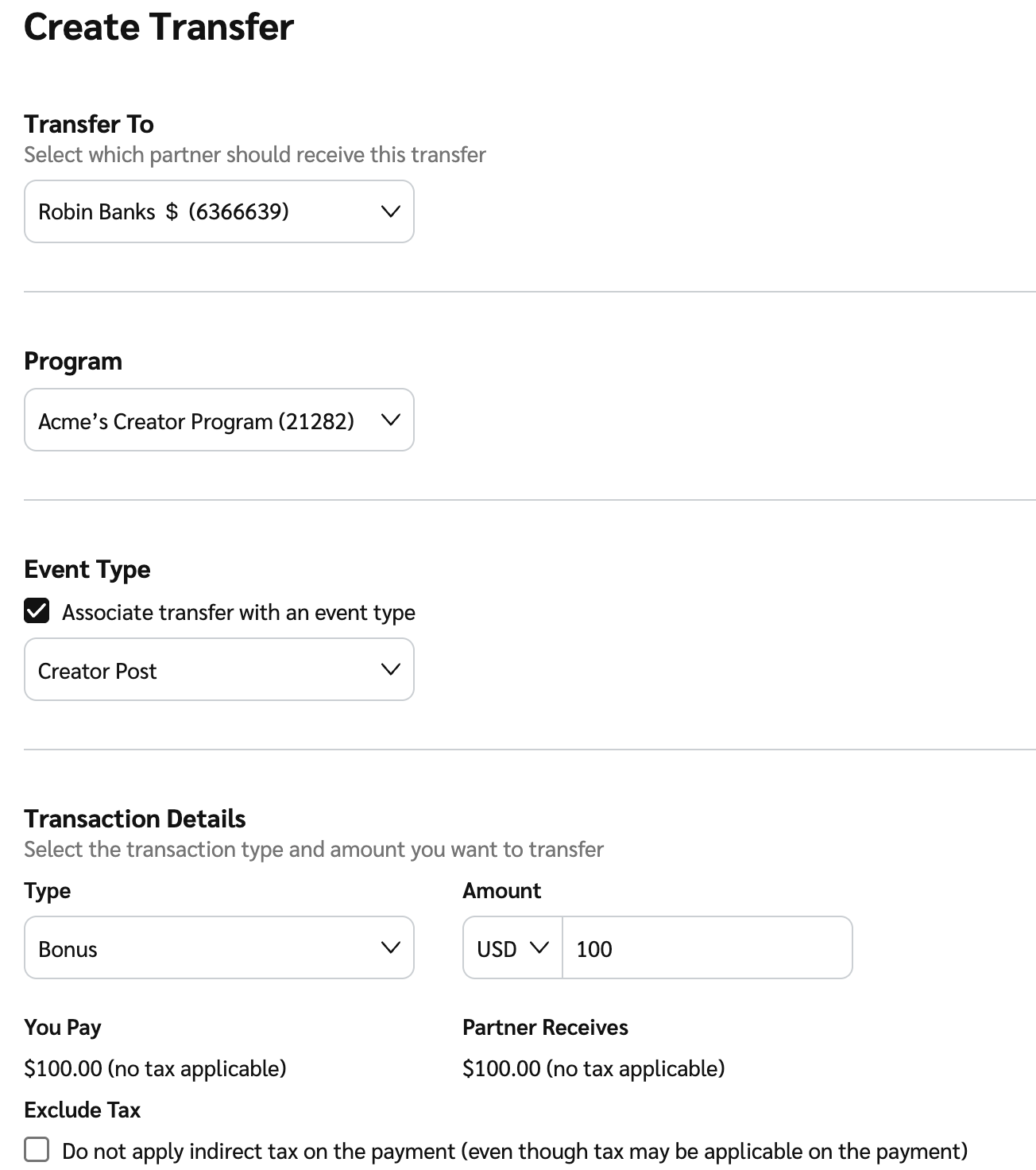
3. Proceed by completing the following fields:

   * **Transfer to:** From the ![](https://4048883401-files.gitbook.io/~/files/v0/b/gitbook-x-prod.appspot.com/o/spaces%2FwMLlMoFBtKJa8ptd3zaw%2Fuploads%2Fgit-blob-c2cb550b55c51ea1eeff0acbd6f437a03b621a2c%2F60d033ae8a04c14498d5229c3c0160ac05feea7f605dbd770741793c900469f0.svg?alt=media) **\[Drop-down menu]**, select the partner who will receive the funds.
   * **Program:** From the ![](https://4048883401-files.gitbook.io/~/files/v0/b/gitbook-x-prod.appspot.com/o/spaces%2FwMLlMoFBtKJa8ptd3zaw%2Fuploads%2Fgit-blob-c2cb550b55c51ea1eeff0acbd6f437a03b621a2c%2F60d033ae8a04c14498d5229c3c0160ac05feea7f605dbd770741793c900469f0.svg?alt=media) **\[Drop-down menu]**, select from which program this transfer should originate.
   * **Event Type:** To associate this transfer with a specific event for reporting, select the ![](https://4048883401-files.gitbook.io/~/files/v0/b/gitbook-x-prod.appspot.com/o/spaces%2FwMLlMoFBtKJa8ptd3zaw%2Fuploads%2Fgit-blob-d2954616dc486c3e12c9211e20ff376bda0ab1af%2F7586e04e82e7c7203e5c82320dd417f8ac564cae5035024fdf0eb2ed017e6376.svg?alt=media) **\[Checked box]** and choose the event type from the ![](https://4048883401-files.gitbook.io/~/files/v0/b/gitbook-x-prod.appspot.com/o/spaces%2FwMLlMoFBtKJa8ptd3zaw%2Fuploads%2Fgit-blob-c2cb550b55c51ea1eeff0acbd6f437a03b621a2c%2F60d033ae8a04c14498d5229c3c0160ac05feea7f605dbd770741793c900469f0.svg?alt=media) **\[Drop-down menu]**.

   <div data-with-frame="true"><figure><img src="https://4048883401-files.gitbook.io/~/files/v0/b/gitbook-x-prod.appspot.com/o/spaces%2FwMLlMoFBtKJa8ptd3zaw%2Fuploads%2Fgit-blob-b1c78af0ed5f7cb40a4a52025e9b509054934ca7%2Fdc074bfb95b4b6244163926849e7a1b5fe8d48d6176a0580e7b732b9adf596ef.png?alt=media" alt="" width="563"><figcaption></figcaption></figure></div>
4. Complete the *Transaction Details* section.

<details>

<summary>Transaction Details reference</summary>

| Field Name  | Description                                                                                                                                                                                                                                                                                                                                                     |
| ----------- | --------------------------------------------------------------------------------------------------------------------------------------------------------------------------------------------------------------------------------------------------------------------------------------------------------------------------------------------------------------- |
| Type        | From the ![](https://4048883401-files.gitbook.io/~/files/v0/b/gitbook-x-prod.appspot.com/o/spaces%2FwMLlMoFBtKJa8ptd3zaw%2Fuploads%2Fgit-blob-c2cb550b55c51ea1eeff0acbd6f437a03b621a2c%2F60d033ae8a04c14498d5229c3c0160ac05feea7f605dbd770741793c900469f0.svg?alt=media) **\[Drop-down menu]**, select the type of PFT that will be sent to the chosen partner. |
| Amount      | <p>Enter the amount (and the currency in which it will be sent) that will be sent to the chosen partner.</p><p>• If any taxes or VAT needs to be added to the transaction, or if the chosen partner's account currency is different from your account's or the transaction's, those amounts will appear here.</p>                                               |
| Exclude Tax | Select ![](https://4048883401-files.gitbook.io/~/files/v0/b/gitbook-x-prod.appspot.com/o/spaces%2FwMLlMoFBtKJa8ptd3zaw%2Fuploads%2Fgit-blob-b5e1740618ed6571d97b8fed7c25a7678f85d375%2F299632fb6f4f91fbf9847471754cc6180e4284a65b4960af4c4ea472a159f552.svg?alt=media) **\[Unchecked box]** if you do not want to apply indirect tax on the payment.            |

</details>

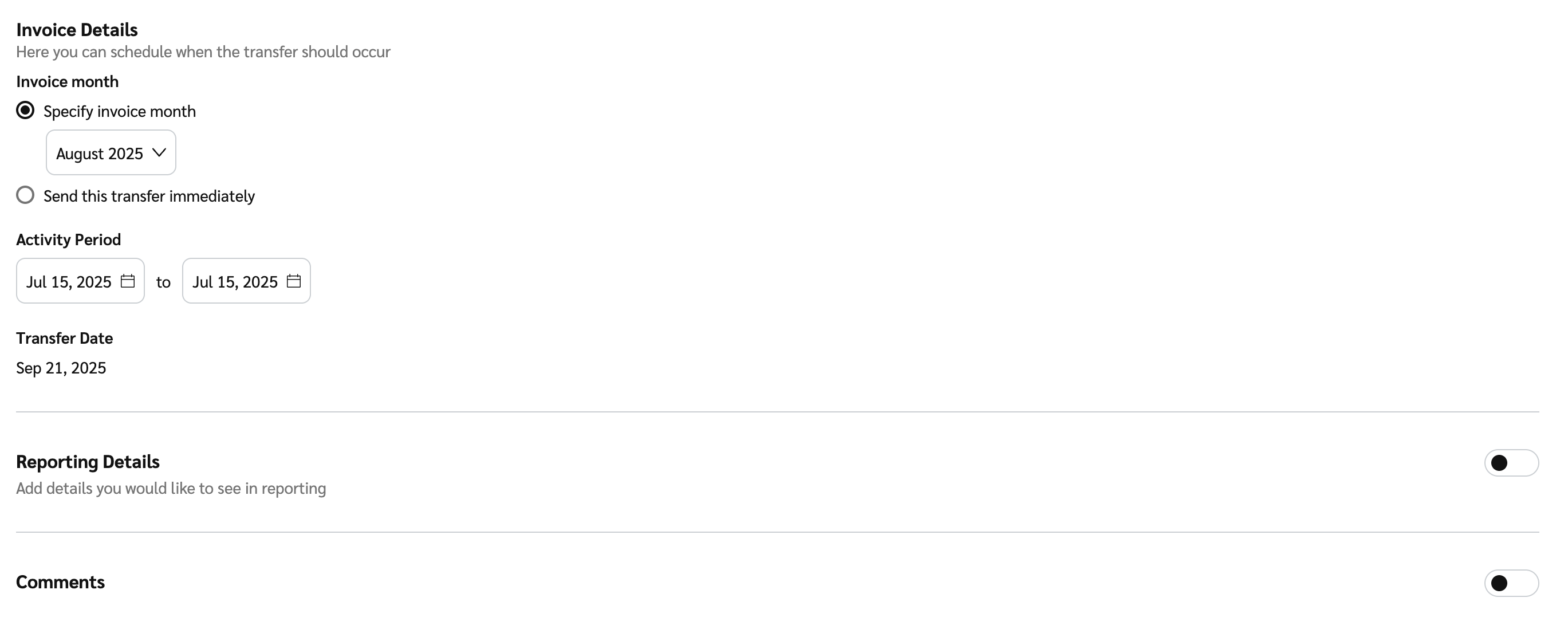
5. In the *Invoice Details* section, set up when a transfer should occur.

<details>

<summary>Invoice Details reference</summary>

| Field           | Description                                                                                                                                                                                                                                                                                                                                                                                                                                                                                                                                                                                                                                                                                                                                                                                                                                                                                                                                                                                                                                                                                                                                                                                                                                                                                                                                                            |
| --------------- | ---------------------------------------------------------------------------------------------------------------------------------------------------------------------------------------------------------------------------------------------------------------------------------------------------------------------------------------------------------------------------------------------------------------------------------------------------------------------------------------------------------------------------------------------------------------------------------------------------------------------------------------------------------------------------------------------------------------------------------------------------------------------------------------------------------------------------------------------------------------------------------------------------------------------------------------------------------------------------------------------------------------------------------------------------------------------------------------------------------------------------------------------------------------------------------------------------------------------------------------------------------------------------------------------------------------------------------------------------------------------- |
| Invoice Month   | <p>Select <img src="https://4048883401-files.gitbook.io/~/files/v0/b/gitbook-x-prod.appspot.com/o/spaces%2FwMLlMoFBtKJa8ptd3zaw%2Fuploads%2Fgit-blob-590bdf4e1ffbcc1fe86ad456bebab6a28c64af1f%2Ffd6e4291628446bb1fe27a831f7874b256a28cc84833d72cce2e73b94641edb7.svg?alt=media" alt=""> <strong>\[Radio button]</strong> if you want to specify the invoice month. The invoice month chosen will cause the transfer to be included in the invoice that is generated after the end of that invoice month.</p><p>For example, if you choose May as the invoice month, the transfer will appear on the invoice generated in June.</p><p>Alternatively, if your account's <a href="../add-funds-to-your-funding-account/funder-types-for-brands-explained">funder type</a> allows it, you can choose to pay for the transfer immediately by selecting the <img src="https://4048883401-files.gitbook.io/~/files/v0/b/gitbook-x-prod.appspot.com/o/spaces%2FwMLlMoFBtKJa8ptd3zaw%2Fuploads%2Fgit-blob-590bdf4e1ffbcc1fe86ad456bebab6a28c64af1f%2Ffd6e4291628446bb1fe27a831f7874b256a28cc84833d72cce2e73b94641edb7.svg?alt=media" alt=""> <strong>\[Radio button]</strong>. The transfer will then be included in the next invoice cycle.</p><p>If you choose this option, but do not have sufficient funds in your funding account, the transfer will not be processed.</p> |
| Activity Period | <p>When processing a PFT, you can choose a start date and an end date. Both dates are included in the selected period.</p><p><strong>Note:</strong> You can only set the <strong>Start Date</strong> as far back as allowed by your contract with the partner and the selected invoice month.</p><p>By default, only a single date is selected — the end date will match the start date unless you change it. You can set an end date up to 12 months after the start date.</p><p>The cost will be spread evenly across the full date range for performance reporting.</p>                                                                                                                                                                                                                                                                                                                                                                                                                                                                                                                                                                                                                                                                                                                                                                                             |
| Transfer Date   | <p>View on which date this transfer will occur.</p><p>If the <strong>Transfer Date</strong> can’t be determined from your contract with the partner and the selected <strong>Invoice Month</strong>, you’ll need to enter your preferred transfer date here.</p>                                                                                                                                                                                                                                                                                                                                                                                                                                                                                                                                                                                                                                                                                                                                                                                                                                                                                                                                                                                                                                                                                                       |

<div data-with-frame="true"><figure><img src="https://4048883401-files.gitbook.io/~/files/v0/b/gitbook-x-prod.appspot.com/o/spaces%2FwMLlMoFBtKJa8ptd3zaw%2Fuploads%2Fgit-blob-dd83858486fdfb6c1d519257adbd3630b1fb9249%2F571d121aabd014a13db5e012184a08ba8d9bd46bc17dbd5a10e18a6811204e3d.png?alt=media" alt=""><figcaption></figcaption></figure></div>

</details>

2. Optionally, ![](https://4048883401-files.gitbook.io/~/files/v0/b/gitbook-x-prod.appspot.com/o/spaces%2FwMLlMoFBtKJa8ptd3zaw%2Fuploads%2Fgit-blob-d0b6669ae76a7bef06a8d6940d7ad5c16bb8d018%2F7cb018d4face8d7cceb880eb5086c812e764fbcfe6f2a0377f88bc7576973070.svg?alt=media) **\[Toggle on]** **Reporting Details** to add any reporting fields to this transfer for your account's reporting. After adding the field, enter the field value.
3. Optionally, ![](https://4048883401-files.gitbook.io/~/files/v0/b/gitbook-x-prod.appspot.com/o/spaces%2FwMLlMoFBtKJa8ptd3zaw%2Fuploads%2Fgit-blob-d0b6669ae76a7bef06a8d6940d7ad5c16bb8d018%2F7cb018d4face8d7cceb880eb5086c812e764fbcfe6f2a0377f88bc7576973070.svg?alt=media) **\[Toggle on]** **Comments** to add any notes about the transfer. The chosen partner will be able to see this note in their reporting.
4. Select **Next**.
5. Confirm the details of the transfer, then select **Transfer**.
   * After you select **Transfer**, you will be redirected to the *Transfers* screen. You can select a **Transfer row** to view created transfers or select ![](https://4048883401-files.gitbook.io/~/files/v0/b/gitbook-x-prod.appspot.com/o/spaces%2FwMLlMoFBtKJa8ptd3zaw%2Fuploads%2Fgit-blob-8ec3e877b1397045c61d394485e72ac4d93120ee%2Fc6ddb46c637059f06e86c790a911217a9428f5c47b5efef046f90555e85b03cd.svg?alt=media) **\[Menu] → Download PDF** to download the transfer confirmation.

Learn more about [viewing transfer details and filtering](https://help.impact.com/brand/what-would-you-like-to-learn-about/platform-features/finance/partner-funds-transfer/view-transfer-details) them. &#x20;