# Contribution Report

<a href="https://pxa.impact.com/student/activity/1087851?sid=0c0e3e5c-54c9-4435-9bee-ebcdccb7f292&#x26;sid_i=0?utm_source=app.impact.com&#x26;utm_medium=owned-platform&#x26;utm_content=opt-250&#x26;utm_campaign=help-center" class="button primary">Take the PXA course</a>

The Contribution report shows how often each partner acts as an Introducer (first touch), Closer (last touch), or Influencer (any other point in the conversion path). It also shows how often each Partner provides the only touchpoint in a conversion path (Solo), how often each Partner was credited with the conversion and all the Assisted Actions where a Partner assisted the action, but did not win. Learn more about [Optimize Essentials & Pro](https://help.impact.com/brand/what-would-you-like-to-learn-about/platform-features/cross-channel-performance-insights/compare-optimize-essentials-and-pro-tiers).

#### Manage the contribution report

{% hint style="warning" %}
This feature is only available with the Optimize add-on. [Click here](https://app.impact.com/secure/advertiser/fr/upgrade.ihtml?u=/secure/advertiser/optimize/landing-page.html) to get the add-on!
{% endhint %}

1. From the left navigation bar, select ![](https://4048883401-files.gitbook.io/~/files/v0/b/gitbook-x-prod.appspot.com/o/spaces%2FwMLlMoFBtKJa8ptd3zaw%2Fuploads%2Fgit-blob-1e02b2659c94fa0756772cc6c1880977fc9aba73%2F6ad16bf9b7edb0a28ab3574d313014f32392aa7f9508686b63bfacfafc7a9735.svg?alt=media) **\[Optimize] → Participation Value → Contribution**.
2. Filter for the data you want to view. Select ![](https://4048883401-files.gitbook.io/~/files/v0/b/gitbook-x-prod.appspot.com/o/spaces%2FwMLlMoFBtKJa8ptd3zaw%2Fuploads%2Fgit-blob-3c5971fb7b03a98375488e97a4317afd60621298%2Fd0fbb4c2c189cdc83bc0eb8e906fa3cb66818d0a9daa1491ea48042160714ed2.svg?alt=media) **\[Search]** when you have the filters you want in place.

{% hint style="success" %}
**Note:** Your choice for the *Measure* filter will change what data is presented in the data table.
{% endhint %}

<details>

<summary>Filter reference</summary>

You can drill into your data by using the report's filters.

| Filter                 | Description                                                                                                                                                                                                                                                                                                                                                                                                                                                                                                                                                                                                                                                                                                                                                                                                                                                                                                                                                                                                                                                                                                                                                                            |
| ---------------------- | -------------------------------------------------------------------------------------------------------------------------------------------------------------------------------------------------------------------------------------------------------------------------------------------------------------------------------------------------------------------------------------------------------------------------------------------------------------------------------------------------------------------------------------------------------------------------------------------------------------------------------------------------------------------------------------------------------------------------------------------------------------------------------------------------------------------------------------------------------------------------------------------------------------------------------------------------------------------------------------------------------------------------------------------------------------------------------------------------------------------------------------------------------------------------------------- |
| Date Range             | <p>Filter data by when it was created. You can pull a minimum of 366 days of data.</p><p>Data older than 2 years may be periodically archived.</p>                                                                                                                                                                                                                                                                                                                                                                                                                                                                                                                                                                                                                                                                                                                                                                                                                                                                                                                                                                                                                                     |
| Insights Level         | <p>Select by which insight you want to review data in the report. Changing this filter will change how data is aggregated.</p><ul><li><strong>Ad:</strong> See each ad that generated contribution data.</li><li><strong>Channel:</strong> See how well the different channels contributed to your program, e.g., Organic Social vs. Affiliate vs. Paid Search.</li><li><strong>Deal:</strong> See a breakdown of how deals contributed to your program.</li><li><strong>Group:</strong> Track how each group (e.g., Cashback, Influencers, Mobile) contributed to your program.</li><li><strong>Partner:</strong> See participation metrics by partner.</li><li><strong>Partner and Channel:</strong> See each partner's participation metrics by channel. This insight lets you compare between partners and channels in a single report.</li><li><strong>Shared ID:</strong> Track the <em>individual</em> partner/site/influencer/property that has participated in your program. Learn how to differentiate your traffic using <a href="https://help.impact.com/en/support/solutions/articles/155000000003-dynamically-pay-partners-with-the-shared-id">Shared IDs</a>.</li></ul> |
| Measure                | Choose which measure you want to view in the report's table. Choosing a percentage measure (e.g., *% Revenue*) will fill the table with the percent amounts to which a row's insight level contributed. Choosing a number measure (e.g., *Actions*) will show the actual number amount that a row's insight level contributed.                                                                                                                                                                                                                                                                                                                                                                                                                                                                                                                                                                                                                                                                                                                                                                                                                                                         |
| Participated           | Pick the partner(s) for which you want to view contribution data, or select **All** to view contribution data for all your partners.                                                                                                                                                                                                                                                                                                                                                                                                                                                                                                                                                                                                                                                                                                                                                                                                                                                                                                                                                                                                                                                   |
| Group                  | Select the partner group(s) for which you want to view contribution data, or select **All Partners** to view contribution data for all your partners.                                                                                                                                                                                                                                                                                                                                                                                                                                                                                                                                                                                                                                                                                                                                                                                                                                                                                                                                                                                                                                  |
| Event Type             | Choose the event type(s) for which you want to view partner contribution data, or select **All** to view partner contribution data for all your event types.                                                                                                                                                                                                                                                                                                                                                                                                                                                                                                                                                                                                                                                                                                                                                                                                                                                                                                                                                                                                                           |
| Minimum Participations | Pick if you want to view **All** contribution data or only contribution data for insight levels that generated more than 10 actions.                                                                                                                                                                                                                                                                                                                                                                                                                                                                                                                                                                                                                                                                                                                                                                                                                                                                                                                                                                                                                                                   |

**Show:** Add data columns to your report's table. These data points will get added to the table report under the graph after you select ![\[Search\]](https://paligoapp-cdn-eu1.s3.eu-west-1.amazonaws.com/impact/attachments/f01cdffa431a4d75ff09c130b66974d4-d9034475259004cc4d724957e37096f4.svg) **\[Search]**.

#### Data points explained

| Column           | Description                                                                                                                 |
| ---------------- | --------------------------------------------------------------------------------------------------------------------------- |
| Single-Step      | Conversions with a single step in the customer's journey, e.g., a direct purchase from one partner.                         |
| Multi-Step       | Conversions with multiple steps along the customer's journey.                                                               |
| ROAS             | The value for the return on ad spent per event type over the selected period.                                               |
| Assisted Actions | Assisted Actions are when the partner has assisted the action but did not “win” the action.                                 |
| Cost             | The total cost for each partner.                                                                                            |
| AOV              | <p>The average order value associated with a partner.</p><p><em>AOV</em> = <em>Revenue</em> divided by <em>Actions</em></p> |

</details>

#### Access the report data

The Contribution Report has two components: a trend graph and a table.

{% tabs %}
{% tab title="Trend graph" %}
The trend graph lets you visualize how specific metrics have changed over time within your reporting period.

1. Select the dropdown menu in the upper-right corner, then choose a specific metric.
2. Alternate between the ![](https://4048883401-files.gitbook.io/~/files/v0/b/gitbook-x-prod.appspot.com/o/spaces%2FwMLlMoFBtKJa8ptd3zaw%2Fuploads%2Fgit-blob-ad21568247832cd4fde0238f816f64ea9a3efcd7%2F93d13ab8cd3278467b4a4eee531a47f6c5fef7e1aa9f14937c6d4a8e8c93e01a.svg?alt=media) **\[Trend]**, ![](https://4048883401-files.gitbook.io/~/files/v0/b/gitbook-x-prod.appspot.com/o/spaces%2FwMLlMoFBtKJa8ptd3zaw%2Fuploads%2Fgit-blob-4f6f33cb850705d4769b40da9c4ada48d898a290%2F50f4c74e39733bfccf223c3de04d29376c8bcf916ae097f134ae6f1c8a252be6.svg?alt=media) **\[Bar]**, and ![](https://4048883401-files.gitbook.io/~/files/v0/b/gitbook-x-prod.appspot.com/o/spaces%2FwMLlMoFBtKJa8ptd3zaw%2Fuploads%2Fgit-blob-b0e79bfaa02eede5ae8956b9af1371edc3a77d52%2Fb7c1c20ba44b256bcfcbff5d442eeaf210edc4313615aa0dd15994c7572910a3.svg?alt=media) **\[Treemap]** views by selecting the view icon.<br>

   <div data-with-frame="true"><figure><img src="https://4048883401-files.gitbook.io/~/files/v0/b/gitbook-x-prod.appspot.com/o/spaces%2FwMLlMoFBtKJa8ptd3zaw%2Fuploads%2Fgit-blob-e2feb6fd36fac7b472ba4c8ed74e84cb510cfc05%2Fb460175d88d6b8942cd3bc9b9ad9bf4ca963a22c50ef578052dddd495844b37f.png?alt=media" alt=""><figcaption></figcaption></figure></div>

{% endtab %}

{% tab title="Data table" %}
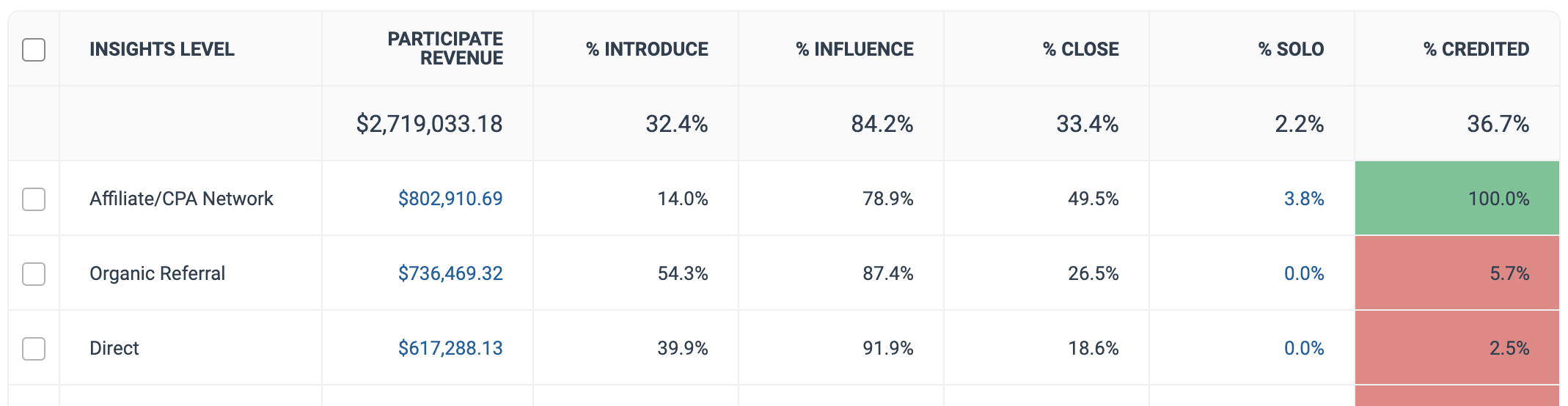
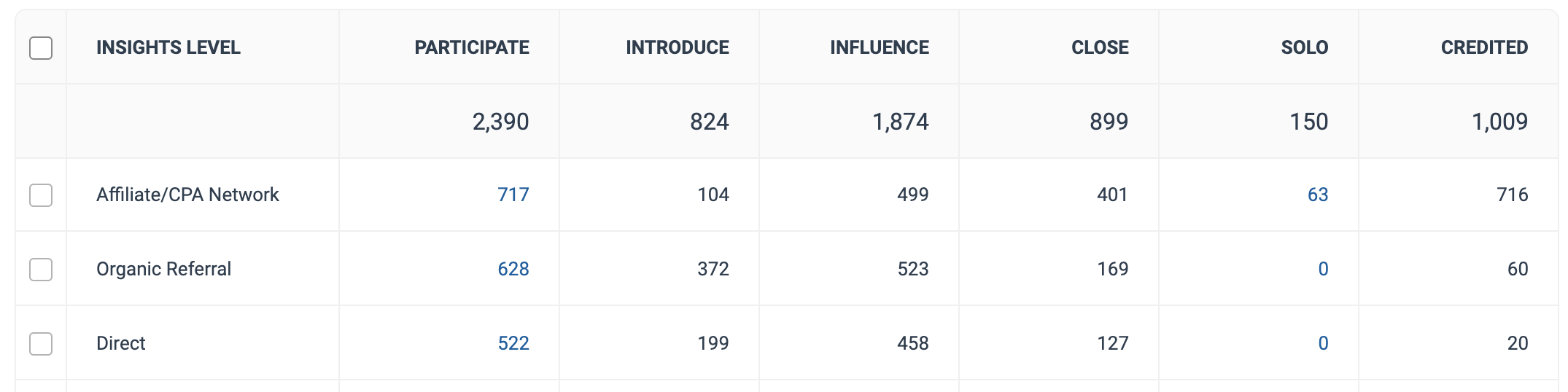
The data table shows a more detailed breakdown of your partners' contributions. The figures presented in the table will vary depending on whether the **Measure** filter is set to a percentage measure (i.e., *% Actions* or *% Revenue*) or a **Number** filter (i.e., *Actions* or *Revenue*).

<details>

<summary>Percentage Measure</summary>

| Table Column                                  | Description                                                                                                                                                                                                                                                                                                                                                                                                                                                                                                                                                                                                                                                                                         |
| --------------------------------------------- | --------------------------------------------------------------------------------------------------------------------------------------------------------------------------------------------------------------------------------------------------------------------------------------------------------------------------------------------------------------------------------------------------------------------------------------------------------------------------------------------------------------------------------------------------------------------------------------------------------------------------------------------------------------------------------------------------- |
| Insight Level                                 | Each Insight Level that generated data for a given row. For example, if you chose **Partner** for your *Insight Level* filter, each row would be the various partners that generated contribution data.                                                                                                                                                                                                                                                                                                                                                                                                                                                                                             |
| <p>Participate/</p><p>Participate Revenue</p> | <p>How many total conversions the Partner has participated in, for the given date range.</p><p>If you chose <strong>% Actions</strong> for your <em>Measure</em> filter, the amount of actions the Insight Level for that row generated in the date range selected. The column's header will be <em>Participate</em> in this case.</p><p>If you chose <strong>% Revenue</strong> for your <em>Measure</em> filter, the amount of revenue the Insight Level for that row generated in the date range selected. The column's header will be <em>Participate Revenue</em> in this case.</p><p>Select the numbers in this column to view a detail action listing for the insight level of that row.</p> |
| % Introduce                                   | <p>How often the Partner drove the first click in a conversion path.</p><p>The percentage of time the Insight Level for that row drove the first click in the conversion path.</p>                                                                                                                                                                                                                                                                                                                                                                                                                                                                                                                  |
| % Influence                                   | <p>How often the Partner drove a click other than the first or the last in a conversion path.</p><p>The percentage of time the Insight Level for that row drove any click besides the first or last click in the conversion path.</p>                                                                                                                                                                                                                                                                                                                                                                                                                                                               |
| % Close                                       | <p>How often the Partner drove the last click in a conversion path.</p><p>The percentage of time the Insight Level for that row drove the last click in the conversion path.</p>                                                                                                                                                                                                                                                                                                                                                                                                                                                                                                                    |
| % Solo                                        | <p>How often the Partner drove at least one click in a conversion path that did not include any other Partners. A conversion path with multiple clicks by one Partner still counts as Solo, as long as there are no clicks by another Partner.</p><p>The percentage of time the Insight Level for that row generated a conversion path in which no other Insight Levels contributed. A conversion path with multiple clicks by one Insight Level still counts as Solo, as long as there are no clicks by another Insight Level.</p><p>Select the numbers in this column to view a detail action listing for the insight level of that row.</p>                                                      |
| % Credited                                    | <p>How often the Partner receives credit for conversions it contributed to in any capacity.</p><p>The percentage of time the Insight Level receives credit for conversion it contributed to in any capacity.</p>                                                                                                                                                                                                                                                                                                                                                                                                                                                                                    |

<div data-with-frame="true"><figure><img src="https://4048883401-files.gitbook.io/~/files/v0/b/gitbook-x-prod.appspot.com/o/spaces%2FwMLlMoFBtKJa8ptd3zaw%2Fuploads%2Fgit-blob-38a0157ac72ffd68dc45b6b9951549fc01585046%2F58dbd58190f4c89362f4cae2fdbc8f066e7bddcfd939968c72364a9d743efac9.png?alt=media" alt=""><figcaption></figcaption></figure></div>

</details>

<details>

<summary>Number Measure</summary>

| Table Column                       | Description                                                                                                                                                                                                                                                                                                                                                                                                                                                                                                                                                                                                                                                                                                                                                                                                                                                                                                                                                                                                                           |
| ---------------------------------- | ------------------------------------------------------------------------------------------------------------------------------------------------------------------------------------------------------------------------------------------------------------------------------------------------------------------------------------------------------------------------------------------------------------------------------------------------------------------------------------------------------------------------------------------------------------------------------------------------------------------------------------------------------------------------------------------------------------------------------------------------------------------------------------------------------------------------------------------------------------------------------------------------------------------------------------------------------------------------------------------------------------------------------------- |
| Insight Level                      | Each Insight Level that generated data for a given row. For example, if you chose **Partner** for your *Insight Level* filter, each row would be the various partners that generated contribution data.                                                                                                                                                                                                                                                                                                                                                                                                                                                                                                                                                                                                                                                                                                                                                                                                                               |
| Participate or Participate Revenue | <p>How many total conversions the Partner has participated in, for the given date range.</p><p>If you chose <strong>Actions</strong> for your <em>Measure</em> filter, the amount of actions the Insight Level for that row generated in the data range selected. The column's header will be <em>Participate</em> in this case, and all data in the table will show the actual number of contributions (e.g., the actual number of times a partner was the Closer on the conversion path).</p><p>If you chose <strong>Revenue</strong> for your <em>Measure</em> filter, the amount of revenue the Insight Level for that row generated in the date range selected. The column's header will be <em>Participate Revenue</em> in this case, and all data in the table will show the revenue amounts generated by the contributions (e.g., the revenue generated by a partner being the Closer on the conversion path).</p><p>Select the numbers in this column to view a detail action listing for the insight level of that row.</p> |
| Introduce / Introduce Revenue      | <p>How often the Partner drove the first click in a conversion path.</p><p>If using the <em>Actions</em> measure, the number times the Insight Level for that row drove the first click in the conversion path.</p><p>If using the <em>Revenue</em> measure, the revenue generated when the Insight Level for that row drove the first click in the conversion path.</p>                                                                                                                                                                                                                                                                                                                                                                                                                                                                                                                                                                                                                                                              |
| Influence / Influence Revenue      | <p>How often the Partner drove a click other than the first or the last in a conversion path.</p><p>If using the <em>Actions</em> measure, the number of times the Insight Level for that row drove any click other than the first or last clicks in the conversion path.</p><p>If using the <em>Revenue</em> measure, the revenue generated when the Insight Level for that row drove any click other than the first or last clicks in the conversion path.</p>                                                                                                                                                                                                                                                                                                                                                                                                                                                                                                                                                                      |
| Close / Close Revenue              | <p>How often the Partner drove the last click in a conversion path.</p><p>If using the <em>Actions</em> measure, the number of times the Insight Level for that row drove the last click in the conversion path.</p><p>If using the <em>Revenue</em> measure, the revenue generated when the Insight Level for that row drove the last click in the conversion path.</p>                                                                                                                                                                                                                                                                                                                                                                                                                                                                                                                                                                                                                                                              |
| Solo / Solo Revenue                | <p>How often the Partner drove at least one click in a conversion path that did not include any other Partners. A conversion path with multiple clicks by one Partner still counts as Solo, as long as there are no clicks by another Partner.</p><p>If using the <em>Actions</em> measure, the number of times the Insight Level for that row generated a conversion path in which no other Insight Levels contributed. A conversion path with multiple clicks by one Insight Level still counts as Solo, as long as there are no clicks by another Insight Level.</p><p>If using the <em>Revenue</em> measure, the revenue generated when the Insight Level for that row generated a conversion path in which no other Insight Levels contributed. A conversion path with multiple clicks by one Insight Level still counts as Solo, as long as there are no clicks by another Insight Level.</p><p>Select the numbers in this column to view a detail action listing for the insight level of that row.</p>                        |
| Credited / Credited Revenue        | <p>How often the Partner receives credit for conversions it contributed to in any capacity.</p><p>If using the <em>Actions</em> measure, the number of times the Insight Level receives credit for conversions it contributed to in any capacity.</p><p>If using the <em>Revenue</em> measure, the revenue generated when the Insight Level receives credit for conversions it contributed to in any capacity.</p>                                                                                                                                                                                                                                                                                                                                                                                                                                                                                                                                                                                                                    |

<div data-with-frame="true"><figure><img src="https://4048883401-files.gitbook.io/~/files/v0/b/gitbook-x-prod.appspot.com/o/spaces%2FwMLlMoFBtKJa8ptd3zaw%2Fuploads%2Fgit-blob-683b3605817005898f2cdde08027c626f125f926%2Fd80a7502bf53604b7be631af5f1d59be5a3a8ef18a33496a61f2eb70f4850f5f.png?alt=media" alt=""><figcaption></figcaption></figure></div>

</details>
{% endtab %}
{% endtabs %}

#### Why is the Contribution Report useful?

By breaking out each Partner’s participated conversions into **Introducer**, **Influencer**, and **Closer**, this report shows how often the Partner contributes value at each point in the funnel. The rightmost column, **Credited**, shows how often that Partner is paid for a conversion toward which they contributed. In combination, these data points let you see whether Partners are being compensated in proportion to the actual value they drive.

For example, if *Partner A* is on a last-click Contract, but acts as an **Introducer** 70% of the time, they are likely being paid very little relative to the actual value they are producing. Conversely, if *Partner B* (also on a last-click Contract) generally acts as a **Closer**, they are likely being paid for almost all of the value they produce.

<div data-with-frame="true"><figure><img src="https://4048883401-files.gitbook.io/~/files/v0/b/gitbook-x-prod.appspot.com/o/spaces%2FwMLlMoFBtKJa8ptd3zaw%2Fuploads%2Fgit-blob-2b0aba8638527b19092e8d28937814eeff4c0382%2F3ebd4ab255d6bdad44c45502b18222709567a2fc4ba197a701421c21e8f00c18.png?alt=media" alt="" width="563"><figcaption></figcaption></figure></div>

To act on this insight, you might choose to set up a participation bonus for *Partner A*, which will reward them for any conversion they contribute to, even if they don’t get the last click. If you want to avoid increasing your overall payout, you can then add a payout adjustment in your Contract, to reduce the payout by the amount of the participation bonus whenever that bonus is paid. To learn more about participation bonuses and payout adjustments you can refer to [Create Template Terms](https://help.impact.com/brand/what-would-you-like-to-learn-about/platform-features/contracts-and-template-terms/template-terms/create-template-terms) or ask your CSM.

{% hint style="success" %}
**Remember:** Each conversion can only be credited once, so if Partner A on a first-click Contract gets the first click and Partner B on a last-click Contract gets the last click, the winner will be determined based on whether you have set first or last click as your preferred crediting method.
{% endhint %}