> For the complete documentation index, see [llms.txt](https://help.impact.com/llms.txt). Markdown versions of documentation pages are available by appending `.md` to page URLs; this page is available as [Markdown](https://help.impact.com/brand/what-would-you-like-to-learn-about/platform-features/contracts-and-template-terms/template-terms/configure-public-facing-template-term-visibility.md).
# Configure Public-Facing Template Term Visibility
Take the PXA course
Having multiple public template terms lets you tailor specific public-facing commission offers simultaneously. You can set one default, *catch-all* commission rate for general applications, while also promoting targeted, attractive rates to strategic partner types with rules controlling which partner segments see which specific offers in the marketplace. Partners then see the relevant terms based on their attributes.
## Key differences
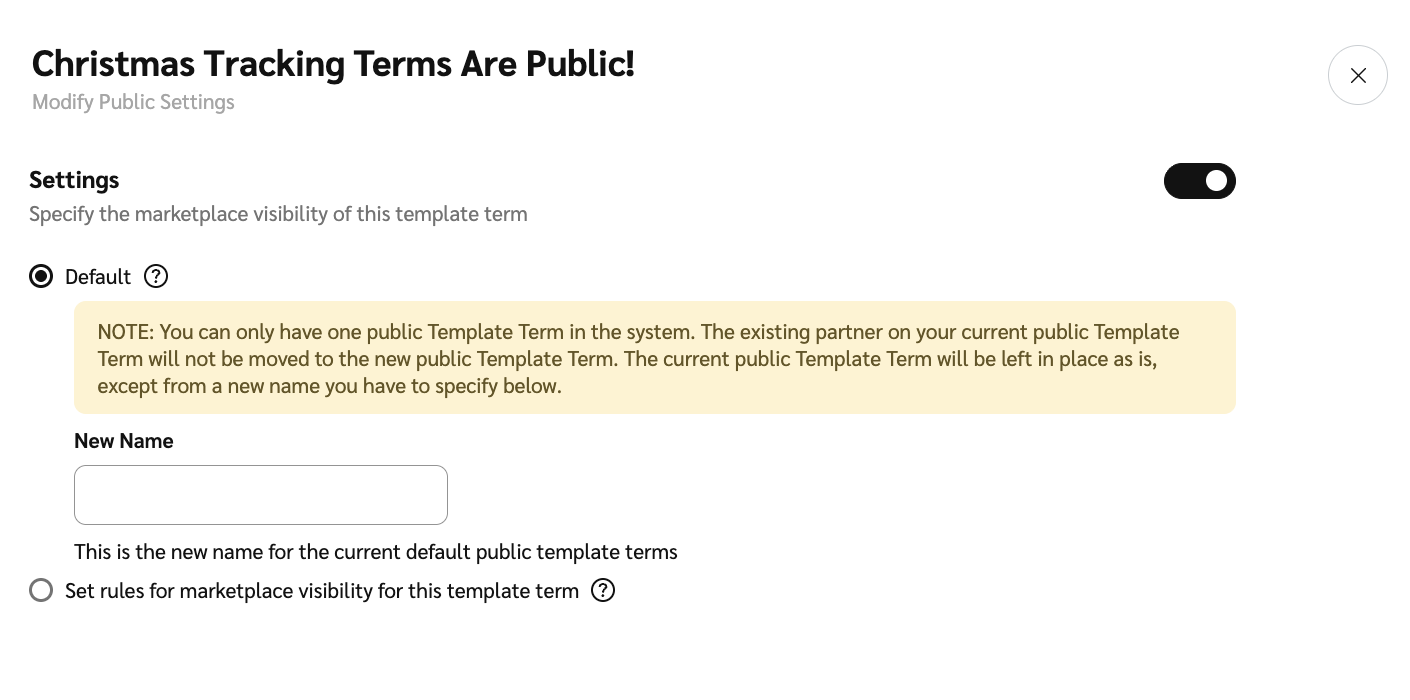
* **Set a new default public term:** This replaces your existing default public term. The selected terms become the one general public offering visible to partners on the marketplace, unless other rules apply. Your old default public terms will no longer be the default public offering. The terms themselves (and the partners signed to them) remain the same.
* **Add targeted public-facing terms:** This allows you to define additional public-facing terms in addition to the default public terms. You can set specific rules (like partner persona or business model) so that targeted partners on the marketplace see these more favorable terms instead of the default template terms.
## Set a new default public term
{% hint style="success" %}
**Note:** This option is not available for the current public terms.
{% endhint %}
1. From the left navigation menu, select ![\[Engage\] v2](https://paligoapp-cdn-eu1.s3.eu-west-1.amazonaws.com/impact/attachments/f01cdffa431a4d75ff09c130b66974d4-aa671735ec2b65af79961eaf59ab60af.svg) **\[Engage]** → **Contracts** → [**Template Terms**](https://app.impact.com/secure/advertiser/engage/contracts/library/view-manage-ios-flow.ihtml).
2. In the list, find the terms you want to set as the default public terms, hover over the row, and select ![\[More\] vNext](https://paligoapp-cdn-eu1.s3.eu-west-1.amazonaws.com/impact/attachments/f01cdffa431a4d75ff09c130b66974d4-73f43076a692f2dcc8960037fabdca9c.svg) **\[More]** → **Modify Public Settings**.
3. ![\[Toggle on\]](https://paligoapp-cdn-eu1.s3.eu-west-1.amazonaws.com/impact/attachments/f01cdffa431a4d75ff09c130b66974d4-84d1224fd3bb6ba94b899febe2021eaa.svg) **\[Toggle on]** **Settings** → select ![\[Radio button\]](https://paligoapp-cdn-eu1.s3.eu-west-1.amazonaws.com/impact/attachments/f01cdffa431a4d75ff09c130b66974d4-b7d91d1c012267bd96951fe6c2b643a4.svg) **\[Radio button]** **Default**.
4. Input a **New Name** for the old default public terms, then select **Save**.
* This template term will now replace the existing default public template term as the new default.
## Add targeted public-facing terms
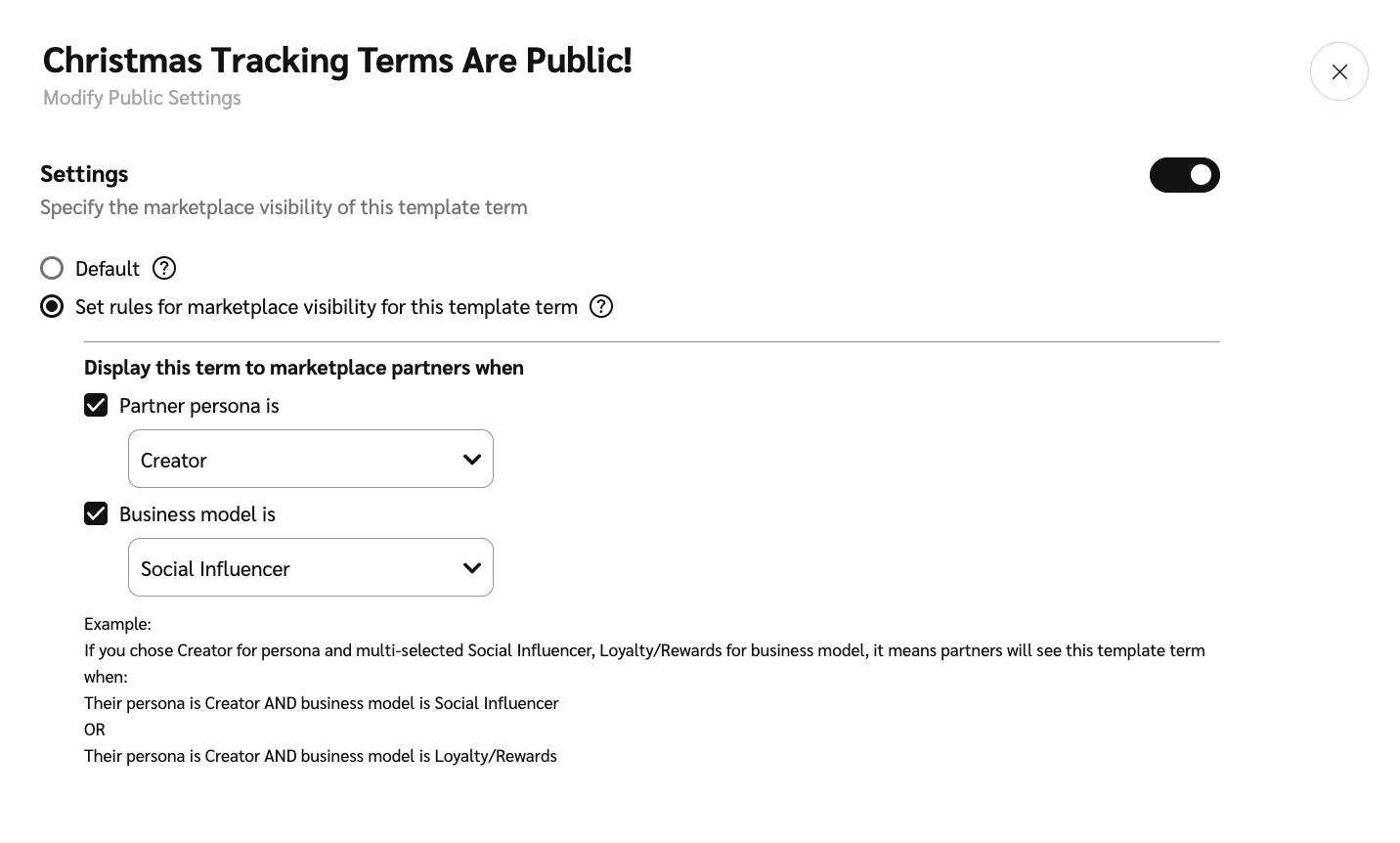
When setting visibility rules for various public-facing template terms, you can define criteria from two main categories: *Partner Persona* and *Business Model*. If there are overlapping conditions, applicable partners will see the latest one. E.g., if you created template terms associated with affiliate partners only and then create new terms associated with affiliate or creator partners, affiliate partners who are associated with both terms will see the latest terms first.
### **Template term configurations**
* **The `AND` Rule (Between the types)**: For a partner to see the template, they must satisfy the requirements for *Partner Persona* `AND` *Business Model* types.
* **Example:** If you set a requirement for a specific persona and a specific business model, the partner must match both to see the template terms.
* **The `OR` Rule (Within each type):** Within a single type (like Business Model), the partner needs to match one `OR` another of the selected options.
* **Example:** If you select *Social Influencer* and *Loyalty/Rewards* as acceptable business models, a partner who is either a Social Influencer `OR` a Loyalty/Rewards partner meets that part of the rule.
1. From the left navigation menu, select ![\[Engage\] v2](https://paligoapp-cdn-eu1.s3.eu-west-1.amazonaws.com/impact/attachments/f01cdffa431a4d75ff09c130b66974d4-aa671735ec2b65af79961eaf59ab60af.svg) **\[Engage]** → **Contracts** → [**Template Terms**](https://app.impact.com/secure/advertiser/engage/contracts/library/view-manage-ios-flow.ihtml).
2. In the list, find the terms for which you want to set up public-visibility rules, hover over the row, and select ![\[More\] vNext](https://paligoapp-cdn-eu1.s3.eu-west-1.amazonaws.com/impact/attachments/f01cdffa431a4d75ff09c130b66974d4-73f43076a692f2dcc8960037fabdca9c.svg) **\[More]** → **Modify public settings**.
3. ![\[Toggle on\]](https://paligoapp-cdn-eu1.s3.eu-west-1.amazonaws.com/impact/attachments/f01cdffa431a4d75ff09c130b66974d4-84d1224fd3bb6ba94b899febe2021eaa.svg) **\[Toggle on]** **Settings** → select ![\[Radio button\]](https://paligoapp-cdn-eu1.s3.eu-west-1.amazonaws.com/impact/attachments/f01cdffa431a4d75ff09c130b66974d4-b7d91d1c012267bd96951fe6c2b643a4.svg) **\[Radio button]** **Set rules for marketplace visibility for this template term**.
4. Below *Display this term to marketplace partners when*, set your marketplace visibility rules. Refer to the [template term configurations](/brand/what-would-you-like-to-learn-about/platform-features/contracts-and-template-terms/template-terms/configure-public-facing-template-term-visibility.md) to learn how the rule configurations work.
* Select ![\[Checked box\]](https://paligoapp-cdn-eu1.s3.eu-west-1.amazonaws.com/impact/attachments/f01cdffa431a4d75ff09c130b66974d4-aee23966cd91ec2a9f9985361c43ab1a.svg) **\[Checkbox]** **Partner persona is** to choose a partner type to which these terms apply.
* Select ![\[Checked box\]](https://paligoapp-cdn-eu1.s3.eu-west-1.amazonaws.com/impact/attachments/f01cdffa431a4d75ff09c130b66974d4-aee23966cd91ec2a9f9985361c43ab1a.svg) **\[Checkbox]** **Business model is** to choose a business model to which these terms apply.
5. Select **Save**.
{% hint style="success" %}
**Note:** It can take up to 60 minutes for a partner to see the updated terms after editing a template term's visibility settings.
{% endhint %}
---
# Agent Instructions
This documentation is published with GitBook. GitBook is the documentation platform designed so that both humans and AI agents can read, navigate, and reason over technical content effectively. Learn more at gitbook.com.
## Querying This Documentation
If you need additional information that is not directly available in this page, you can query the documentation by asking a question.
Perform an HTTP GET request on the following URL with the `ask` and `goal` query parameters:
```
GET https://help.impact.com/brand/what-would-you-like-to-learn-about/platform-features/contracts-and-template-terms/template-terms/configure-public-facing-template-term-visibility.md?ask=&goal=
```
`ask` is the immediate question: it should be specific, self-contained, and written in natural language.
`goal` is what the user is ultimately trying to achieve, the reason they need the answer. Sharing it helps GitBook give you a better, more relevant answer. A goal is most helpful when it describes the outcome the user wants rather than restating the question. For example, with `ask=how do I create an API token`, a goal like `automate deployments from our CI pipeline` lets GitBook tailor the answer to that use case.
The response will contain a direct answer to the question and relevant excerpts and sources from the documentation.
Use this mechanism when the answer is not explicitly present in the current page, you need clarification or additional context, or you want to retrieve related documentation sections.