> For the complete documentation index, see [llms.txt](https://help.impact.com/llms.txt). Markdown versions of documentation pages are available by appending `.md` to page URLs; this page is available as [Markdown](https://help.impact.com/brand/what-would-you-like-to-learn-about/creator-program/creator-campaigns-for-brands/manage-creator-campaign-gifting-orders.md).
# Manage Creator Campaign Gifting Orders
Manage your gifting orders through the *Gifts* tab in the campaign manager. This tab is available only if you've [configured product gifting](/brand/what-would-you-like-to-learn-about/creator-program/creator-campaigns-for-brands/configure-product-gifting-for-your-creator-campaign.md) as a compensation model during campaign setup. Here, you can view product gifting order details such as the creator's shipping information, chosen products, and product variations like size, price, and color.
#### Find campaign gifting orders
1. From the left navigation bar, select  **\[Engage] → Campaign Manager →** [**Creator**](https://app.impact.com/secure/advertiser/engage/campaigns/influencer-campaign-manager-flow.ihtml).
* On the *Active* tab, you'll be able to view all your currently active campaigns.
2. Hover over a campaign that has product gifting configured and select **Manage Campaign**.
3. On your selected campaign's screen, select the **Gifts** tab.
* To filter through gifting tasks, see the *Filter tasks* reference.
Filter tasks
| Filter | Description |
| -------------------- | --------------------------------------------------------------------------------------------------- |
| All tasks | All the tasks in this campaign. |
| Not started | Tasks that your creators have not yet started. |
| Awaiting your review | Tasks submitted by creators that require your review. |
| Awaiting fulfillment | Completed tasks for which creators have placed product gift orders that are awaiting your approval. |
| Fulfilled | Tasks for which creators have claimed their gifts and which you have approved. |
| Creator Name | Use this search bar to search for creators by name, account ID, task name, or task ID. |
| Creator | Filter by the creator you're partnered with. |
#### Review gifting orders
{% hint style="success" %}
**Note:** You'll only be able to approve or reject gifting orders if you previously [configured your product gifting campaign](/brand/what-would-you-like-to-learn-about/creator-program/creator-campaigns-for-brands/configure-product-gifting-for-your-creator-campaign.md) to *require approval for selection*.
{% endhint %}
{% tabs %}
{% tab title="Approve Shopify gifting orders" %}
Follow these steps if you have a Shopify integration and want to approve gifting orders:
1. From the left navigation bar, select  **\[Engage] → Campaign Manager →** [**Creator**](https://app.impact.com/secure/advertiser/engage/campaigns/influencer-campaign-manager-flow.ihtml).
* On the *Active* tab, you'll be able to view all your currently active campaigns.
2. Hover over a campaign that has product gifting configured and select **Manage Campaign**.
3. On your selected campaign's screen, select the **Gifts** tab.
4. From the task status filter bar, select **Awaiting fulfillment**.
* You will see all orders awaiting your approval.
5. Hover over an order and select **Review**.
6. In the slide-out that appears, review the creator's selected products and select **Approve** or **Reject**.
* If rejected, the creator will be prompted to reselect products and await your approval a second time.
* Once approved, the order will immediately be placed via your Shopify account and the order status will change to *Completed*.
**Finalize Shopify gifting orders**
Follow these steps to finalize your Shopify order.
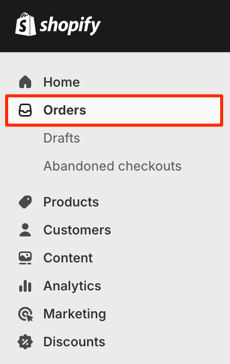
1. To finalize the order, open your [Shopify account](https://accounts.shopify.com/lookup?rid=aa8ee5fc-e74c-4f6a-8c68-4f7c920477c3\&verify=1715240435-UsJ%2B0DZbjSpK63wD6sJFb1MRUi%2FCd798c%2Fg%2B%2Fhf3X6Y%3D) , and from the left navigation bar, select **Orders**.
2. Select **the order** you want to finalize.
* The order will display `Activate @ Impact` in the *Customer* column and will be marked with a *Fulfillment status* of `Unfulfilled`.
3. Review the ordered products, select **Fulfil Items**, and then **Create shipping label**.
* This will generate shipping information that you can track on your campaign manager on impact.com.
{% endtab %}
{% tab title="Approve other gifting orders" %}
Follow these steps if you *don't* have a Shopify integration and want to approve your product gift orders manually:
1. From the left navigation bar, select  **\[Engage] → Campaign Manager → Creator**.
* On the *Active* tab, you'll be able to view all your currently active campaigns.
2. Hover over a campaign that has product gifting configured and select **Manage Campaign**.
3. On your selected campaign's screen, select the **Gifts** tab.
4. From the task status filter bar, select **Awaiting fulfillment**.
* You will see all orders awaiting your approval.
5. Select **Export Orders**.
* A .CSV file will download.
6. Fulfill these orders in your e-commerce solution.
7. Open the .CSV file in a spreadsheet and complete the following empty fields *without* removing the existing fields:
* OrderId
* Tracking Number (Optional)
* Shipping Date (YYYY-MM-DD)
* Fulfillment Status
* The pre-filled value is `Unfulfilled`—update the value to `Fulfilled` or `F`.
* If you decide to leave the order as `Unfulfilled`, the product gift will not update to `Approved`.
```programlisting
Creator ID,Campaign ID,Product Name,Brand,Size,Color,Item Number,SKU,Price,Quantity,Selection Date,Shipping Name,Email,Shipping Address 1,Shipping Address 2,Shipping City,Shipping State/Province,Shipping Country,Shipping Zip,Shipping Phone,Fulfillment Status,Order ID,Tracking Number,Shipping Date
5753340,1902,Women's Dress—black,ACME,XS,Black,39653964808453,6683701805317,102,1,2024-10-26,Brussel Sprout,,44 Hampton Avenue,Rossmore,Johannesburg,Gauteng,ZA,2092,,F,1111111,Xxxxxx,2025-02-05
```
8. Once fulfillment is updated in your internal system, select **Bulk Fulfill** to upload the new filled-in .CSV file and approve the order.
* Once your file is uploaded, the order statuses will synchronize, keeping the orders current.
{% endtab %}
{% endtabs %}
---
# Agent Instructions
This documentation is published with GitBook. GitBook is the documentation platform designed so that both humans and AI agents can read, navigate, and reason over technical content effectively. Learn more at gitbook.com.
## Querying This Documentation
If you need additional information that is not directly available in this page, you can query the documentation by asking a question.
Perform an HTTP GET request on the following URL with the `ask` and `goal` query parameters:
```
GET https://help.impact.com/brand/what-would-you-like-to-learn-about/creator-program/creator-campaigns-for-brands/manage-creator-campaign-gifting-orders.md?ask=&goal=
```
`ask` is the immediate question: it should be specific, self-contained, and written in natural language.
`goal` is what the user is ultimately trying to achieve, the reason they need the answer. Sharing it helps GitBook give you a better, more relevant answer. A goal is most helpful when it describes the outcome the user wants rather than restating the question. For example, with `ask=how do I create an API token`, a goal like `automate deployments from our CI pipeline` lets GitBook tailor the answer to that use case.
The response will contain a direct answer to the question and relevant excerpts and sources from the documentation.
Use this mechanism when the answer is not explicitly present in the current page, you need clarification or additional context, or you want to retrieve related documentation sections.