> For the complete documentation index, see [llms.txt](https://help.impact.com/llms.txt). Markdown versions of documentation pages are available by appending `.md` to page URLs; this page is available as [Markdown](https://help.impact.com/brand/what-would-you-like-to-learn-about/beta-product-boost/beta-product-boost-for-retailers/get-started-with-retail-media-as-a-retailer.md).
# Get Started with Retail Media as a Retailer
Before you can create Product Boost campaigns and receive funding from vendors, you must opt in to Retail Media and establish an in-platform connection with your vendors.
{% stepper %}
{% step %}
## Opt in to Retail Media
{% hint style="info" %}
**Coming soon:** This functionality is coming soon. For now, contact [support](https://app.impact.com/support/portal.ihtml) to get access to Retail Media.
{% endhint %}
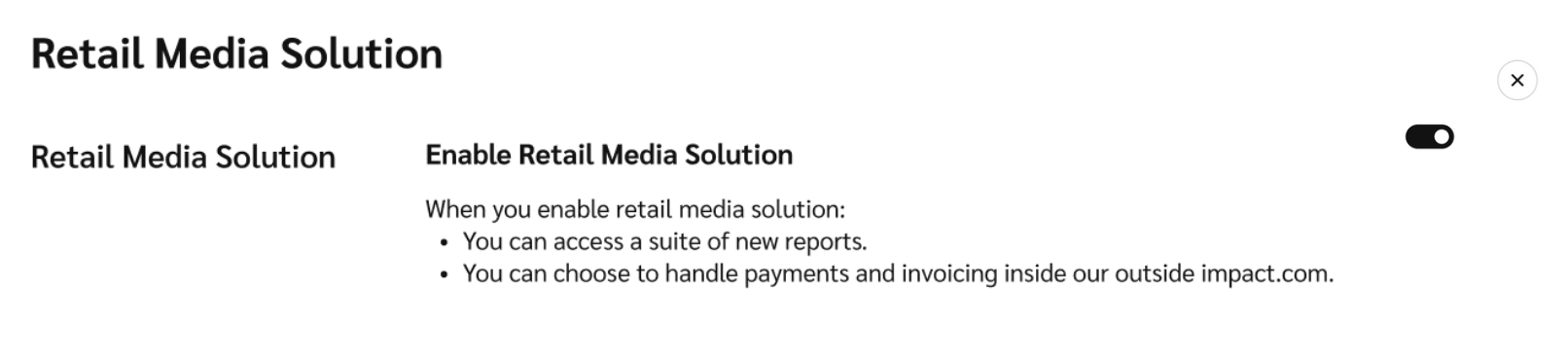
Opting in:
* Allows you and your vendors to access extended reporting for the Product Boost campaigns you create.
* Allows vendors to fund your campaigns and you to handle the invoicing either within or outside the impact.com platform.
To enable it:
1. From the top navigation bar, select  **\[User profile] → Settings**.
2. In the left column, under *General*, select **Retail Media Solution**.
3.  **\[Toggle On] Enable Retail Media Solution**.
{% endstep %}
{% step %}
## View your listed vendors
Once you’ve opted in, you’ll be able to navigate to the *Vendors* screen from your left navigation bar:
1. From the left navigation bar, select  **\[Engage] → Vendors → My Vendors**.
1. This screen offers a list of vendors that impact.com pre-added automatically from your product catalogs. These are the vendors who supply the products sold on your platform.
2. The first time you visit this screen, all vendor statuses will show as  **\[Not Connected]**.
{% endstep %}
{% step %}
## Connect with vendors
To start collaborating with vendors in Product Boost campaigns, invite them to connect with you.
Connect with a listed vendor
Connect with a vendor that’s already been added to your *My Vendors* screen.
1. Hover over the vendor you want to connect with, then select **Invite**.
2. On the slide-out, fill in the following fields:
| Field | Description |
| ------------ | ------------------------------------------------------------------------------------------------------------------------------------------------- |
| Vendor name | This is the name of the vendor brand. |
| Contact name | Enter the name of the vendor contact you want to reach out to, e.g., *Pepper Potts*. |
| Email | Enter the email address to which the invitation should be sent, e.g., . |
| Message | Include an optional note explaining how collaboration could be mutually beneficial. This message will appear in the body of the invitation email. |
3. Select **Invite**.
* The vendor’s status should update to  **\[Invited]**, indicating that your invite has been sent via email. Once the vendor accepts, the status will change to  **\[Connected]**.
Connect with an unlisted vendor
Add a vendor not listed on your *My Vendors* screen and invite them to connect with you.
1. In the upper-right corner, select **Add Vendors**.
2. On the slide-out, fill in the following fields:
| Field | Description |
| -------------- | ------------------------------------------------------------------------------------------------------------------------------------------------------------------------------------------------------------------------------------------------------------------------------------------------------ |
| Vendor name | Optionally, search for and select the vendor’s Retail Media program name from the drop-down menu. Leave this blank if you don’t know the name of their Retail Media program. |
| Send an invite |  **\[Toggle on]** this setting to ensure the vendor receives a connection request. |
| Contact name | Enter the name of the vendor contact you want to reach out to, e.g., *Pepper Potts*. |
| Email | Enter the email address to which the invitation should be sent, e.g., **. |
| Message | Include an optional note explaining how collaboration could be mutually beneficial. This message will appear in the body of the invitation email. |
3. Select **Add & Invite**.
* The vendor should appear on your *My Vendors* screen with the  **\[Invited]** status, indicating that your invite has been sent via email. Once the vendor accepts, the status will change to  **\[Connected]**.
{% endstep %}
{% endstepper %}
Now you’re ready to [create Product Boost campaigns](/brand/what-would-you-like-to-learn-about/beta-product-boost/product-boost-campaign-management/create-a-product-boost-campaign.md) and request funding from connected vendors.
---
# Agent Instructions
This documentation is published with GitBook. GitBook is the documentation platform designed so that both humans and AI agents can read, navigate, and reason over technical content effectively. Learn more at gitbook.com.
## Querying This Documentation
If you need additional information that is not directly available in this page, you can query the documentation by asking a question.
Perform an HTTP GET request on the following URL with the `ask` and `goal` query parameters:
```
GET https://help.impact.com/brand/what-would-you-like-to-learn-about/beta-product-boost/beta-product-boost-for-retailers/get-started-with-retail-media-as-a-retailer.md?ask=&goal=
```
`ask` is the immediate question: it should be specific, self-contained, and written in natural language.
`goal` is what the user is ultimately trying to achieve, the reason they need the answer. Sharing it helps GitBook give you a better, more relevant answer. A goal is most helpful when it describes the outcome the user wants rather than restating the question. For example, with `ask=how do I create an API token`, a goal like `automate deployments from our CI pipeline` lets GitBook tailor the answer to that use case.
The response will contain a direct answer to the question and relevant excerpts and sources from the documentation.
Use this mechanism when the answer is not explicitly present in the current page, you need clarification or additional context, or you want to retrieve related documentation sections.