> For the complete documentation index, see [llms.txt](https://help.impact.com/llms.txt). Markdown versions of documentation pages are available by appending `.md` to page URLs; this page is available as [Markdown](https://help.impact.com/brand/what-would-you-like-to-learn-about/advocate-program/manage-advocate-participants/advocate-participant-profiles-explained.md).
# Advocate Participant Profiles Explained
Each participant in an Advocate program has a *profile* page. From their profile, you can view a participant's personal details, referral information, and individualized statistics. You can also manually issue them a reward or attribute a referral.
To open a participant's profile:
1. From the left navigation menu, select  **\[Engage] → Participants**.
2. Use the search bar to find the participant whose profile you want to view. You can search by name, email address, or ID.
* Learn how to use the [advanced search and filter features](/brand/what-would-you-like-to-learn-about/advocate-program/manage-advocate-participants/filter-and-manage-advocate-participants.md#filter-participants-0-1) available on this page.
3. Select their **name** to open their participant profile.
#### Participant details
The top of the participant profile shows a summary of the participant's personal details, referral information, and statistics.
**Participant information**: View the participant's name, their email address, and their locale. Select **Edit** to update their personal details, including data stored in [custom fields](/brand/what-would-you-like-to-learn-about/advocate-program/manage-advocate-participants/custom-and-calculated-fields/custom-fields-for-advocate-explained.md).
**Referral info**: View this participant's referral code and share link for the selected program. If you have multiple Advocate programs, then you can use the dropdown list below *Referral Info* to change which program's referral code and share link are displayed, as well as who referred this participant through that specific program. Programs are arranged alphabetically, with live programs listed before paused programs.
**Participant stats**: The Participant Stats panel, shown on the right side of the Participants Page, gives you a quick overview of a selected participant’s overall impact in your program. These stats update regularly and summarize both activity and outcomes:
These stats help you evaluate participant performance at a glance, especially when determining who to move into higher-value partnership tiers or invite into your Performance or Creator programs.
Participant stats reference
| Stat | Description |
| ------------------- | ------------------------------------------------------------------------------- |
| Traffic | Total visits generated through this participant’s share links. |
| Referrals | Total number of users referred. |
| Converted Referrals | Number of referred users who completed a conversion (typically a purchase). |
| Goals | Number of referral goals achieved (as defined in your program settings). |
| Rewards | Number of rewards earned by the participant. |
| Widget Loads | How often the referral widget was loaded by this user. |
| Participant Revenue | Total purchases made by the participant themselves. |
| Referred Revenue | Revenue from users who converted after being referred. |
| Influenced Revenue | All revenue from users who were referred, including purchases beyond the first. |
Select one of the tabs below the participant details to view more information.
Overview
The left column of the *Overview* screen displays more details about the participant, including their [cash payout](/brand/what-would-you-like-to-learn-about/advocate-program/advocate-rewards/pay-with-cash/cash-payouts-for-advocate-explained.md) details, any [user segments](/brand/what-would-you-like-to-learn-about/advocate-program/manage-advocate-participants/manage-advocate-user-segments.md) they belong to, who referred them, and when they last logged in. You can adjust participant details by selecting  **\[Pencil]**.
The *Rewards* table displays the participant's history of earned rewards. Select **Add Reward** to issue a [manual reward](/brand/what-would-you-like-to-learn-about/advocate-program/manage-advocate-participants/add-an-individual-participant-reward-or-referral.md) if needed.
The *Referral* table displays all referrals this participant has made. Select **Add Referrer** if you need to [credit another customer advocate](/brand/what-would-you-like-to-learn-about/advocate-program/manage-advocate-participants/add-an-individual-participant-reward-or-referral.md) with referring this participant. If any of the participant's referrals have been flagged for potential fraud, you can [review them](/brand/what-would-you-like-to-learn-about/advocate-program/manage-advocate-participants/referrals-and-events/review-pending-referrals-for-advocate.md) within this table.
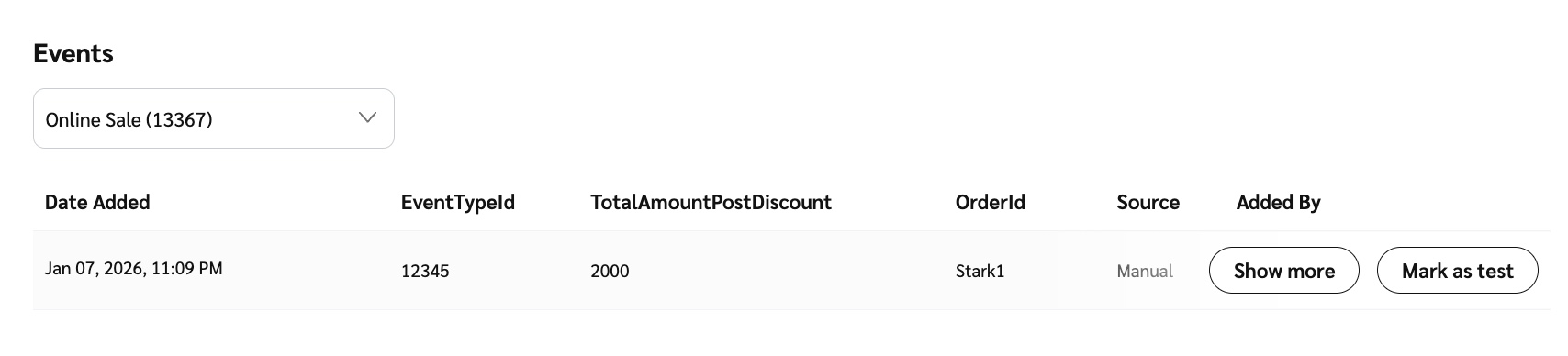
The *Events* table displays all events we've received for this participant. You can view event details and gather further information to assist you with troubleshooting.
Codes and links
The *Codes and links* screen shows all this participant's referral codes and share links, broken down by program. Here, you can edit or delete existing codes or links by hovering your cursor over the item and selecting the action you want to take.
You can also [add vanity share links or referral codes](/brand/what-would-you-like-to-learn-about/advocate-program/manage-advocate-participant-experiences/assign-vanity-share-links-or-referral-codes.md) from this screen.
Form submissions
From the *Form submissions* screen, you can review any submissions the participant has made to your open forms, e.g., your microsite's registration form. Hover your cursor over a row in the table and select **View Details** to see more information about individual form submissions.
Payouts and Tax
If [W-9 Compliance](/brand/what-would-you-like-to-learn-about/advocate-program/advocate-program-settings/w-9-compliance-explained-for-advocate.md) is turned on for your Advocate program, you can use the *Payouts and Tax* screen to check or [change](/brand/what-would-you-like-to-learn-about/advocate-program/manage-advocate-participants/w-9-tax-compliance/manage-w-9-tax-compliance-for-participants-in-advocate.md) the participant's W-9 collection status.
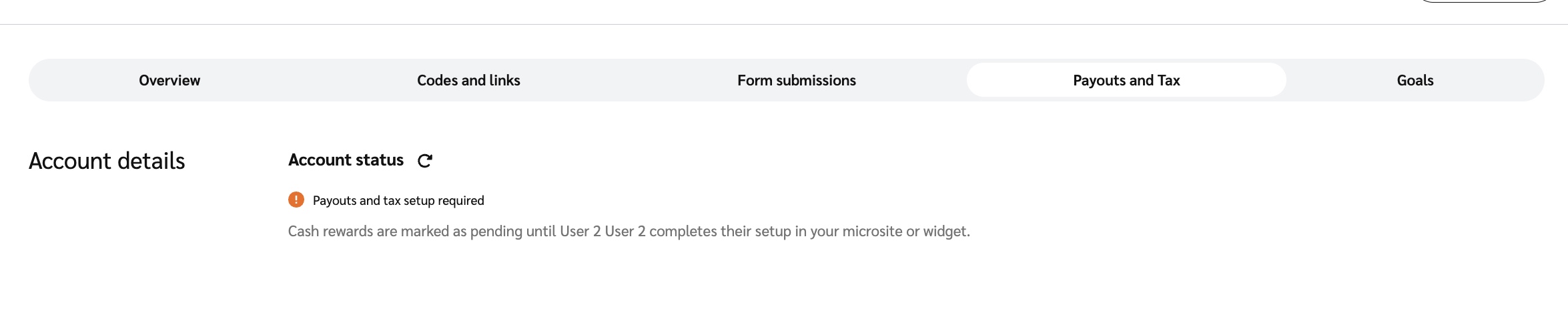
If you're using [cash payouts](/brand/what-would-you-like-to-learn-about/advocate-program/advocate-rewards/pay-with-cash/cash-payouts-for-advocate-explained.md) instead, this screen lists the participant's account status and informs you of any missing tax forms or holds on their payouts, as well as their selected payout method and frequency.
{% hint style="info" %}
**Note:** If participants run into issues with payout holds or have questions about payments, they can reach out to the [impact.com support team](mailto:saasquatch-support@impact.com) for assistance.
{% endhint %}
Goals
The *Goals* screen displays a history of all [program goals](/brand/what-would-you-like-to-learn-about/advocate-program/getting-started-with-advocate/advocate-program-rules-explained.md) that the participant has achieved.
---
# Agent Instructions
This documentation is published with GitBook. GitBook is the documentation platform designed so that both humans and AI agents can read, navigate, and reason over technical content effectively. Learn more at gitbook.com.
## Querying This Documentation
If you need additional information that is not directly available in this page, you can query the documentation by asking a question.
Perform an HTTP GET request on the following URL with the `ask` and `goal` query parameters:
```
GET https://help.impact.com/brand/what-would-you-like-to-learn-about/advocate-program/manage-advocate-participants/advocate-participant-profiles-explained.md?ask=&goal=
```
`ask` is the immediate question: it should be specific, self-contained, and written in natural language.
`goal` is what the user is ultimately trying to achieve, the reason they need the answer. Sharing it helps GitBook give you a better, more relevant answer. A goal is most helpful when it describes the outcome the user wants rather than restating the question. For example, with `ask=how do I create an API token`, a goal like `automate deployments from our CI pipeline` lets GitBook tailor the answer to that use case.
The response will contain a direct answer to the question and relevant excerpts and sources from the documentation.
Use this mechanism when the answer is not explicitly present in the current page, you need clarification or additional context, or you want to retrieve related documentation sections.