> For the complete documentation index, see [llms.txt](https://help.impact.com/llms.txt). Markdown versions of documentation pages are available by appending `.md` to page URLs; this page is available as [Markdown](https://help.impact.com/brand/what-would-you-like-to-learn-about/advocate-program/manage-advocate-participant-experiences/widget-experiences/widget-editor-overview.md).
# Widget Editor Overview
Your Advocate program offers a drag-and-drop editor that allows you to customize the look and contents of the widgets presented to your customer advocates.
## Widget editor interface
The self-serve widget editor has four main areas:
{% tabs %}
{% tab title="Top menu bar" %}
The menu bar at the top of the page is where you can undo actions, view the HTML code, and preview the finished widget. Use the desktop, tablet, or mobile icons to see how your widget will appear on devices with different screen sizes.
{% endtab %}
{% tab title="Canvas" %}
The canvas shows all of the components that make up your widget. You can select individual components to edit them, or add new ones and see at a glance how they’ll show up for your participants. Drag a component to a new position on the canvas to reorder it.
{% endtab %}
{% tab title="Left slideout" %}
The left slideout settings menu is a collapsible panel to the left of the canvas. Here, you can select **Layers** to see a detailed view of all of the components in your widget, or select **Templates** to use one of our pre-made widgets. The **Settings** button takes you to the package installation sub-menu.
For even further styling on a branding level, select the Widget Style option. View Customize Widgets and Microsites with the Content Editor for more information on the styling options available to you.
{% endtab %}
{% tab title="Component" %}
The component menu is a panel to the right of the canvas. Use the **Add** tab to insert new components into the canvas, and use the **Edit** tab to make adjustments to what’s already there.
{% endtab %}
{% endtabs %}
## Troubleshooting
The widget has two layers of validation to check for errors in component placement and component properties. Common reasons for receiving an error message include:
* Missing a required field
* Choosing an invalid color
* Entering an invalid URL
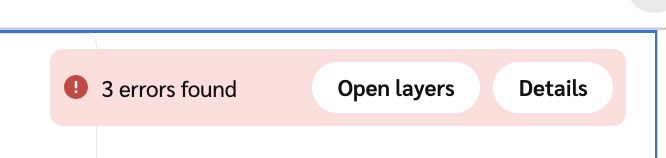
When you have unresolved errors, a warning message displays at the top right of the canvas that notifies you of how many errors were found.
Learn more about Customizing Program Widgets.
## **View unresolved error details**
1. Select **Details** on the warning message for a brief explanation of what went wrong.
2. Go to the component with the error by either:
* Selecting **Open Layers**
* Selecting the error explanation message
3. Find the component with the error. It will be marked with a red exclamation mark icon.
4. Select the component to open the properties in the **Edit** bar.
5. Make the required changes.
---
# Agent Instructions
This documentation is published with GitBook. GitBook is the documentation platform designed so that both humans and AI agents can read, navigate, and reason over technical content effectively. Learn more at gitbook.com.
## Querying This Documentation
If you need additional information that is not directly available in this page, you can query the documentation by asking a question.
Perform an HTTP GET request on the following URL with the `ask` and `goal` query parameters:
```
GET https://help.impact.com/brand/what-would-you-like-to-learn-about/advocate-program/manage-advocate-participant-experiences/widget-experiences/widget-editor-overview.md?ask=&goal=
```
`ask` is the immediate question: it should be specific, self-contained, and written in natural language.
`goal` is what the user is ultimately trying to achieve, the reason they need the answer. Sharing it helps GitBook give you a better, more relevant answer. A goal is most helpful when it describes the outcome the user wants rather than restating the question. For example, with `ask=how do I create an API token`, a goal like `automate deployments from our CI pipeline` lets GitBook tailor the answer to that use case.
The response will contain a direct answer to the question and relevant excerpts and sources from the documentation.
Use this mechanism when the answer is not explicitly present in the current page, you need clarification or additional context, or you want to retrieve related documentation sections.
.png?alt=media&token=b8ae9b78-8cea-425e-8cd8-e35a0b97535a)