> For the complete documentation index, see [llms.txt](https://help.impact.com/llms.txt). Markdown versions of documentation pages are available by appending `.md` to page URLs; this page is available as [Markdown](https://help.impact.com/brand/what-would-you-like-to-learn-about/advocate-program/manage-advocate-participant-experiences/widget-experiences/customize-program-widgets.md).
# Customize Program Widgets
## Access the widget editor
1. From the left navigation menu, select  **\[Engage] → Content**.
2. On the *Widgets* card, select **Edit widgets.**
3. From the left slideout menu, select the name of the widget you want to edit.
## Customize your widgets
{% stepper %}
{% step %}
### **Step 1: Choose a template**
1. From the left slideout menu, below *Current Widget*, select **Templates**.
2. Select **Apply template** next to the template you want to start with.
{% hint style="success" %}
**Note:** If you want to preview how the template looks without committing to the change, select  **\[Preview]** before you save. Only select the **Save** button once you are ready to commit to the changes made.
{% endhint %}
{% endstep %}
{% step %}
### **Step 2: Adjust widget content**
You can add, edit, move, or remove components to modify the content your customer advocates see in the widget.
{% hint style="success" %}
**Note:** For an explanation of the different elements of the widget editor, refer to Widget Editor Overview.
{% endhint %}
{% tabs %}
{% tab title="Add" %}
1. On the right side of the page, in the *Component* menu's **Add** tab, select a component group.
* Learn more about the available components and how they're grouped together.
2. Select the appropriate component.
3. Select the blue **Add to** button where you want the component to appear on the canvas.
{% endtab %}
{% tab title="Edit" %}
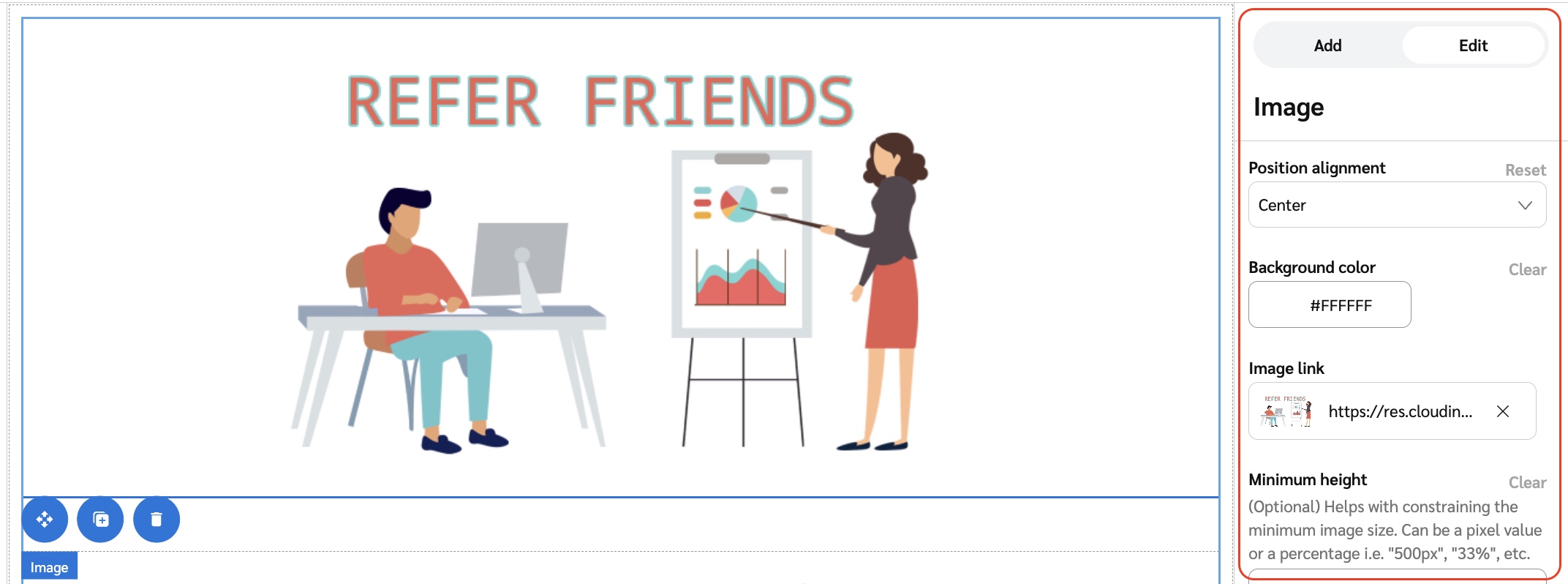
The properties you can edit will depend on what type of component you selected. For example, if you select the *Hero Image* component, you’ll be able to select a new image and change the background color. If you select a text-only element like a header, then you can modify the font, text color, and text content.
1. Select the component you want to edit.
2. Use the options in the *Component* menu's **Edit** tab to change its properties.
* If you want to insert a link into a text component, you can do so by editing the widget’s HTML.
{% endtab %}
{% tab title="Move" %}
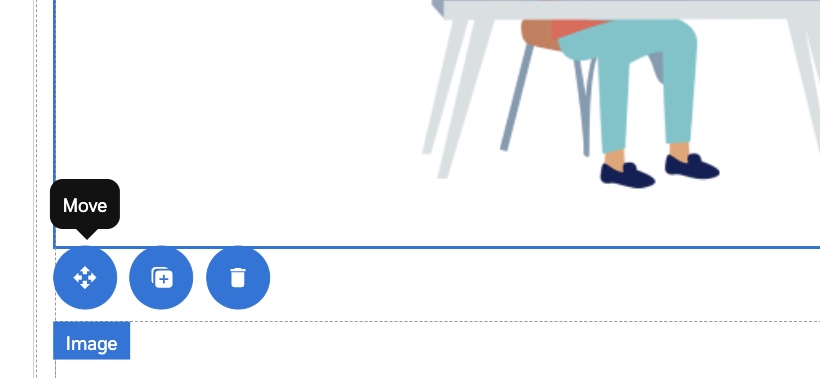
1. Within the canvas, select and hold the component you want to move.
2. Drag the component to its new position on the canvas, then release to drop it in place.
* Some components can’t be moved. If a component isn’t draggable, it will not shift when you try to reposition it.
{% endtab %}
{% tab title="Remove" %}
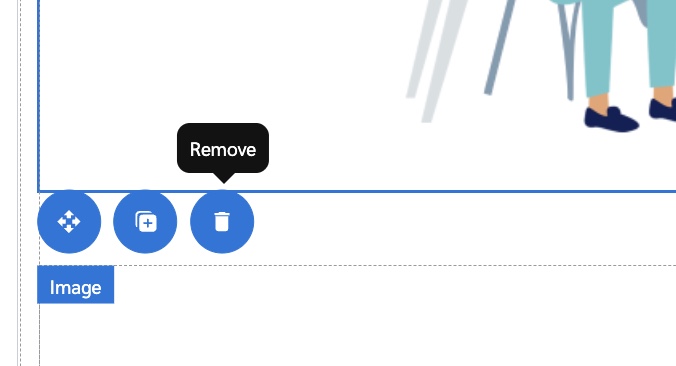
1. Select the component you want to remove on the canvas.
2. Select  **\[Remove]**.
{% endtab %}
{% endtabs %}
{% endstep %}
{% step %}
### **Step 3: Customize widget appearance and theme**
#### **Add images or logos**
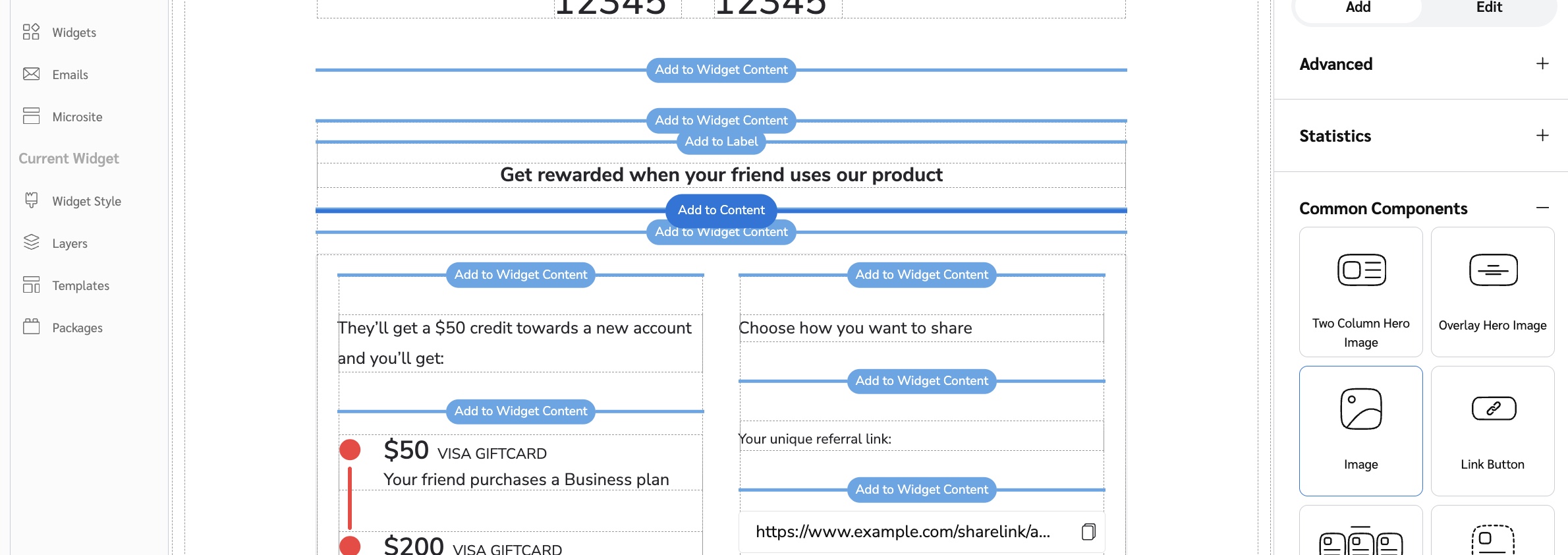
1. On the right, from the *Component* menu's **Add** tab, select the **Common Components** category.
2. Select either:
* **Overlay Hero Image** (an image with overlaid, editable text)
* **Image** (a plain image with no text on top)
3. Add the image to the canvas.
4. From the *Component Menu's* **Edit** tab, select the **Choose File** button below the *Image* heading.
#### **Replace images or logos**
1. Within the canvas, select the photo you want to change.
2. In the **Edit** menu, select  **\[Remove]** and then select **Choose File** to reupload a new image.
3. Upload the image using one of these methods:
* Drag and drop the image
* Browse for a file on your computer
* In the *Web Address* tab, paste the public URL of the file
4. Select **Done**.
#### **Adjust which share buttons are shown**
You can edit existing share buttons using the **Edit** menu.
1. Select the share button you want to edit on the canvas.
2. In the **Edit** tab, select the name of the site or service under the *Share medium* heading.
Add a new share button by using the **Add** menu.
1. From the **Add** tab, select **Sharing**.
2. Select the appropriate card.
3. Select the blue **Add to** button to place the component on the canvas.
{% endstep %}
{% step %}
### **Step 4: Preview and save**
1. Preview how the widget will appear to your participants by selecting  **\[Preview]** from the top menu bar.
* You can switch between a preview of the experience for  **\[Desktop]**,  **\[Tablet]**, or  **\[Mobile]** users by selecting the respective device icon.
2. To return to the editing interface, select  **\[Edit]** from the top menu bar.
3. **Save** your changes.
{% hint style="warning" %}
**Warning:** The widget editor does not autosave your changes. Click **Save** frequently to make sure you don’t lose your work.
{% endhint %}
When you select **Save**, the changes will be added to your program draft.
{% endstep %}
{% endstepper %}
## Advanced customization options
Advanced components allow you to include conditional content that is based on the participant's *email*, *segment*, or *custom field*. For example, if you want to display a leaderboard only for participants who are gold-level subscribers, the **conditional section on segment** component will let you do so.
You can add advanced components from the **Add** tab. Setting them up takes a little extra work as you’ll need to enter a [JSONata expression](http://docs.jsonata.org/overview.html) in the *Condition* box that defines the logic for when the condition is met. Reach out to our [support team](mailto:saasquatch-support@impact.com) if you need help.
## Learn more
* [Edit Your Widget or Microsite HTML for Advocate](#access-the-widget-editor-0-0)
* [Install Custom NPM Packages for Advocate](/brand/what-would-you-like-to-learn-about/advocate-program/manage-advocate-participant-experiences/install-custom-npm-packages-for-advocate.md)
---
# Agent Instructions
This documentation is published with GitBook. GitBook is the documentation platform designed so that both humans and AI agents can read, navigate, and reason over technical content effectively. Learn more at gitbook.com.
## Querying This Documentation
If you need additional information that is not directly available in this page, you can query the documentation by asking a question.
Perform an HTTP GET request on the following URL with the `ask` and `goal` query parameters:
```
GET https://help.impact.com/brand/what-would-you-like-to-learn-about/advocate-program/manage-advocate-participant-experiences/widget-experiences/customize-program-widgets.md?ask=&goal=
```
`ask` is the immediate question: it should be specific, self-contained, and written in natural language.
`goal` is what the user is ultimately trying to achieve, the reason they need the answer. Sharing it helps GitBook give you a better, more relevant answer. A goal is most helpful when it describes the outcome the user wants rather than restating the question. For example, with `ask=how do I create an API token`, a goal like `automate deployments from our CI pipeline` lets GitBook tailor the answer to that use case.
The response will contain a direct answer to the question and relevant excerpts and sources from the documentation.
Use this mechanism when the answer is not explicitly present in the current page, you need clarification or additional context, or you want to retrieve related documentation sections.