> For the complete documentation index, see [llms.txt](https://help.impact.com/llms.txt). Markdown versions of documentation pages are available by appending `.md` to page URLs; this page is available as [Markdown](https://help.impact.com/brand/what-would-you-like-to-learn-about/advocate-program/manage-advocate-participant-experiences/microsite-experiences/microsite-editor-explained.md).
# Microsite Editor Explained
The microsite editor gives you control over what your Advocate program's participants will see by letting you customize layouts, pages, content, and branding elements like fonts and colors.
This help article explains the editor’s interface and provides general information about how microsites are structured, including layouts, pages and components. Learn more about [setting up a microsite](/brand/what-would-you-like-to-learn-about/advocate-program/manage-advocate-participant-experiences/microsite-experiences/set-up-a-microsite.md) and [customizing the branding and content](/brand/what-would-you-like-to-learn-about/advocate-program/manage-advocate-participant-experiences/microsite-experiences/customize-microsite-layouts-and-pages.md) of its layouts and pages.
## Open the microsite editor
1. From the left navigation menu, select  **\[Engage] → Content**.
2. On the *Microsite* card, select **Edit content**.
## Editor interface
The microsite editor consists of a top menu bar, the editing canvas, the microsite slideout, and the component menu.
{% tabs %}
{% tab title="Top menu bar" %}
The menu bar at the top of the page is where you can undo actions, view the HTML code, and preview the finished microsite. Use the desktop, tablet, or mobile icons to see how your microsite will appear on devices with different screen sizes.
{% endtab %}
{% tab title="Canvas" %}
The canvas displays the current content of your microsite. You can select individual components to edit them, or add new ones and see at a glance how they'll show up for your participants. Drag a component to a new position on the canvas to reorder it. These components are listed to the left within the microsite slideout section.
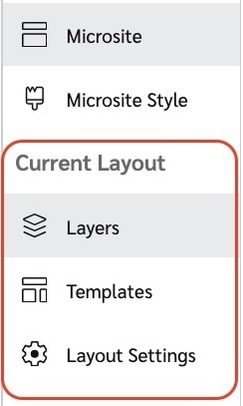
* Select **Layers** to see a detailed view of all of the components on your page or layout
* Select **Templates** to view the available templates for your microsite's pages.
* You’ll see a context-dependent third menu based on your selected page, layout, widget, or email
{% endtab %}
{% tab title="Microsite slideout" %}
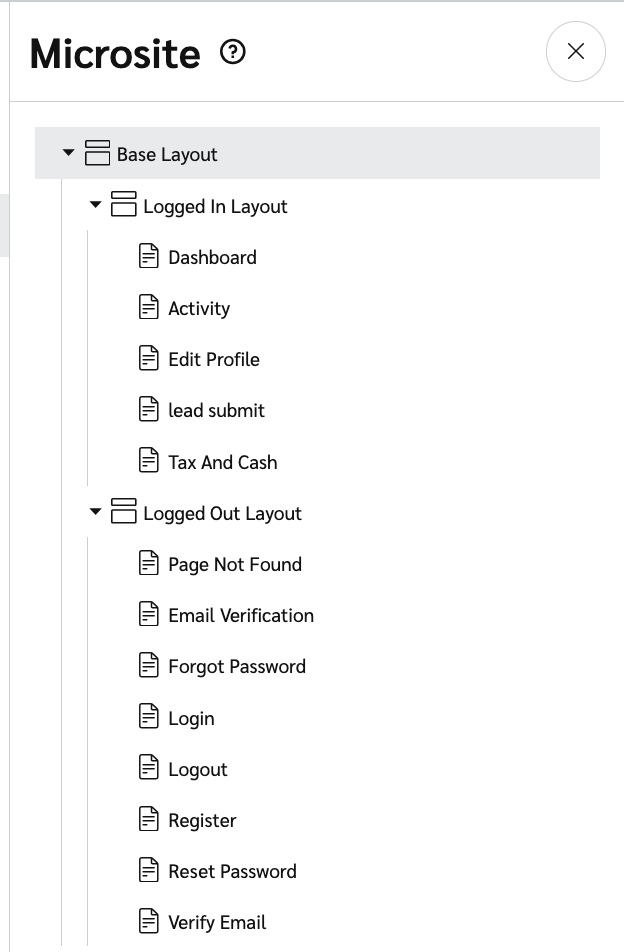
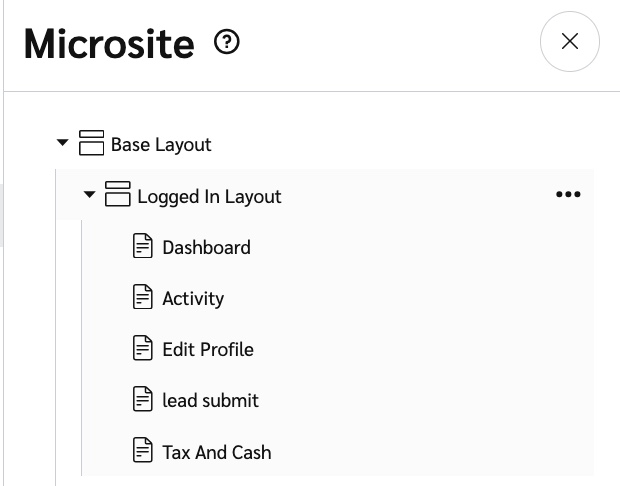
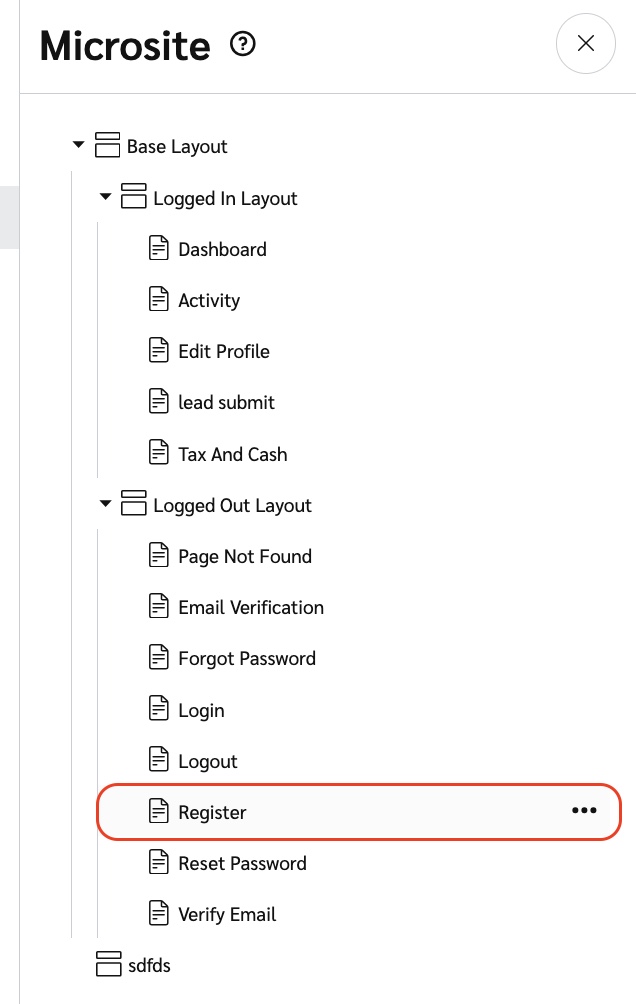
The microsite slideout is a collapsible panel to the left of the canvas. It visualizes the inheritance structure of your layouts and pages as a tree. Select individual layouts or pages to view the content and make adjustments. This is also where you can add more pages and layouts.
For even further styling on a branding level, select the Microsite Style option. View [Customize Widgets and Microsites with the Content Editor](/brand/what-would-you-like-to-learn-about/advocate-program/manage-advocate-participant-experiences/customize-widgets-and-microsites-with-the-content-editor.md) for more information on the styling options available to you.
{% endtab %}
{% tab title="Component menu" %}
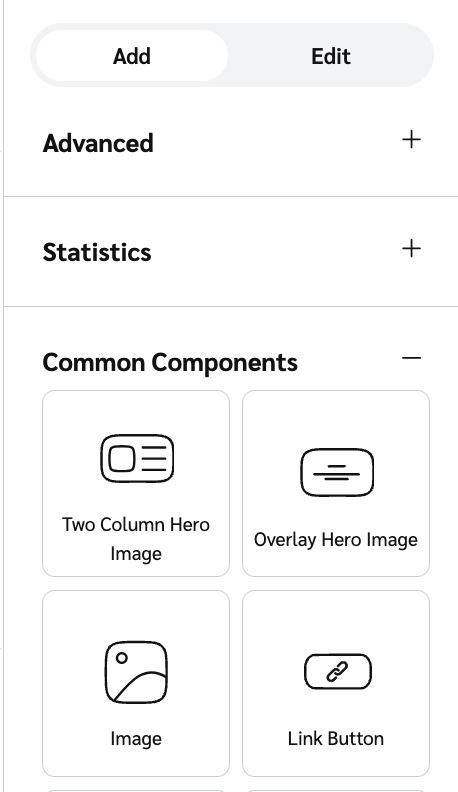
The component menu is a panel to the right of the canvas. Use the *Add* tab to insert new components into the canvas and the *Edit* tab to make adjustments to what's already there.
{% endtab %}
{% endtabs %}
## Microsite structure
There are a few building blocks that are important to understand as you customize your microsite: layouts, pages, and components.
Layouts
Layouts act as “frames” for your microsite. They’re where you can place components that you want to appear pervasively across the microsite, like headers and banner images.
Layouts and pages are linked through an inheritance structure. Both pages and layouts can inherit a layout. Pages and layouts that have an inherited layout will have their content wrapped by their inherited layout’s content.
{% hint style="info" %}
**Example:** If your base layout contains a header image, any pages that inherits the base layout will display the same header image in the same location.
{% endhint %}
If you used auto setup to create your microsite, then your site has three layouts by default.
**Base layout**
The base layout is where you can place content that you want to appear regardless of which page a participant is on and whether they’re authenticated on your site. It's where you can add a header or footer that you want to appear across the site. The base layout also contains the brand container, which manages colors and fonts sitewide.
Both the *Logged In Layout* and the *Logged Out Layout* inherit the *Base Layout*.
**Logged in layout**
The *Logged In Layout* is where you can add components that all your logged in participants will see, regardless of which page they are on. For example, your microsite’s sidebar navigation menu is created through a component in the layout. Because it’s added to the layout, any page that inherits that layout will include that sidebar.
**Logged out layout**
The *Logged Out Layout* is where you can customize what any participant who is not currently authenticated will see.
Pages
Pages are where you build the content of your site, like program explainers, referral and sharing information, and text/images. Select an individual page within one of your layouts to open and edit its content.
Visibility can also be set at the page level, allowing you to restrict page access to one of the following options:
* **Verified**: Logged in participants only.
* **Unverified**: Logged in participants who have not verified their email address.
* **Public**: Viewable by anyone.
If you used auto setup to create your microsite, then your site comes equipped with several pages that inherit the *Logged In Layout* and the *Logged In Layout*.
**Logged in layout pages:**
* Activity
* Dashboard
* Edit Profile
* Lead Submit
* Tax and Cash
**Logged out layout pages:**
* Email Verification
* Forgot Password
* Login
* Logout
* Page Not Found
* Register
* Reset Password
* Verify Email
Components
Components are individual elements that you can add to your pages and layouts to further personalize your participants’ microsite experience, like hero images or a referral feed.
Components are grouped together in the component menu. Refer to [Widget and Microsite Components Explained](/brand/what-would-you-like-to-learn-about/advocate-program/manage-advocate-participant-experiences/widget-and-microsite-components-explained.md) for a full list of the component groupings and individual components.
---
# Agent Instructions
This documentation is published with GitBook. GitBook is the documentation platform designed so that both humans and AI agents can read, navigate, and reason over technical content effectively. Learn more at gitbook.com.
## Querying This Documentation
If you need additional information that is not directly available in this page, you can query the documentation by asking a question.
Perform an HTTP GET request on the following URL with the `ask` and `goal` query parameters:
```
GET https://help.impact.com/brand/what-would-you-like-to-learn-about/advocate-program/manage-advocate-participant-experiences/microsite-experiences/microsite-editor-explained.md?ask=&goal=
```
`ask` is the immediate question: it should be specific, self-contained, and written in natural language.
`goal` is what the user is ultimately trying to achieve, the reason they need the answer. Sharing it helps GitBook give you a better, more relevant answer. A goal is most helpful when it describes the outcome the user wants rather than restating the question. For example, with `ask=how do I create an API token`, a goal like `automate deployments from our CI pipeline` lets GitBook tailor the answer to that use case.
The response will contain a direct answer to the question and relevant excerpts and sources from the documentation.
Use this mechanism when the answer is not explicitly present in the current page, you need clarification or additional context, or you want to retrieve related documentation sections.
.png?alt=media&token=96041e31-6e5e-449a-b018-f94859825093)