> For the complete documentation index, see [llms.txt](https://help.impact.com/llms.txt). Markdown versions of documentation pages are available by appending `.md` to page URLs; this page is available as [Markdown](https://help.impact.com/brand/what-would-you-like-to-learn-about/advocate-program/manage-advocate-participant-experiences/microsite-experiences/customize-microsite-layouts-and-pages.md).
# Customize Microsite Layouts & Pages
Microsites are one of the key participant touchpoints for your referral program. This help article explains how to use the *microsite editor* to customize your existing microsite into a space that reflects your brand and provides an engaging experience for your end users.
If you haven’t [set up a microsite](/brand/what-would-you-like-to-learn-about/advocate-program/manage-advocate-participant-experiences/microsite-experiences/set-up-a-microsite.md) yet, then you’ll need to do so first.
1. From the left navigation menu, select  **\[Engage] → Content**.
2. On the *Microsite* card, select **Edit content**.
* This action opens the microsite editor and displays the *Microsite* slideout.
3. Use the microsite editor to update your branding or add new content, like layouts and pages.
{% hint style="warning" %}
**Warning:** The microsite editor does not autosave your changes. Save frequently to make sure you don’t lose your work.
{% endhint %}
{% stepper %}
{% step %}
## **Step 1: Change your microsite’s branding (Optional)**
{% tabs %}
{% tab title="Colors and font" %}
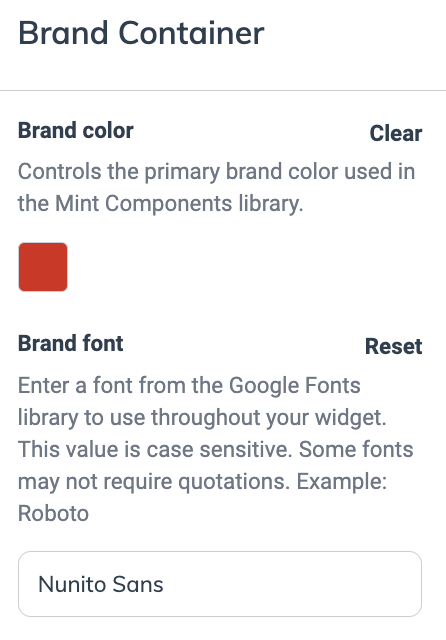
Your Base layout includes a brand container component that controls your microsite’s font and brand colors. Brand colors are applied to various parts of the microsite, including highlight colors and button colors.
1. In the *Microsite* slideout, select the **Base Layout**.
2. On the left, under *Current Layout*, select **Layers**.
3. Select the **Brand Container**.
4. On the right, in the *Brand Container* menu, edit the **brand color** and **brand font**.
5. Select **Save** in the upper-right corner.
{% endtab %}
{% tab title="Site header" %}
You can add a clickable header image that redirects your participants to a page you designate. Set it up in the Base layout.
1. In the *Microsite* slideout, select the **Base Layout**.
2. On the left, under *Current Layout* or *Current Page*, select **Layers**.
3. On the right, in the *Microsite Frame Header Content* menu, provide an image and adjust its height and width as desired.
4. Set the redirect path. This is where your participants will be redirected upon clicking the image.
5. Select **Save**.
{% endtab %}
{% endtabs %}
{% endstep %}
{% step %}
## **Step 2: Create a layout or page**
{% tabs %}
{% tab title="Add a page" %}
1. In the *Microsite* slideout, select **Microsite**.
* This action opens the structure view of your microsite, which displays all layouts and pages.
2. Select the **Add Page** button.
3. Optionally, use the **Inherited Layout** drop-down list to select the layout you want to act as the parent layout.
{% hint style="info" %}
**Example:** If you want to add a landing page to your site that anyone can see regardless of whether they’re a logged-in participant, you can nest a new page within the base layout.
{% endhint %}
4. Enter the **Page title** or layout name.
5. Optionally, adjust the **Page key** for your page. A page key is automatically generated based on the page title, but you can change it if desired.
6. Enter the **URL** for your page.
* Add a forward slash before the name you want to use and use hyphens in the case of a multi-word URL, e.g., `/company-info`.
7. From the **Allowed users** drop-down list, select the group of users that can access the page.
* **Public:** Viewable by anyone.
* **Verified:** Logged-in participants only.
* **Unverified:** Logged-in participants who haven’t verified their email addresses.
8. From the **Redirect for disallowed users** drop-down list, select the page to which you want disallowed participants to be sent.
9. Select **Add**.
10. In the top-right corner of the page, select **Save**.
{% endtab %}
{% tab title="Add a layout" %}
1. In the *Microsite* slideout, select **Microsite**.
* This action opens the structure view of your microsite, which displays all layouts and pages.
2. Select **Add Layout**.
3. Optionally, use the **Inherited Layout** drop-down list to select the layout you want to act as the parent layout. This is primarily helpful for site organization purposes.
4. Enter the **Layout name** for your layout.
5. Optionally, adjust the **Layout key** for your layout. A layout key is automatically generated based on the page title, but you can change it if desired.
6. Select **Add**.
7. At the top-right corner of the page, select **Save**.
{% endtab %}
{% endtabs %}
{% endstep %}
{% step %}
## **Step 3: Apply a template**
You can apply a template to your new layout or page if you don’t want to start from scratch.
1. From the *Microsite* slideout, use the structure view to select the layout or page for which you want to use the template.
2. On the left, below *Current Layout* or *Current Page*, select **Templates**.
3. Browse the available templates, then select **Apply template** on the card of the template you want to use.
4. At the top-right corner of the page, select **Save**.
{% endstep %}
{% step %}
## **Step 4: Edit the microsite’s sidebar**
This is recommended if you want logged-in participants to be able to get to a page from the microsite's sidebar navigation menu. These steps will show you how to do so, but you can adapt them if you want to add a sidebar item to another layout.
1. From the *Microsite* slideout, select **Logged In Layout** from the structure view.
* Select  **\[Exit icon]** to close the slideout and access the editing canvas.
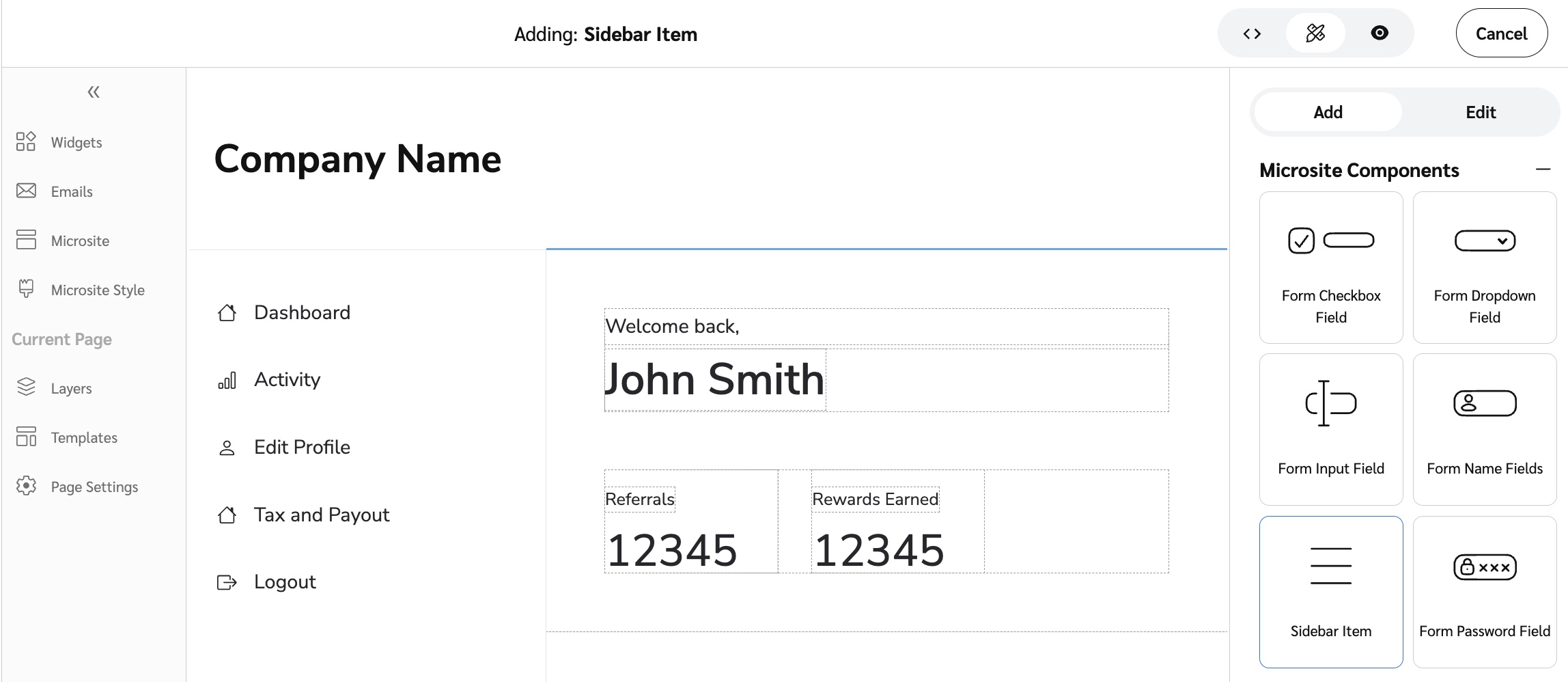
2. On the right, within the *Add* menu, expand the *Microsite Components* category, then select **Sidebar Item**.
3. Within the editing canvas, drag the *sidebar item* component onto a valid position. Available positions are designated by a **Add to Sidebar Content** message.
* On smaller screens, select the  **\[Hamburger menu]** to access the **Add to sidebar content** button.
4. On the right, within the *Edit* menu, select an **Icon** and **Label** to represent the page.
5. From the **Navigation Path** drop-down list, select the URL path of the page to which users should be directed.
6. At the top-right corner of the page, select **Save**.
{% endstep %}
{% step %}
## **Step 5: Preview and save**
{% tabs %}
{% tab title="Preview your microsite" %}
You can preview how the microsite will appear to your participants.
1. In the top menu bar, toggle between  **\[Desktop]**,  **\[Tablet]** or  **\[Mobile]** to see how the microsite will appear on each device.
2. To enter preview, select  **\[View]** from the top menu bar.
3. To return to the editing interface, select  **\[Edit]** from the top menu bar.
{% endtab %}
{% tab title="Save your microsite" %}
The microsite editor does not autosave your changes. Save frequently to make sure you don’t lose your work.
1. After making all relevant changes, select **Save** in the top right.
2. Once saved, the changes will appear instantly in the live version of your microsite.
{% endtab %}
{% endtabs %}
{% endstep %}
{% endstepper %}
Visit our article on [Widget and Microsite Components Explained](/brand/what-would-you-like-to-learn-about/advocate-program/manage-advocate-participant-experiences/widget-and-microsite-components-explained.md) for more on the component aspects of Microsites and Widgets.
---
# Agent Instructions
This documentation is published with GitBook. GitBook is the documentation platform designed so that both humans and AI agents can read, navigate, and reason over technical content effectively. Learn more at gitbook.com.
## Querying This Documentation
If you need additional information that is not directly available in this page, you can query the documentation by asking a question.
Perform an HTTP GET request on the following URL with the `ask` and `goal` query parameters:
```
GET https://help.impact.com/brand/what-would-you-like-to-learn-about/advocate-program/manage-advocate-participant-experiences/microsite-experiences/customize-microsite-layouts-and-pages.md?ask=&goal=
```
`ask` is the immediate question: it should be specific, self-contained, and written in natural language.
`goal` is what the user is ultimately trying to achieve, the reason they need the answer. Sharing it helps GitBook give you a better, more relevant answer. A goal is most helpful when it describes the outcome the user wants rather than restating the question. For example, with `ask=how do I create an API token`, a goal like `automate deployments from our CI pipeline` lets GitBook tailor the answer to that use case.
The response will contain a direct answer to the question and relevant excerpts and sources from the documentation.
Use this mechanism when the answer is not explicitly present in the current page, you need clarification or additional context, or you want to retrieve related documentation sections.