> For the complete documentation index, see [llms.txt](https://help.impact.com/llms.txt). Markdown versions of documentation pages are available by appending `.md` to page URLs; this page is available as [Markdown](https://help.impact.com/brand/what-would-you-like-to-learn-about/advocate-program/manage-advocate-participant-experiences/email-experiences/create-and-customize-advocate-program-emails.md).
# Create & Customize Advocate Program Emails
Take the PXA course
Your program is initially set up with default versions of program emails to get you up and running as quickly as possible. These default versions are loaded with generic images and messaging to convey the essence of the email. We recommend tailoring your program emails to ensure the information is relevant to your program and product.
See our doc on [merge tags](/brand/what-would-you-like-to-learn-about/advocate-program/manage-advocate-participant-experiences/email-experiences/merge-tags-for-program-emails.md) for information on how to include participant-specific details in your emails.
#### Create or edit an email template
You will have at least one program email created when you are setting up your program rules. We recommend editing existing program emails and only creating a new one if needed.
1. From the left navigation menu, select  **\[Engage] → Content**.
2. In the *Emails* card, select **Create new** or **Edit emails** to edit existing templates.
3. If you are creating a new template, select **Create a new email template** and enter a short, descriptive email template ID (e.g., Acme Advocates) to identify the email. Use this ID to identify the email when setting up your program rules.
* Select  **\[More]** to delete a template.
* Select  **\[Exit icon]** to minimize the side menu.
4. Before using the editor, select **Edit** to fill in the required *Contact Information* at the top of your screen.
* Enter the **From Name** by adding a static name that displays on the email, e.g., Acme Advocates.
* Enter a **From address** from which the custom domain of the email originates.
* If you want to adjust the *From* email address, you will need to adjust your settings to ensure that our system is sending authentic emails on your behalf. To use a domain that you own for the *From Address*, you must [set up a domain](/brand/what-would-you-like-to-learn-about/advocate-program/manage-advocate-participant-experiences/set-up-a-domain-for-advocate.md) from the *Settings* page.
* Enter a **BCC** to send a copy of the email.
* Enter a **Subject** for the email.
* Select **Done** to save this information.
5. Next, proceed to using the editor.
#### Using the editor
You may need to upgrade your email editor to the newer version before you can draft your email with ease. To do so, look for the blue banner at the top of the page and select **Update Now**.
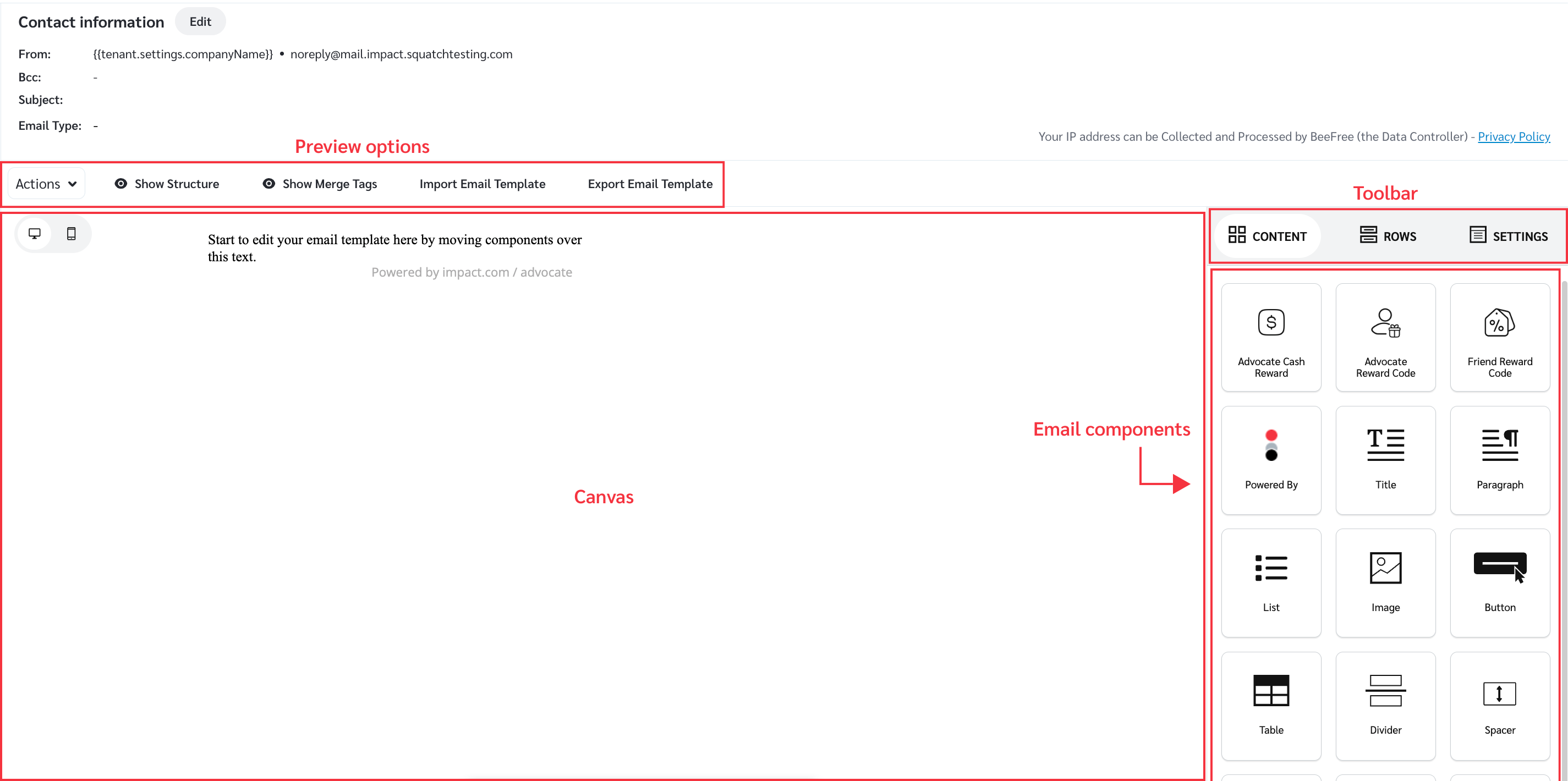
All of the images, text, and links in the email are set into individual components that make up the structure of the email. These components are the building blocks of the email.
{% hint style="success" icon="memo-circle-check" %}
**Note:** Refer to the [*Email component reference*](#component-reference-0-2) section below to better understand how editor icons function.
{% endhint %}
Preview options
* **Actions dropbox** - This option allows you to choose between previewing the email as a whole or sending a test email. You can also toggle between the canvas view being for desktop or for mobile viewers.
* **Show Structure** - This option applies a grid to the canvas so that you can check the alignment of your various components.
* **Show Merge Tags** - This option allows you to toggle on the ability to see what your dynamic values will display to recipients. For example, instead of seeing your placeholder text, such as *Company Name*, you’ll see the actual company name, e.g Stark Industries.
* **Import Email Template** - This option allows you to import any existing email templates you have created.
* **Export Email Template** - Once you have drafted your email, you can use this option to export the email template.
Add an email component
**Limited:** Adding extra components to an Advocate email is only available to specific Advocate editions. [Contact support](https://app.impact.com/support/portal.ihtml) to upgrade your account and access this feature.
1. Select  **\[Content]** to choose a new component.
2. **Select and drag** the component into the area of the email where you want the component to appear. A green bar will appear in the email to help you place the new component in your email.
3. Optionally, adjust the component’s content or appearance:
* **Select** the component you’d like to alter.
* On the right, under the content section, editing options for that component will appear.
4. **Save** your changes.
* The email editor does not autosave changes. Make sure to select **Save** at the top-right of the screen. If you’ve made an error, you can leave the editor and the changes will not be saved.
{% hint style="success" icon="memo-circle-check" %}
**Note:** New components will interact with the existing components in the email which can cause existing text and images to get shifted around. It is usually easier to make changes to existing components by updating an existing image or adding text to existing copy.
{% endhint %}
Delete a component
1. In the *workspace*, select the component you want to delete.
2. Select  **\[Delete]** to delete the component from the email.
3. **Save** your changes.
Update the email copy
Email copy is divided into text components that are managed in different sections of the email.
1. Add a new text component from the  **\[Content]** section or select an existing component.
2. Adjust the text in the component by typing directly into the area.
3. With the text component highlighted, you can make changes to the text’s font, color, weight, or spacing on the left under the *content* section.
4. After your updates are done, select **Actions** ![\[Drop-down menu\]](https://paligoapp-cdn-eu1.s3.eu-west-1.amazonaws.com/impact/attachments/f01cdffa431a4d75ff09c130b66974d4-d6b35853a9aa1f1fe6bd66da29bd09fa.svg) **\[Drop-down menu] → Send Test Email** to send yourself a test email.
5. If the test email looks good, **Save** your changes.
Add a custom image
**Limited:** Adding an extra custom image component to an Advocate email is only available to specific Advocate editions. [Contact support](https://app.impact.com/support/portal.ihtml) to upgrade your account and access this feature.
1. Add a new image component or highlight the image component that you want to update.
2. Once selected, double-click it to bring up the *Select Image* window. Select the **Add Images** to select the image that you would like to use. Once the image has loaded in the *Select Image* window, double-click it to add it to the new component.
3. Adjust the size and location of the image using the selectors in the *Workspace*.
4. After your updates are done, select **Actions** ![\[Drop-down menu\]](https://paligoapp-cdn-eu1.s3.eu-west-1.amazonaws.com/impact/attachments/f01cdffa431a4d75ff09c130b66974d4-d6b35853a9aa1f1fe6bd66da29bd09fa.svg) **\[Drop-down menu]** → **Send Test Email** to send yourself a test email.
5. If the test email looks good, **Save** your changes.
Add dynamic content
Merge tags allow you to add dynamic content, like the participant’s name or amount rewarded, to the email copy. You can add a merge tag to any text component.
{% hint style="success" icon="memo-circle-check" %}
**Note:** If there is no information that corresponds to the merge tag you're using, then participants will see an extra space in the email text. For instance, if you use *"Hello `{{user.firstName}}`. How are you?"* in your email but the user did not have data in the firstName field, the email would render as *"Hello . How are you?"*.
{% endhint %}
1. In the canvas area, add or select the text component to which you want to add a merge tag.
2. In the toolbar linked to the component, place the cursor in the area you want the merge tag placed, then select **Merge Tags**.
3. **Save** your changes.
{% hint style="danger" %}
**Important:** A test email sent within the editor will not include any values where the merge tags have been placed.
{% endhint %}
#### Email component reference
This section will walk you through the various toolbar icons accessible in the email editor.
Content icons
This tab is where you can input components and edit the look of each component once selected and inputted onto the canvas:
| Element | Description |
| -------------------------------------------------------------------------------------------------------------------------------------------------------------------------------------------------------------------------------------------------------------------------------------------- | ------------------------------------------------------------------------------------------------------------------------------------------------------------------------- |
| **\[Advocate Cash Reward Code]** | Input an Advocate cash reward code component onto the canvas to display available cash reward codes. |
| **\[Advocate Reward Code]** | Input an Advocate reward code component onto the canvas to create fueltank reward codes. |
| **\[Friend Reward Code]** | Input a friend reward code component onto the canvas to create fueltank reward codes to share with friends. |
|  **\[Title]** | Input a title text component onto the canvas. |
|  **\[Paragraph]** | Input a paragraph text component onto the canvas. |
|  **\[List]** | Input a bulleted list component onto the canvas. |
|  **\[Image]** | Input an image component onto the canvas. |
|  **\[Button]** | Input an interactable button component onto the canvas. |
|  **\[Divider]** | Input a divider component onto the canvas. |
|  **\[Spacer]** | Input a spacer component onto the canvas. |
|  **\[Social** | Input a social component to add social media buttons to link out to your various social platforms. |
|  **\[Dynamic Content]** | Input dynamic content components to input information that you want dynamically populated at the time of sending emails, so that the email can have a personalised touch. |
|  **\[HTML]** | Input HTML coded components onto the canvas. You can input code on the right and it formats it within the canvas. |
|  **\[Icons]** | Input an icon component onto the canvas. |
Rows
Here you can find more pre-built email sections that can be added to your emails by simply dragging and dropping them in place.
* **Default** - pre-built blocks of content.
* **Empty** - input reserved space for content you might add at a later stage.
* **Custom** - build your own content to input, especially useful when it comes to content reuse.
Settings
This tab is where you can modify and change the design settings. These settings are applied to the entire email.
* **Content Area Width** - Change the canvas's area width in which your content is added.
* **Content Area Alignment** - Select whether you’d like the email contents aligned to the left or center of the canvas.
* **Background Color** - Select the color block to choose a shade from the colour gradient that will appear, or enter the hex code for a precise color for the email background. For transparent backgrounds, simply type “transparent” as the hex code.
* **Content Area Background Color** - Select the color block to choose a shade from the colour gradient that will appear, or enter the hex code for a precise color for the background of the content area. For transparent backgrounds, simply type “transparent” as the hex code.
* **Default Font** - Select the font you’d like your text components to be. The drop list shows you a preview of what each font option will look like.
* **Link Color** - Select the color block to choose a shade from the colour gradient that will appear, or enter the hex code for a precise color for links. For transparent backgrounds, simply type “transparent” as the hex code.
* **Custom Head HTML** - Select this option to input any custom HTML code you’d like to incorporate into the email template.
---
# Agent Instructions
This documentation is published with GitBook. GitBook is the documentation platform designed so that both humans and AI agents can read, navigate, and reason over technical content effectively. Learn more at gitbook.com.
## Querying This Documentation
If you need additional information that is not directly available in this page, you can query the documentation by asking a question.
Perform an HTTP GET request on the following URL with the `ask` and `goal` query parameters:
```
GET https://help.impact.com/brand/what-would-you-like-to-learn-about/advocate-program/manage-advocate-participant-experiences/email-experiences/create-and-customize-advocate-program-emails.md?ask=&goal=
```
`ask` is the immediate question: it should be specific, self-contained, and written in natural language.
`goal` is what the user is ultimately trying to achieve, the reason they need the answer. Sharing it helps GitBook give you a better, more relevant answer. A goal is most helpful when it describes the outcome the user wants rather than restating the question. For example, with `ask=how do I create an API token`, a goal like `automate deployments from our CI pipeline` lets GitBook tailor the answer to that use case.
The response will contain a direct answer to the question and relevant excerpts and sources from the documentation.
Use this mechanism when the answer is not explicitly present in the current page, you need clarification or additional context, or you want to retrieve related documentation sections.



 **\[Advocate Cash Reward Code]** | Input an Advocate cash reward code component onto the canvas to display available cash reward codes. |
|
**\[Advocate Cash Reward Code]** | Input an Advocate cash reward code component onto the canvas to display available cash reward codes. |
|  **\[Advocate Reward Code]** | Input an Advocate reward code component onto the canvas to create fueltank reward codes. |
|
**\[Advocate Reward Code]** | Input an Advocate reward code component onto the canvas to create fueltank reward codes. |
|  **\[Friend Reward Code]** | Input a friend reward code component onto the canvas to create fueltank reward codes to share with friends. |
|  **\[Title]** | Input a title text component onto the canvas. |
|  **\[Paragraph]** | Input a paragraph text component onto the canvas. |
|  **\[List]** | Input a bulleted list component onto the canvas. |
|  **\[Image]** | Input an image component onto the canvas. |
|  **\[Button]** | Input an interactable button component onto the canvas. |
|  **\[Divider]** | Input a divider component onto the canvas. |
|  **\[Spacer]** | Input a spacer component onto the canvas. |
|  **\[Social** | Input a social component to add social media buttons to link out to your various social platforms. |
|  **\[Dynamic Content]** | Input dynamic content components to input information that you want dynamically populated at the time of sending emails, so that the email can have a personalised touch. |
|  **\[HTML]** | Input HTML coded components onto the canvas. You can input code on the right and it formats it within the canvas. |
|  **\[Icons]** | Input an icon component onto the canvas. |
**\[Friend Reward Code]** | Input a friend reward code component onto the canvas to create fueltank reward codes to share with friends. |
|  **\[Title]** | Input a title text component onto the canvas. |
|  **\[Paragraph]** | Input a paragraph text component onto the canvas. |
|  **\[List]** | Input a bulleted list component onto the canvas. |
|  **\[Image]** | Input an image component onto the canvas. |
|  **\[Button]** | Input an interactable button component onto the canvas. |
|  **\[Divider]** | Input a divider component onto the canvas. |
|  **\[Spacer]** | Input a spacer component onto the canvas. |
|  **\[Social** | Input a social component to add social media buttons to link out to your various social platforms. |
|  **\[Dynamic Content]** | Input dynamic content components to input information that you want dynamically populated at the time of sending emails, so that the email can have a personalised touch. |
|  **\[HTML]** | Input HTML coded components onto the canvas. You can input code on the right and it formats it within the canvas. |
|  **\[Icons]** | Input an icon component onto the canvas. |