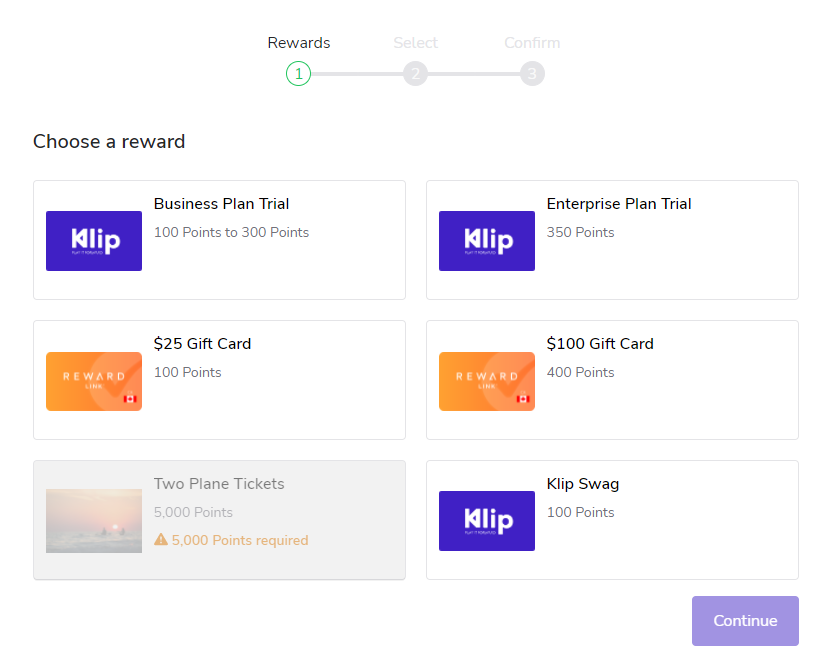
# Set Up Reward Exchange Options

{% hint style="warning" %}
**Limited**: Reward exchange options are only available to certain program editions. [Contact support](https://app.impact.com/support/portal.ihtml?createTicket=true&) to upgrade your advocate program.
{% endhint %}

Reward Exchange is a feature that empowers your participants to exchange reward units they’ve earned for different rewards or other reward units, such as exchanging Points for a gift card. To use Reward Exchange for your program, you can set up one or several reward exchange options and choose the rules around:

* What reward units your participants can exchange.
* What they can get in return.
* Who can see and use the exchange option.

Full Access and Program Manager team members can create a reward exchange option and set its rules.

<div data-with-frame="true"><figure><img src="https://4048883401-files.gitbook.io/~/files/v0/b/gitbook-x-prod.appspot.com/o/spaces%2FwMLlMoFBtKJa8ptd3zaw%2Fuploads%2Fgit-blob-4a781ac143320e741324bac69ee054ea8c0c8ff2%2F142fde8f69da0fcf7f60faa56c93e8d2b207f8e9c36a76b2b5373df64a5459cb.png?alt=media" alt="" width="375"><figcaption></figcaption></figure></div>

{% stepper %}
{% step %}
**Step 1: Create the reward exchange option**

1. From the left navigation menu, select ![](https://4048883401-files.gitbook.io/~/files/v0/b/gitbook-x-prod.appspot.com/o/spaces%2FwMLlMoFBtKJa8ptd3zaw%2Fuploads%2Fgit-blob-230534471fef5f40808e921e41ee44e4a06ded03%2Fe6cb9548999afdc1ed3ce4942e4cb5b45b5cecbd323267aac2a7cd1915fccc09.svg?alt=media) **\[Engage] → Rewards → Exchange**.
2. Select **Create exchange option**.
3. Enter a name for the reward exchange option.
   {% endstep %}

{% step %}
**Step 2: Set the exchange rules**

For more information about the types of fixed and variable exchanges you can set up, see our doc on [Reward Exchange](https://help.impact.com/brand/what-would-you-like-to-learn-about/advocate-program/advocate-rewards/reward-exchange-explained).

1. Use the **From** dropdown list to choose the reward unit that participants can exchange.
2. Use the **To** dropdown list to choose the reward or reward unit that participants will receive.
   * You can create new reward units or rewards within the dropdown list.
3. Set either the **Cost** or the **Exchange Rate** and **Increments** in the lowest denomination of the reward unit, e.g., cents if your reward unit is dollars.

   | If exchanging one reward unit for...                                          | Then                                                                                                                                                                                                                                                                                                                                                                                                                                                                                                                         |
   | ----------------------------------------------------------------------------- | ---------------------------------------------------------------------------------------------------------------------------------------------------------------------------------------------------------------------------------------------------------------------------------------------------------------------------------------------------------------------------------------------------------------------------------------------------------------------------------------------------------------------------- |
   | <p>• A fixed-value reward from the catalog</p><p>• A set of rewards</p>       | <p>Set the <strong>Cost</strong>.</p><p>If you chose <strong>A set of rewards</strong>, then you'll need to assign a cost for each reward. Select <strong>Add fixed reward option</strong> to give your participants more choices.</p>                                                                                                                                                                                                                                                                                       |
   | <p>• Another reward unit</p><p>• A variable-value reward from the catalog</p> | <p>1. Set the <strong>Exchange Rate</strong>. This is how many of the original reward unit must be available to get one of the chosen reward or reward unit.</p><p>2. Enter the <strong>Increments</strong>. This defines how much the cost of the next available item increases by, and is used with the exchange rate to calculate the reward values a participant can choose from.</p><p>3. Set the <strong>Minimum exchange</strong> and <strong>Maximum exchange</strong> values that the participant can exchange.</p> |

Next, set some availability criteria to determine who can see and use this reward exchange option.
{% endstep %}

{% step %}
**Step 3: Set availability rules**

The *Availability* section allows you to set optional rules around who can see this reward exchange option and when they can use it.

**Show or hide the exchange option**

By default, this exchange option is shown to all participants. In some situations, you may want to hide a particular exchange option—for example, if you only want to show US participants an exchange that lets them turn in their Points for US Dollars. The steps below are optional.

1. Using the **Country** dropdown list, select the countries you want the exchange option to be available in.

   <div data-gb-custom-block data-tag="hint" data-style="success" class="hint hint-success"><p><strong>Note:</strong> This checks if participants have a <code>countryCode</code> field on their profile that matches with the countries you selected. If you would rather exclude countries, then you'll need to set additional filters with a JSONata expression.</p></div>
2. Set other criteria for showing or hiding the exchange option.
   * Select **Add condition(s)**.
   * Use the dropdown lists to set conditions based on participants' default, custom or calculated fields. Select **Switch to Advanced** if you want to enter an expression using JSONata.

**Enable or disable the exchange option**

By default, this exchange option is enabled for all participants who have an available balance to exchange. You can add rules that enable the exchange option only for participants who meet specific criteria, like belonging to a Gold segment. The steps below are optional.

1. Select **Add Rule**.
2. Use the dropdown menus to set conditions based on participants' default, custom or calculated fields.
   * Select **Switch to Advanced** if you want to enter an expression using JSONata.
     {% endstep %}

{% step %}
**Step 4: Choose display options**

If you don’t modify the display settings, then participants will see the default gift image along with the cost of the reward. The exchange options will be shown in the order they were created, from oldest to newest.

1. Enter the name you want to be displayed to your participants.
2. Set the display order.
   * To override the default display order, enter a number in this box. `1` is the highest priority and will be shown first.
3. Enter a one- or two-sentence description.
4. Choose an image to represent the exchange option by either:
   * Uploading an image from your computer
   * Pasting a URL
     {% endstep %}

{% step %}
**Step 5: Review and save**

In the final section of the setup flow, you will see a summary of your selections.

1. Confirm that the exchange rules and eligibility criteria are accurate.
2. Select **Save**.

Next, add the Reward Exchange component to your widget or microsite so that participants can see and use your exchange option.
{% endstep %}

{% step %}
**Step 6: Add the Reward Exchange component to your widget or microsite**

{% hint style="success" %}
**Note:** Reward Exchange is only compatible with verified access widgets or microsites that have mint components installed.
{% endhint %}

1. From the left navigation menu, select ![](https://4048883401-files.gitbook.io/~/files/v0/b/gitbook-x-prod.appspot.com/o/spaces%2FwMLlMoFBtKJa8ptd3zaw%2Fuploads%2Fgit-blob-230534471fef5f40808e921e41ee44e4a06ded03%2Fe6cb9548999afdc1ed3ce4942e4cb5b45b5cecbd323267aac2a7cd1915fccc09.svg?alt=media) **\[Engage] → Content**.
2. Open the widget editor by selecting **Edit widgets** or the microsite editor by selecting **Edit content**.
3. Follow our guide on customizing [program widgets](https://help.impact.com/brand/what-would-you-like-to-learn-about/advocate-program/manage-advocate-participant-experiences/widget-experiences/customize-program-widgets) or [microsite layouts and pages](https://help.impact.com/brand/what-would-you-like-to-learn-about/advocate-program/manage-advocate-participant-experiences/microsite-experiences/customize-microsite-layouts-and-pages) if you need help adding a new component.
   * The Reward Exchange component is available under the Rewards category.
4. **Save** your changes.
   {% endstep %}
   {% endstepper %}