# Set Up a Fuel Tank Reward

The Fuel Tank feature streamlines the process of handing out rewards using unique coupon codes. Your program participants can redeem these codes for discounts, credits, and other reward types. For more information, see [Fuel Tank Rewards Explained](https://help.impact.com/brand/what-would-you-like-to-learn-about/advocate-program/advocate-rewards/fuel-tank-rewards-explained).

#### Create a Fuel Tank reward

Fuel Tank rewards can be set up as program-specific rewards or as rewards that can be reused across multiple programs. We recommend setting up a reusable reward in the Reward Catalog.

1. From the left navigation menu, select ![](https://4048883401-files.gitbook.io/~/files/v0/b/gitbook-x-prod.appspot.com/o/spaces%2FwMLlMoFBtKJa8ptd3zaw%2Fuploads%2Fgit-blob-230534471fef5f40808e921e41ee44e4a06ded03%2Fe6cb9548999afdc1ed3ce4942e4cb5b45b5cecbd323267aac2a7cd1915fccc09.svg?alt=media) **\[Engage] → Rewards →** **Catalog**.
2. Select **Create Reward**.
3. Name the reward.
4. Select the **Fuel Tank** reward type.
5. Use the **Fuel Tank Type** dropdown list to choose a discount or credit reward.
6. ![](https://4048883401-files.gitbook.io/~/files/v0/b/gitbook-x-prod.appspot.com/o/spaces%2FwMLlMoFBtKJa8ptd3zaw%2Fuploads%2Fgit-blob-d0b6669ae76a7bef06a8d6940d7ad5c16bb8d018%2F7cb018d4face8d7cceb880eb5086c812e764fbcfe6f2a0377f88bc7576973070.svg?alt=media) **\[Toggle on]** the **Reward pending duration** option if you want to set a time buffer for potential retractions.
   * For example, you want to set a date for a return period to ensure the rewards are only given out once the return period ends.
7. Enable **Link to Shopify** to sync codes in Shopify when you upload codes to impact.com.
   * Refer to the [Synced Codes for Shopify](#section-idm234579637163046) section to set up and manage the codes.
8. ![](https://4048883401-files.gitbook.io/~/files/v0/b/gitbook-x-prod.appspot.com/o/spaces%2FwMLlMoFBtKJa8ptd3zaw%2Fuploads%2Fgit-blob-d0b6669ae76a7bef06a8d6940d7ad5c16bb8d018%2F7cb018d4face8d7cceb880eb5086c812e764fbcfe6f2a0377f88bc7576973070.svg?alt=media) **\[Toggle on]** the **Reward expiry** option if you want to set the reward for a specified time period. Once the time elapses, the reward will expire and no longer be valid.
9. Set a discount percent, or credit amount and reward unit.
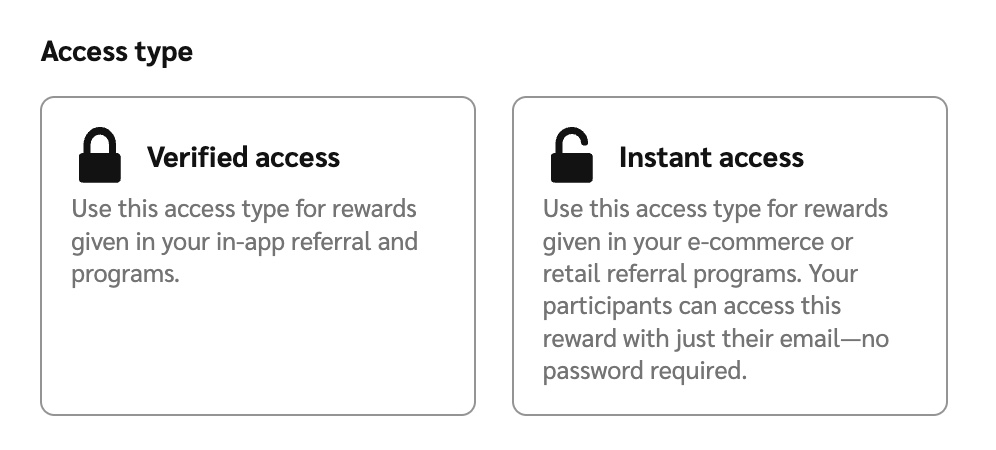
10. Choose whether the Fuel Tank reward is **Verified access** or **Instant access**.

    <div data-with-frame="true"><figure><img src="https://4048883401-files.gitbook.io/~/files/v0/b/gitbook-x-prod.appspot.com/o/spaces%2FwMLlMoFBtKJa8ptd3zaw%2Fuploads%2Fgit-blob-85446df8f41a7f78bd5183faed6e4ef5afe02ab5%2F82b48c8d0771a2f0faa025ef67a468e9293da17d377e8f02ef512d46317c7bae.jpg?alt=media" alt="" width="563"><figcaption></figcaption></figure></div>
11. Select **Create reward**.

#### Add coupon codes

{% hint style="success" %}
**Note:** An example import .CSV file for Fuel Tank reward coupon codes is [available to download here](https://assets.contentful.com/s68ib1kj8k5n/4JaVWQPdI48Ey600sGOQUQ/a8cb4afbaddfc4bb0f7e7827bbe26889/example_fueltank_import.csv).
{% endhint %}

For Fuel Tank rewards to work, you'll need to supply unique coupon codes. If you sync your codes with your Shopify account, you'll be informed that the code will be added to Shopify.

1. From the left navigation menu, select ![](https://4048883401-files.gitbook.io/~/files/v0/b/gitbook-x-prod.appspot.com/o/spaces%2FwMLlMoFBtKJa8ptd3zaw%2Fuploads%2Fgit-blob-230534471fef5f40808e921e41ee44e4a06ded03%2Fe6cb9548999afdc1ed3ce4942e4cb5b45b5cecbd323267aac2a7cd1915fccc09.svg?alt=media) **\[Engage] → Rewards →** **Code Manager**.
2. On the *Code Manager* screen, hover over the Fuel Tank reward for which you want to upload coupon codes, and select **Upload Codes**.
3. Select **Choose File** and upload a file from your device containing your unique coupon codes.
   * impact.com recommends editing a copy of this [downloadable sample .CSV file](https://assets.contentful.com/s68ib1kj8k5n/4JaVWQPdI48Ey600sGOQUQ/a8cb4afbaddfc4bb0f7e7827bbe26889/example_fueltank_import.csv) as a starting point, although you can also upload your own `.xlsx`, `.ods`, `.tsv`, or `.txt` file (newline-separated only).
4. Your file should abide by the following guidelines:
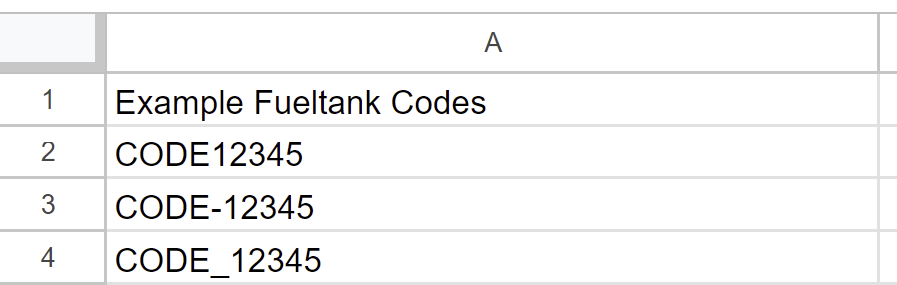
   * All codes you want to import should be in the same column and be the only contents of that column.
   * Each code may contain up to 64 characters. Any combination of these characters is allowed:
     * Capital and lowercase letters A-Z
     * Numbers 0-9
     * Hyphen ( - )
     * Underscore ( \_ )

       <div data-with-frame="true"><figure><img src="https://4048883401-files.gitbook.io/~/files/v0/b/gitbook-x-prod.appspot.com/o/spaces%2FwMLlMoFBtKJa8ptd3zaw%2Fuploads%2Fgit-blob-ea3a0fafbf37d947e1011d69340dcacc76c95e9f%2F763daeafd0065f6d4645ad50bb6fafccca698b07cab2925f5c422752804718cc.png?alt=media" alt="" width="563"><figcaption></figcaption></figure></div>
5. If your file has multiple columns, you can **Select a data column** in the righthand panel to indicate which column contains your coupon codes.
   * View the preview to see which coupon codes the system deems invalid, if any.
6. In the left-hand panel, select whether you want the coupon codes in your file to **Replace** any pre-existing codes, or whether you'd like to **Add** them to any pre-existing codes.
7. Select **Upload**.
   * Optionally, select **View Codes** to manage coupon codes.

#### Manage uploaded coupon codes

1. Once you've uploaded your coupon codes, select **View Codes** in the pop-up modal.
   * This will take you to the [*View Codes*](https://app.impact.com/secure/advertiser/engage/advocate/p/651d9f42ffdad26e631d75c1/t/live/fueltank/manage/r%2FCoupon-20) screen.
2. Below the page title, you can **Search** for a specific coupon code by name or use the drop-down menus to filter for codes by program or their status (i.e., whether the codes have been used yet or not).
3. To delete unwanted codes, select the ![](https://4048883401-files.gitbook.io/~/files/v0/b/gitbook-x-prod.appspot.com/o/spaces%2FwMLlMoFBtKJa8ptd3zaw%2Fuploads%2Fgit-blob-b5e1740618ed6571d97b8fed7c25a7678f85d375%2F299632fb6f4f91fbf9847471754cc6180e4284a65b4960af4c4ea472a159f552.svg?alt=media) **\[Unchecked box]** in the relevant rows and then **Delete**.

   <div data-with-frame="true"><figure><img src="https://4048883401-files.gitbook.io/~/files/v0/b/gitbook-x-prod.appspot.com/o/spaces%2FwMLlMoFBtKJa8ptd3zaw%2Fuploads%2Fgit-blob-0f37e5dd72378c0a3f0aab9efe23757d43aca3f2%2F2ec8d502ab9f423e36aed0fde581c2eccc31df92e77d2fe2e064105731c356c5.jpg?alt=media" alt="" width="563"><figcaption></figcaption></figure></div>

#### Synced codes for Shopify

Keeping your codes in sync with Shopify ensures referred customers can redeem their rewards without delay, helping to maintain trust and a smooth referral experience. With Advocate’s Shopify integration, you can automate the creation and syncing of discount codes—saving time and reducing the risk of errors.

**Set up your Shopify code sync**

1. In the left navigation menu, select ![](https://4048883401-files.gitbook.io/~/files/v0/b/gitbook-x-prod.appspot.com/o/spaces%2FwMLlMoFBtKJa8ptd3zaw%2Fuploads%2Fgit-blob-230534471fef5f40808e921e41ee44e4a06ded03%2Fe6cb9548999afdc1ed3ce4942e4cb5b45b5cecbd323267aac2a7cd1915fccc09.svg?alt=media) **\[Engage] → Rewards** → **Catalog** → **Create Reward**.
2. Select **Fuel Tank** as the reward type.
3. In the *Link to Shopify* section, select ![](https://4048883401-files.gitbook.io/~/files/v0/b/gitbook-x-prod.appspot.com/o/spaces%2FwMLlMoFBtKJa8ptd3zaw%2Fuploads%2Fgit-blob-d2954616dc486c3e12c9211e20ff376bda0ab1af%2F7586e04e82e7c7203e5c82320dd417f8ac564cae5035024fdf0eb2ed017e6376.svg?alt=media) **\[Checkbox]** **Sync discount codes to Shopify when rewards are given**.
   * If you don’t see the screen above, the tooltip will prompt you to reference our documentation about our [Shopify integration](https://integrations.impact.com/impact-brand/docs/shopify-for-advocate) to set up your Shopify code sync.
4. In the *Auto-create discount codes* section, select ![](https://4048883401-files.gitbook.io/~/files/v0/b/gitbook-x-prod.appspot.com/o/spaces%2FwMLlMoFBtKJa8ptd3zaw%2Fuploads%2Fgit-blob-d2954616dc486c3e12c9211e20ff376bda0ab1af%2F7586e04e82e7c7203e5c82320dd417f8ac564cae5035024fdf0eb2ed017e6376.svg?alt=media) **\[Checkbox]** **Generate codes that begin with a prefix** if you’d like to auto-generate and personalize the codes.

   * Input the prefix you’d like to add to the auto-generated codes in the provided input field. This prefix will be standard across all your codes, e.g., `CODE0835A`, `CODE04359B`.

   <div data-with-frame="true"><figure><img src="https://4048883401-files.gitbook.io/~/files/v0/b/gitbook-x-prod.appspot.com/o/spaces%2FwMLlMoFBtKJa8ptd3zaw%2Fuploads%2Fgit-blob-b486769611a0b35705cb2b75f312f0d9514c37a7%2F4d616243955de641144d504255de16ed4d23101bea0e42074ed231ed21e7cd7d.jpg?alt=media" alt="" width="563"><figcaption></figcaption></figure></div>

{% hint style="success" %}
**Note:** When a reward is given, a unique code is automatically generated in Advocate and then synced to Shopify. We advise you to check back periodically for any errors that may occur.
{% endhint %}

If you prefer using your own codes, you can do so by [uploading them through the Code Manager](#section-idm4614345058344033852303427773)—and track which codes have been issued, to whom, and whether they’ve successfully synced. This ensures a seamless experience for both your team and your customers.

**Manage Shopify codes**

The *Code Manager* screen—along with its nested *View Codes* screen—and the *Reward Feed* help you manage and monitor the discount codes used as rewards in your Advocate program. If you’re using Shopify, these tools let you sync codes automatically—removing the need for manual uploads.

{% tabs %}
{% tab title="Code Manager" %}
On this screen, you'll find a list of coupon codes and information about them.

1. From the left navigation menu, select ![](https://4048883401-files.gitbook.io/~/files/v0/b/gitbook-x-prod.appspot.com/o/spaces%2FwMLlMoFBtKJa8ptd3zaw%2Fuploads%2Fgit-blob-230534471fef5f40808e921e41ee44e4a06ded03%2Fe6cb9548999afdc1ed3ce4942e4cb5b45b5cecbd323267aac2a7cd1915fccc09.svg?alt=media) **\[Engage] → Rewards →** **Code Manager**.
2. Find the relevant code and view the data in the far left *Codes Available* column to see whether it is synced with your Shopify store. You'll see a note if the code is synced with Shopify.
   * See the *Code Manager reference* table below for further information.

<details>

<summary>Code Manager reference</summary>

| Column         | Description                                                                                             |
| -------------- | ------------------------------------------------------------------------------------------------------- |
| Name           | This displays the name of the rewards code. This is the name you chose when creating the code.          |
| Type           | This displays the type of rewards code offered, e.g., `PCT_DISCOUNT` (percentage discount code).        |
| Value          | This field displays the total value of the code in either a percentage discount or a value in currency. |
| Code Available | This field indicates the number of codes uploaded.                                                      |

</details>
{% endtab %}

{% tab title="View Codes screen" %}
On this screen, you can view your available referred coupon codes, sort by the program the code is associated with, whether the codes have been used, or search for specific codes by name.

1. From the left navigation menu, select ![](https://4048883401-files.gitbook.io/~/files/v0/b/gitbook-x-prod.appspot.com/o/spaces%2FwMLlMoFBtKJa8ptd3zaw%2Fuploads%2Fgit-blob-230534471fef5f40808e921e41ee44e4a06ded03%2Fe6cb9548999afdc1ed3ce4942e4cb5b45b5cecbd323267aac2a7cd1915fccc09.svg?alt=media) **\[Engage] → Rewards →** **Code Manager**.
2. Hover your cursor over the rewards code you want to view and select **Manage**.
3. You'll be taken to the [*View Codes*](https://app.impact.com/secure/advertiser/engage/advocate/p/651d9f42ffdad26e631d75c1/t/live/fueltank/manage/r%2FCoupon-20) screen, which lists all the various coupon codes generated under that rewards code name.
   * See the *View Codes reference* table for more information.

<details>

<summary>View Codes reference</summary>

| Column        | Description                                                                                                                                                                                                                                                                                                                                                                                                                                                                                                                                                                                                                                                                  |
| ------------- | ---------------------------------------------------------------------------------------------------------------------------------------------------------------------------------------------------------------------------------------------------------------------------------------------------------------------------------------------------------------------------------------------------------------------------------------------------------------------------------------------------------------------------------------------------------------------------------------------------------------------------------------------------------------------------- |
| Code          | This field displays the coupon code used, e.g. `DISCOUNT123`                                                                                                                                                                                                                                                                                                                                                                                                                                                                                                                                                                                                                 |
| Date rewarded | This is the date on which the code was rewarded to the user/customer.                                                                                                                                                                                                                                                                                                                                                                                                                                                                                                                                                                                                        |
| Date uploaded | This is the date the code was generated and uploaded to the system.                                                                                                                                                                                                                                                                                                                                                                                                                                                                                                                                                                                                          |
| Rewarded to   | This field indicates who the recipient of the code was and to which email address it was sent to.                                                                                                                                                                                                                                                                                                                                                                                                                                                                                                                                                                            |
| Value         | This field indicates the value of the code in a percentage discount or currency amount.                                                                                                                                                                                                                                                                                                                                                                                                                                                                                                                                                                                      |
| Sync status   | <p>This field indicates whether the code has been synced to Shopify. It provides information on whether the sync with Shopify was <em>Synced</em>, <em>Failed</em>, or is <em>Pending</em>.</p><p>• To turn on <strong>Link to Shopify</strong>, see <em>step 8</em> of the <a href="#section-idm4614345065470433852294536291">Create a Fuel Tank reward</a> section above.</p><div data-gb-custom-block data-tag="hint" data-style="success" class="hint hint-success"><p><strong>Note</strong>: The <em>Sync status</em> column will not appear if sync has never been turned on. It appears if the sync has been turned on, or turned on, but turned off later.</p></div> |

</details>
{% endtab %}

{% tab title="Reward Feed" %}
The Reward feed shows the status of your synced codes and can be helpful in letting you know if your sync had any errors. There will be 3 different statuses relevant to your code sync:

* **Pending:** While our system is busy with an automatic retry, the status shows as pending.
* **Shopify code sync error:** If the retry fails due to an integration or a configuration error.
* **Available:** When codes are synced to Shopify.

View the [Reward Feed Explained](https://help.impact.com/brand/what-would-you-like-to-learn-about/advocate-program/advocate-rewards/reward-feed-explained) article to learn more.
{% endtab %}
{% endtabs %}

**Delete rewards codes**

You can delete rewards codes you have generated, including codes synced with Shopify.

{% hint style="success" %}
**Note**: To delete codes synced to Shopify, you'll need to delete the codes via your impact.com advocate account [as well as on your Shopify account](https://help.shopify.com/en/manual/discounts/managing-discount-codes#delete-discounts).
{% endhint %}

1. From the left navigation menu, select ![](https://4048883401-files.gitbook.io/~/files/v0/b/gitbook-x-prod.appspot.com/o/spaces%2FwMLlMoFBtKJa8ptd3zaw%2Fuploads%2Fgit-blob-230534471fef5f40808e921e41ee44e4a06ded03%2Fe6cb9548999afdc1ed3ce4942e4cb5b45b5cecbd323267aac2a7cd1915fccc09.svg?alt=media) **\[Engage] → Rewards → Code Manager**.
2. In the top right corner, select **View Codes**.
3. Hover your cursor over the rewards code you want to view and select **Manage**.
4. Select the ![](https://4048883401-files.gitbook.io/~/files/v0/b/gitbook-x-prod.appspot.com/o/spaces%2FwMLlMoFBtKJa8ptd3zaw%2Fuploads%2Fgit-blob-d2954616dc486c3e12c9211e20ff376bda0ab1af%2F7586e04e82e7c7203e5c82320dd417f8ac564cae5035024fdf0eb2ed017e6376.svg?alt=media) **\[Checked box]** next to the codes you want to delete.
5. Once you've selected all the codes you want to delete, select the **Delete** button.
   <div data-with-frame="true"><figure><img src="https://4048883401-files.gitbook.io/~/files/v0/b/gitbook-x-prod.appspot.com/o/spaces%2FwMLlMoFBtKJa8ptd3zaw%2Fuploads%2Fgit-blob-2640c88e0446cee6a7ab957a3b68df65be69911e%2F541e6ec2c3afeb07c90c1bdd046d41a226c8cb280e62d7516f8707c6e58884dc.jpg?alt=media" alt="" width="563"><figcaption></figcaption></figure></div>
